Microsoft 365 Groups (formerly known as Office 365 Groups) provides a shared workspace to access emails, calendars, files, Planner, OneNote, and other services in one place. But before creating one, you need to understand group types, privacy settings (public or private), membership, and ownership.
So, if you are unsure where to begin, you have come to the right place. Here, we will explain how to create a group in Office 365, configure or manage it afterward, and troubleshoot common problems related to group creation.
Why Create A Group In Office 365?
You can avail several advantages after creating a Microsoft 365 Group. Here, we have listed the most significant ones:
- Smooth communication via shared inbox, calendar, files, and more.
- Easier license access & management for Office 365 Group members.
- Each Microsoft 365 Group comes with an initial storage quota of 50 GB.
- Auto-update group membership based on rules with Azure AD dynamic groups.
- App integration like Word, PowerPoint, Excel, and SharePoint across the Microsoft 365 suite.
- Add multiple users to the group, and 1000 members can access group conversations at the same time.
Microsoft 365 Group Creation: Know Involved Apps & Their Purposes
You can create a group in Office 365 by using Microsoft 365 Admin Center, Outlook Desktop or Mobile, Outlook on the Web (OWA), Teams, SharePoint, Planner, & Viva Engage. Check out the section below for different Microsoft 365 Group creation ways based on their roles.
|
Applicability or Purpose |
Creation Point or App |
| Manage groups as an administrator. | Microsoft 365 Admin Center |
| Active IMAP account (enterprise-grade) | Google Workspace’s data import tool or direct IMAP migration software. |
| Email and calendar collaboration. | Outlook |
| Create a group as a work/school user. | Outlook on the Web (OWA) |
| Create a group from mobile. | Outlook Mobile |
| Chat and team collaboration. | Microsoft Teams |
| Document and site collaboration. | SharePoint |
| Task and project collaboration. | Planner |
| Organization-wide community discussions. | Viva Engage |
How to Create A Group In Office 365 Manually? [6 Ways]
Check out the section below to create an Office 365 Group using different ways.
Follow the steps carefully for group creation based on your requirements.
Way 1. Create A Microsoft 365 Group With Admin Center
You can use the Admin Center to create groups with centralized control, governance, and uniform resource provisioning across the organization. Here's how:
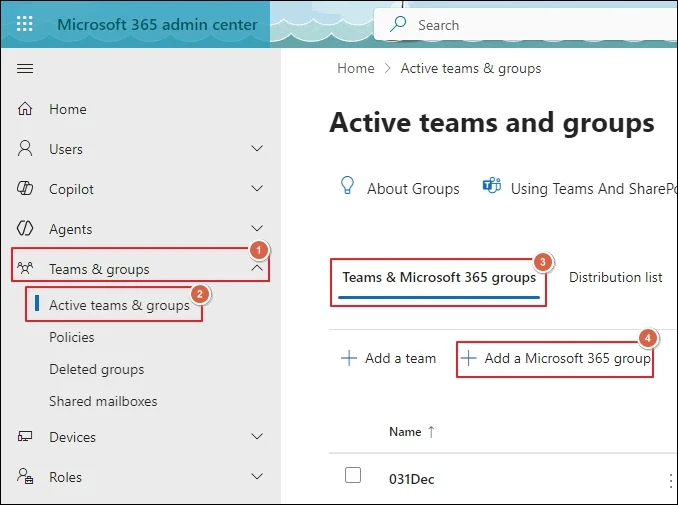
Go to the Microsoft 365 admin center to begin.
Expand the Teams & groups section and click on Active teams & groups.
Tap on the Add a Microsoft 365 group option to proceed.
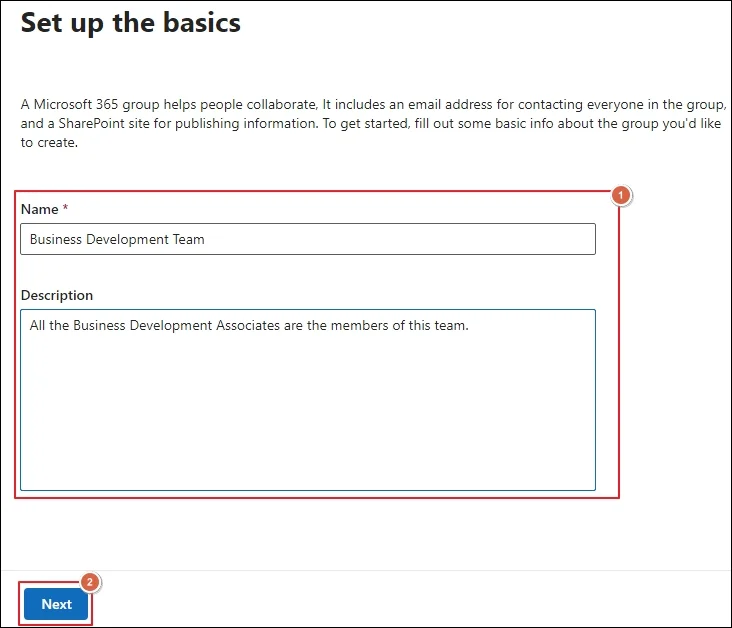
Enter the Name & Description for group and click Next.
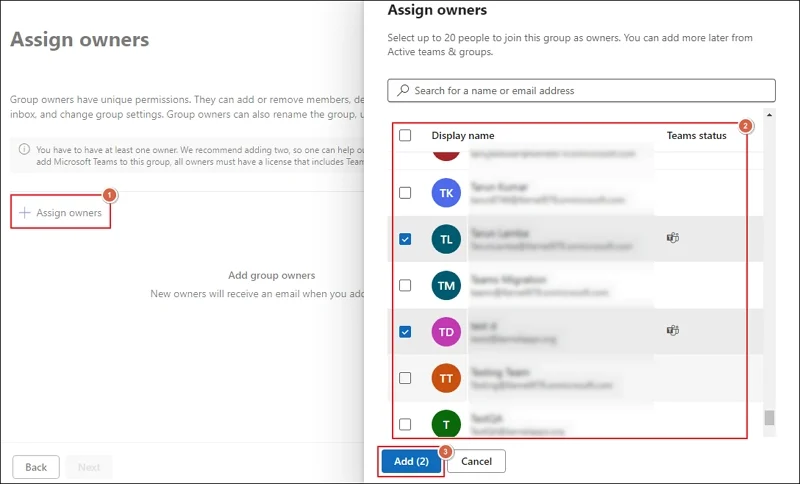
Assign owners by selecting and adding them to the group.
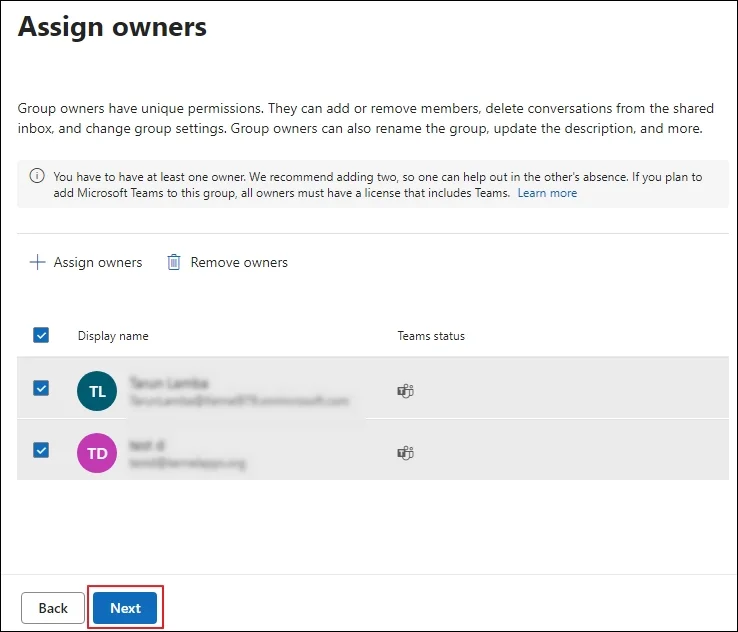
Click Next after the owners are selected.
Add members to the group by selecting them.
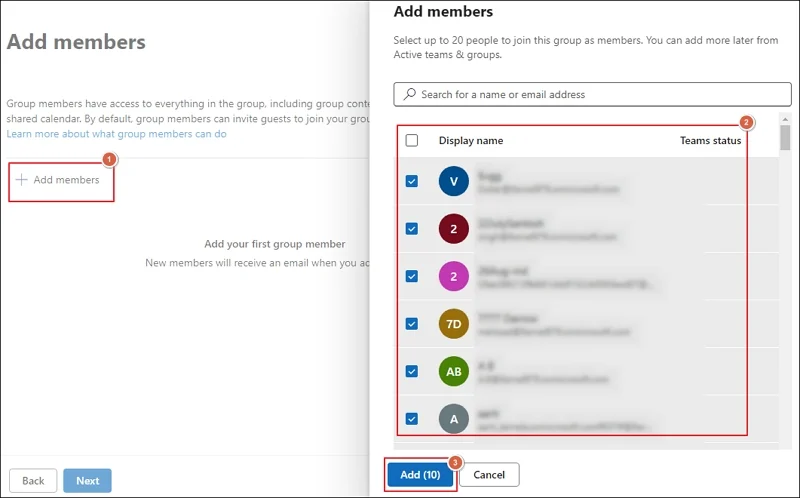
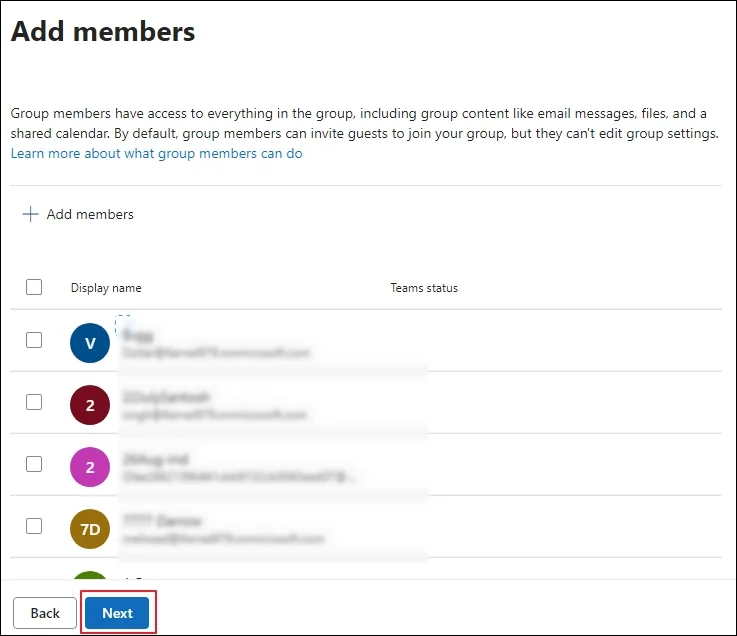
Once added, click Next to proceed.
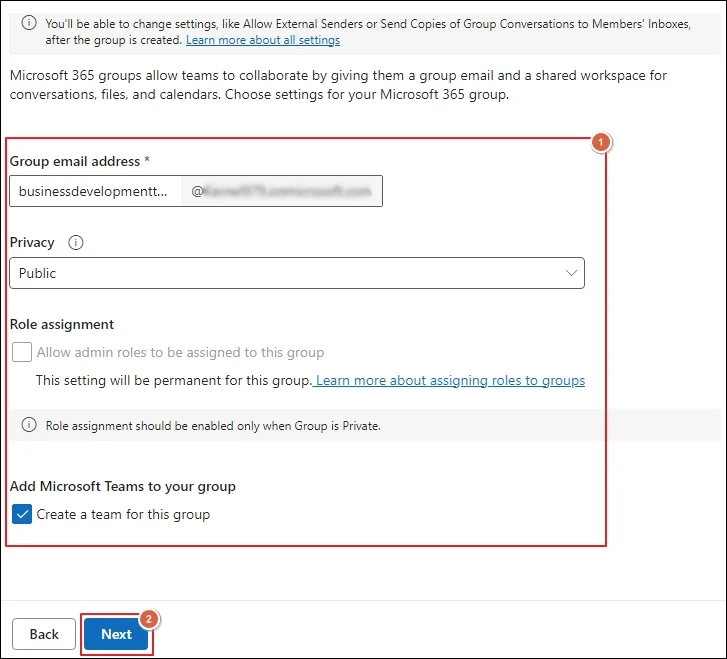
Provide Group email address and select Privacy settings.
Then, check Role assignment & other settings if needed and click Next.
Review group details and proceed to Create Group.
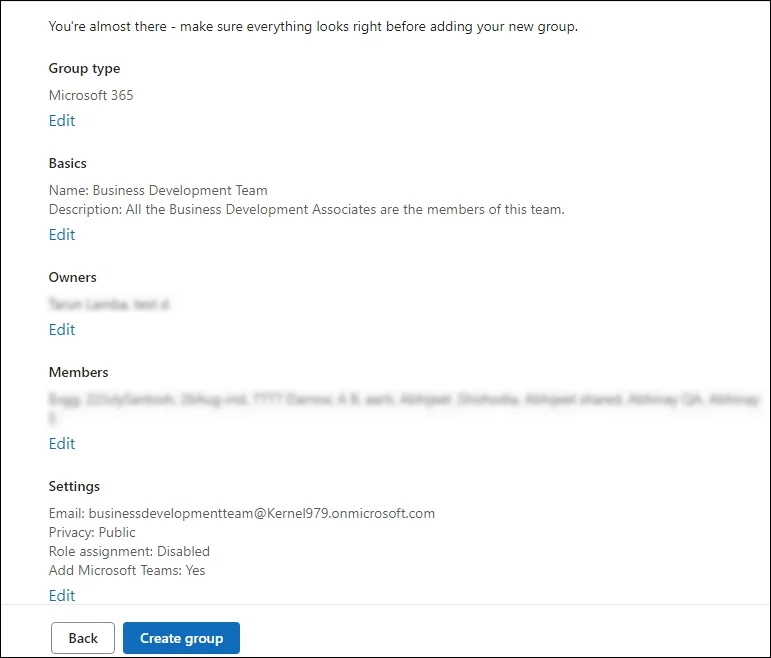
Close the group after the Office 365 Group is successfully created.
Way 2. Office 365 Group Creation In Outlook
Microsoft Outlook (New & OWA) is the most preferred method for group creation with automated resource creation and permission management. To create Office 365 Group in Outlook, follow the given steps:
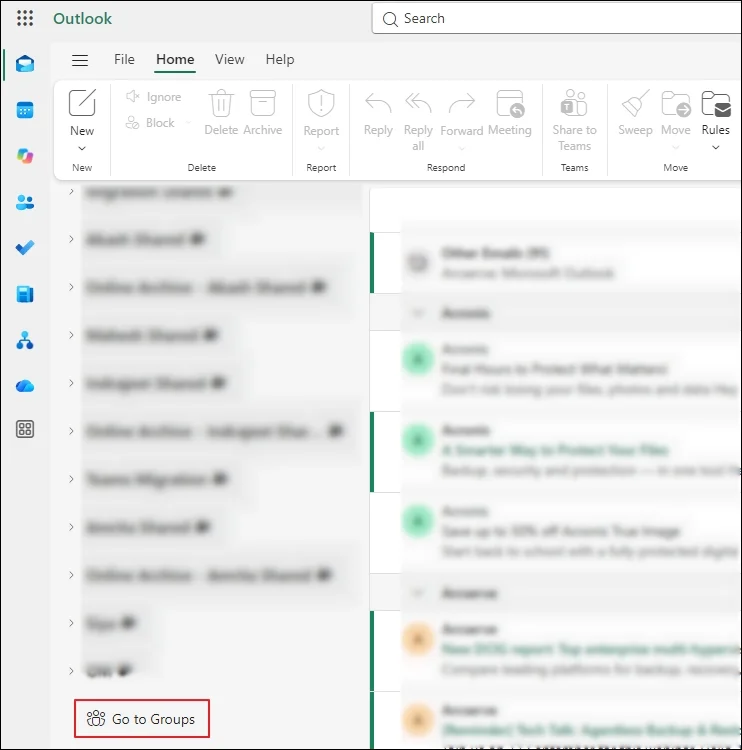
Access the Outlook Web & proceed with the Go to Groups section.
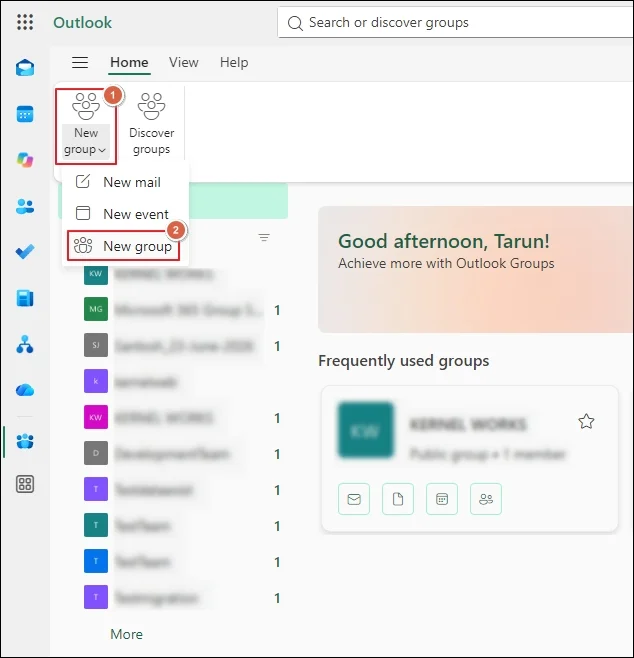
Click on New group to create one.
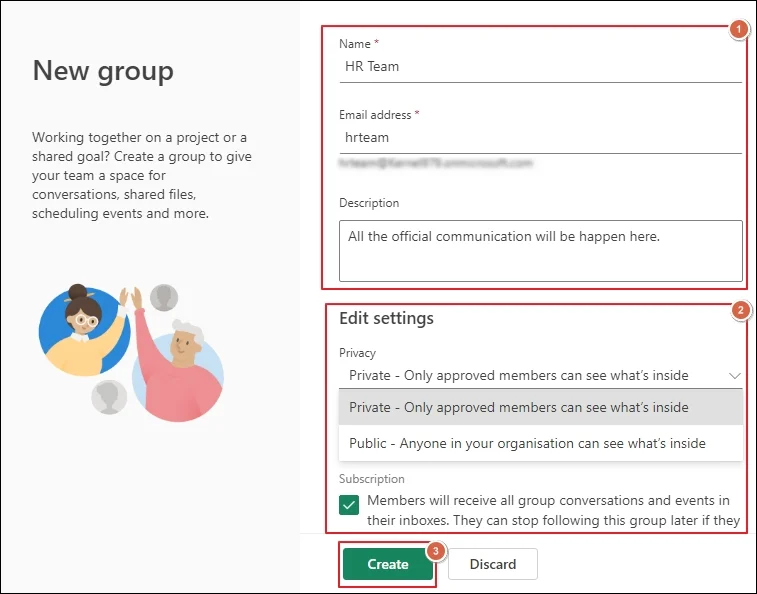
Enter the following details to create group:
- Name
- Email address
- Description
- Privacy (Private or Public)
Once done, Create the New group.
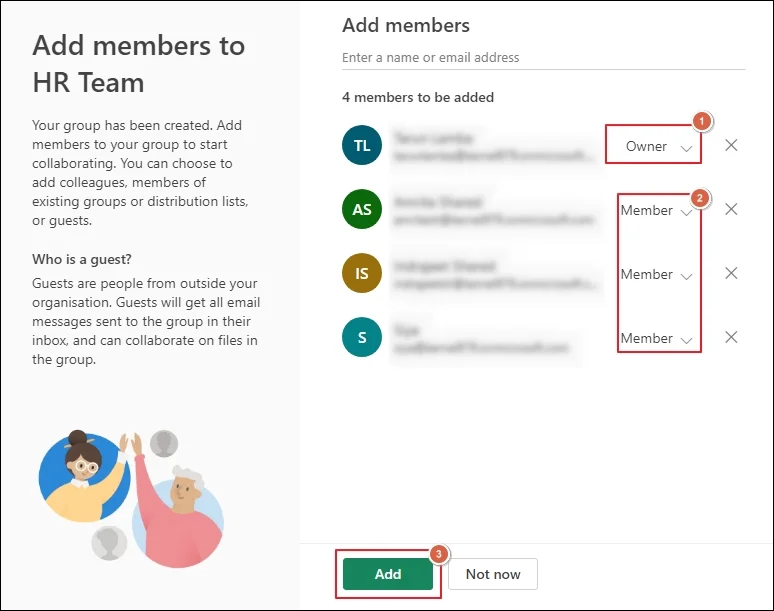
Add members to the group and assign Owners.
Way 3. Use SharePoint to Create A Microsoft 365 Group
Create a group in Office 365 using SharePoint to access documents, pages, lists, and team resources in one place.
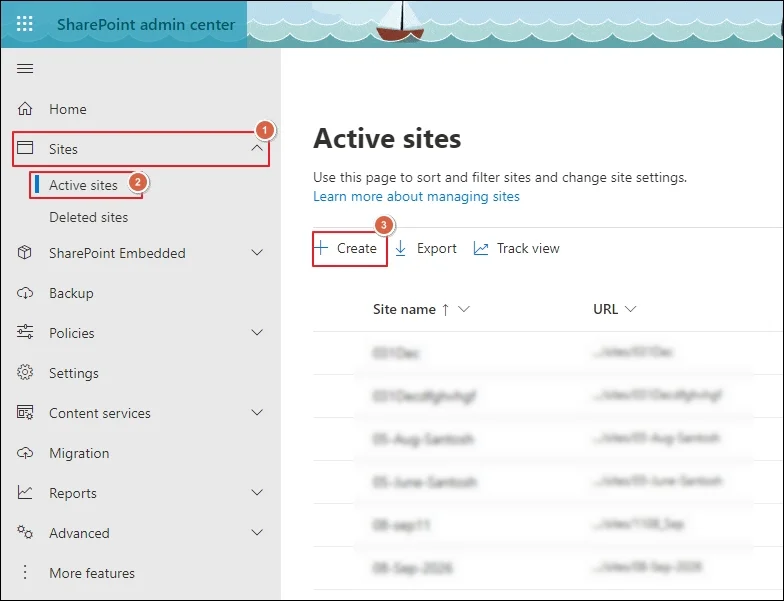
Go to the Sharepoint admin center and expand Sites.
Click on Active sites and create one to proceed.
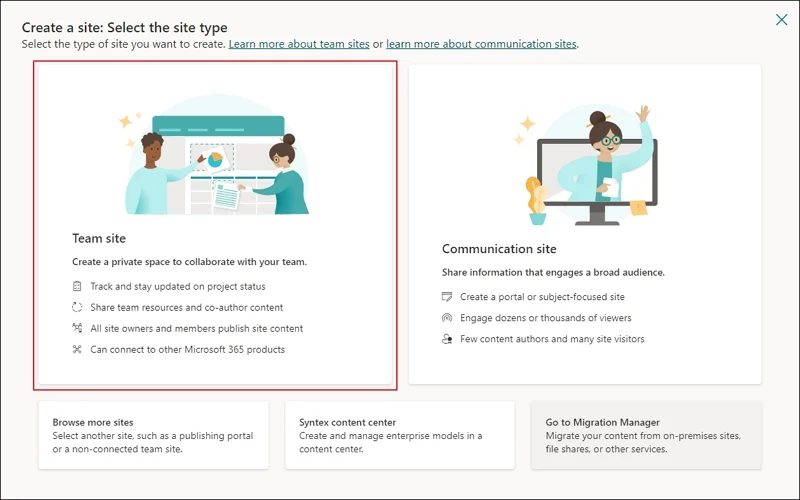
Choose Team site to continue further.
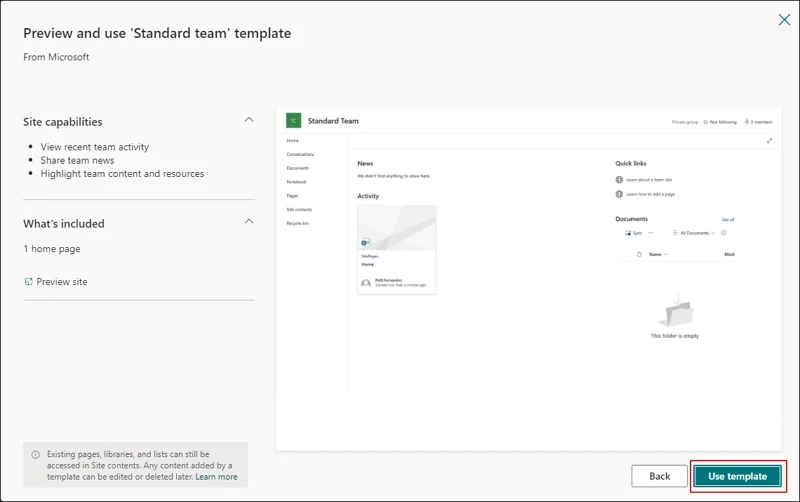
Select an appropriate template to proceed.
Preview and Use template for group creation.
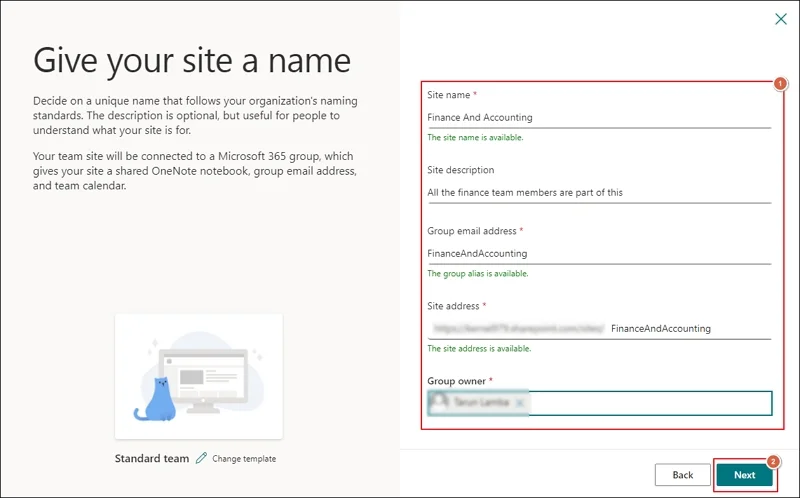
Enter the following details to create the site:
- Site name
- Site description
- Group email address
- Site address
- Group owner
Once done, click Next to proceed.
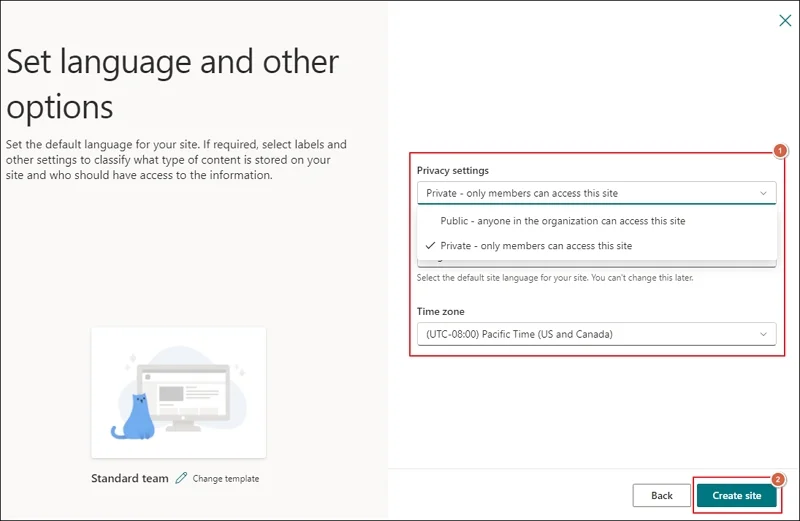
Select the applicable Privacy settings and Create site.
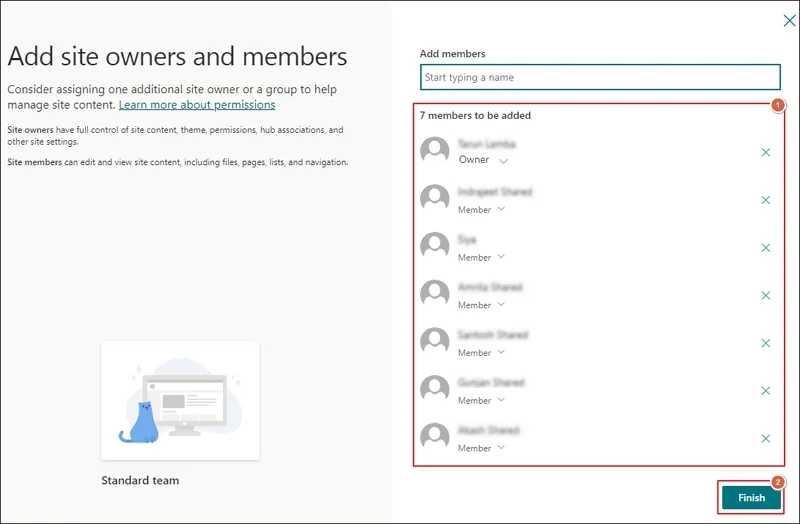
Add members to the site and click Finish.
Way 4. Create An Office 365 Group Using Teams
Creating groups with Microsoft Teams is suitable for team conversations, channels, meetings, and real-time collaboration. It also connects with Microsoft 365 resources like SharePoint sites and OneNote. Here's how:
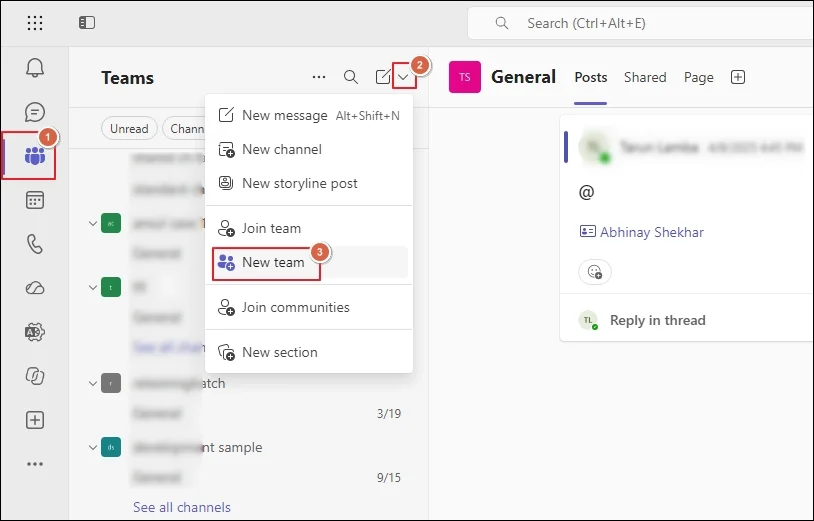
Access Microsoft Teams and click the drop-down arrow.
Select the New team option to proceed.
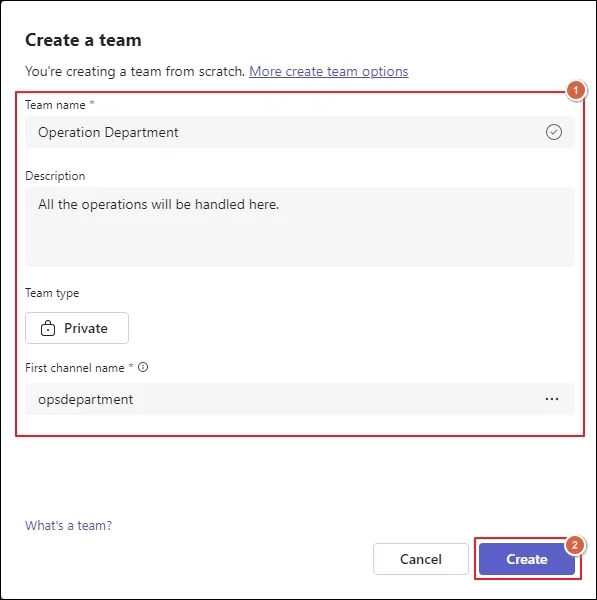
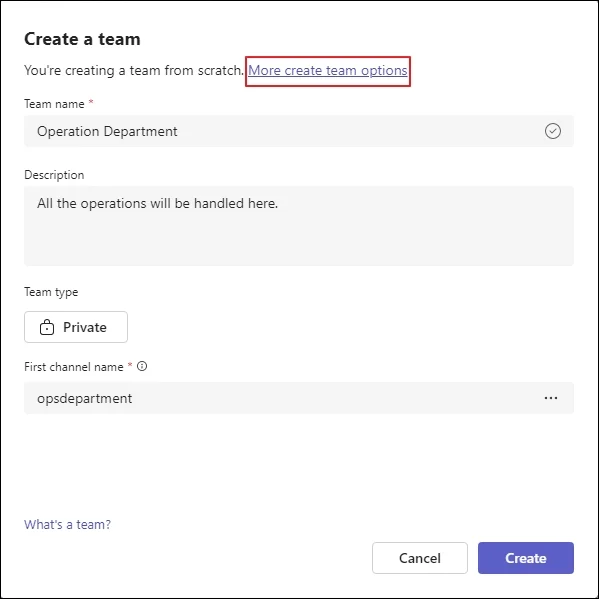
Create a team by entering:
- Team name
- Description
- Team type
- First channel name
Add members and Owners for the group creation.
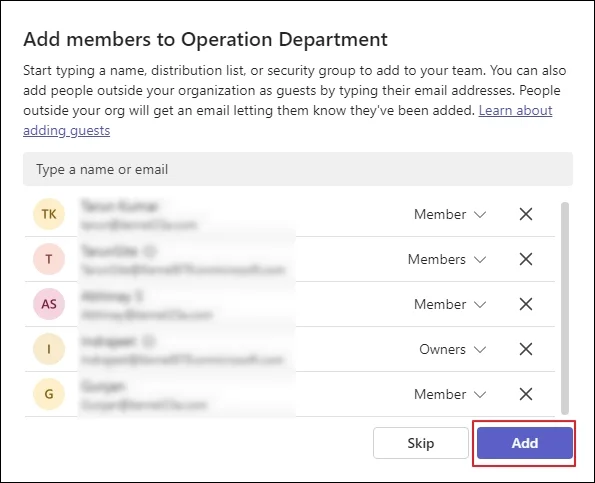
You have successfully created an Office 365 Group using Teams.
From the Create a team wizard, proceed to More create team options.
Select the From another team option to see the list of teams.
Select the From a group option to choose the groups.
Make sure to only select the groups that have fewer than 10000 members.
The created team will share the same group privacy, sensitivity, and members as the original one.
Way 5. Microsoft 365 Group Creation With Planner
You can also use the Microsoft Planner to create groups for task and project management. For this, you can create a new group or attach the plan to an existing group. Here are the steps:
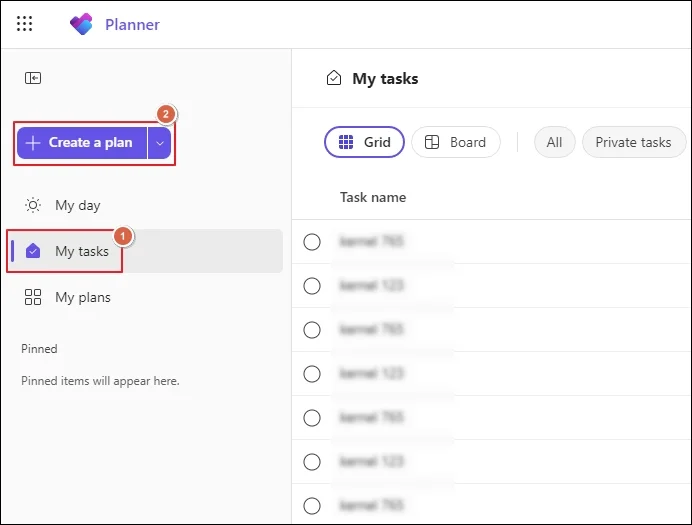
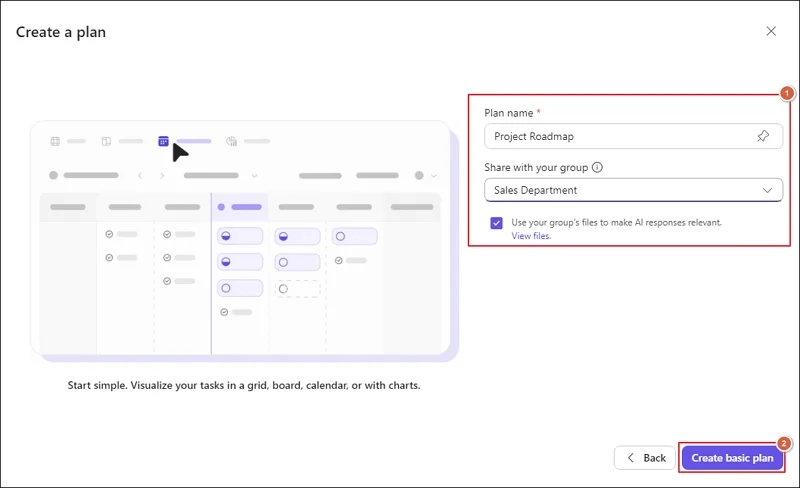
Go to Planner and Create a plan.
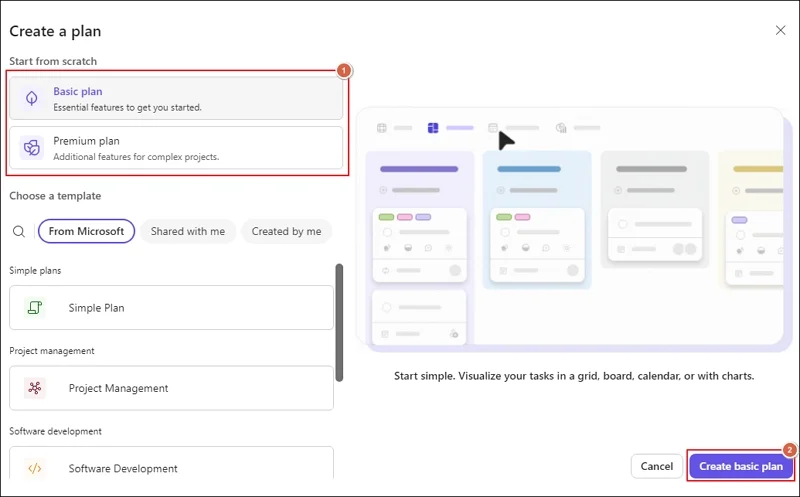
Choose the Basic or Premium plan to Create.
Enter the plan name and choose the group to share it with.
After entering the details, proceed to Create.
Way 6. Use Viva Engage to Create Office 365 Groups
Viva Engage is the most appropriate way to create a group primarily for community-based or organization-wide communication and discussion.
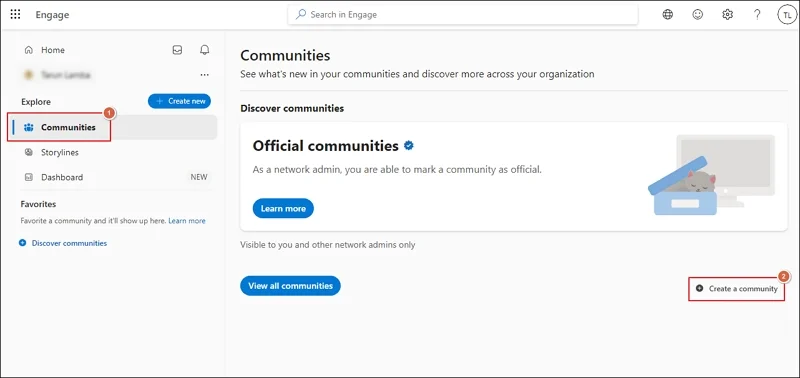
Access Viva Engage in Microsoft 365.
Go to Communities and Create a community.
Enter the following details to Create a new community.
- Name
- Description
- Add Members
- Select a public or Private community
- Communication configurations
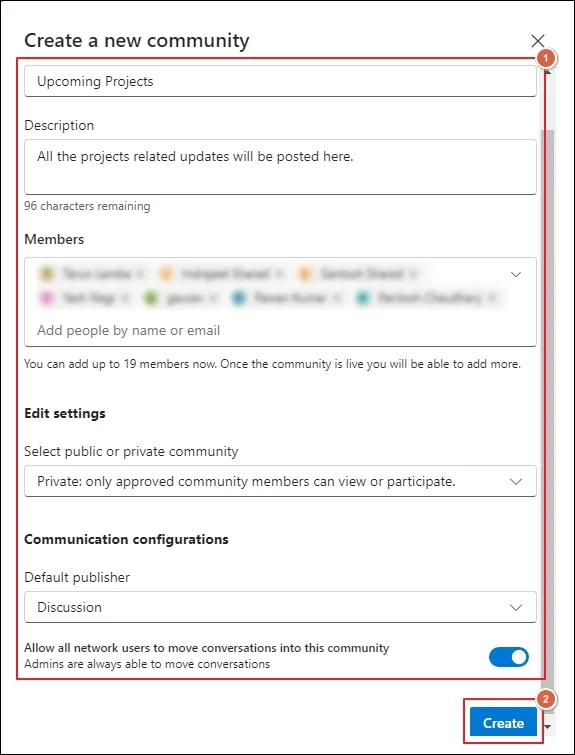
Complete the community creation process.
What If You Need to Migrate Existing Office 365 Groups to Another Tenant?
The software helps in migrating data of any size to another tenant in the original data structure.The above-mentioned guide will help you to create a group in Office 365. The step-by-step illustrations make Office 365 group creation convenient for users.
But sometimes users want to migrate their existing groups to another tenant. For them, Recoveryfix Migration for Microsoft 365 is one of the best approaches.It helps them to migrate their Office 365 Group data to another tenant within a few simple clicks.
Final Thoughts On Office 365 Group Creation
The blog has covered a detailed guide on how to create a group in Office 365 using different creation points and apps. You can use them for Microsoft 365 Group creation based on your requirements. However, some may need to migrate their existing Office 365 groups to another tenant. For this purpose, you can utilize the recommended solution. Also, don’t forget to have a proper Microsoft 365 migration checklist to ensure a successful migration.
FAQs
Q1- What to configure after Microsoft 365 Group creation?
Ans: Creating the group is the first step, but you may also need to configure the following:
- Add or remove members.
- Add or change Group owners.
- Edit the group name or description.
- Change the group email address.
- Send group conversations to members' inboxes.
- Allow external senders to email the group if needed.
- Connect the group with Microsoft Teams.
Q2- Can you create an Office 365 group without admin permissions?
Ans: Yes, if your admin has enabled self-service group creation. Otherwise, only admins or authorized users can create groups.
Q3- Is it possible to migrate an existing Office 365 Group to another tenant?
Ans: Yes, you can migrate Microsoft 365 Groups to another tenant using native and dedication solutions.
Q4- How many members can an Office 365 Group have?
Ans: Microsoft 365 Group has no hard limit on the total number of members. But only 1000 members can access the shared mailbox concurrently.
Q5- What are the steps to delete an Office 365 Group?
Ans: You can delete the Microsoft 365 group using the steps below:
- Access the Microsoft 365 admin center.
- Go to Teams & groups > Active teams & groups.
- Select the Microsoft 365 Group that you want to delete.
- Click on the three dots menu or More actions.
- Tap on the Delete group option and confirm to proceed.