How to Fix Outlook Error 0x80049dd3? [Easy Ones]
- Introduction
- Common causes of Outlook error 0x80049dd3
- Practical methods to fix Outlook error 0x80049dd3
- An Advanced Solution: Try the last recourse
- Preventive tips to fix Outlook error 0x80049dd3
- Conclusion
When there is improper communication between Outlook & email servers, Outlook Error 0x80049dd3 usually occurs. It commonly appears in environments using Exchange accounts, Office 365 accounts, or cached mailbox configurations. Users may get the following symptoms for this error:
- Mailbox folders are not updating.
- Outlook is failing to send/receive emails.
- Outlook freezing or showing synchronization failures.
- An error message is prompted during startup or mailbox access.
Don’t know how to fix it? Read this easy-to-understand article to get all the useful insights on the concern, along with the best methods to fix Outlook error 0x80049dd3.

Common causes of Outlook error 0x80049dd3
Let’s explore the common reasons for the error that can help you to find the root cause.
- Corrupted Outlook profile.
- Conflicts with the add-ins.
- Network connectivity issues.
- Damaged or distorted OST file.
- Have a faulty Outlook configuration.
- Synchronization conflicts between Outlook & server.
- Check internet connectivity.
- Restart your Outlook & system.
- Verify the server configurations.
- Update your Outlook to the latest version.
- Check your peripheral devices' connection.
- Re-register DLL file by running regsvr32 inetcomm.dll.
Practical methods to fix Outlook error 0x80049dd3
After several hits & trials, we have come up with the top four methods to resolve Outlook error 0x80049dd3.
Method 1. Disable Cached Exchange Mode & re-enable it
Since Cached Exchange Mode is used to store mailbox data locally, resetting it can fix the issue. Let’s check out how:
Step 1. Open the Outlook application & tap on the File menu.
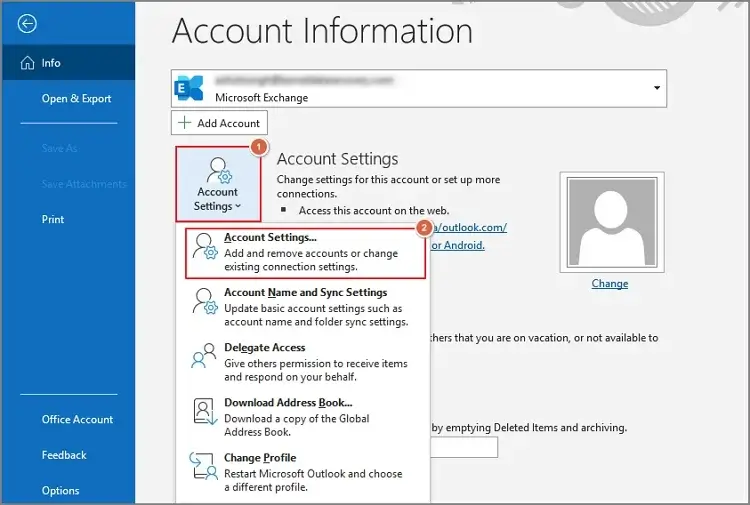
Step 2. Go to the Account Settings > Account Settings option.
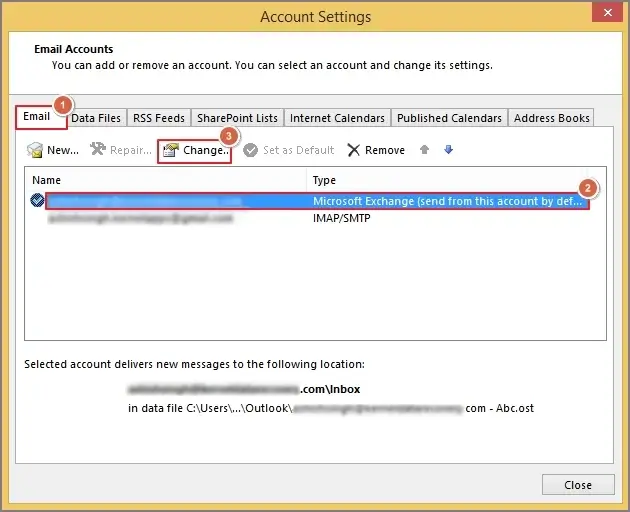
Step 3. Choose your email account under the Email tab & hit the Change option.
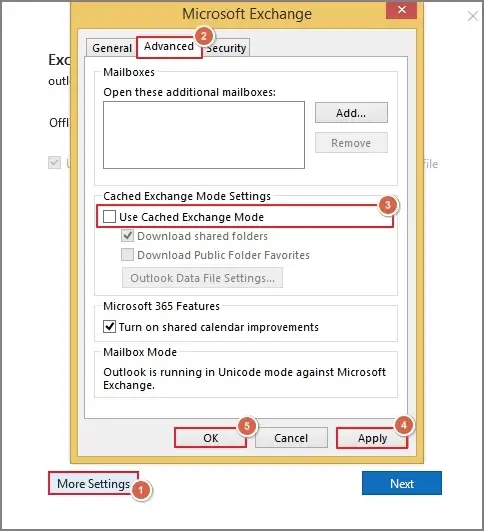
Step 4. Click on the More Settings > Advanced & uncheck the Cached Exchange Mode. Select the Apply > OK option. Then, hit Next.
Step 5. Restart Outlook & enable it again. Then, check the status of the Outlook error 0x80049dd3.
Method 2. Create a new Outlook profile
Dealing with a corrupted Outlook profile can be one of the causes of the issue. Recreating the new one can resolve Outlook error 0x80049dd3. Here are the steps to understand the complete stepwise approach of the method:
Step 1. Close the Outlook application.
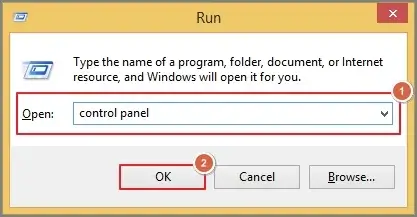
Step 2. Press the Windows + R key, type control panel & hit OK.
Step 3. Choose the Mail > Show Profiles option.
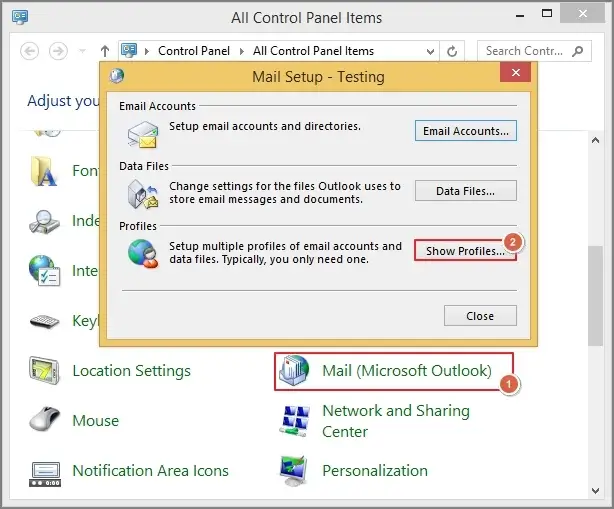
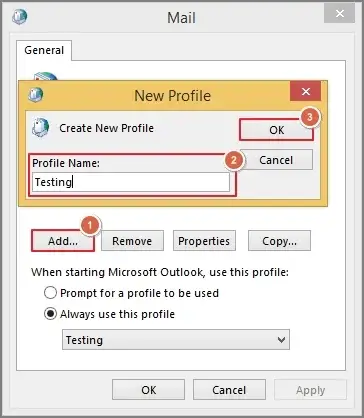
Step 4. Click on Add, type the new profile name & tap OK.
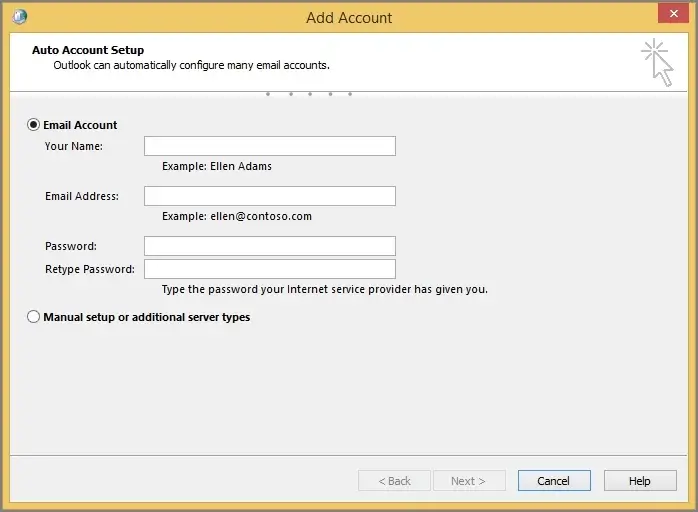
Step 5. Provide your account details & configure it.
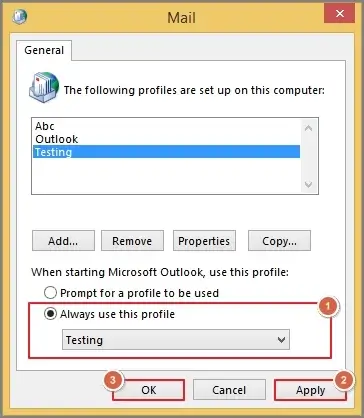
Step 6. Make the profile default one & click the Apply > OK option. Restart Outlook & check the status of the error.
Method 3. Try to repair Outlook data files
You may be using the damaged Outlook data file. It can lead to the discussed Outlook error 0x80049dd3. With the Outlook built-in utility, i.e., ScanPST.exe, you can repair corrupt PST files to some extent. Follow the steps below to execute the process safely:
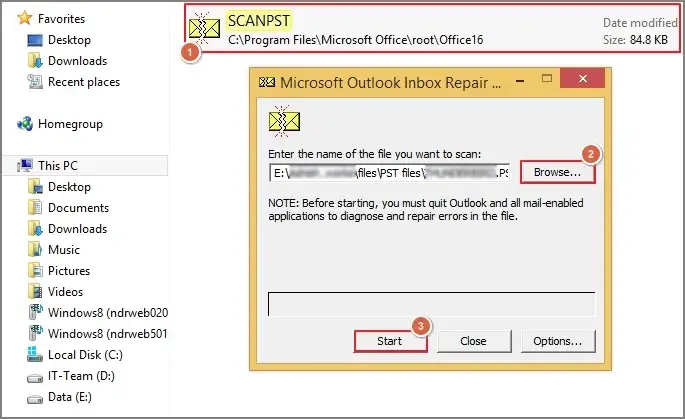
Step 1. Close the Outlook application & locate ScanPST.exe on your system.
Step 2. Launch the tool, browse & select your Outlook data file. Hit Start.
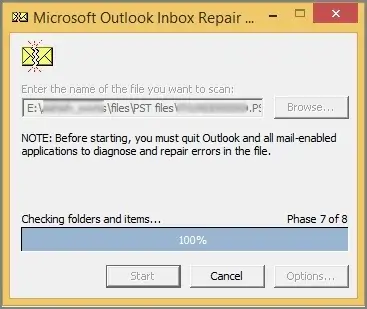
Step 3. It will start the scanning process.
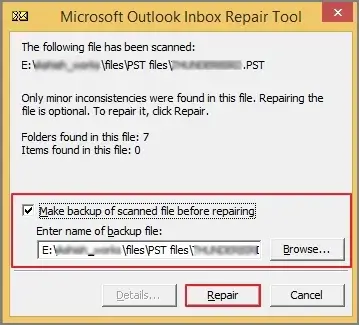
Step 4. Once it is completed, click on Repair. Now, check whether the error is resolved or not. [Check the “Make backup of scanned file before repairing” for extra safety]
Important to know: You can also recreate the Outlook data file if the issue is not resolved with the ScanPST.exe. Locate the file & delete or rename it. File location: C:\Users\YourUsername\AppData\Local\Microsoft\Outlook
Method 4. Verify problematic add-ins & disable them
It is seen that with regular updates, some add-ins are not compatible with the Outlook settings or functionality. As a result, users can face the Outlook error 0x80049dd3. Look at the steps to know its correct implementation:
Step 1. Open Outlook & tap on the File tab.
Step 2. Choose Options in the next window.
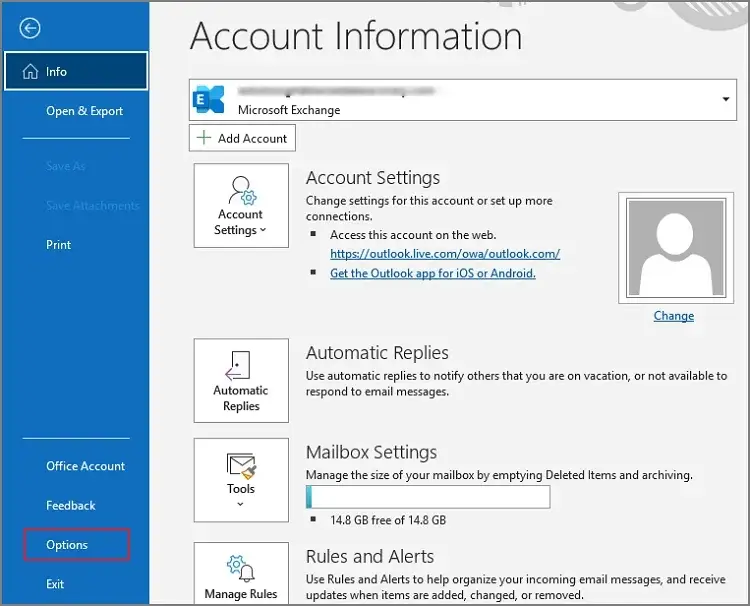
Step 3. Go to Add-ins > COM Add-ins & hit Go.
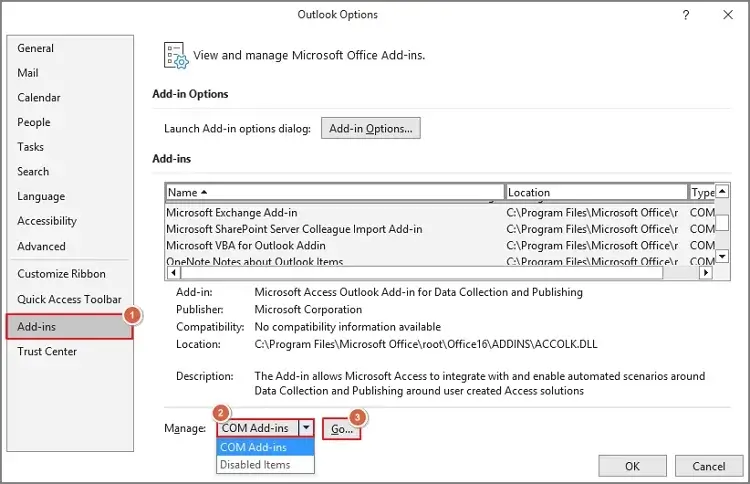
Step 4. Uncheck the unnecessary add-ins & click on OK. Restart Outlook to verify the status of the error.
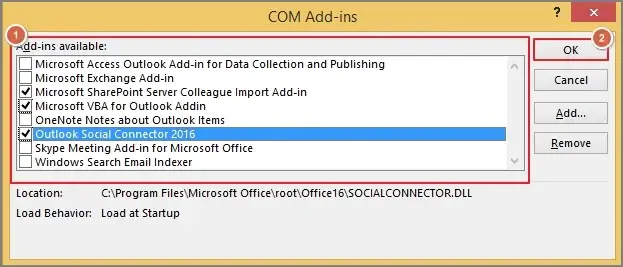
Note: If you are not able to identify the faulty ones, try to open Outlook in safe mode. It will turn off all the add-ins. Then, check individual add-ins by enabling them one by one. If you find any faults, disable it & restart Outlook.
Method 5. Try to repair MS Office [Outlook]
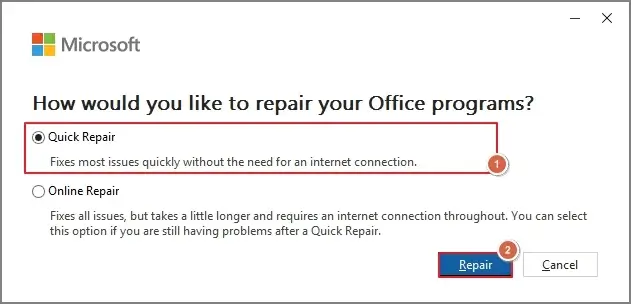
Take the help of another approach in which you can fix minor inconsistencies in the Outlook application. As a result, users can re-assess the file in the original state. Understand the following stepwise approach to implement the process:
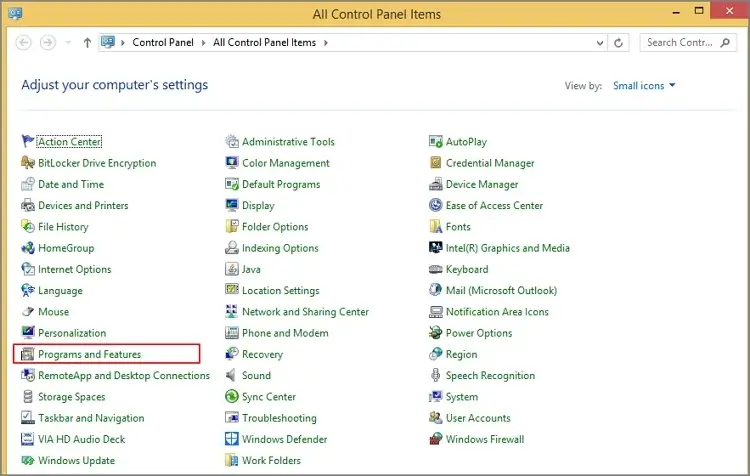
Step 1. Open the Control Panel and go to the Programs and Features tab.
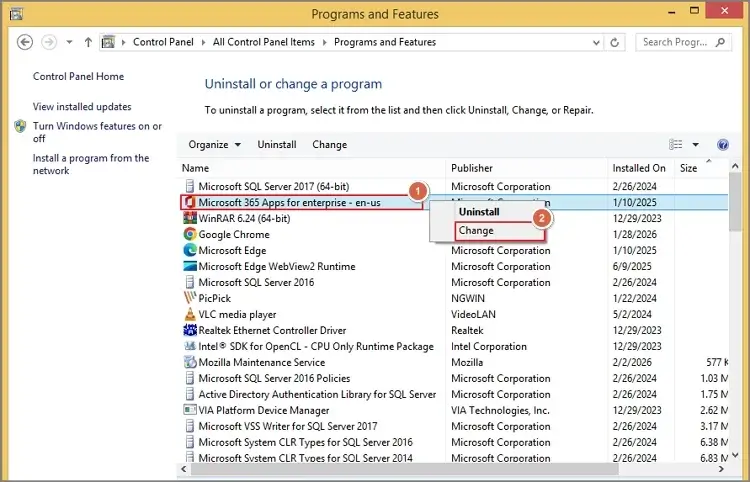
Step 2. Navigate to Microsoft, right-click on it & tap on the Change option.
Step 3. Check the Quick Repair option & click on the Repair tab. Then, verify the status of the error by restarting the application.
An Advanced Solution: Try the last recourse
If the problem is still not resolved, it means there is severe corruption in the PST file. Handling this corruption manually may not provide suitable results.
In such a scenario, professionals recommend choosing the advanced tool as the best option. Among all the available resources, Recoveryfix stands out with its smart Outlook PST repair tool. With its intelligent framework & algorithms, you can fix PST file-associated issues smoothly, including Outlook error 0x80049dd3. You can repair corrupted/damaged/ broken PST files in no time & save them into different formats like DBX, MBOX, MSG, EML, TXT, HTML, MHTML, PDF, DOC, DOCX formats.
Preventive tips to fix Outlook error 0x80049dd3
Check out the following guidelines to avoid such an error in the future:
- Keep your Windows/Outlook updated.
- Avoid installing unnecessary add-ins.
- Keep your system free from malware.
- Always close Outlook & system properly.
- Regularly back up your Outlook data files.
Conclusion
Fix Outlook error 0x80049dd3 by using all the provided manual methods in the write-up. If they fail, it implies severe corruption. Then, you can take the help of the suggested automated solution. It can provide the needed output with its innovative features instantly, without data loss.