Quick Fixes for Amazon Prime Playing Black Screen

Updated On - August 13, 2026
I have personally experienced this frustrating moment when I was ready to watch my favorite show, everything looked perfect, audio plays, but the screen remained completely black. It can occur across browsers, mobile apps, smart TVs, or streaming devices.
The issue generally comes due to playback conflicts between your device, browser, or app & Amazon’s streaming infrastructure. Good news for you that most of its causes are easy to identify & resolvable with the right solutions.
Get a structured, practical, technical walkthrough to fix Amazon Prime playing black screen issue efficiently.
Amazon Prime Playing Black Screen Issue: Know Common Reasons
Let’s understand some common reasons that can lead to the Amazon Prime Video playing black screen problem:
- VPN or proxy interference.
- Corrupted cache or cookies.
- Hardware acceleration conflicts.
- Weak or unstable internet connection.
- DRM [Digital Rights Management] issues.
- Outdated Amazon Prime Video application.
- Browser incompatibility or an outdated version.
- Device-specific glitches [Smart TV, Fire Stick, etc].
Basic Fixes:
- Check HDMI & external display issues.
- Turn off VPN or disable proxy settings. Then, reload the video.
- Reload the video page, restart the browser/app, or reboot the device.
- Play a different video to confirm whether the issue is global or limited.
- Adjust streaming quality & check Amazon Prime Video server status.
- Update your browser [Chrome, Edge, Firefox] or Amazon app [Android/iOS/ Smart TV].
- Maintain a stable internet, restart the router, & switch between Wi-Fi & mobile data.
Easy Solutions for Amazon Prime Playing Black Screen Issue
The section will help you with the best possible & workable methods to resolve black screen when playing Amazon Prime Video issue.
Fix 1. Clear the Browser Cache or Cookies
In my opinion, corrupted caches are one of the most prominent factors in causing the Amazon Prime Video playing black screen issue. So, clearing it can be helpful in fixing it. Here are the steps to follow:
Step 1. Open the Chrome Settings.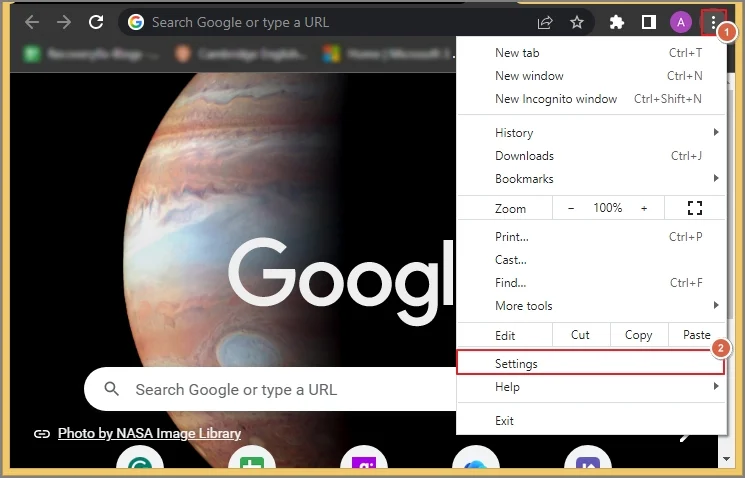
Step 2. Go to the Privacy & Settings > Clear Browsing Data options.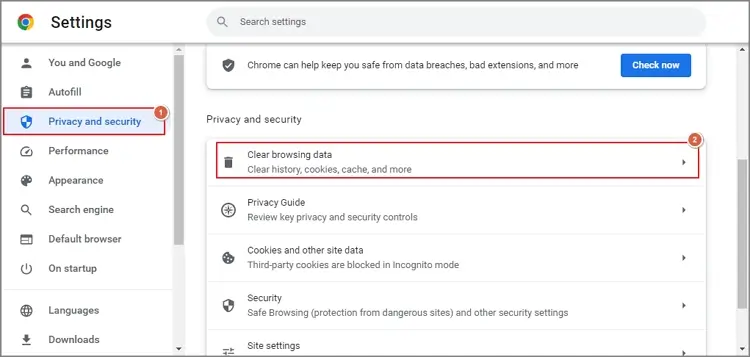
Step 3. Select the cookies & browsing history. Hit the Clear data option. Then restart the browser to verify the status of the error.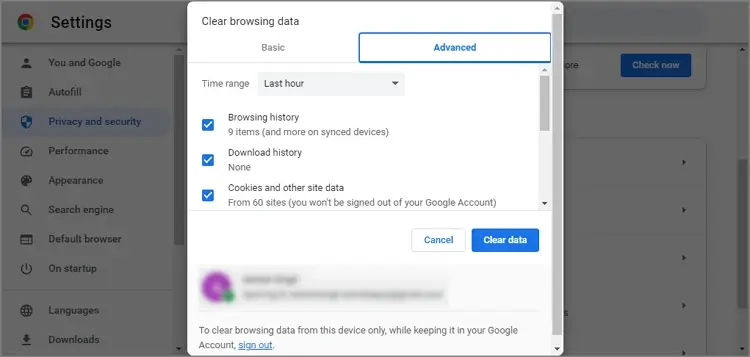
Fix 2. Disable Hardware Acceleration [Highly Effective for the Error]
Conflict between browser settings [hardware acceleration] & your computer’s graphics drivers can cause video not playing & black screen type issues.
Let’s try to disable it & then check the status of the error. Follow the steps below:
Step 1. Go to the Chrome Settings.
Step 2. Tap on System, turn off the Use hardware acceleration when available. Then, restart the browser.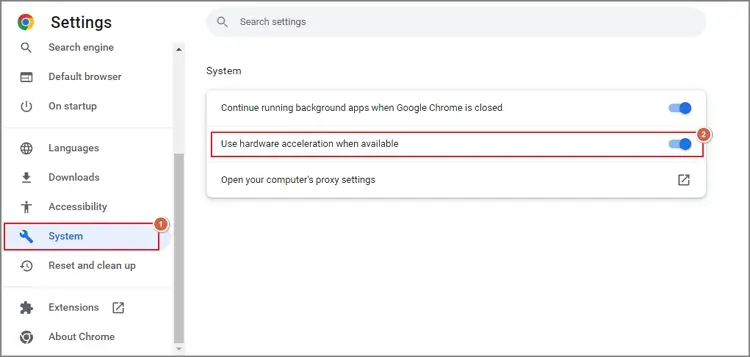
Fix 3. Check the Video Error with a Different Browser
It is possible that your browser is having some issues due to rendering, plug-in conflicts, or faulty hardware acceleration settings. Switching to another one can isolate the issue & you can enjoy your videos as earlier if the error disappears. You can use a browser like Chrome, Edge, Firefox, etc., accordingly.
Fix 4. Update Device Drivers [Especially for PC Users]
Updating device drivers, mainly graphics drivers [GPU], is also one of the primary solutions for the Amazon Prime playing black screen issue. Because it acts as a mediator between the Operating system & hardware. Here are the steps to update the graphic drivers:
Step 1. Right-click on the Start tab, choose Device Manager.
Step 2. Go to Display Adapters, right-click on it & hit the Update Driver Software tab.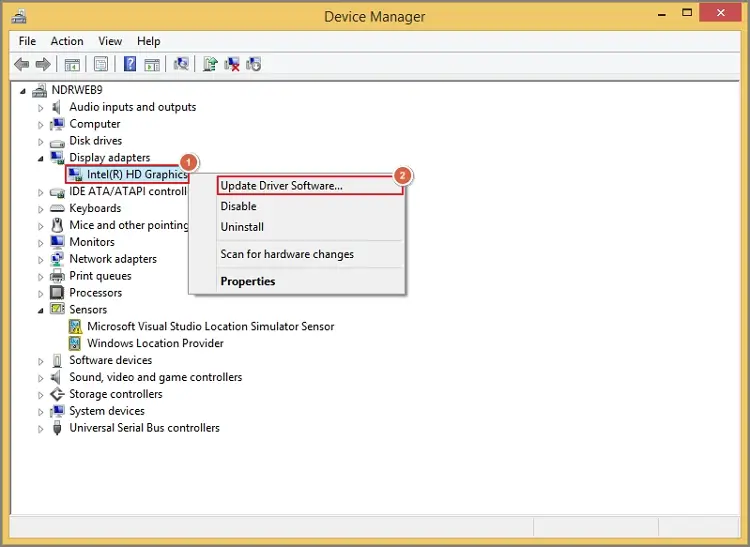
Step 3. Restart the system & check the status of the error.
Fix 5. Enable DRM Components
If the issue is due to outdated DRM components, then enabling the Widevine Content Decryption Module [CDM] in Chrome can fix it. Follow the steps below to understand its correct execution:
Step 1. Navigate to the “chrome://components/.”
Step 2. Go to the Widevine Content Decryption Module. Then, click on the Update tab & try to play the video again.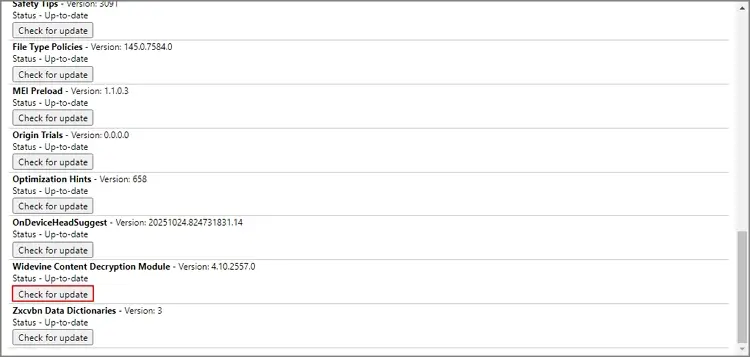
Fix 6. Reinstall the Amazon Prime Video Application
To fix the persistent issues, reinstalling the application can be more effective. It solves video streaming issues, black screen, and app crashes, because it resets the corrupted files & clears the cache. Uninstall the application from your mobile or Smart TV, restart the device & then reinstall it from Google Play Store [Android] or App Store [IOS]. Once done, check out for the black screen when playing Amazon Prime Video issue.
Fix 7. Disable Browser Extensions
Browser extensions like VPNs, password managers, etc., sometimes create a hindrance for the elements on the website. It can lead to several issues, like loading incorrectly, freezing, or displaying errors. Disabling it temporarily can fix the issue. Here are the steps to execute the process smoothly:
Step 1. Open the Chrome extensions.
Step 2. Disable all & then enable one-by-one to identify the faulty one.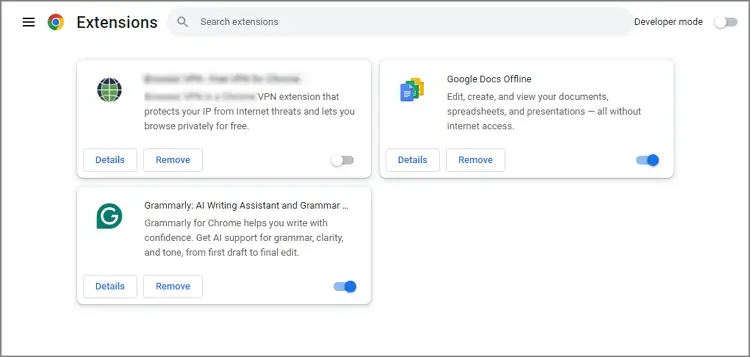
Advanced Troubleshooting:
- Temporarily disable firewall & allow browser/app access.
- Flush DNS cache, like for Windows, run ipconfig /flushdns.
- Restore browser to default & remove custom configuration.
Measures to Prevent the Issues in the Future
Here are some guidelines that can help you to avoid Amazon Prime video playing black screen issue.
- Avoid using unreliable VPNs.
- Clear cache or cookies periodically.
- Ensure a stable internet connectivity.
- Use supported or compatible devices.
- Keep your browser & application updated.
Final Words on Amazon Prime Playing Black Screen Issue
By following a structured troubleshooting approach from basic fixes to advanced solutions, you can easily restore normal playback. Additionally, you can take the help of the automated video repair tool to manage all levels of video corruption or errors easily, like “this file isn’t playable” and many more. Try its free trial version now to test its core features.
FAQs
Q- Can I fix corrupted MXF files recorded on a professional camera?
A- It is usually due to browser rendering issues or GPU [Graphics Processing Unit] conflicts.
Q- Can Ad Blockers also cause a black screen on Amazon Prime Video?
A- Yes. It can interfere with the video script, which can cause the issue. Disable the extension temporarily & verify the error status.
Q- Does screen recording or screen sharing cause a blank screen problem?
A- Amazon can block video playback when recording or sharing is detected due to its content protection policies. As a result, a black screen problem can be experienced by the user.
Q- Why does Amazon Prime Video keep going black at intervals?
A- It is usually caused by:
- Network instability.
- Background app interference.
- GPU overheating or throttling.