How to Resolve Outlook Error 0x80004001? Manual and Automated Ways

Updated On - July 3, 2026
Has your email communication been hampered by the Outlook Error 0x80004001 [“Not Implemented”]? The most frustrating part is that it often appears with no detailed explanation. Due to the error, users may find that:
- Mailbox folders fail to load.
- Emails stop sending or receiving.
- Account settings can’t be updated.
- Outlook refuses to perform certain actions.
With a structured troubleshoot approach, you can easily fix the issue. Our new article will cover all the information needed to tackle the issue effectively.
Signs Associated with Outlook Error 0x80004001
Check out the common signs through which you can identify this error.
- Sudden Outlook crashes.
- Outlook freezes frequently.
- Account configuration fails.
- Stopped email synchronization.
- Mailbox folders become inaccessible.
Causes of Outlook Error 0x80004001
Explore the major causes behind the Outlook error 0x80004001.
- Damaged Outlook data files.
- Corrupted Outlook profile interference
- Connectivity issues with Exchange Server.
- Unwanted Outlook add-ins can trigger such an error.
- Microsoft Office updates fail or are only partially done.
- Windows system file corruption can trigger Outlook Error 0x80004001.
Manual Ways to Resolve Outlook Error 0x80004001
After extensive research, we have provided the working solutions to resolve Outlook error 0x80004001.
- Check Network & Exchange connectivity.
- Restart Outlook & Windows. It helps in removing temporary glitches.
- Update Outlook and Windows to reduce compatibility issues.
- Open the command prompt as an Administrator & run “sfc /scannow” to manage Windows system corruption.
Way 1. Run Outlook in Safe Mode
Faulty third-party add-ins can cause several issues, includingOutlook Error 0x80004001. The safe mode starts Outlook without add-ins & if it works, then it implies that the error is with the add-ins that need to be disabled.
Let’s understand with the steps:
Step 1. Press the Windows + R key, type outlook.exe/safe, & press Enter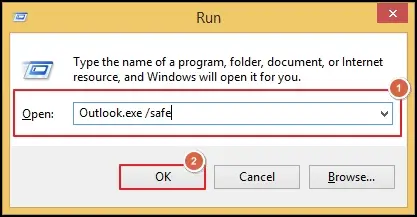
Step 2. If it opens successfully, go to the File > Options tab.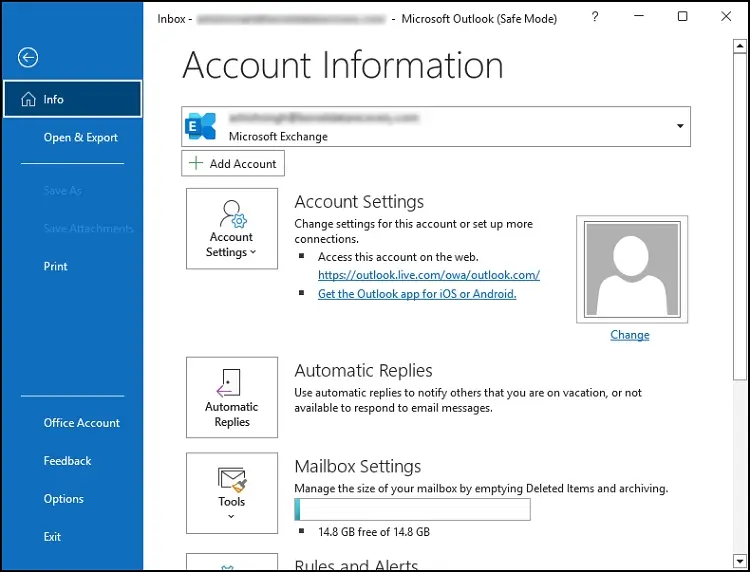
Step 3. Choose Add-ins & tap on COM Add-ins > Go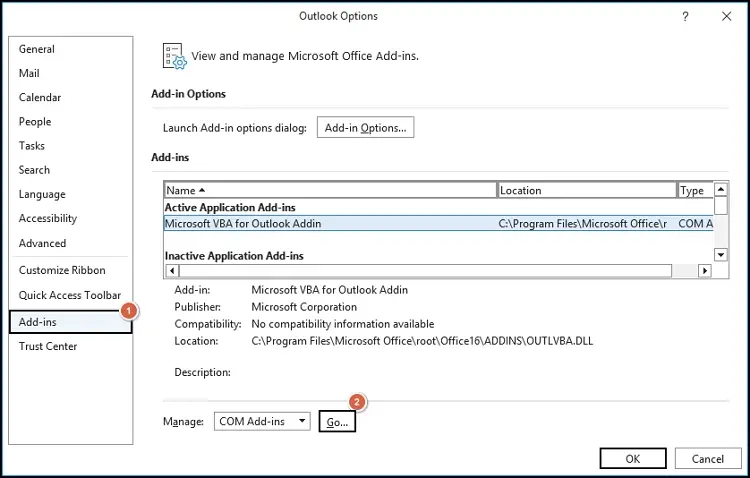
Step 4. Disable unnecessary add-ins & click OK. Then, restart Outlook normally.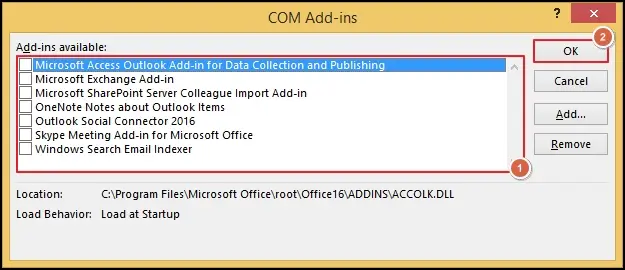
Way 2. Create a New Outlook Profile
A corrupted Outlook profile can also cause the Outlook Error 0x80004001. So, if we create a new profile, then the current profile configuration issues can be eliminated. Know the steps:
Step 1. Open the Run window, type Control Panel, & hit OK.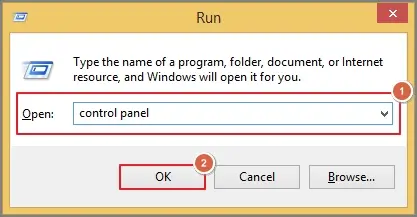
Step 2. Choose the Mail > Show Profiles option.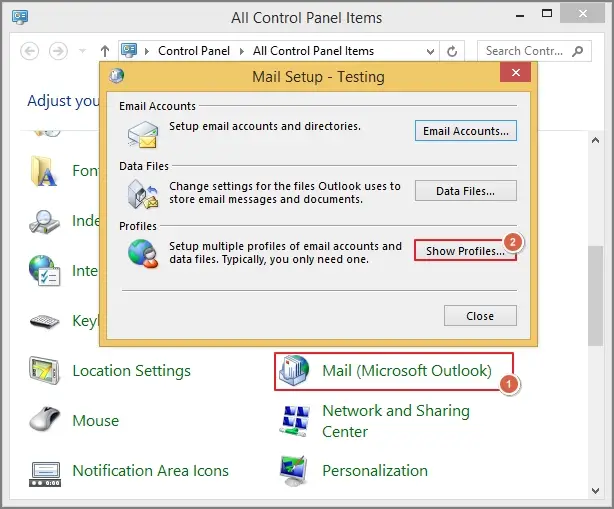
Step 3. Select the Add tab, type the profile name & hit OK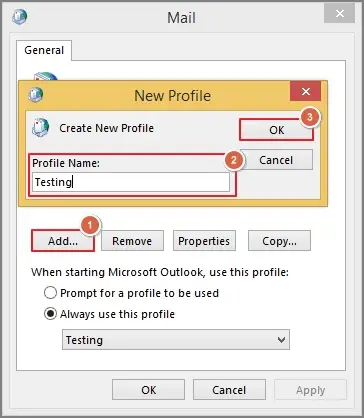
Step 4. Follow the upcoming instructions to configure the email account.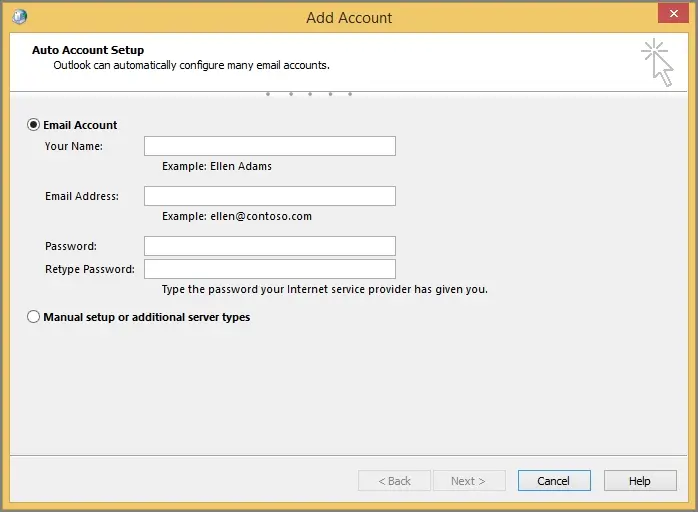
Step 5. Make the new profile as the default one & select OK > Apply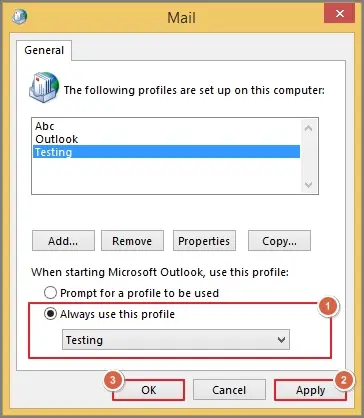
Way 3. Repair Microsoft Office
Outlook-related errors can also be triggered with Damaged Office installation files. So, we will opt for another solution where we will repair the Microsoft Office because it replaces missing or corrupted program components. Follow the steps below:
Step 1. Open Control Panel & choose the Programs and Features option.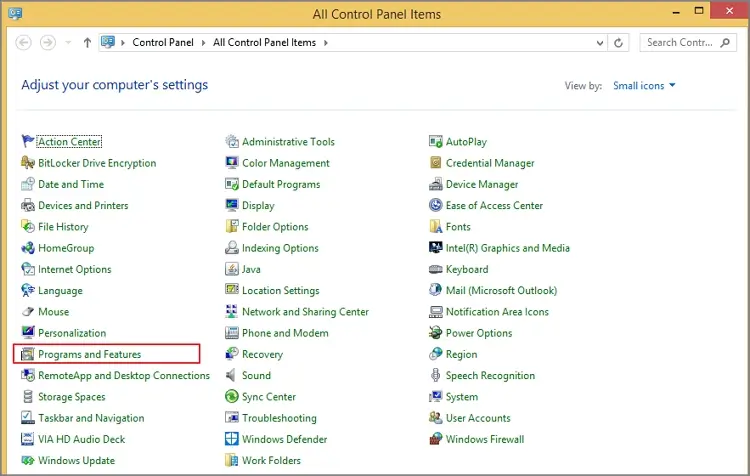
Step 2. Go to Microsoft Office & tap on Change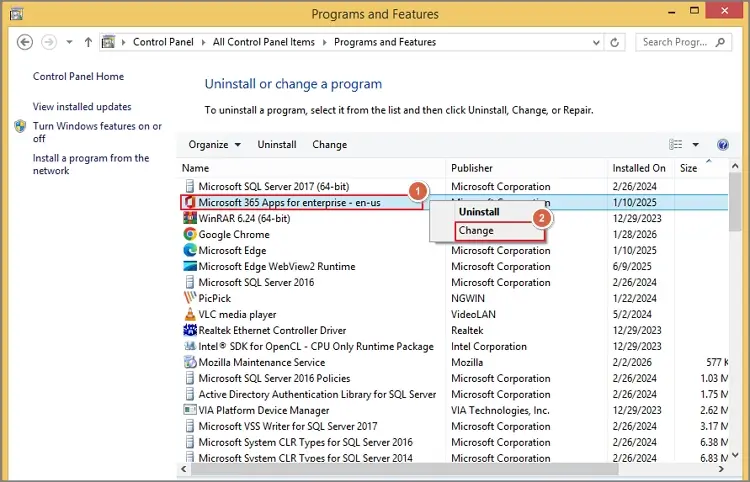
Step 3. Choose Quick Repair and hit Repair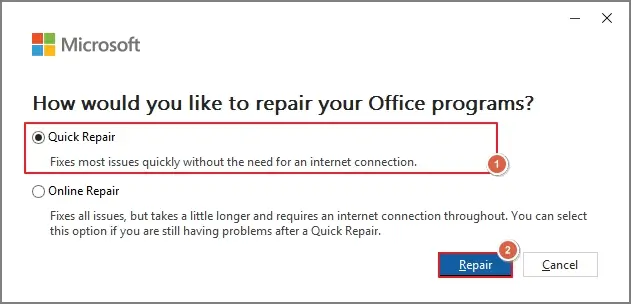
Way 4. Repair Outlook Data File [PST]
One of the most common causes of the Outlook-related errors, including Outlook Error 0x80004001, is damaged or corrupted PST files. It often causes synchronization & mailbox access issues. Microsoft includes the Inbox Repair tool [ScanPST.exe] to repair Outlook data file inconsistencies. Let’s know how:
- Close the Outlook application.
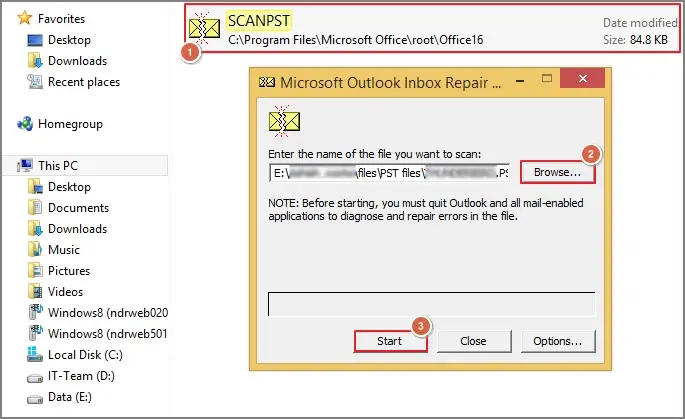
- Locate ScanPST.exe & browse the affected PST file. Click Start.
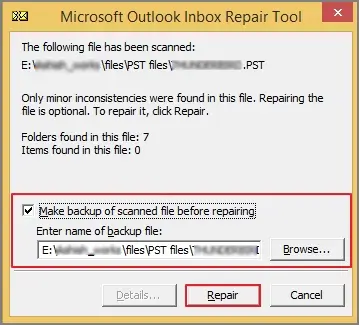
- It will start scanning & give a list of the errors. Then, hit Repair
Note: If the cause of the issue is severe PST file corruption, then taking the help of our Recoveryfix Outlook PST repair tool can be the most suitable option. Its advanced features & innovative filters allow users to handle all the PST file-related errors such as 0x800ccc19, 0x80040900, etc.
Way 5. Recreate the Outlook Data File
Rebuild the OST file to resolve synchronization problems that arise due to Outlook Error 0x80004001. But make sure mailbox data remains available on the server before deleting or renaming the OST file.
Follow the steps to know how it works:
- Close Outlook & locate the OST file
- Rename it and change the file extension to .old. Launch Outlook again.
- Then, Outlook automatically creates a new OST file & re-syncs mailbox content.
Note: You can check the OST file location through:
C:\Users\Username\AppData\Local\Microsoft\Outlook
Or
Press Windows + “R” keys, type %localappdata%\Microsoft\Outlook\ & hit OK.
Or
Open Outlook, click on File> Account Settings > Account Settings> Data Files ab. Choose an email account & select the Open File location option.
- Monitor Outlook data file size
- Crucial: Limit unnecessary or faulty add-ins.
- Install the latest Office updates.
- Perform regular data backups.
- Create a healthy Outlook profile.
Ending Thoughts
Outlook error 0x80004001 is a manageable issue with the right workable approaches. Each provided fix has targeted the different possible causes of the error.
But for extreme PST file corruption cases, choose the suggested automated tool instead of relying on manual ones. It not only resolves the issue but also helps in restoring Outlook’s functionality as earlier.
FAQs
Q. How can I determine whether the issue is server-side or Outlook-side?
A. Try to access the mailbox through Outlook Web Access. If it works normally, then the problem is usually in the Outlook client.
Q. Should I delete my OST file immediately after seeing this error?
A. It is not recommended. Make sure that you have verified server synchronization & backup requirements before doing anything with Outlook data files.