Fix Outlook Data Corruption Using Inbox Repair Tool – A Detailed Guide

Updated On - May 11, 2026
Quick Overview: What is Microsoft Inbox Repair tool(Inbox Repair Tool)? The SCANPST tool is a Microsoft-built-in utility to diagnose and repair Outlook data file errors. You can use that tool in the following scenarios:
- Outlook can’t open the data file.
- Outlook can’t open the set folders.
- The Outlook data file is damaged or corrupted.
Note: You can delete the Outlook Data File (.ost) for the Exchange account to recreate the data file.
You have found that Outlook can’t open due to corrupted PST files in your mailbox. It disrupts your workflow and blocks access to important emails, contacts, and business data. It may seem like a serious technical issue, but you can easily fix PST corruption issues with Microsoft’s built-in Inbox Repair tool. We will guide you through practical steps to use the tool effectively to recover Outlook data efficiently. The tool is capable of handling and restoring PST files with minor corruption.
Symptoms That Indicate PST File Corruption Issues
Your PST file is corrupted or damaged if you’re experiencing the following symptoms:
- Slow application performance.
- Mailbox synchronization issues.
- Missing Outlook emails or folders.
- Cannot open Outlook data file error.
- Inbox Repair Tool opens repeatedly.
- Outlook crashes or freezes on a frequent basis.
Why PST Corruption Issues Occur? – Know Common Reasons
Outlook data file corruption occurs due to various reasons. Here are the most significant ones:
- Oversized PST file.
- Virus/Malware attack.
- Incompatible Outlook add-ins.
- Hardware or Software failure.
- Sudden system shutdown.
- Improper Outlook termination.
- Hard disk failure.
- Incomplete mailbox synchronization.
How Scanpst.exe recovers the data?
To recover folders and items from corrupt PST files, the Inbox Repair tool does the following actions
- Analyze the PST file directory structure and item headers.
- Attempt to turn a file into mountable PST file.
- Back up PST file before attempting to repair it.
- Validate and correct errors in the internal data structures of the PST file.
- Check and repair structures like BTrees and reference counts, if necessary.
- Remove unreadable or corrupt blocks of the structure or table.
- Remove the items to which the unreadable or corrupt block of the structure or table belongs.
- Enter the removal of the blocks and items in the ScanPST log file.
- Examine PST folders and messages and perform corrective operations on them.
Location of the Outlook Inbox Repair tool |
|
| Outlook & Windows versions | Location |
|---|---|
| Office 365 (Windows 32-bit) |
C\Program Files(x86)\Microsoft Office\root\office16 |
| Office 365 (Windows 64-bit) |
C\Program Files\Microsoft Office\root\office16 |
| Outlook 2019 (Windows 32-bit) |
C\Program Files(x86)\Microsoft Office\root\office16 |
| Outlook 2019 (Windows 64-bit) |
C\Program Files\Microsoft Office\root\office16 |
| Outlook 2016 (Windows 32-bit) |
C\Program Files(x86)\Microsoft Office\root\office16 |
| Outlook 2016 (Windows 64-bit) |
C\Program Files(x86)\Microsoft Office\root\office16 |
| Outlook 2013 (Windows 32-bit) |
C\Program Files(x86)\Microsoft Office 15\root\office15 |
| Outlook 2013 (Windows 64-bit) |
C\Program Files\Microsoft Office 15\root\office15 |
| Outlook 2010 (Windows 32-bit) |
C\Program Files(x86)\Microsoft Office\Office14 |
| Outlook 2010 (Windows 64-bit) |
C\Program Files\Microsoft Office\Office14 |
| Outlook 2007 (Windows 32-bit) |
C\Program Files(x86)\Microsoft Office\Office12 |
| Outlook 2007 (Windows 64-bit) |
C\Program Files\Microsoft Office\Office12 |
Quick Ways to Fix Outlook Data Corruption Issues – Try Basic Ones
Use the steps below before using the Microsoft Inbox Repair tool to solve PST file corruption.
- Restart Outlook in Safe Mode.
- Disable the Outlook add-ins.
- Create a new Outlook profile.
- Restore PST files from backup.
- Repair the Microsoft Office installation.
How to Fix PST File Corruption Issues Using Inbox Repair Tool?
You can repair and fix PST file issues with Scanpst.exe program using following steps:
- Navigate to the default location of Scanpst.exe file.
- Right-click Scanpst.exe, again click Run as administrator.
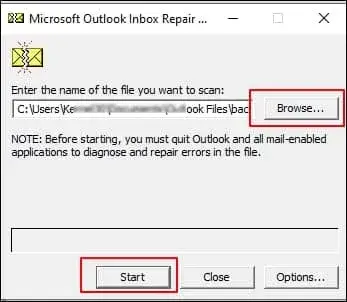
- Click “Browse” to select corrupt PST file from your computer drive. Click Start.
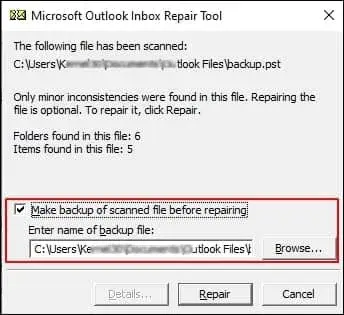
- If issues are found you will be asked to repair, click Repair to start repairing.
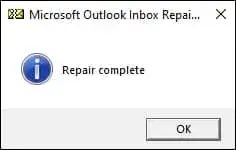
- Click OK to finish.
Limitations of Scanpst.exe
- It will delete invalid pages or corrupt indexes of a PST file, resulting in data loss.
- PST file sizes must be 2GB or less. Cannot repair oversized PST files with this tool.
- Severely corrupted PST file cannot be repaired.
- Sometimes, Outlook may not be able to recognize the repaired file.
Note: Sometimes, the Scanpst.exe program cannot complete the process or becomes inoperable while doing so. In that scenario you could practice some troubleshoots to fix Scanpst.exe not working issue.
What to do if Scanpst.exe Fails to Repair the File?
If your PST file is severely corrupted or is oversized, Scanpst.exe won’t be able to repair it. If such a condition is met, you must take assistance from a professional recovery tool. Recoveryfix for Outlook PST Repair is an expert-recommended tool. It can handle any issue related to PST files.
- Uses advanced algorithms for data restoration.
- Deliver results with 100% data integrity.
- Require minimal technical expertise.
- Provides quick delivery of result.
- User-friendly interface for less confusion.
- Can extract email from password-protected, compressed and encrypted PST files.
Smart Tips to Prevent PST File Corruption [Suggested by Experts]
Keep the following tips in mind to avoid the future occurrence of the same issue.
- Avoid sudden system shutdowns.
- Maintain the PST file size optimum.
- Repair Outlook errors immediately.
- Rely on trustworthy storage devices.
- Backup Outlook data on a regular basis.
Closing Remarks
Microsoft Inbox Repair tool is quite convenient for small PST files with minor corruption. But it would not be reliable for a large PST file or if PST file is severely corrupted. In that scenario, the best solution is to use the recommended solution. It overcomes all the ScanPST limitations and provides satisfactory results.
FAQs: Queries Resolved in Seconds
Q- I want to repair the large PST files. What is the maximum supported file size of the SCANPST tool?
A- The SCANPST tool size restriction depends on the format of Outlook data files.
- For Older ANSI files, the limit is 2 GB.
- For Modern Unicode files, the limit is 50 GB.
Q- Does repairing my files with the SCANPST tool involve any risk?
A- Yes, it will delete invalid pages or corrupt indexes. So, repairing files with the Inbox Repair tool can cause data loss.
Q- Can I repair severely corrupted PST files using the Inbox Repair tool?
A- No. The SCANPST tool is able to repair partial data from severely corrupted PST files.
Q- What should I do when the SCANPST tool fails to fix my files?
A- You do the following things when the Inbox Repair tool fails:
- Try to compact the PST file.
- Repair the installed Office program.
- Use the Advanced PST Repair Solution.