How to Export Contacts From Apple Mail to MS Outlook?

Updated On - June 29, 2026
Transferring Apple Mail contacts to another platform always worries professionals. Re-entering the contact details is the first thing that comes to your mind, but it isn’t practical for a large address book migration.
It can risk important details like names, email addresses, phone numbers, and other information. Luckily, the export contacts from Apple Mail to MS Outlook process is not complicated when the applied solutions are right. Stay with us to know such methods now.
“Apple Mail Contacts” is a widely used term, but the contact information is managed through the Contacts application (formerly Address Book). Apple Mail uses these contact lists when you compose or receive email messages. These details are stored in:
- iCloud Account
- Google Account
- Local Mac Storage
- Exchange Account
- Other Synchronized Accounts
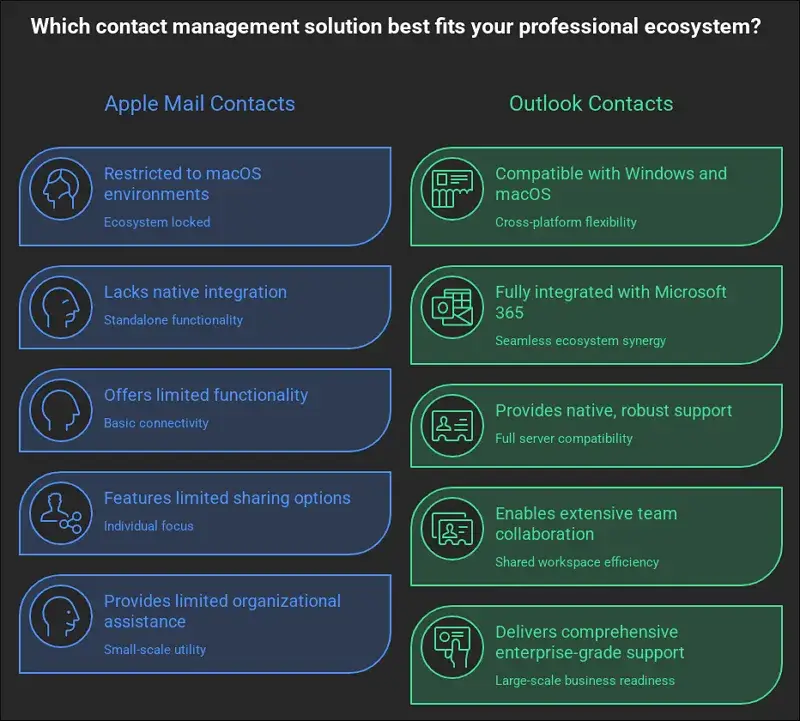
Find Causes: Why Do You Export Apple Mail Contacts to Outlook?
Various personal or professional reasons motivate users to transfer Apple Mail contacts. Here is the list of frequent scenarios:
- Current email environment switch.
- Smooth integration with Office apps.
- Better contact management in one place.
- Improved synchronization among different devices.
- Features that suit the enterprises (shared contacts or distribution list).
Related Article: 3 Methods to Export Apple Mail to Outlook.
Native Solution to Export Contacts From Apple Mail to MS Outlook [Full Address Book Transfer]
Check out this section thoroughly to find the detailed solutions to transfer Apple Mail contact list.
- Export Apple Mail contacts in vCard format.
- Alternatively, save contacts in CSV format.
- Import the extracted vCard or CSV files to Outlook.
- Use the Import/Export feature to add the contact list.
- Wait for the process completion, and it’s done.
Section 1. Export contacts from Apple Mail
You have to save the Apple Mail contact list to the local storage in the first step. Here are the complete steps:
A. Export Address Book in Vcard Format
Follow the steps mentioned below to extract the contact list as VCF files:
Step 1. Open the contacts on your Mac device.
Step 2. Click on Contacts and then select Preferences > vCard.
Note: Check the Export notes in vCard and Export photos in vCard boxes to export your notes and photos if needed.
Step 3. Tap on File > Export > Export vCard to proceed.
Step 4. Name the file and provide the destination to save it.
B. Save the Address Book in CSV Format
Although Apple Mail by default doesn’t allow you to export contacts in CSV format, you can use the given steps to do the same. Here’s how:
Step 1. Go to Contacts and select the necessary ones you want to export.
Step 2. Copy the contacts by using the CTRL+C keys on your keyboard.
Step 3. Access the MS Excel and paste the contacts by using the CTRL+V keys.
Step 4. Remove the unnecessary data from the Excel sheet and then continue to Save the file in CSV format.
Step 5. Select the destination path and provide a name for your CSV file.
Section 2. Import Apple Mail Contacts to Outlook
Use the step below to import the Apple Mail contacts after you get the address book files.
A. Import Contacts From the VCF File
You can use the below steps to import contacts using the VCF file.
Step 1. Open Outlook, then go to File > Open & Export > Import & Export.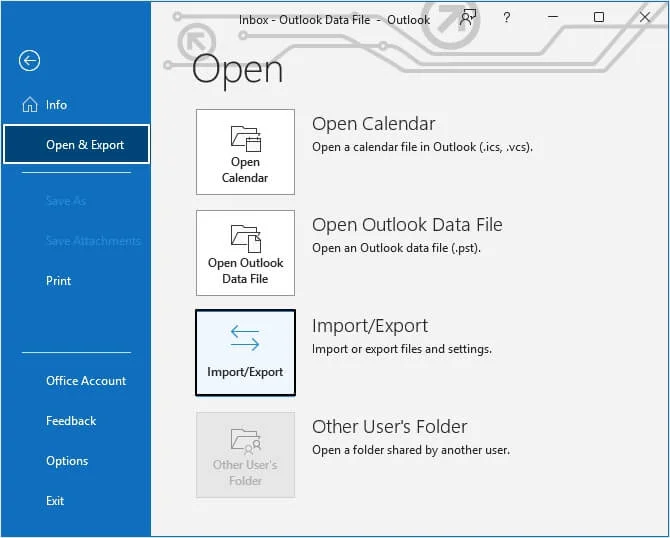
Step 2. Select Import a VCARD file (.vcf) and tap on Next.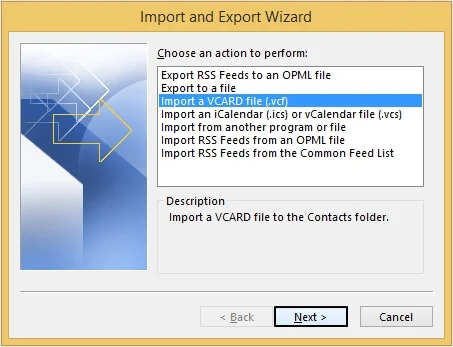
Step 3. Navigate to the stored VCF file location and Open it.
Step 4. It will add the contacts list to the Outlook application.
B. Add Contact List From the CSV File
The section below will provide you with the required steps to import contacts from CSV files.
Step 1. Click on File menu to access the Import & Export option.
Step 2. Choose the Import from another program or file and hit Next.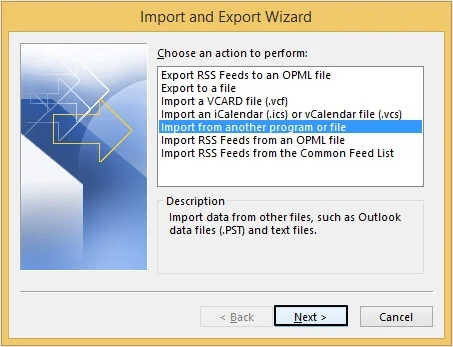
Step 3. Select the Comma Separated Values and click Next.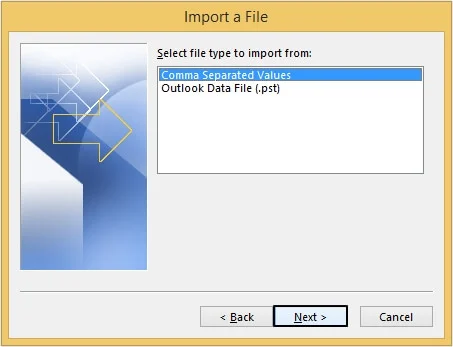
Step 4. Tap on Browse to locate the file on your device.
Step 5. Choose the preferred Options and proceed to Next.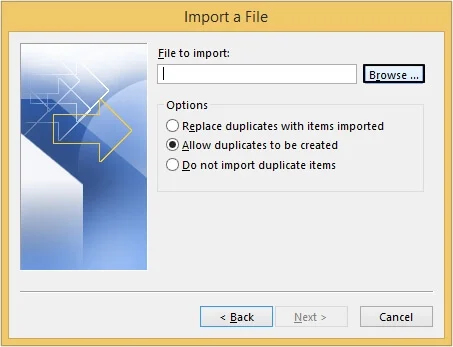
Step 6. Select the destination mailbox folder and click Next.
Step 7. Tap on Finish option after the folder selection.
Do You Want to Transfer Other Mailbox Items Besides Contact List?
You will be able to export contacts from Apple Mail to MS Outlook with the above solution. However, if you want to transfer other mailbox items apart from contacts, then the Recoveryfix MBOX to PST Converter tool will be a suitable approach.
The software helps to convert the exported MBOX files (from Apple Mail) to PST format in bulk. Later, you can import these PST files to Outlook and access the same data in the application.
Closing Remarks
Here, we have highlighted different methods to transfer Apple Mail contacts to Windows Outlook. Apply the structured approach to transfer the email contacts from Apple Mail successfully.
Also, check out the recommended solution if you want to migrate data other than contacts. It will help you to export multiple MBOX files to Office 365 accounts directly.