Simple Method to Convert PocoMail to Outlook PST

Published On - May 5, 2026
Facing difficulties accessing old PocoMail emails in Microsoft Outlook? Want to know how I can safely move data from PocoMail to Outlook without losing attachments or folder structure?
When users switch from legacy email clients like PocoMail to modern platforms like Outlook, the biggest hurdle is their format compatibility. Since PocoMail uses a different storage format [MBX/MBOX] & Outlook relies on PST files, their direct migration becomes challenging.
But don’t worry. This easy guide will walk you through the best possible approach to convert PocoMail to Outlook successfully.
Why Do I Convert PocoMail to Outlook PST?
It is necessary to understand why users prefer Outlook over PocoMail, which can help you with the core motive behind the conversion.
- Outlook offers better email management with rules, filters, categories, etc.
- Seamless integration with Office 365 apps like Word, Excel, Teams, etc.
- Outlook includes built-in security features like spam filtering, encryption, etc.
- Permits you access to emails across multiple devices like desktop, mobile & web.
- PocoMail is outdated, whereas Outlook continues to receive updates & support.
- Backup your data before starting the migration.
- Remove unnecessary emails to reduce the migration time.
- Check whether you have enough space for PST file creation.
- Close background apps to avoid interruptions during conversion.
Challenges to Migrate PocoMail Emails to Outlook Manually
Look at the inherent limitations of the manual approach that can make your experience bitter.
- Loss of folder hierarchy.
- Proprietary PocoMail file formats.
- No direct option to export to a PST file.
- Time-consuming process for bulk data.
- Risk of data loss during manual conversion.
- Need technical knowledge & other email clients.
Best Approach to Convert PocoMail to Outlook PST
Considering the challenges in the manual methods, IT experts always recommend choosing the advanced methods over manual ones.
Thinking of the best advanced method? Recoveryfix has the one-stop solution for you. Its MBOX to PST converter is the most trusted & efficient software in this category, with its error-free & instant results. Its intelligent algorithm & easy-to-use interface make it a must have tool for professionals & beginners both.
Here are the steps to move data from PocoMail to Outlook smoothly:
Step 1. Install & launch the software. Select the PocoMail option.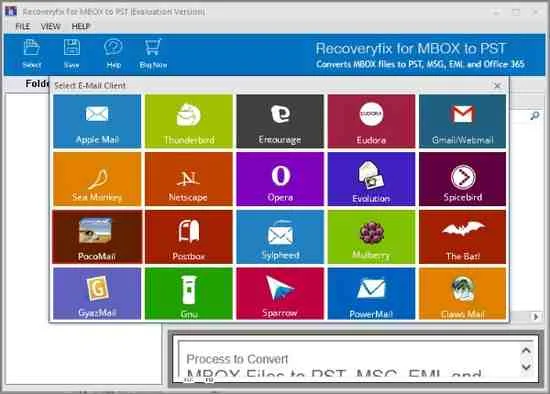
Step 2. Add required MBOX files. Hit the Finish tab.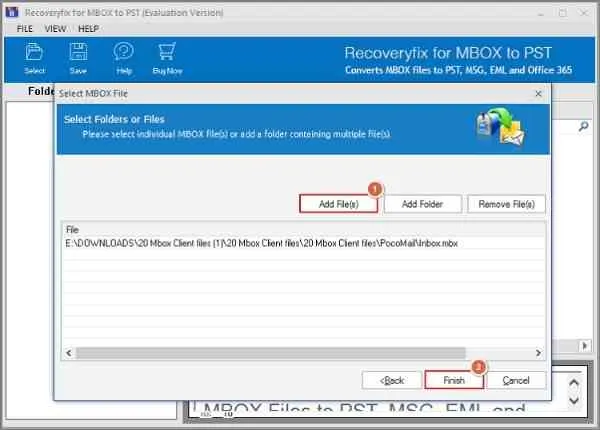
Step 3. You will get a detailed overview of your MBOX file data. Verify the details & then select the Save option.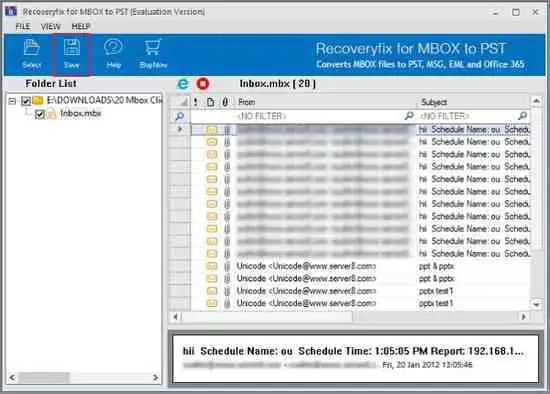
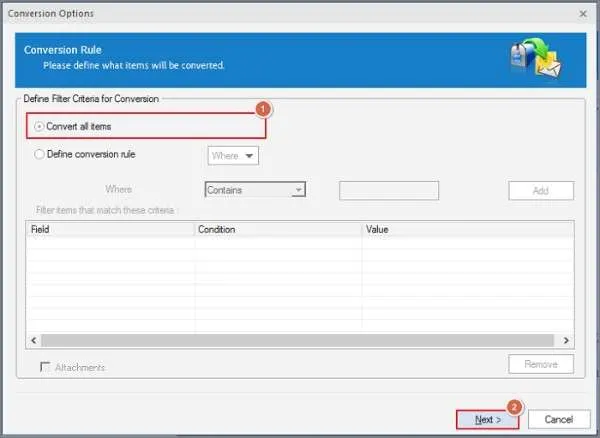
Step 4. Under the next section, choose the convert all items & click on Next.
Note: Here, you can also define a conversion rule, like date range, items, attachments, etc., to get the specific output.
Step 5. Choose the Save in PST, Create New PST file, Save in folder hierarchy, & then tap on Save.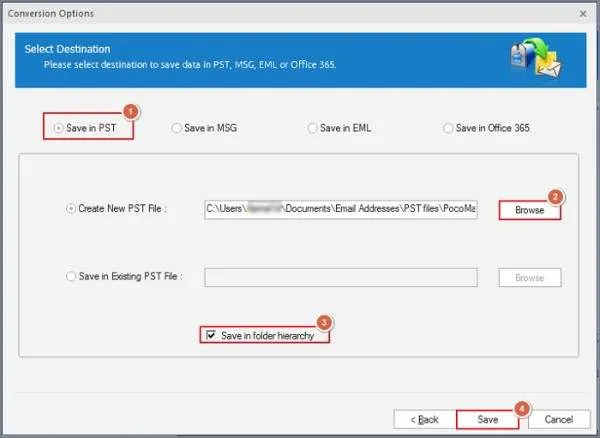
Step 6. It will start to migrate PocoMail emails to Outlook PST format.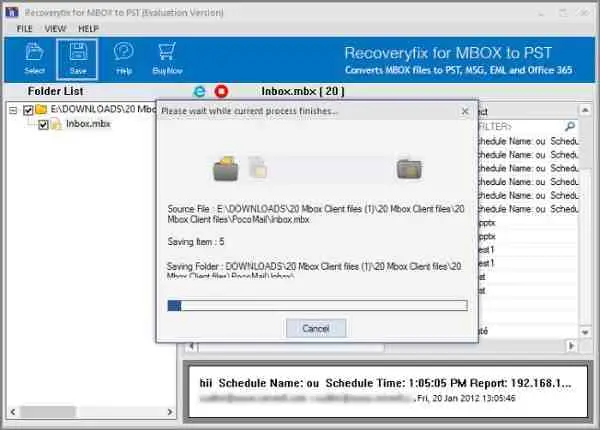
Step 7. Wait till the process is completed, and click OK to exit from the tool.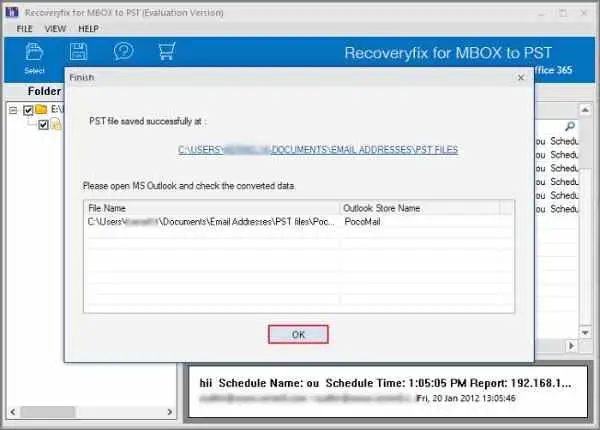
- Import PST into Outlook using its Import/Export feature.
- Verify emails, attachments, folders & ensure no data is missing.
Features of the Advanced MBOX Converter
Check out the smart features of the tool that make conversion smooth & efficient.
- Convert MBOX to Outlook PST & other formats like EML, MSG, HTML, etc.
- Supports 20+ MBOX email clients like Thunderbird, PocoMail, Apple Mail, etc.
- Allows you to convert MBOX to Office 365 directly without data loss.
- Retains complete data integrity & security during the MBOX to PST conversion.
- Offers advanced features & innovative filters for structured output at the desired destination.
Convert PocoMail to Outlook PST: Last Words
With the right approach, the complex task also seems simple, like MBOX conversion. Since manual methods lack successful results & reliability, we have suggested the advanced & direct approach to convert PocoMail to Outlook. Ensure that the steps are followed as provided above. You can even check the tool’s trial version to test its core features.
FAQs
Q1. Can I move data from PocoMail to Outlook without installing PocoMail?
A. Yes. Our smart tool runs independently of the native software. Add the MBOX file irrespective of the email client & get the results instantly.
Q2. Will my email timestamps & metadata remain intact after conversion?
A. With the suggested advanced tool, the complete metadata like sender details, timestamps, subject lines, & attachments remains preserved.
Q3. Is there any file size or file number limitation with the tool?
A. No. You can add MBOX files of any size or number & start the conversion hassle-free.
Q4. I want to convert PocoMail to Outlook PST specifically. Is it possible?
A. Manual methods can’t support this. You need to go with the advanced tool for specific conversion with the help of filters like date range, items, etc.