How to Export Thunderbird to PST? – Get the Detailed Guide

Updated On - August 13, 2026
User Query: I have been using Thunderbird for more than 12 years. Now, I want to switch to Outlook for business expansion, but the different format compatibility of both platforms is my biggest challenge. Can you suggest any solutions for the same?
Switching from Thunderbird to Outlook can feel complex when important emails, contacts, and attachments are involved. It is because there is no direct support for migration between these platforms. As a result, users are confused about how to transfer years of important emails without losing them. The blog tackles this challenge and helps you keep every detail intact. Let’s know all the necessary information along with the detailed steps to export Thunderbird to PST.
Why Do Users Need to Export Thunderbird to PST? – Benefits Explained
Thunderbird is a capable email client for personal use, but Outlook is the preferred platform for professionals. Here’s why:
- Improved business support.
- Centralized email management.
- Integration with Microsoft 365.
- Native Exchange Server support.
- Enterprise-grade security controls.
- Easier administration for organizations.
- Advanced calendar and scheduling features.
- App integration with Teams for better collaboration.
- Drafts
- Metadata
- Attachments
- Sent Items
- Custom Folders
- Folder Hierarchy
- Signatures.
- Message rules.
- Custom settings
- Add-on configurations.
- Address book formatting.
- Contains risk of missing emails.
- Involves multiple conversion stages.
- Embedded attachments fail to transfer correctly.
- Folder structure may change or disrupt in the end.
- Consumes hours or even days with large datasets.
- Requires both the Outlook and Thunderbird applications.
Verdict:Outlook usually provides a more unified experience if your workflow depends on Microsoft services.
Things to Know Before You Convert Thunderbird to PST
Follow these preparation steps to avoid data loss before starting the migration process. Here they are:
|
1. Backup Thunderbird emails before executing the process. |
|
2. Know what data can be transferred. You can transfer: |
|
3. Identify what may not transfer properly Some mailbox elements may require manual recreation: |
Manual Methods to Export Thunderbird Emails to Outlook PST [2 Best Ways]
We have tried various solutions to convert Thunderbird emails easily. But, only the given ones gave the most satisfactory results. So, you can try them now to find the most suitable approach:
Solution 1. Convert Thunderbird into Outlook PST
The steps below will be helpful if you have an active account that you are using in Thunderbird. Here are the detailed steps to export emails in PST format:
Step 1. Go to Outlook and click on the File menu.
Step 2. Click on the Add Account option to proceed.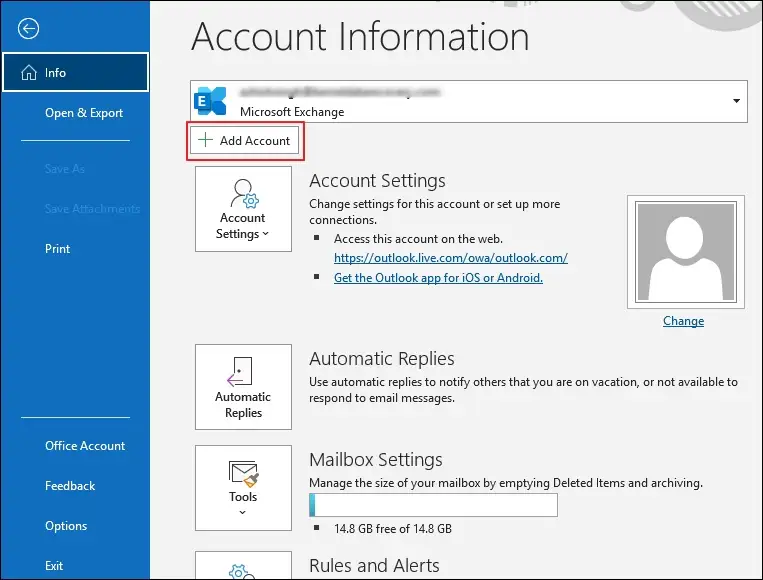
Step 3. Type the Email address and go to Advanced options.
Step 4. Enable the Let me set up account manual option and proceed to Connect.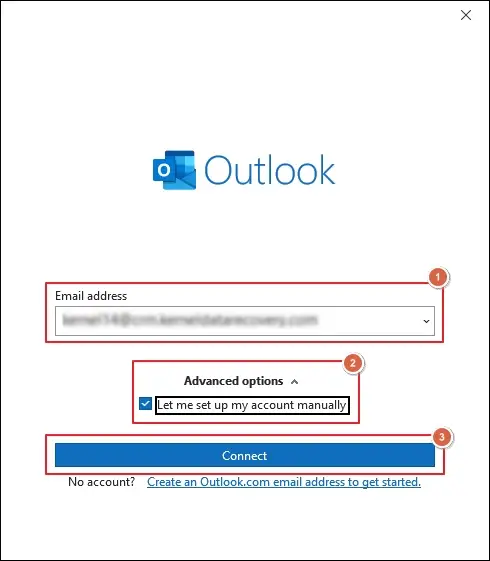
Step 5. Tap on IMAP under the Advanced setup window.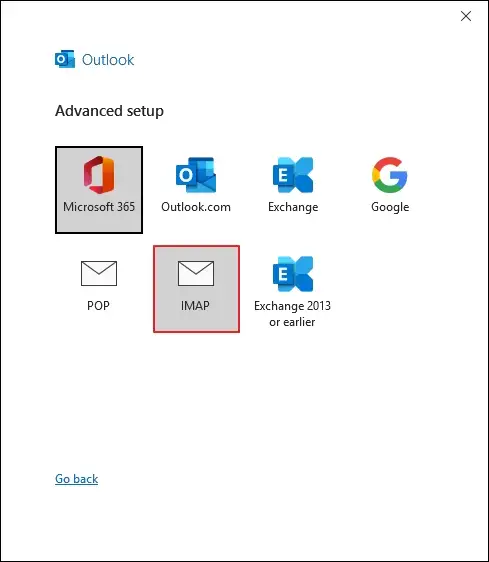
Step 6. Then follow the on-screen instructions to complete the setup.
Step 7. Wait till all the emails synchronize completely.
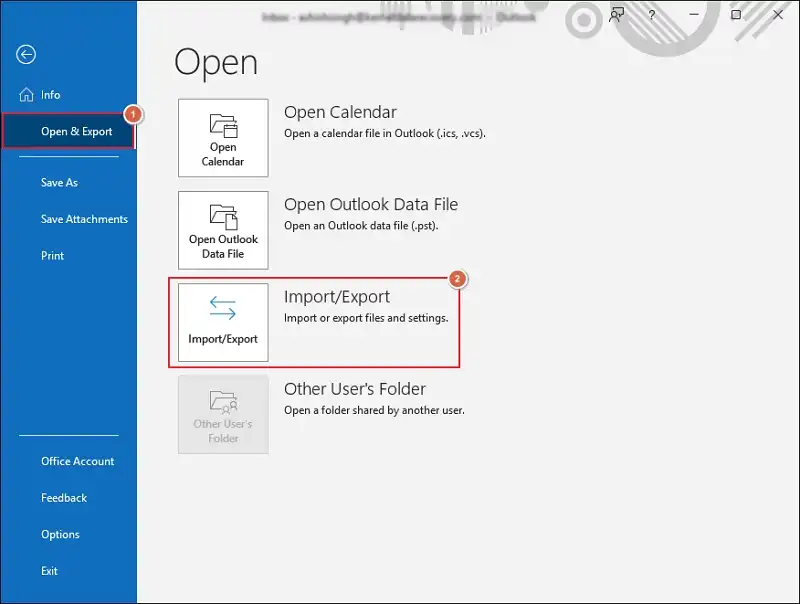
Step 8. Navigate to the File tab again and click on Import/Export.
Step 9. Select Export to a file option and proceed to Next.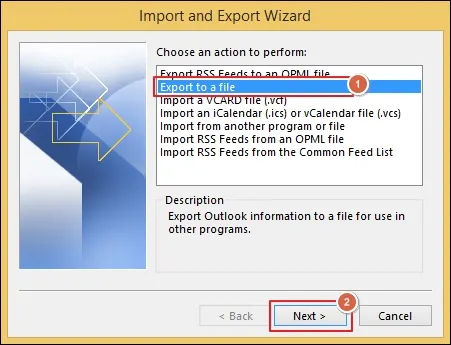
Step 10. Choose the Outlook Data File (.pst) option and hit Next.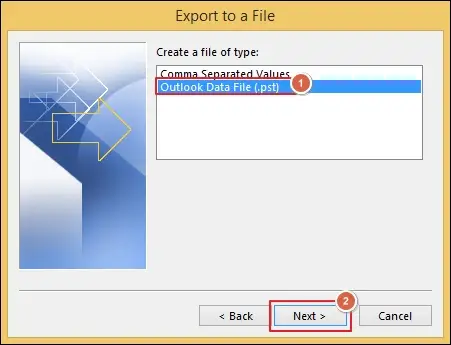
Step 11. Select the mailbox folder> Include subfolders> Filter> Next.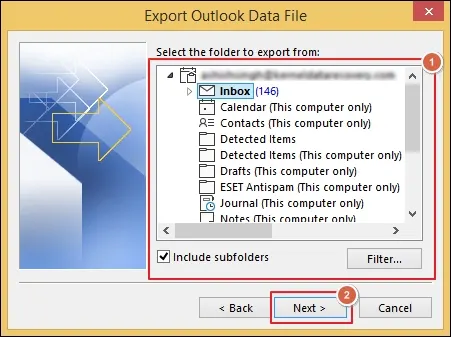
Step 12. Browse to provide the file saving location.
Step 13. Choose the appropriate Options and click Finish.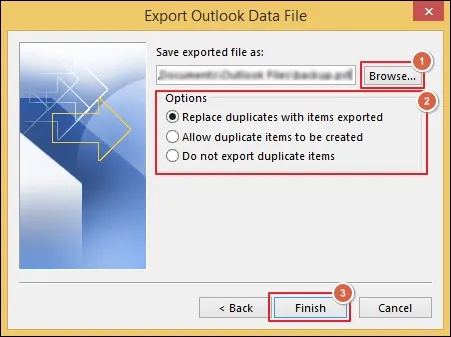
Solution 2. Convert Mailbox Data Files (Locally Stored) to Outlook PST
This method will help you to convert offline MBOX files to Outlook PST format. So, follow the steps below to execute the same operation:
A. Export Mailbox Data Files to Thunderbird
Configure an email account in the Thunderbird application if the account is not set up. Here are the complete steps:
Step 1. Go to Settings> Account Actions> Add Mail Account.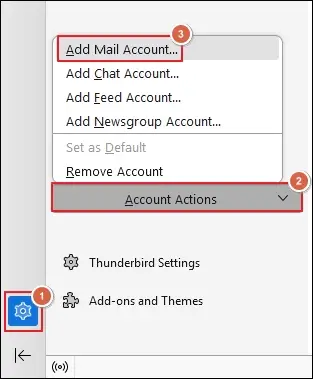
Step 2. Enter details like Your full name, Email address and Password to Continue.
Step 3. Select from the Available configurations and click Done.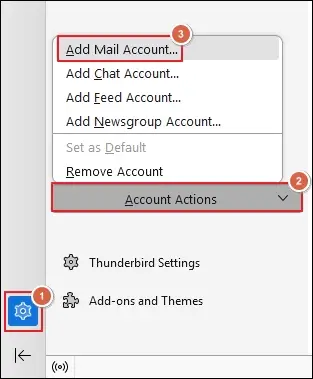
Step 4. Access the Menu and proceed to Tools.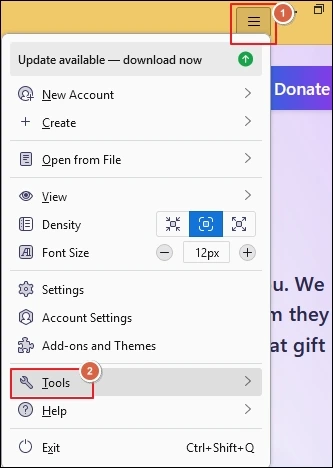
Step 5. Tap on Import.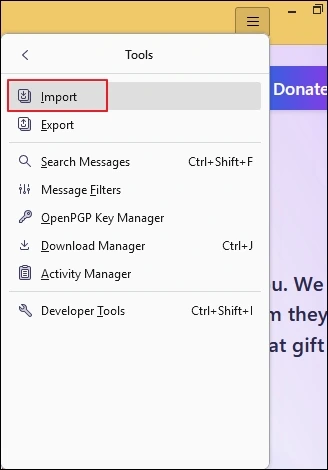
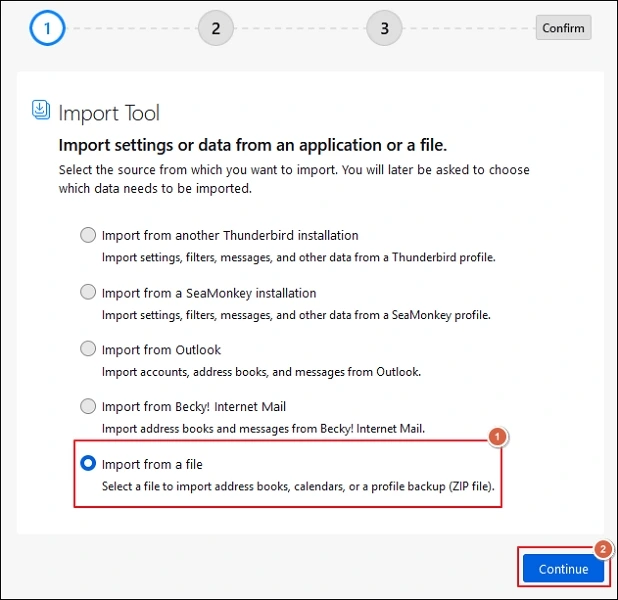
Step 6. Choose the Import from a file option and proceed to Continue.
Step 7. Select the Import Backed-up Profile and hit Continue.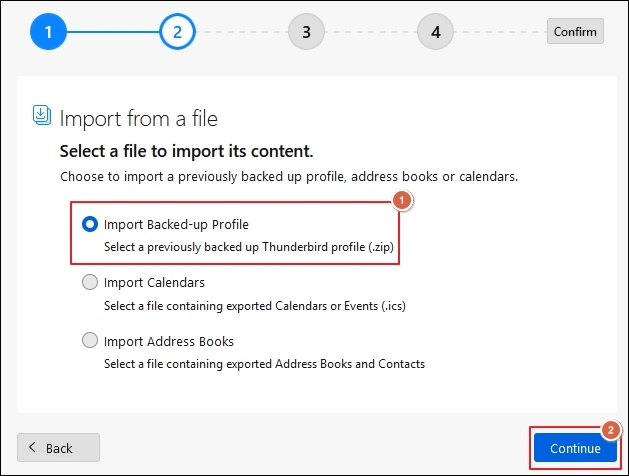
Step 8. Choose what to import and tap on Continue.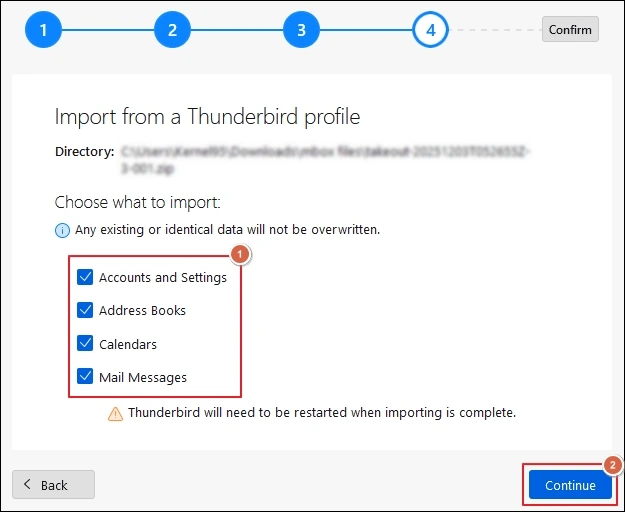
Step 9. Verify the selected choices and Start Import. 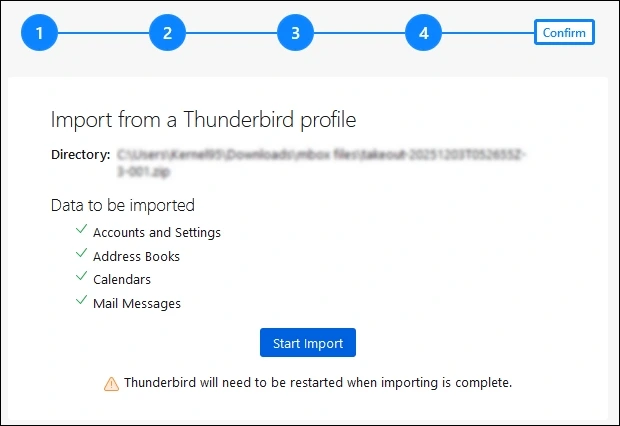
B. Configure Email Account In Outlook & Export PST Files
Now, configure the same email account in Outlook and export files with the following steps.
Step 1. Wait till all the emails synchronize after the account setup.
Step 2. Go to the File tab and proceed to Import/Export.
Step 3. Choose the Export to a file option and click Next.
Step 4. Select the Outlook Data File (.pst) and tap on Next.
Step 5. Choose the mailbox folder and checkmark the Include subfolders option.
Step 6. Then apply the Filter and proceed to Next.
Step 7. Browse to provide the file saving location and select the appropriate Options. Then, click Finish.
Challenges You Might Face During the Export Thunderbird to PST Procedure
Native solutions may appear straightforward, but they often come with the following limitations:
Native Methods Seem Lengthy? – Try the Professional Tool Now
Manual methods work, but only to a point, which the above section explains. They become difficult when you have years of emails, attachments, archives, and custom folders. Therefore, using the professional Thunderbird to PST Converter like Recoveryfix simplifies the entire process.The MBOX to PST Converter tool converts multiple files to PST format without any restrictions. It even allows you to export multiple MBOX files to Office 365 instantly.
Manual Vs Automated Solution – A Quick Comparison
Evaluate both the solutions to identify the most suitable approach for yourself.
|
Parameter |
Manual Methods |
Automated Solution |
|
Time Required |
High |
Low |
|
Technical Complexity |
Medium to High |
Low |
|
Data Loss Risk |
Moderate |
Minimal |
|
Bulk Migration |
Difficult |
Easy |
|
Attachment Support |
Limited |
Full |
|
Folder Structure |
May Change |
Preserved |
|
Cost |
Free |
Paid |
|
Best for |
Small Mailbox |
Large Mailboxes |
Findings: Manual methods only work with a limited number of emails, but for larger datasets, you need a more reliable solution.
Final Notes
Here, we have highlighted the best methods to export Thunderbird to PST using native or automated solutions. Manual methods work easily with smaller mailboxes.
But as the mailbox size increases, the process becomes lengthy and more vulnerable to errors. To avoid all this, go with the recommended solution for preserving years of important communication safely.
FAQs: Resolve Doubts Instantly
Q- How do I export Thunderbird emails to Outlook PST?
A- You can configure the same account in Outlook and export emails into PST format. Also, you can use advanced solutions to simplify the entire process.
Q- Can I directly convert Thunderbird emails into Outlook?
A- No, you can’t directly convert Thunderbird to Outlook PST, the application doesn’t support Thunderbird (MBOX) mailbox files. You have to follow a structured approach to do the same.
Q- Can I selectively export specific folders or emails by date?
A- Yes, with advanced conversion tools, you can export selective mailbox data.
Q- How can I backup Mozilla Thunderbird emails?
A- You export mailboxes to backup Thunderbird profiles to a safe location before migration.