How to Convert MBOX to PDF Files With Attachments?

Published On - June 8, 2026
Have you received a request to submit important email conversations? But your MBOX files are restricted to their compatible platform. Now, you can’t proceed with your audit or legal investigations for this reason. So, you are looking for a readable format that is universally accessible and keeps email content secure for a longer period. The simple answer to this problem is PDF files, which are widely accepted document formats.
Stay with us to convert MBOX files to PDF format and make your email portable and easy to share now.
Why Convert MBOX to PDF Files? – Listed Top Benefits
PDF files come with several advantages that are useful for users. Go through the section below to know the significant ones:
- Access PDF files on any device with universal access.
- Suitable for audits and legal evidence in organizations.
- Maintains complete email structure in its original state.
- Archive and preserve important data for the long term.
- Share emails without checking for supported email clients.
- Helps to prepare professional-grade reports or documentation.
- Password protection to secure emails from unauthorized access.
The Complete List: What You Can Export From MBOX to PDF Format?
You can save the given list of contents from an email message if the applied method is correct. Here they are:
| Email Subject | Hyperlinks |
|---|---|
|
Sender Information |
Embedded Images |
|
Recipient Details |
Attachments (separately or embedded) |
|
Date and Time |
Email Structure |
|
Email Body Content |
Email Metadata |
Top 3 Methods to Convert MBOX Files to PDF Format Manually
Before coming to the given solutions, we have tried several available solutions on the internet. Most of them disappointed us, except the listed ones. You can try them to check if they work for you or not.
Method 1. Use Apple Mail For MBOX to PDF Conversion
This solution is ideal for Mac users who want to convert their MBOX files into readily accessible format. Here are the detailed solutions given below:
Important Note: An email account must be configured in Apple Mail to apply the given steps.
Step 1. Launch Apple Mail on your system.
Step 2. Go to the File tab and click on Import Mailboxes.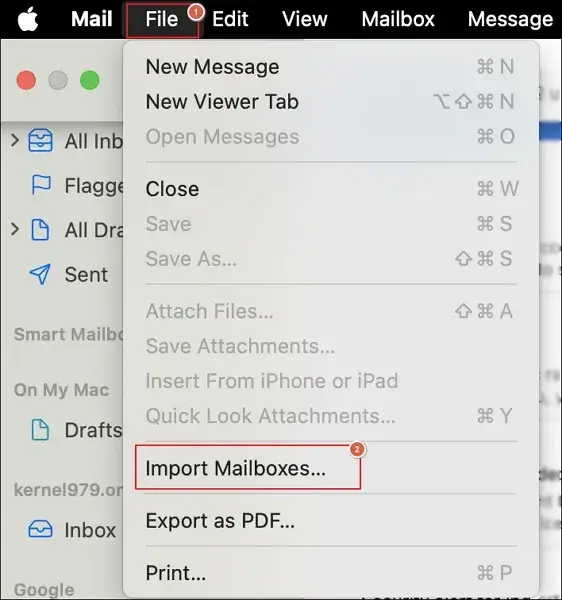
Step 3. Choose the Files in mbox format option and proceed to Continue.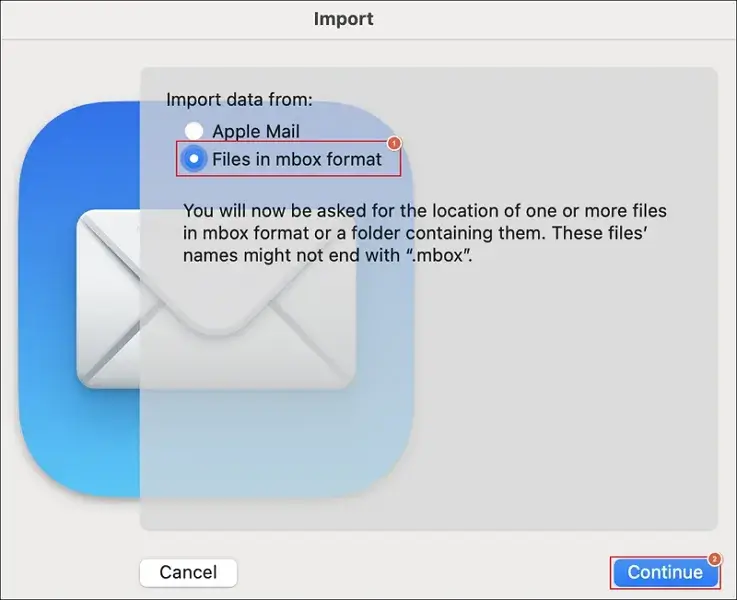
Step 4. Select the locally stored MBOX files. Then, tap on Choose option.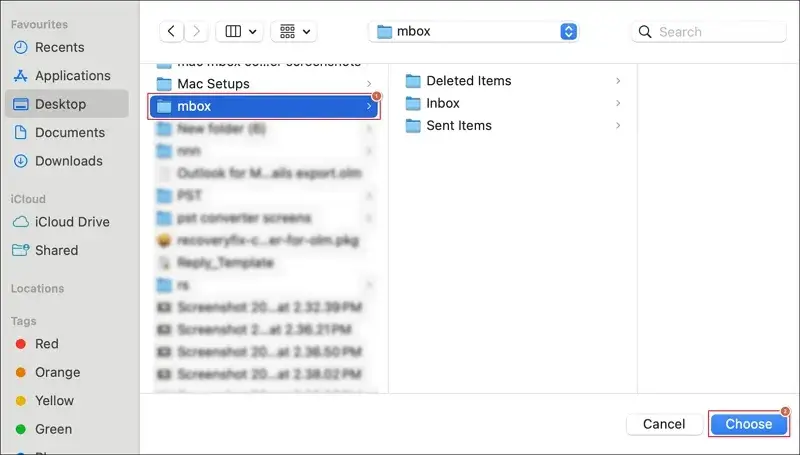
Step 5. It will start the import process of MBOX files.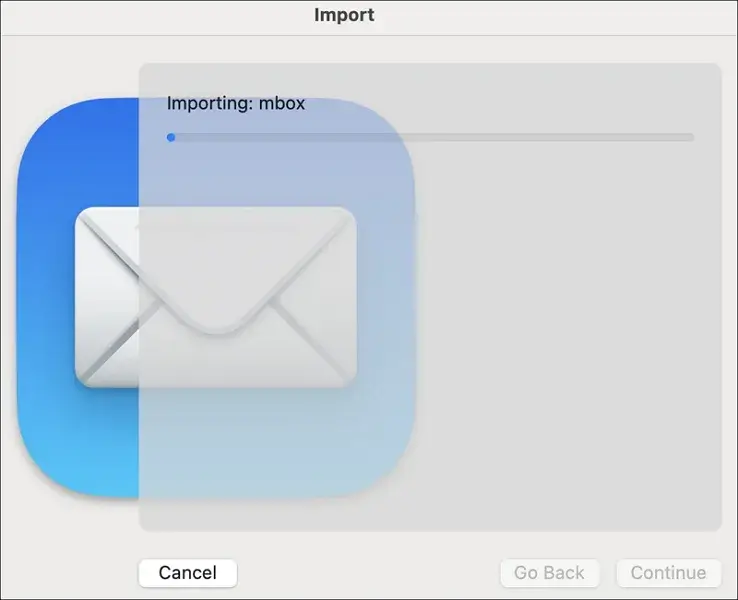
Step 6. A notification will appear once it is completed.
Step 7. Then, click on Done to proceed. 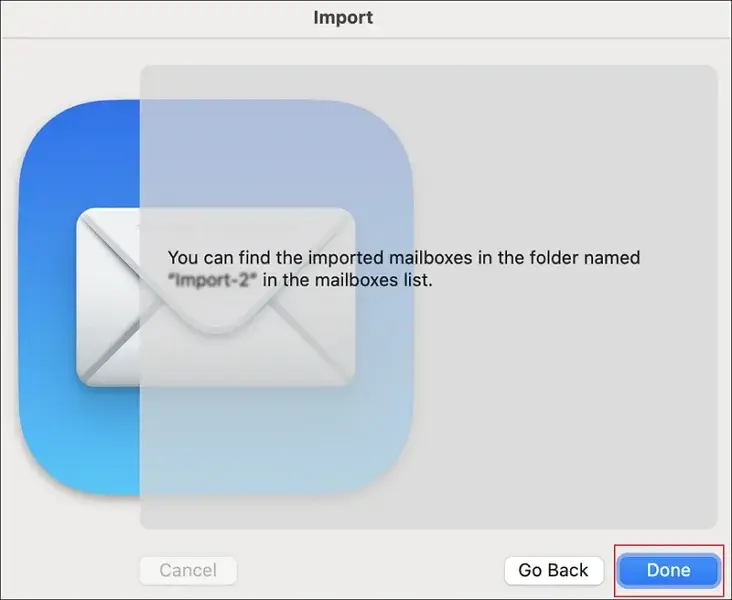
Step 8. Select the emails that you need to convert and Export as PDF.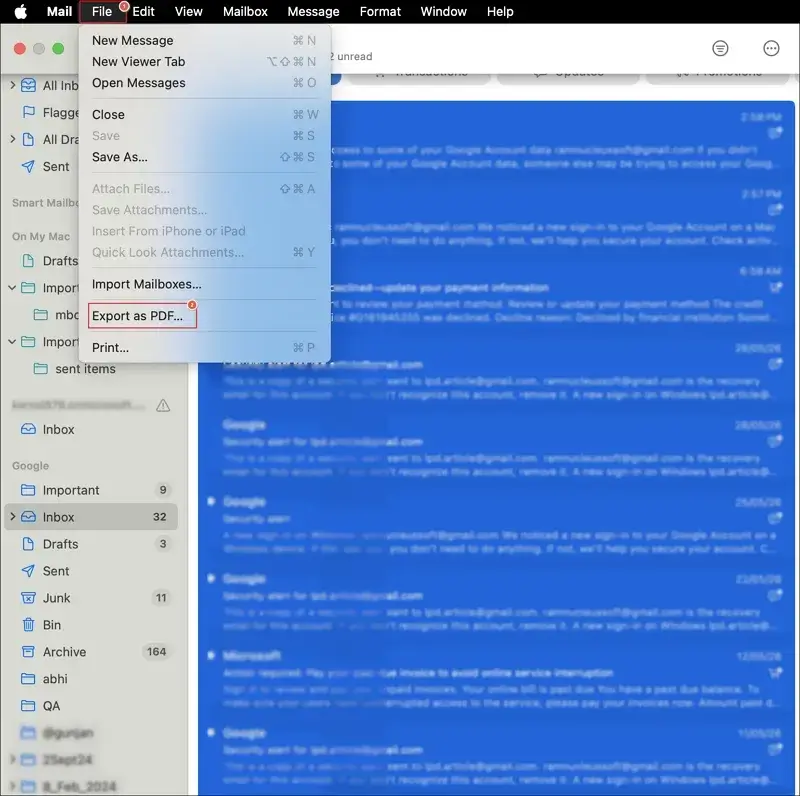
Step 9. Choose the location to save the files on your system.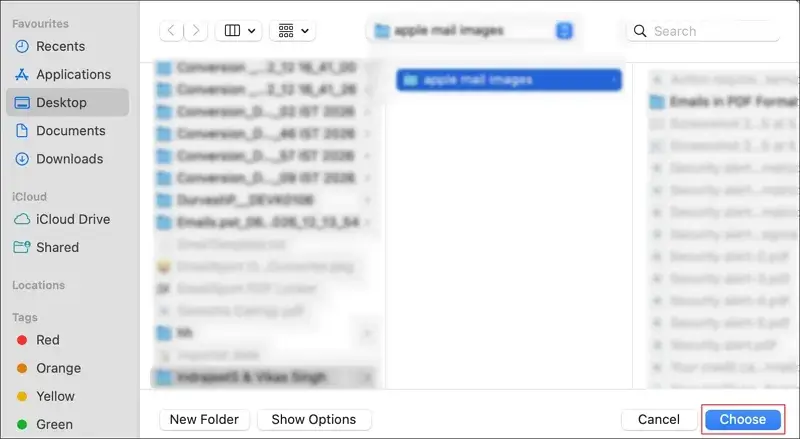
Step 10. It will start converting MBOX to PDF files.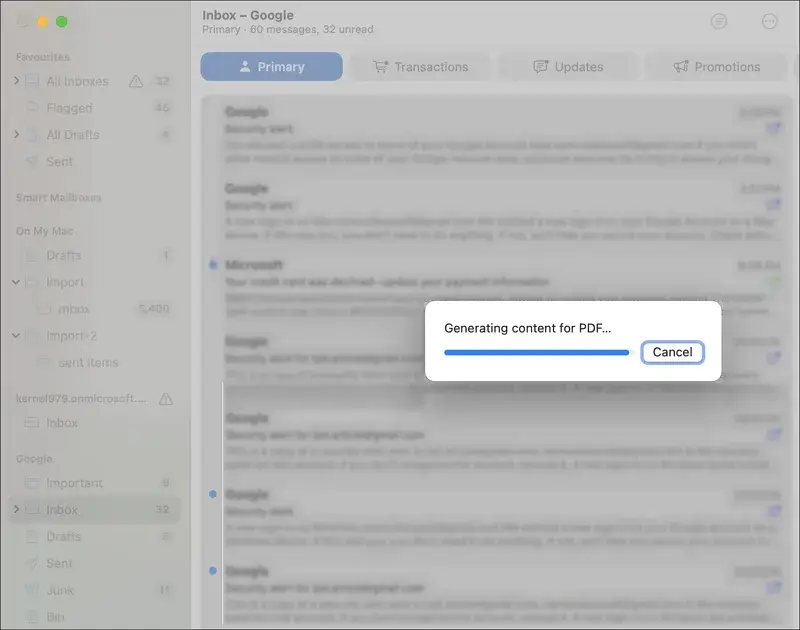
Step 11. Check out the chosen folders to open files in PDF format.
Method 2. Convert MBOX to PDF In Bulk With Thunderbird
You can use this method only when your email account is active and logged in the Thunderbird application to export multiple MBOX files. Here’s how:
Step 1. Access the Thunderbird application and go to Settings.
Step 2. Navigate to Account Settings > Account Actions.
Step 3. Then, proceed to Add Mail Account option.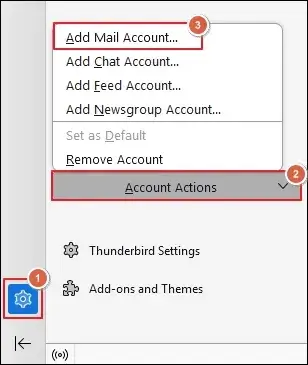
Step 4. Set up an email account by entering the following details.
- Your full name
- Email address
- Password
Once done, tap on the Configure manually option.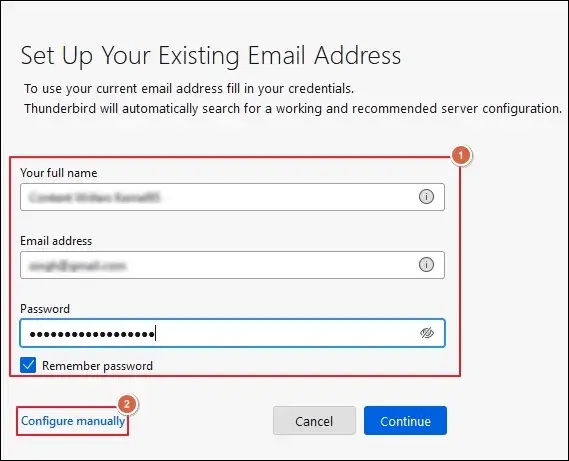
Step 5. Type the necessary Manual configuration settings and click Done.
Step 6. Access the Menu and go to Add-ons and Themes. 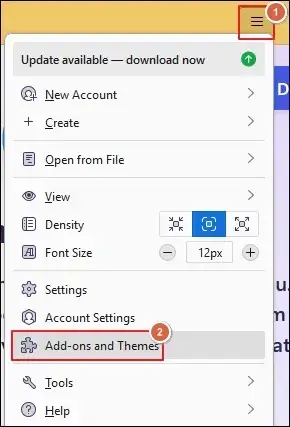
Step 7. Tap on addons.thunderbird.net to proceed.
Step 8. Type ImportExportToolsNG in the search bar, then hit the green arrow. 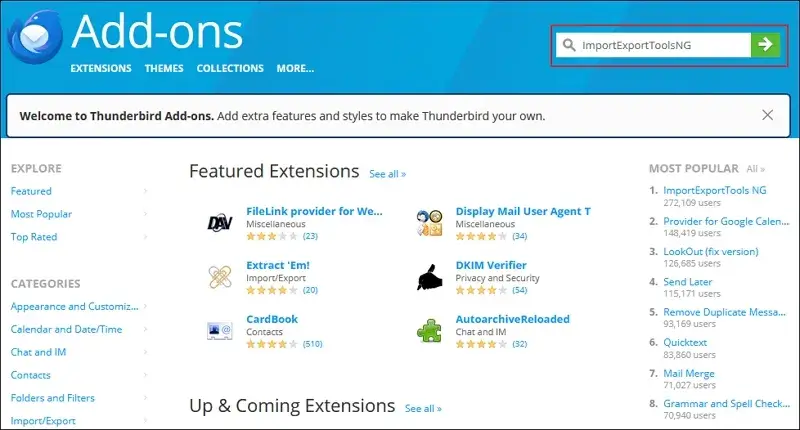
Step 9. Click on the Add to Thunderbird option.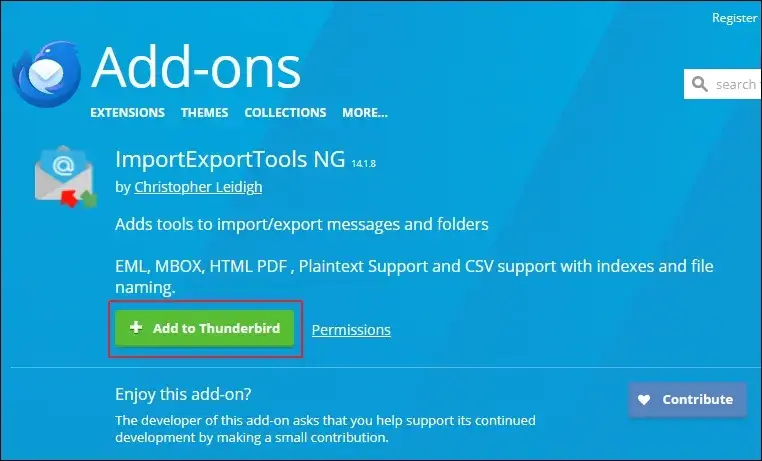
Step 10. On the confirmation wizard, tap on Add. Then, wait for the notification to appear.
Step 11. Right-click on the mailbox folder and select the ImportExportToolsNG option.
Step 12. Then, Export All Messages In Folder > PDF Format > Messages And HTML Index. 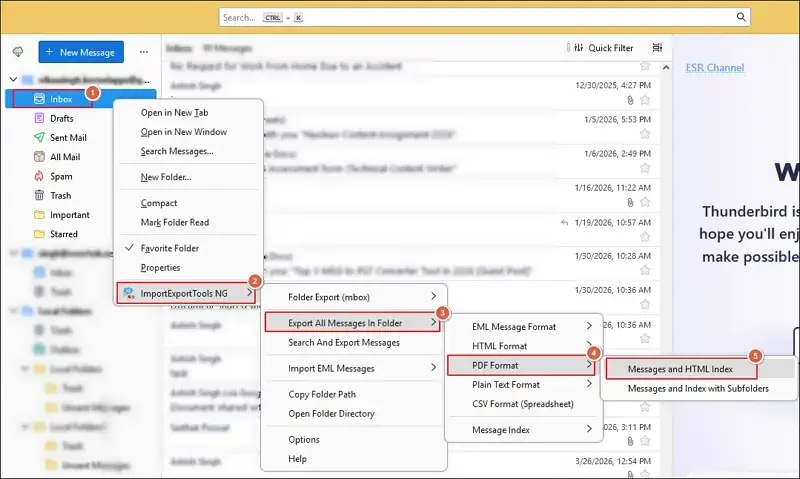
Step 13. Click on Select Folder to save and open MBOX File as PDF format.
Step 14. Wait for the process completion.
Method 3. Save the Locally Stored MBOX Files (Widely Applicable)
If you have MBOX files stored locally, then this method is for you. Here are the steps to archive Thunderbird emails into different format:
Section 1.Import MBOX Files Into Thunderbird
Step 1. Access the Menu option and go to Tools. Then, click Import.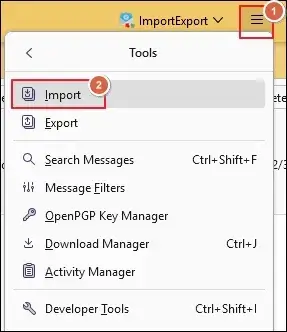
Step 2. Select the Import from a file option and proceed to Continue.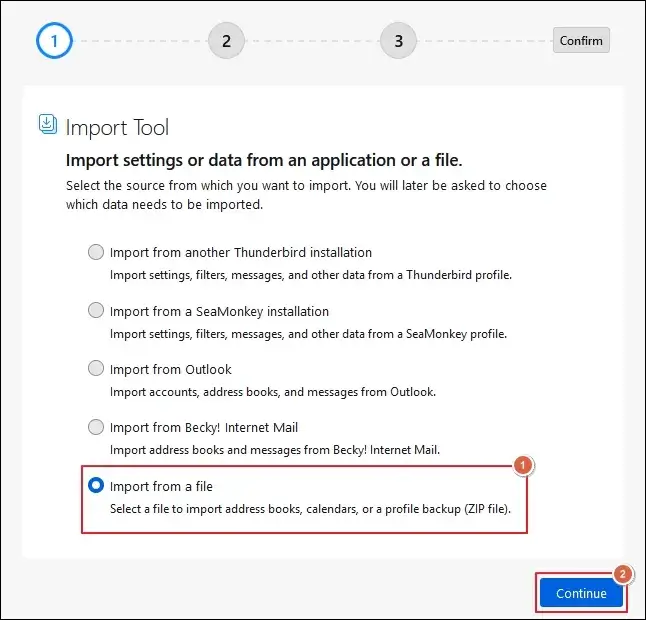
Step 3. Tap on Import Backed-up Profile and hit Continue.
Step 4. Choose a ZIP file option to Continue further.
Step 5. Select the locally stored MBOX files and Open it.
Step 6. Choose what to import and proceed to Continue. 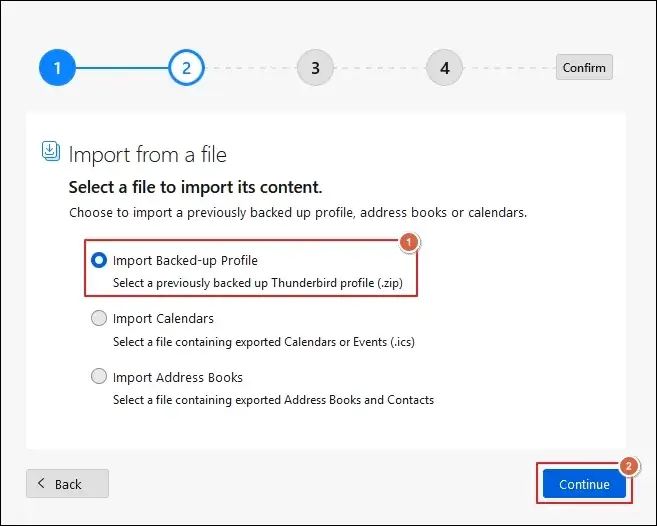
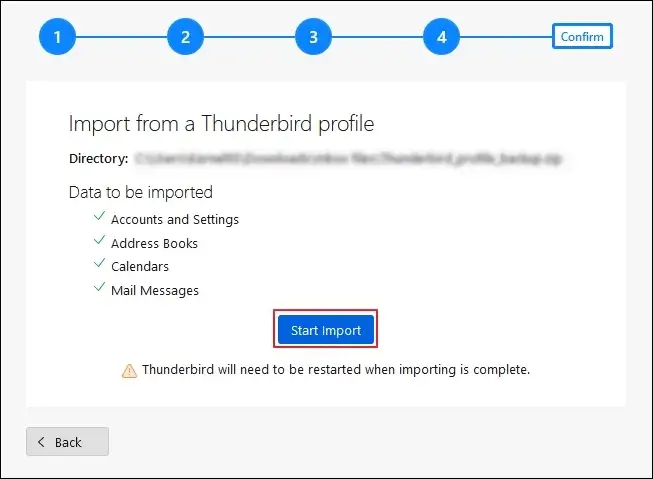
Step 7. Verify the selected mailbox items and Start Import.
Step 8. Wait for the process completion and click Finish to restart Thunderbird.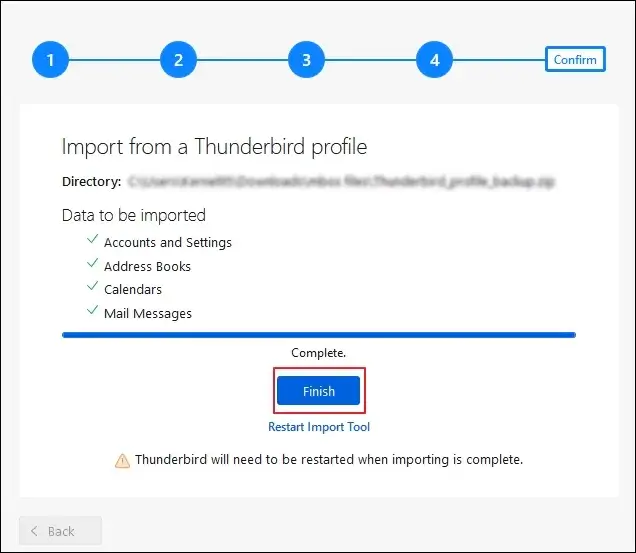
Section 2. Export the MBOX Files Into PDF Format
Step 1. Right-click on the imported MBOX file and proceed with the ImportExportToolsNG option.
Step 2. Click on Export All Messages In Folder > Format > Messages And HTML Index.
Step 3. Select Folder to save emails into your local system.
Step 4. It will begin the MBOX to PDF conversion.
Ending Note
The blog has a detailed guide to convert MBOX to PDF format using different methods. You can use the stepwise illustrations to perform the entire conversion process even with the locally stored offline files. However, if you want to convert MBOX files into a format other than PDF, then check out the Recoveryfix tool. The MBOX to PST Converter tool easily converts your individual email messages into EML or MSG format.