Methods to Fix Outlook Error 0X8004011D

Updated On - August 26, 2026
- Disable the installed Outlook add-ins temporarily.
- Check the internet connection or Microsoft servers.
- Update & restart Windows and Outlook to the latest version.
- Correct DNS settings (Network adapters, properties, & TCP/IPv4).
- Run the sfc/scannow to check Windows system files related to Outlook.
Later on, I applied different advanced solutions that helped me fix the Microsoft Outlook error code 0x8004011D. Hence, read more to learn about them in detail.
Your Outlook application suddenly stops connecting to an Exchange or Microsoft 365 mailbox and displays:
When this message appears, you can’t perform any actions in Outlook. So resolving the error quickly is necessary. The blog will help you find reasons and practical solutions to fix Outlook error 0x8004011D.
Why Does Outlook Error 0X8004011D Occur? – Know Reasons
“The Server is not Available” error in Microsoft Outlook can appear due to several causes. But the following reasons are the most significant ones:
- Outlook data file-related errors.
- Unstable or slow internet connection.
- Damage or corrupted Outlook profile.
- Problems related to Cached Exchange Mode.
- Exchange Server or Microsoft 365 Connectivity.
- Antivirus or firewall programs block Outlook connection.
Best 5 Ways: How to Fix Outlook Error 0X8004011D Manually?
We have tried several solutions and shortlisted the ones below, as they are the only working methods. So, try them individually to figure out the most suitable one for your situation.
Method 1. Reduce the Outlook Data File Size
Over time, the size of the Outlook data file becomes oversized and creates performance issues in Outlook. So fix oversized PST or OST files to resolve Outlook error 0X8004011D. Here’s how:
Step 1. Launch Outlook and go to File menu.
Step 2. Expand Account Settings and proceed to Account Settings.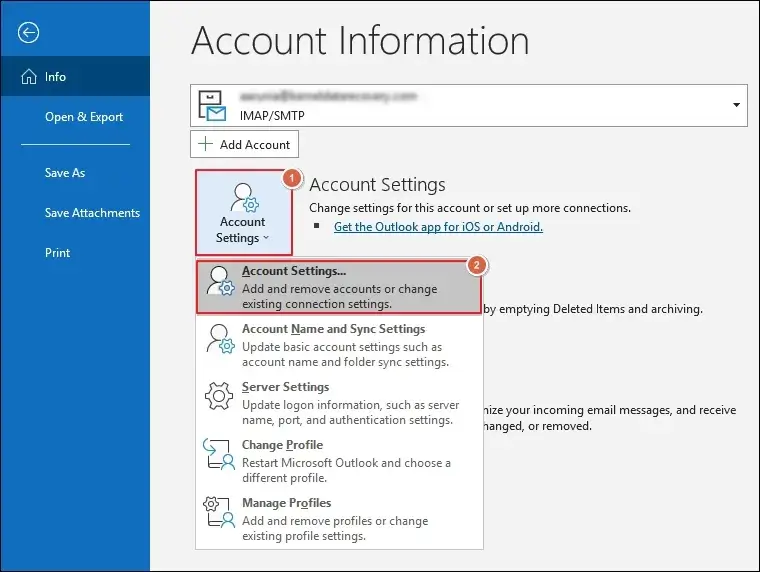
Step 3. Navigate to the Data Files tab and select the associated file.
Step 4. Tap on Settings to continue.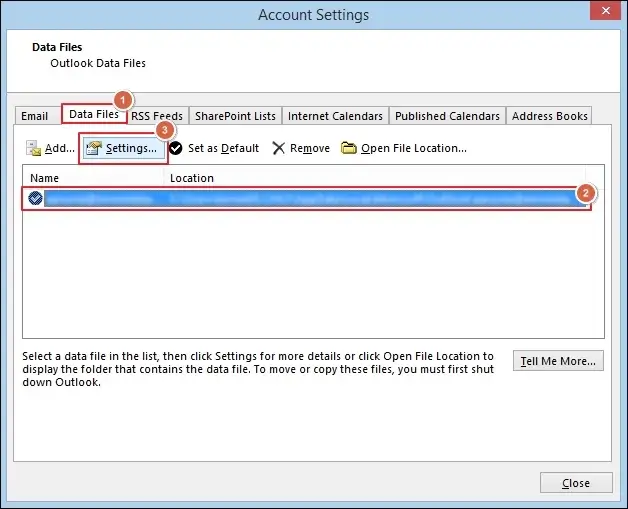
Step 5. Go to the Compact Now option and hit OK.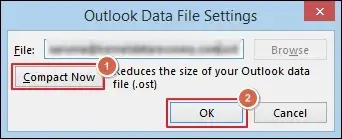
Method 2. Turn Off Cached Exchange Mode
Disabled Cached Exchange Mode can also sometimes lead to Outlook error code 0X8004011D. So, make sure you turn it on to avoid errors. Follow the steps below to fix the “Error Code 0x8004011D” in Outlook:
Step 1. Click Account Settings > Account Settings.
Step 2. Choose the Microsoft Exchange account and tap Change.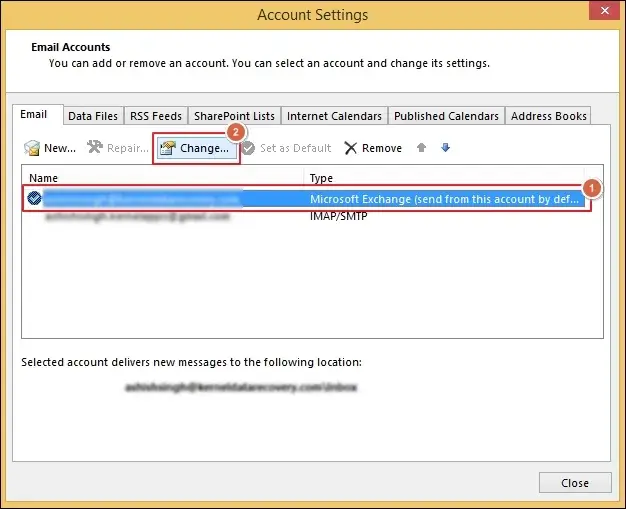
Step 3. Go to More Settings to proceed.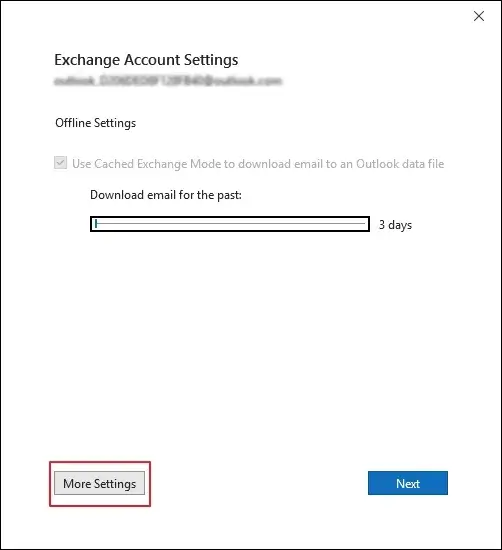
Step 4. Check the following Cached Exchange Mode Settings:
- Use Cached Exchange Mode
- Download shared folders
Then, Apply changes and click OK.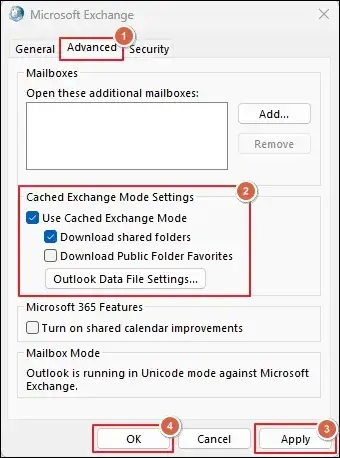
Step 5. Wait for the process to complete.
Method 3. Recreate or Rebuild the Outlook Profile
Sometimes, Outlook profiles get corrupted, which causes errors in Outlook and stops it from working correctly. Try to recreate a new Outlook profile by following the steps mentioned below to fix the Microsoft Outlook error code 0x8004011D:
Step 1. Access the Control Panel and go to Mail (Microsoft Outlook).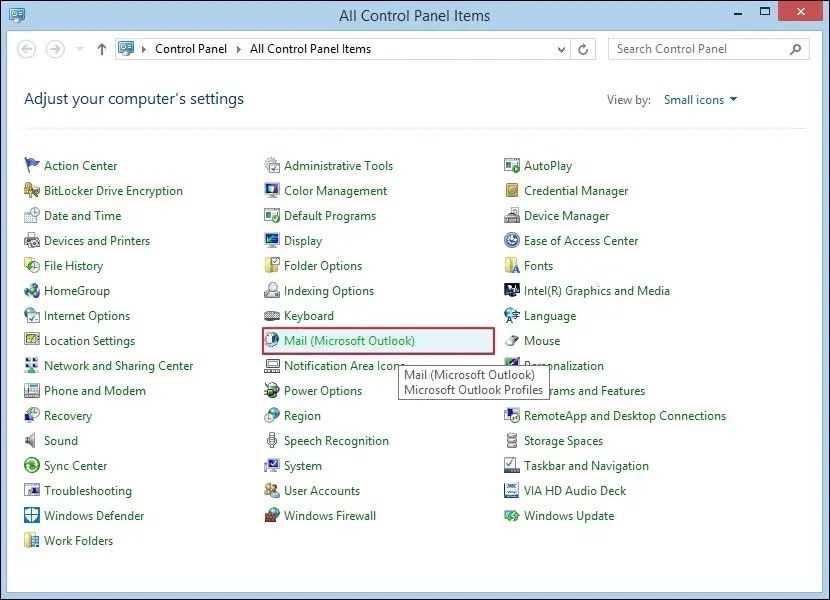
Step 2. Click on Show Profiles to view the existing ones.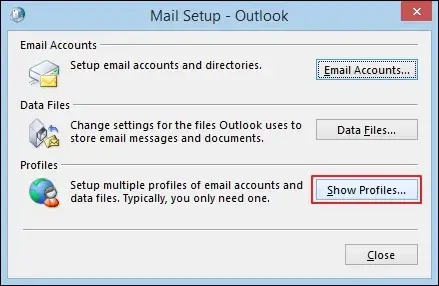
Step 3. Tap on Add to Create New Profile. Then, hit OK.
Note: Select Always use this profile to make it default one.
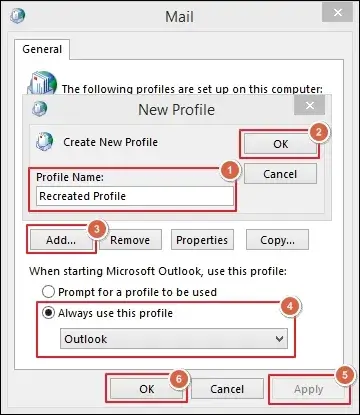
Step 4. Enter the account credentials to configure it properly.
Step 5. Click on Next to Finish the process.
Method 4. Verify the Information Stores & Databases
You can check the information stores and databases to learn more about the “The Server is not Available” error in Microsoft Outlook. Here are the detailed steps to do the same:
- Open Exchange Manager and proceed to Server > Server name > First storage group.
- Right-click on the Mailbox store and check if it’s mounted or dismounted.
- Moving ahead, verify the status of the database. Then, open the command prompt and type:
C:\Program files\Exchsrvr>bin\eseutil/mhmdbdata\priv1.edb
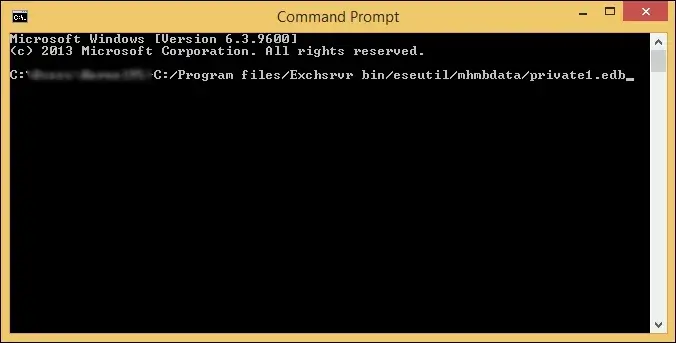
- If you see a Dirty status, ensure all transaction logs from the checkpoint are available.
- Go to the Mount Store and make sure the logs exist or not.
- Run the command Eseutil/p to repair the database and Eseutil/d to defrag the database.
- Open the Information Store Integrity Checker and run the command Isinteg.exe.
Method 5. Repair Outlook Data Files With SCANPST
Sometimes, Outlook error 0X8004011D appears due to damage or corruption in the data files. So, use the Inbox Repair Tool to fix minor inconsistencies.
Step 1. Close all Outlook application instances.
Step 2. Locate and access the SCANPST tool on your system.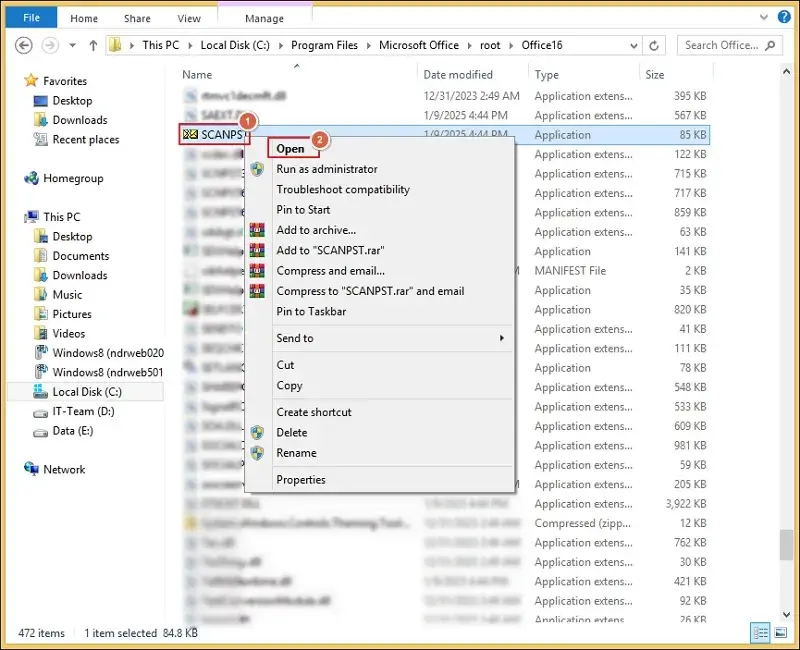
Step 3. Browse to add the file and Start the procedure.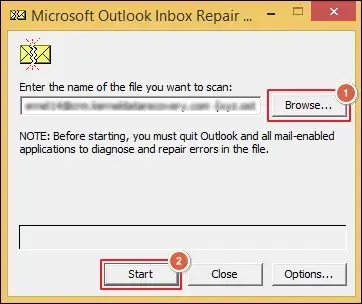
Step 4. Repair all the shown file inconsistencies.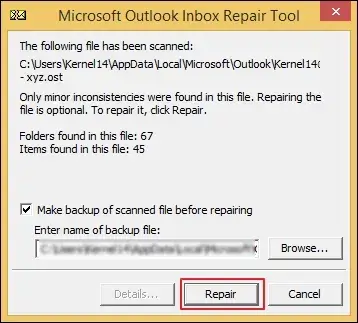
Step 5. Wait till the process completes and click OK.
Remember This: The SCANPST tool will only fix minor corruption or damage in Outlook data files. Hence, the method will fail if the file has severe inconsistencies. In that case, use our Recoveryfix Outlook PST Repair tool to repair the data files easily.
Final Thoughts
You can fix Outlook error 0X8004011D once the actual source of the failure is identified. The blog focused on the same and suggested different methods for different scenarios. So, go through the structured approach to resolve the issue on your own.
But when the case involves severe corruption or damaged PST files, go with the recommended one. The software is especially designed for this and can handle oversized files easily.