Steps to Fix Video Not Playing on OneDrive

Updated On - May 8, 2026
The blog covers the issue in detail and highlights the best method to resolve it immediately. So, go through the article to get all the answers related to the videos not playing over OneDrive issue.
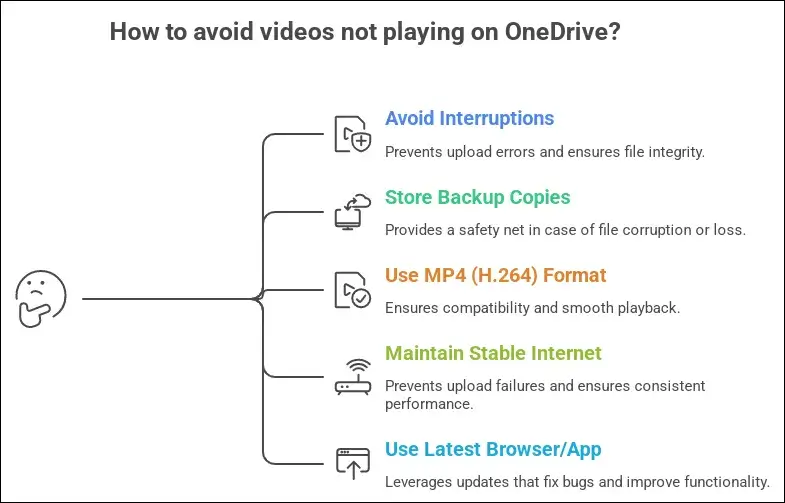
OneDrive makes the stored videos’ access convenient, but playback issues can quickly turn that convenience into frustration. Issues like video refuse to load, endless buffers, or shows playback errors can interrupt your crucial work and waste valuable time.
Although the error may seem complicated at first, the solution is simpler than expected. Here, you will find the practical solutions to fix the issue of video not playing in OneDrive.
Note: You should know the video and audio codecs supported by OneDrive so that it becomes easier to know whether the video will be played in OneDrive.
OneDrive Supported Video and Audio Codecs
| Video formats | Audio formats |
|---|---|
|
3G2 |
AAC |
|
3GP |
FLAC |
|
3GPP |
GSM_MS |
|
ASF |
LIBOPUS |
|
AVI |
LIBVORBIS |
|
M2TS |
MP2 |
|
M4A |
MP3 |
|
M4V |
MP3FLOAT |
|
MKV |
OPUS |
|
MOV |
PCM_F16LE, PCM_F24LE, PCM_32LE, PCM_F64LE |
|
MP3 |
PCM_F32BE, PCM_F64BE |
|
MP4 |
PCM_S16BE, PCM_S16BE_PLANAR, PCM_S24BE, PCM_S24BE_DAVD, PCM_S32BE, PCM_S64BE |
|
MP4V |
PCM_S16LE, PCM_S16LE_PLANAR, PCM_S24LE, PCM_S24LE_PLANAR, PCM_S32LE, PCM_S32LE_PLANAR, PCM_S64LE |
|
MTS |
PCM_U16BE,M PCM_U24BE, PCM_U32BE |
|
TS |
PCM_U16LE, PCM_U24LE, PCM_U32LE |
|
WAV |
PCM_S8, PCM_S8_PLANAR |
|
WEBM |
PCM_MULAW, PCM_LXF |
|
WMA |
VORBIS |
|
WMV |
WMALOSSLESS, WMAPRO, WMAV1, WMAV2, WMAVOICE |
Why Are You Facing Video Not Playing On OneDrive Issue?
Here is the list of common reasons that may be responsible for the error.
- Poor video streaming due to slow internet.
- Outdated browser or OneDrive application.
- Cookies and cache create playback issues.
- Unsupported or partially supported formats.
- Damaged or corrupted video files on OneDrive.
- Digital Rights Management protection is enabled.
- Older or incompatible browsers interrupt video playback.
- Incomplete synchronization can make videos inaccessible.
Quick Solutions to Fix OneDrive Videos Not Playing Issue
Apply these instant fixes before trying the advanced troubleshooting methods.
- Check your internet connection.
- Re-upload the video file to OneDrive.
- Refresh the browser or OneDrive app.
- Download the video and play it locally.
- Play videos in incognito or private windows.
- Change the file format to the supported one.
- Try a different browser instead of the default one.
Manual Methods to Fix Video Not Playing on OneDrive Issue [Top 3 Ones]
We tried all the available solutions and shortlisted the most effective ones. Try them individually to identify the suitable method for yourself.
Solution 1: Clear cache and cookies
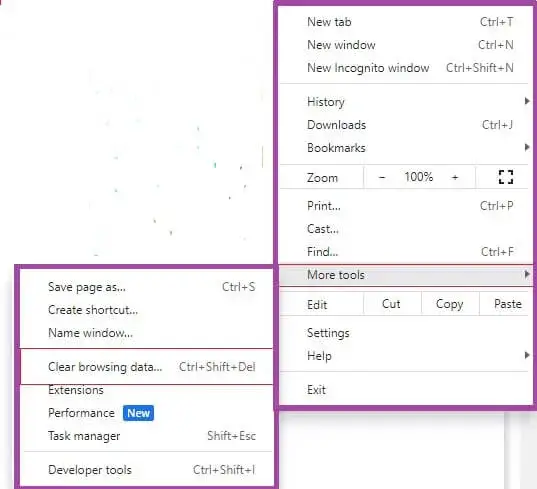
Sometimes, the cache and cookies cause the videos not playing over OneDrive. Here are the steps to clear the cached data to fix the streaming issue.
- Open the browser and click the menu icon.
- Go to More tools > Clear browsing data.
- Check cookies and other site data and Cached images and files.
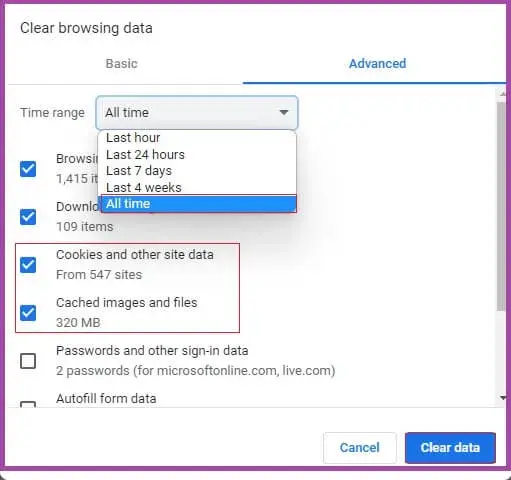
- Expand the Time range and select All time.
- Click Clear data.
You can even play videos in an incognito window or private window lest later saves any cookies, browsing information, etc.
- Microsoft Edge
- Google Chrome
- Mozilla Firefox
Solution 2: Remove DRM protection
OneDrive will not play any video protected by DRM. In order to play video, you need to remove DRM protection. Here’s how to remove the DRM protection and make the video playable again.
- Open File Explorer and find the video.
- Right-click the video.
- Press Properties.
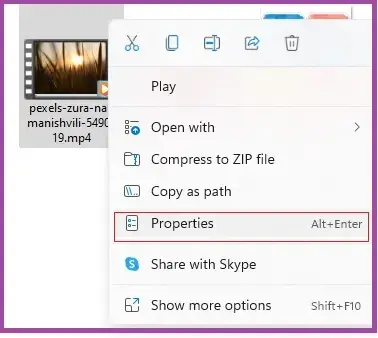
- Select the Details tab.
- See Protected.
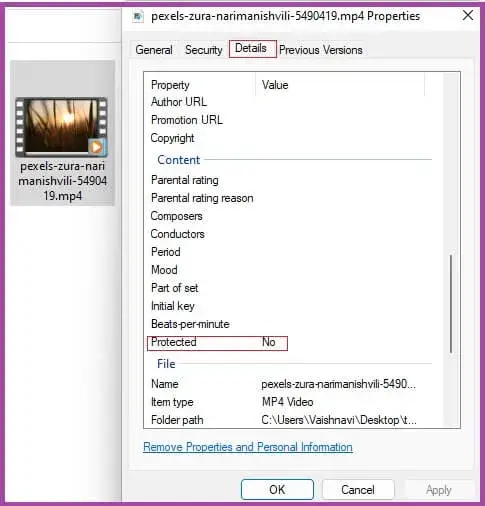
- If the status is ‘Yes,’ then the video is DRM protected.
Note: To remove DRM protection, you can use some reliable third-party software. You can also re-download the video from the original source, which does not consist of DRM protection.
To remove DRM protection, you can use some reliable third-party software. You can also re-download the video from the original source, which does not consist of DRM protection.
Solution 3: Update your browser and OneDrive app
Videos may not play when your browser and OneDrive app are not updated. You should keep your browser and all other apps updated to make their functions run unobstructed and smoothly. Follow the steps given under to update your browser:
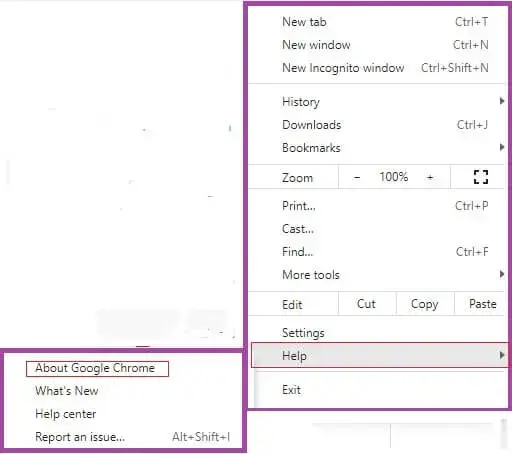
- Open Chrome.
- Press the menu icon.
- Press Help > About Google Chrome.
- Chrome will start checking for updates automatically.
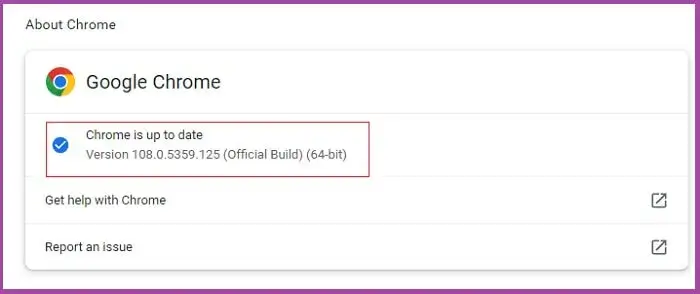
- Once the latest version is installed, re-launch your browser.
Bonus Tip: Fix OneDrive Videos Not Playing Issue On Different Platforms
Check out the table below to find suitable methods to fix the issue on various platforms.
|
Windows |
|
|
Browsers |
|
|
Mobile Devices |
|
What If the Video Got Corrupted? – Repair Now with Advanced Solutions
You have tried all the above solutions and are still not able to fix video not playing on OneDrive issue, then it clearly means the file is damaged. This often occurs during the partial interrupted upload process. In this case, repairing the uploaded video file becomes the top priority for users with advanced solutions offered by Recoveryfix.
The Video Repair tool helps to repair severely corrupted video files without imposing any size restrictions. It helps to fix damaged MTS, MP4, MKV, MOV, and other formats in a few clicks.
Ending Note
Here, we have discussed the top methods to fix video not playing on OneDrive issue. You got basic as well as advanced solutions to resolve every aspect of the error and make your videos playable again. Try them one by one to identify the most appropriate one for your case.
If the file is corrupted, go with the recommended solution to repair the damaged videos instantly. The software handles the video not playing and other issues with ease.