5 Methods to fix 0xc00d3e8c error in Windows 10/11

Updated On - April 17, 2026
Matroska Video Files (MKV) are an all-in-one video format that supports unlimited audio, picture, and subtitle tracks and has ample storage compared to MOV, MP4, or AVI. However, due to unsupported codecs or faulty apps or media players, MKV videos become unplayable and display several errors, including the 0xc00d3e8c codec error.
Dealing with the 0xc00d3e8c error can be a source of notable frustration for users. Get some practical & smart solutions here that will help you to fix 0xc00d3e8c Video Error.
It is a common playback issue that occurs often when Windows Media Player or the Movies & TV app cannot interpret the video file. This error usually appears with a message like:
“Can’t play because the file format isn’t supported.”
“Unsupported encoding settings”
What are the frequent causes of this error?
To fix 0xc00d3e8c video error, you must understand the root cause of the issue. Here we have mentioned some major ones:
- Corrupted video file.
- Outdated video drivers.
- Advancement of Windows OS.
- Missing or unsupported codecs.
- Unsupported file format or encoding.
- Interference of a third-party application.
- An incomplete file transfer also causes the error.
- Outdated Media player or glitches in the TV app.
How do you fix 0xc00d3e8c error in Windows 10/11?
The section will help with the best workable solutions to fix 0xc00d3e8c video error so that you get a seamless video again. So, follow each step with utmost care:
Solution 1: Update Video drivers
Video drivers are the intermediate link between the operating system & software applications to utilize the computer’s graphics hardware. So, if they are not updated, they might create a disturbance while playing the videos. Hence, it is always recommended that your Video drivers be updated. It is not only helpful in this issue but also fixes other minor problems & boosts the overall performance of the system. Let’s look at the steps on how you can update your Video driver:
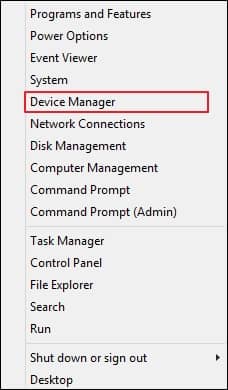
- Right-click on the Windows icon & choose the Device Manager option.
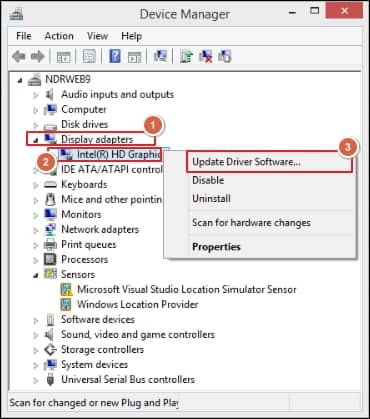
- Go to the Device Adapter option, right-click on the Graphic card option, and choose the Update Driver option.
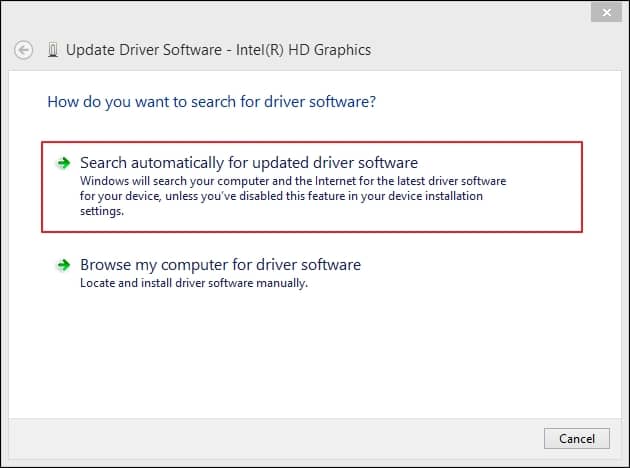
- In the next window, choose Search automatically for the updated driver software option. This will initiate the process of finding and installing the necessary drivers automatically.
Solution 2: Repair/Reset the Movies & TV app
Movies & TV are is the built-in or default application for playing videos on Windows 10. Unplayable video might also be due to an outdated version or technical glitches in the application. After repairing or resetting the application, the issue can be resolved. So, follow them carefully to accomplish the task:
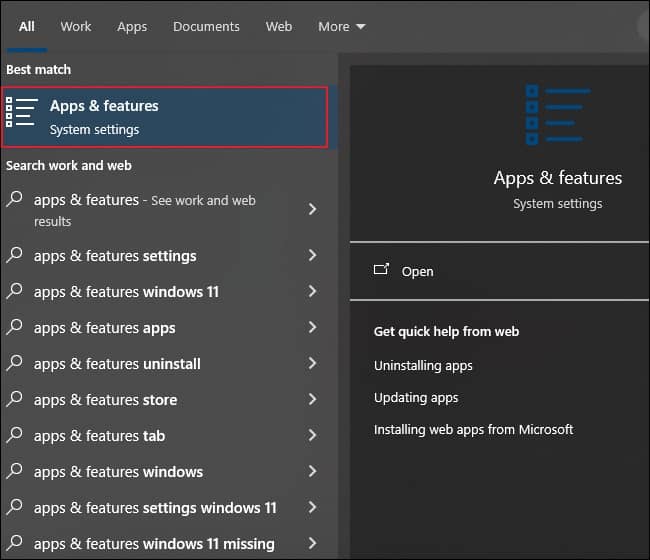
- Open the Apps & features window.
- Search for Movies & TV apps in the next window & tap on the Advanced options.
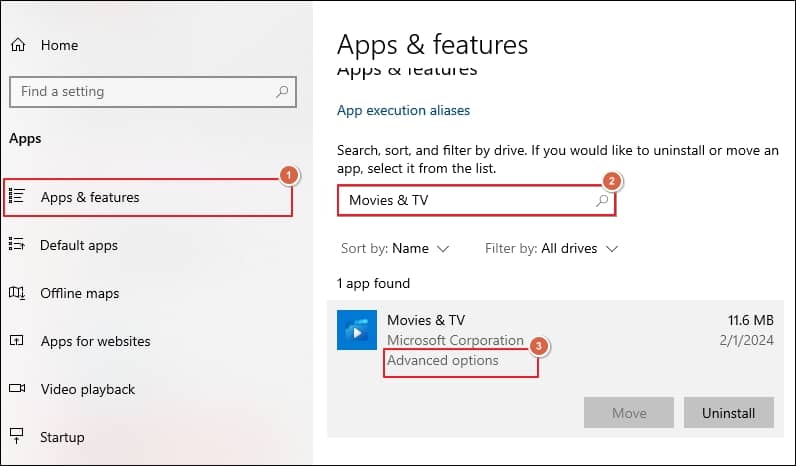
- Now, try to Repair or Reset the app one after the other to fix minor bugs in the application.

- You can try the same steps with the Windows 11 system by repairing or resetting the Films & TV application.
- You can also try to fix the issue by reinstalling the Movies & TV application.
Solution 3: Install required codecs
Codecs play a vital role in playing videos. They encode digital signals in files or data and decode them accordingly. They help the media player analyze the streams as music or film and play them correctly. Therefore, missing or incompatible codecs will lead to several issues, including 0xc00d3e8c codec error.
You can easily find and install the following codecs for Windows:
https://codecguide.com/download_kl.htm
Solution 4: Convert the video into a supported format
Sometimes, your default media player does not support or recognize a video format. Hence, converting it into one that your media player supports might fix 0xc00d3e8c error. Try to convert your video format into another one and check whether your issue is resolved.
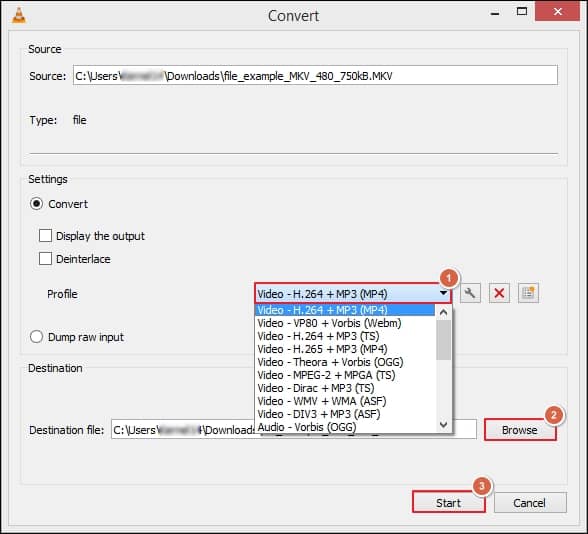
You can check out free or open-source software like VLC Media Player to convert video formats. Here, we will explain how to convert your video format using VLC. Let’s look at the steps:
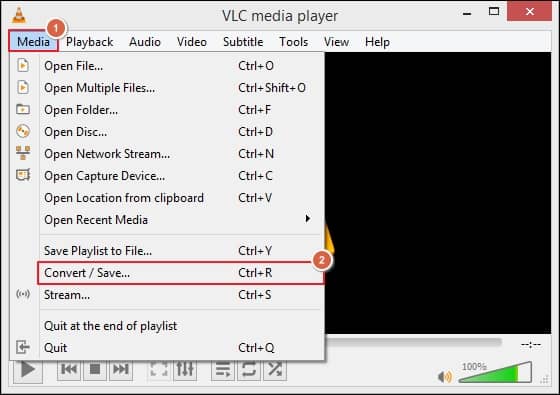
- Launch the VLC media player, go to the Media section & choose the Convert/Save option.
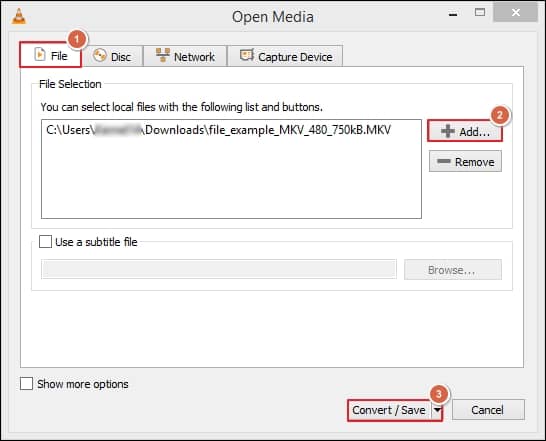
- In the File tab, Add the desired file & click on the Convert/Save option.
- Now, select the converted format, Browse the saving location & finally, tap on the Start option to start the conversion process.
Important to Know:
If the video is going through minor glitches, you can also repair it with the VLC media player. But you need to change the video file into AVI format.
Solution 5: Try to play the video on another media player
If changing the video format doesn’t resolve your issue, verifying if your media player is experiencing some glitches is essential. The best way to do this is to play the same video on another media player and see if the issue persists. This step is important as it helps you validate the problem.
Pro tips to prevent 0xc00d3e8c video error
Follow the provided guidelines to avoid video playback issues in the future:
- Keep video drivers updated.
- Use supported video file formats.
- Always go with the reliable downloads.
- Always check & update Windows to the latest version.
- Install necessary codecs, as it plays a crucial role in video.
If all manual methods fail, then what? Check this alternative
The manual methods come with constraints like vulnerability to data loss, a breach in their hierarchy, or integrity. Also, in the case of corrupted video files, these methods might not be helpful in giving 100% results. Hence, professionals prefer automated tools for instant or straightforward results.
Recoveryfix understands the user’s concern & launched a professional Video Repair tool that stands out in this category. Its powerful algorithms allow you to repair single or multiple corrupt/inaccessible video files of every format, including MP4, MOV, and many more, without hampering their quality & integrity. Its interactive user interface & compatibility with all Windows versions make the tool handy for the users. With its smart features, you can fix issues related to videos of all cameras & save them at your desired location.
Final thoughts: Fix 0xc00d3e8c video error
We have covered different manual methods to fix 0xc00d3e8c error in Windows 10/11 for free. After following them, you might get satisfactory results, but they don’t assure data safety and are ineffective for corrupted video files. Therefore, choosing the recommended advanced approach will become your lifeline to handle all video concerns effectively like video not playing issue.
FAQs
Q. Can hardware acceleration cause the 0xc00d3e8c error?
A. Yes. Enabled hardware acceleration may lead to decoding issues on an incompatible system. Sometimes, users can fix playback problems by disabling them.
Q. Is the 0xc00d3e8c error related to DRM-protected videos?
A. It is seen that DRM-protected files may trigger the error if proper licenses or permissions are not available.
Q. Does renaming the video file fix the error?
A. Not every time. It is helpful in minor problems, but not in unsupported codecs or corruption issues.
Q. Can disk errors lead to this video playback issue?
A. Yes. Dealing with the bad sectors or disk corruption can alter or damage video files, which can lead to playback errors, including “This video file cannot be played”.