How to Fix Out of Focus Video? – Easy Methods with Detailed Steps

Published On - April 13, 2026
- Slightly Blur: Easily fixable
- Moderate Blur: Fixed partially
- Heavy Blur: Limited recovery
Note: Modern tools can enhance clarity, but they aren’t able to recreate missing details. You can use them to improve the viewing experience.
You finally record the perfect moment in a client project. But your excitement drops instantly because the video is out of focus and blurry. The issue can arise due to camera misfocus, motion blur, or incorrect settings. An unfocused video frustrates users and impacts viewer engagement & overall presentation.
The good news is you can fix out of focus videos with the right techniques and tools. Go through the blog to find the detailed steps to restore video quality.
Common Symptoms to Identify Out-of-Focus Videos
An out-of-focus video is one where the focused object appears soft, blurred, or lacks sharp details. You may face these types of blurry videos:
- Slight Blur: Minor softness that is fixable.
- Motion Blur: Occurs due to camera instability.
- Focus Blur: Happens due to incorrect focus settings.
- Severe Blur: Harder to recover due to significant data loss.
Why Are You Facing Out of Focus Videos Error? – Find Reasons
It is Important to know the possible causes before fixing the issue. Here they are:
- Low or poor lighting conditions.
- Incorrect settings of manual focus.
- Using the wrong lens or aperture settings.
- Failure of autofocus in the middle recording.
- Compressed videos or recorded at low resolution.
- Camera shake or movement during the recording.
What Are the Complete Methods to Fix Out of Focus Videos?
- VLC Media Player: Effects and Filters> Video Effects.
- Adobe Premiere Pro: Blur & Sharpen > Unsharp Mask.
- After Effects: Effects section> Blur & Sharpen.
- DaVinci Resolve: Effects Library > Sharpen Edges.
- VN/CapCut (For mobile): Adjust > Sharpen
Here are the detailed steps of the above methods for easy execution.
Method 1. Use the VLC Media Player to Fix Unfocused Videos
If your video is slightly out of focus, then you can use VLC to fix it. Here’s how:
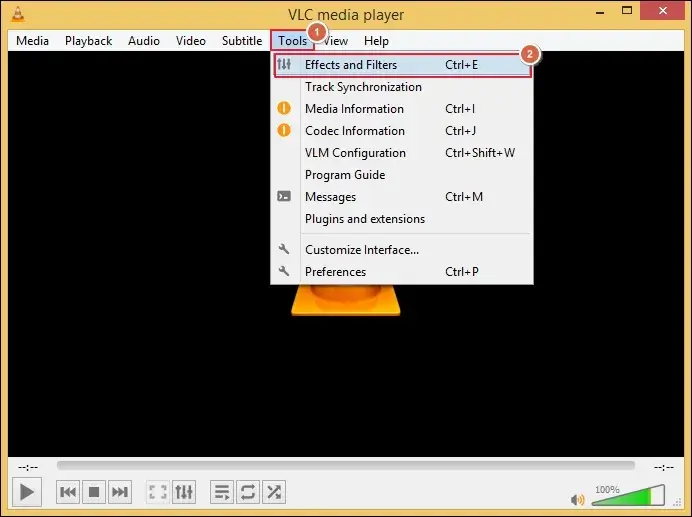
- Launch the VLC Media Player and open the video in it.
- Go to Tools and click on Effects and Filters.
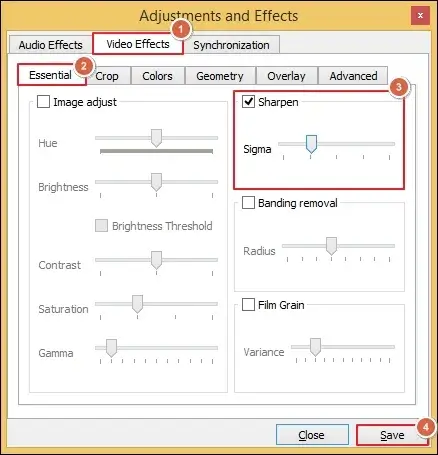
- Navigate to Video Effects and proceed to Essential.
- Check the Sharpen option and adjust the slider as needed.
- Then, click on Save.
Method 2. Fix Out Of Focus Video In Adobe Premiere Pro
Use the steps below to remove moderate-level unfocused videos with manual control.
- Open Adobe Premiere Pro and import the video file.
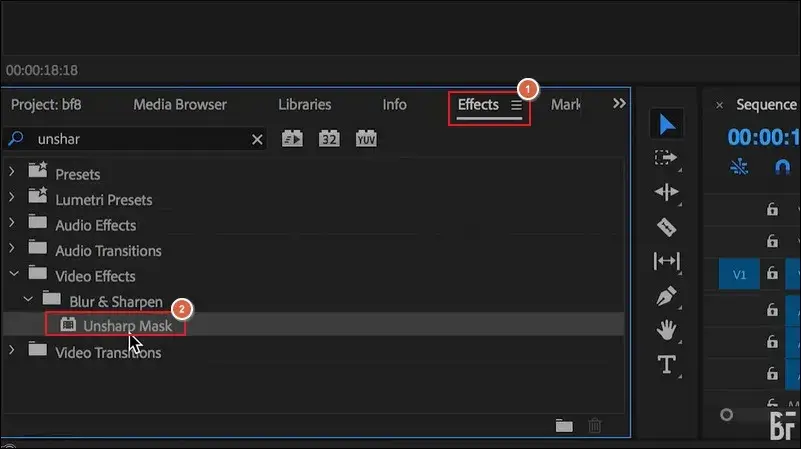
- Drag the clip to the timeline and hit Effects.
- Find the Unsharp Mask option and drag it to apply.
- Step 4. Adjust the following settings to optimize the video output:
- Amount: Controls sharpening intensity.
- Radius: Defines edge thickness.
- Threshold: Adjust noise sensitivity.
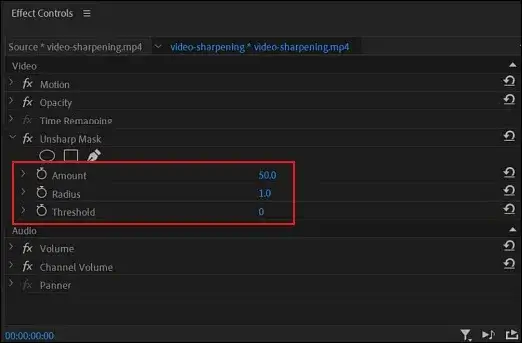
- Apply the additional settings, such as Sharpen and Wrap Stabilizer, for a refined output.
- Preview the changes and Export the video file.
Method 3. Try the After Effects to Fix Out of Focus Videos
You can rely on After Effects for advanced level editing with precise control during post-production. Here are the steps:
- Create a new composition after importing your video file.
- Navigate to Effects & Presets options.
- Then, expand Blur & Sharpen and proceed to Unsharp Mask.
- Set the appropriate values in Amount, Radius, and Threshold.
- Locate the Effects tab> Distort> Detail-preserving Upscale.
- Verify that all the changes look natural and export the file.
Method 4. Fix Unfocused Videos Using the DaVinci Resolve
As a Mac user, I prefer DaVinci Resolve due to its excellent optimization for Apple Silicon. Here are the detailed steps to fix out of focus video error:
- Start the new project and import the file using Media Pool.
- Access the correction tools from the Color tab.
- Find the Sharpen option under the OpenFX panel.
- Drag to apply it to the video clip.
- Align the Sharpen, Radius, and Amount settings appropriately.
- Change the Midtone Detail under the Color Wheels for refined contrast.
- Go to the Deliver tab to Export the video.
Method 5. Resolve the Out of Focus issue in Mobile Devices
This method is for users who edit videos on their smartphones. Here are the steps:
- Access the video editing apps like CapCut or VN.
- Import your video file into the application.
- Apply the Sharpen or Enhance filter to adjust intensity.
- Preview changes and Export the video file.
Bonus Steps: Upscale Video Quality in Different Applications
You can use the video upscaling to improve the overall quality of the resultant file. Here are the options:
|
Software |
Upscaling Feature |
Type |
Suitable for |
|---|---|---|---|
|
Premiere Pro |
Set to Frame Size/AE Link |
Basic+ Plugin |
General editing workflow |
|
DaVinci Resolve |
Super Scale (Studio Only) |
AI/Neural Engine |
High quality upscaling (HD-4k/8K) |
|
After Effects |
Detail preserving Upscale |
Algorithm |
Manual control over upscaling |
|
CapCut |
AI Video Upscaler/ Enhance |
One-click AI |
4K upscaling for beginners |
|
VN |
Select export resolution |
N/A |
Basic Mobile UpRes |
What If Video Is Severely Out Of Focus? – Try the Advanced Solution
You have tried all the above-listed methods, but are unable to get satisfying results. If so, then this section is for you. I may also face the same issue if I am not familiar with the video editing softwares. Although you will be able to fix blurred video files with native solutions, it needs technical expertise. So, going with the direct solutions like Recoveryfix. The Video Repair tool will help you fix all types of video errors in a few simple clicks. It supports all the major file formats to restore their original quality.
Smart Tips for Better Video Output & Results [Experts’ Suggested]
Follow the given instructions to get the most refined output.
- Edit only the high-quality source files.
- Gradually apply the sharpening settings.
- Before sharpening, reduce noise from videos.
- Always preview the final video before export.
- Combine sharpening with contrast adjustment.
Closing Remarks
We have highlighted all the best available solutions to fix the out of focus video error. You can use the different tools as per your convenience to restore the video quality. If you ask us, go with the native solutions if you are familiar with video settings and editing tools. Otherwise, try the recommended solutions to avoid all the hassle to get instant results as a beginner. The software helps to fix video not playing issues without any manual efforts.
FAQs: Most Asked Queries
Q. How do I fix the issue on my iPhone device?
A. You can fix the already recorded videos with the following steps:
- Cinematic Mode: Access the video and edit to change focus objects.
- Normal Mode: Click on Edit> Adjustments> Sharpness.
Q. Which one is best to use, autofocus or manual focus?
A. It always depends on the situation. Autofocus is best in most of the cases. But manual focus is more precise when you need to focus on a specific subject.
Q. Is it possible to fix out-of-focus videos without an adjustment layer?
A. Yes, you can fix the issue directly with the Unsharp Mask effect. But the adjustment layer will help you make changes without altering the original clip.
Q. How can I prevent out-of-focus videos in the future?
A. You can avoid the future occurrence by using the given instructions:
- Use a tripod for better stability.
- Fix the incorrect camera settings.
- Record videos in good lighting conditions.
- Check focus before recording the footage.
- Rely on manual focus for important shots.
Q. What are the common mistakes that I need to avoid?
A. Here are the mistakes that you must avoid while fixing the error:
- Over-sharpening video footage.
- Ignoring video noise and grains.
- Edit videos on less reliable tools.
- Not previewing the video before export.