6 Ways to Fix the “This Video File Cannot Be Played” Error

Updated On - July 29, 2026
- Access the video file in incognito mode.
- Confirm that the video file is still available.
- Try to stream the same video into another browser.
- Disable the proxy server if you are using any of them.
- Avoid internet-related issues like interruptions, packet loss, or insufficient bandwidth.
- Check Website or streaming server issues (temporary server outages, content delivery network CDN failures, or maintenance).
Explore the detailed solutions in the upcoming sections of the blog.
The message “This video file cannot be played” doesn’t tell you what’s wrong. But the real reason could be much simpler than you think, and in most cases, it is fixable. You may see the same message with different error codes (224003, 232011, 102630, or 232600) while streaming videos on online platforms. So, the guide will remove all the confusion related to the issue and suggest practical ways to resolve it.
[Full List] Associated Error Codes With “This Video File Cannot Be Played”
The error message appears similar across different platforms but has specific error codes. Use the table below to identify the real cause and apply the suitable fixes.
|
Error Code |
Meaning |
Possible Causes |
|
224003 |
Browser cannot play the video |
Browser cache & cookies, incorrect settings, extensions, or outdated browsers. |
|
232011 |
Video playback failed |
VPN or proxy interference, internet connection issues, blocked scripts, or platform restrictions. |
|
102630 |
Streaming playback failed |
CDN issues, server-side problems, firewall restrictions, browser incompatibility, or network interruptions. |
|
232600 |
Video cannot be decoded |
Corrupted video file, damaged video structure, or incomplete download. |
Top Reasons: Why Does the “The Video File Cannot Be Played” Error Occur?
There are several reasons that can cause the video playback error. But the most frequent ones are as follows:
- Hardware acceleration conflicts.
- Poor or unstable internet connection.
- Outdated or corrupted browser cache data.
- Interruptions due to installed browser extensions.
- Issues related to website or streaming server issues.
- Installed security software (firewall, antivirus, or network security) interference.
How to Fix ‘The Video File Cannot Be Played’ Error? [Self-Tried and Tested Ways]
This section highlights the different manual solutions to resolve the error. You can apply them in a sequence to identify the most appropriate ones for yourself.
Method 1. Update the Browser
Update the browser to the latest version for better compatibility (support for modern HTML5 video standards, newer codecs, or updated security protocols) across streaming platforms. Here are the complete steps to resolve the video cannot be played error:
Step 1. Open Chrome and click on three dots.
Step 2. Now, click on Help, then About Google Chrome.
Step 3. If an update is available, click on the Update button and wait till the process is complete, then Relaunch .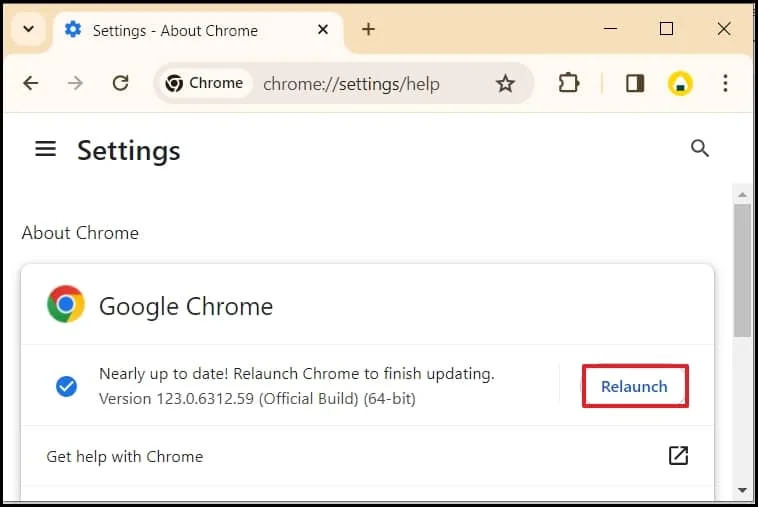
Now, check the browser to see whether it is playing video. If not, then try another method.
Method 2. Clear Cache & Cookies of Browser
Deletion of cache, cookies, and browser history improves the browser’s performance and fixes the associated conflicts. To do the same, follow the given steps:
- Step 1. Open Chrome and click on three dots.
- Step 2. Click on Settings, then Privacy and Security, and choose Clear Browsing Data.
- Step 3. Check the checkboxes and click on the Clear Data button.
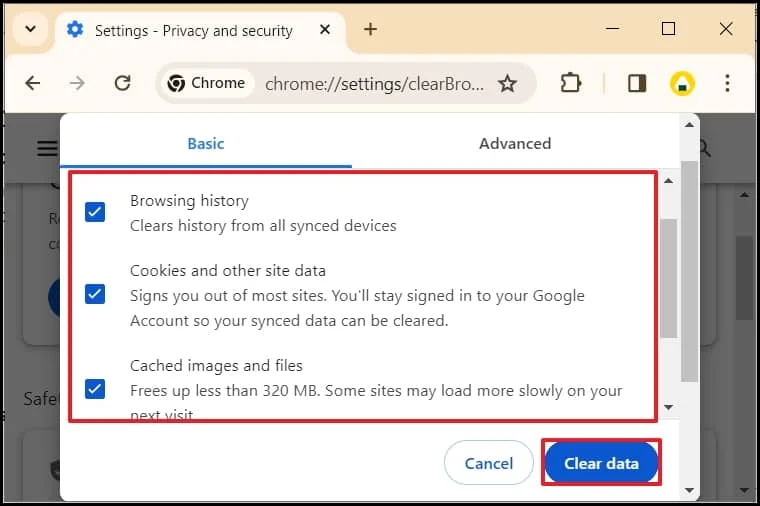
Now, play the video in Chrome and check for errors.
Method 3. Turn Off Graphics Acceleration
The graphics acceleration feature allows the browser to display heavy web content, like videos or games. Sometimes, this feature restricts the video from playing. So, use the steps below to remove the hardware acceleration conflicts:
- Step 1. Open Chrome, click on three dots, and choose Settings.
- Step 2. Click on System and turn off the Use Graphics acceleration when available toggle.
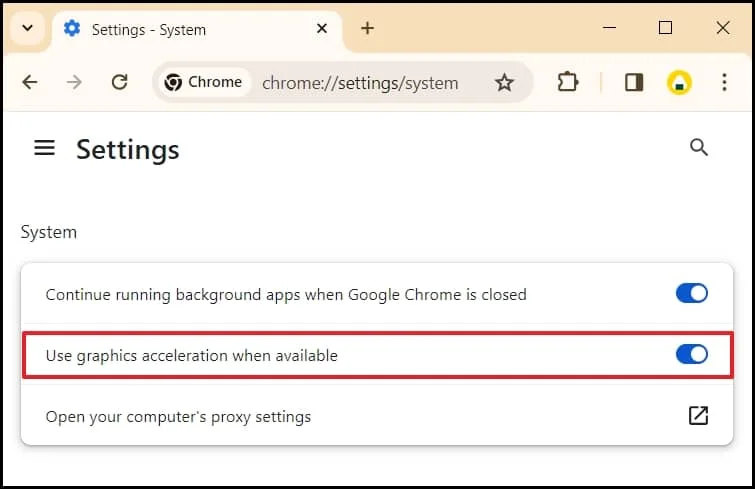
Now, restart the browser and check whether it is playing video.
Method 4. Reset Browser Settings
You can change the browser settings to default may help you resolve error code: 224003 – This video file cannot be played. This will not affect bookmarks, history, and saved passwords. Here’s how:
- Step 1. Open Chrome, click on three dots, and choose Settings.
- Step 2. Go to Reset Settings, choose Restore Settings to their original defaults, and click Reset Settings.
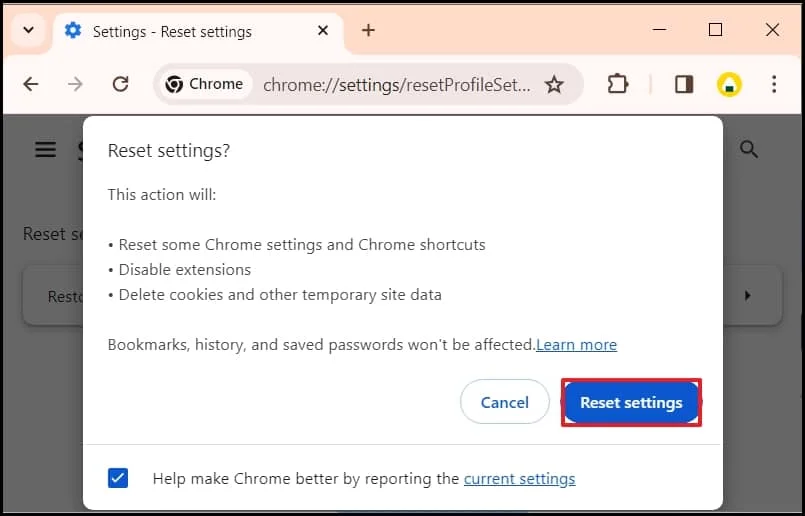
Restart Chrome and play the video.
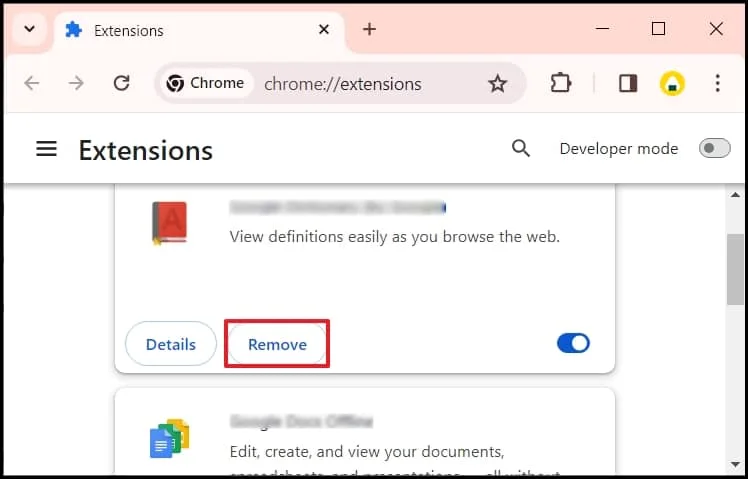
Method 5. Disable Web Browser Extensions
Extensions help you improve web surfing experience. Sometimes, a few extensions (Ad blockers, privacy tools, script blockers, antivirus extensions, and download managers) may cause errors while streaming videos online. You can disable them to check whether errors are resolved or not.
- Step 1. Open Chrome, click on three dots, and choose Settings.
- Step 2. Click on Extension, check the faulty extensions, and remove them.
Method 6. Enable JavaScript in Chrome Browser
JavaScript helps in adaptive streaming for smooth video playback in browsers. You might be able to fix the error code 224003 (“This video file cannot be played) by enabling it. Here are the complete steps:
Step 1. Access Chrome and click on the three dots to open Settings.
Step 2. Navigate to Privacy and security and proceed to Site Settings.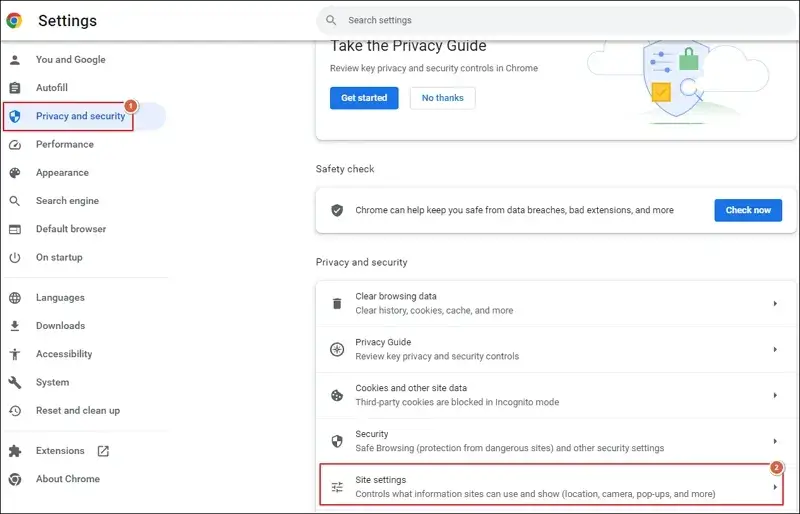
Step 3. Then, tap on the JavaScript option.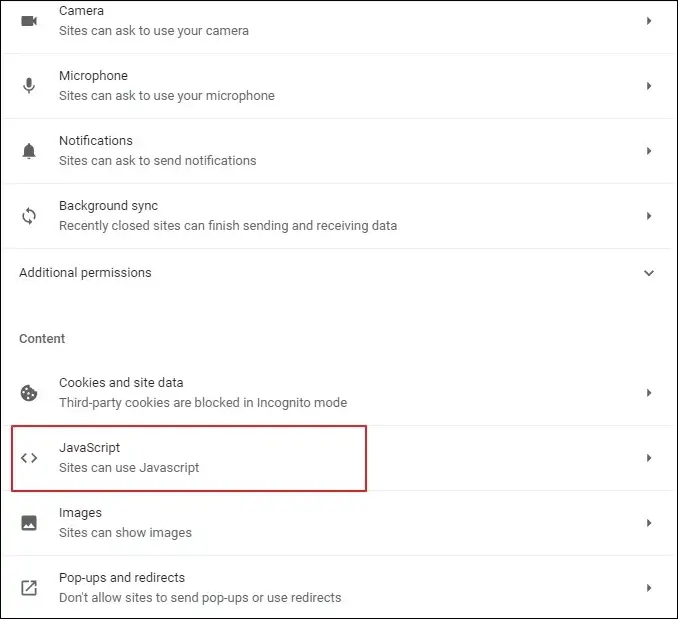
Step 4. Under the Default behavior section, choose the Site can use JavaScript.
Step 5. This will enable JavaScript in the Chrome browser.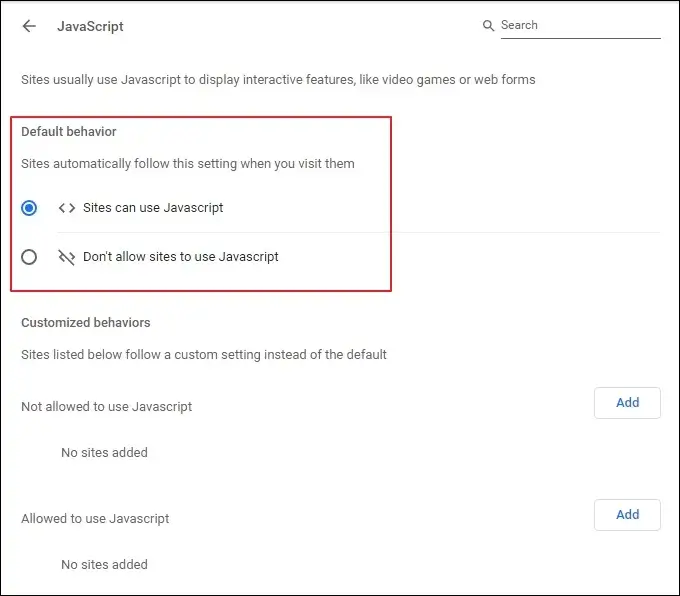
What If All Native Solutions Fail? – Switch to An Alternate Approach
If you have tried all the solutions and are still facing “This video file cannot be played,” then try our Recoveryfix Video Repair tool. The software allows you to repair single or multiple video files at once. First, download the video file to your local system and repair corrupted and blurred videos with the help of the software. Once done, enjoy your video files like before.
Final Words
Here, we have discussed various manual methods to fix ‘The video file cannot be played’ error. You can use the provided approaches to analyze and resolve the video playback error easily. However, when the native solutions fail to resolve streaming issues, try the recommended solutions. You can rely on the automated solution to fix almost every video-related problem.