Convert MOBI to PDF Format: A Guide That Covers All

Published On - November 12, 2026
You enjoy reading your ebooks, magazines, newspapers, or newsletters on e-reader applications. But accessing the same content on another device without a supported environment can be difficult.
So, converting these files into PDF format will be the most applicable approach for sharing and opening them easily. You might struggle to find the right option that maintains the original text, images, and layout.
This guide will explain different practical ways to convert MOBI to PDF format.
MOBI Vs. PDF Format: What’s the Difference Between Them?
Compare the MOBI vs PDF format differences to know how they handle layout, compatibility, and reading experiences.
| Features | MOBI | |
|---|---|---|
|
Full Name |
Mobipocket eBook |
Portable Document Format |
|
File Extension |
.mobi |
|
|
Type |
Reflowable e-book format. |
Fixed-layout document format. |
|
Layout |
Text reflows to fit the screen and the reader’s font settings. |
Pages keep the same layout, fonts, and images on every device. |
|
Best For |
Novels and text-heavy e-books on e-readers. |
Manuals, reports, forms, contracts, and print-ready documents. |
|
Reading on Small Screens |
Comfortable, because the text adapts. |
Often requires zooming and scrolling. |
|
Device Support |
Kindle devices and some e-reader apps. |
Virtually all devices, browsers, and operating systems. |
|
Formatting Control |
Limited. |
Full control over layout, fonts, and graphics. |
|
Interactive and Security Features |
Bookmarks, annotations, and optional Digital Rights Management (DRM). |
Forms, links, annotations, password protection, and digital signatures. |
|
Printable |
Not designed for print. |
Designed for accurate printing. |
Key Takeaways:
- Amazon Kindle has retired support for ebooks in MOBI format.
- Check out the official site to learn about sending documents to your Kindle library in supported formats.
How to Convert MOBI File to PDF Format Manually?
You can convert MOBI files into PDF format using conversion software or open-source utilities. Some methods provide direct conversion, while others require extracting the eBook content into an intermediate format before exporting it as PD. So, choose the most applicable methods as per your situation.
Method 1. Convert MOBI to PDF Using Calibre E-Book Manager
You can use the Calibre e-book manager application to convert your MOBI files. Here are the complete steps:
Step 1. Download and install Calibre from its official website.
Step 2. Launch the application and click on the Add books option.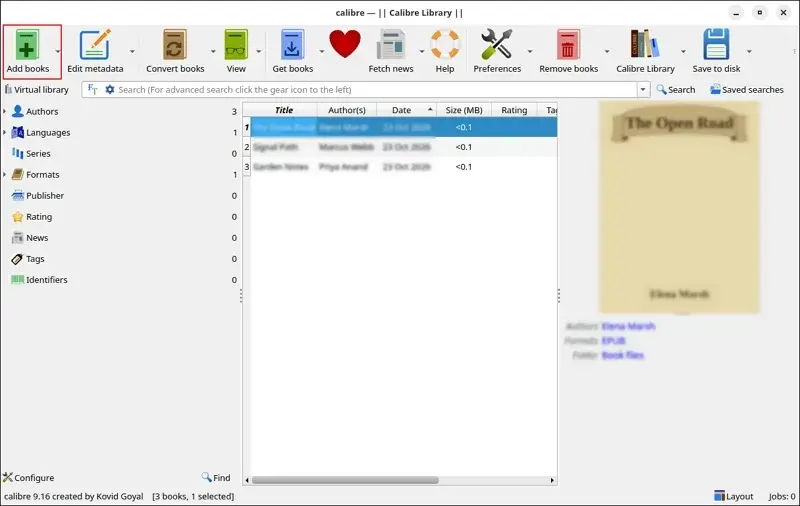
Step 3. Browse to add the required MOBI files.
Step 4. Select the Convert books option from the toolbar.
Step 5. Choose PDF from the Output format dropdown.
Step 6. Adjust the available settings like page size, margins, font size, and layout as needed.
Step 7. Then, click OK to start the conversion process.
Read More: How Convert ODS Files to Excel Format?
Method 2. Use Calibre Command Line to Batch Convert MOBI to PDF Files
Calibre also offers a command-line utility called ebook-convert to convert eBooks. You can use this method to process multiple files or automate the conversion tasks. Here’s how:
Step 1. Open Command Prompt on Windows or Terminal on macOS and Linux.
Step 2. Navigate to the directory where your MOBI file is stored, or specify its complete file path.
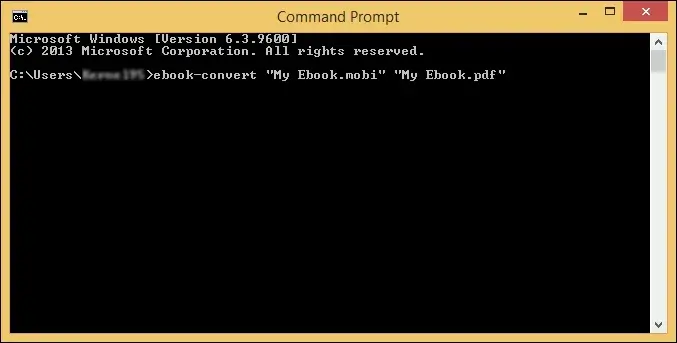
Step 3. Enter the following command and press Enter.
ebook-convert “My Ebook.mobi” “My Ebook.pdf”
Step 4. Wait for the conversion process to finish.
Step 5. Locate the specified output location and read MOBI files in PDF reader applications.
Note: The command-line utility uses the same conversion process as Calibre’s graphical application. It is an alternative way of operating Calibre, not a separate conversion method.
Method 3. Convert MOBI to PDF Format Using AZW3-to-PDF
azw3-to-pdf is an open-source utility designed to convert Kindle-related eBook formats. It also offers different page-layout presets, including e-reader, paperback, print, and large-print layouts. Here are the steps:
Step 1. Install Go on your computer if it is not already available.
Step 2. Open Command Prompt or Terminal.
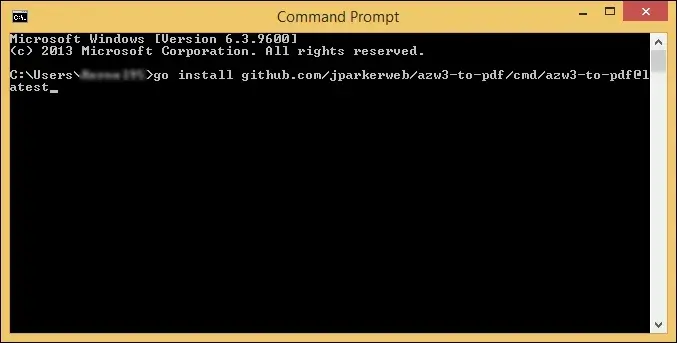
Step 3. Run the following command to install the utility.
go install github.com/jparkerweb/azw3-to-pdf/cmd/azw3-to-pdf@latest
Step 4. Wait for the installation to finish.
Step 5. Run azw3-to-pdf help to review the available commands and options.
Step 6. Open the utility using its supported interface or command-line mode and select your MOBI file.
Step 7. Choose the required PDF layout settings, such as page size and margins, if available.
Step 8. Start the conversion and wait for the process to finish.
Also Read: How to Convert ODS to PDF Format for Free?
Method 4. Use KindleUnpack and LibreOffice to Convert MOBI File to PDF Format
KindleUnpack is an open-source utility that extracts content from supported MOBI eBooks. It can extract HTML content and associated images that users can subsequently open and export using a document application. You can create a PDF from the extracted eBook content by combining KindleUnpack with LibreOffice using these steps.
Step 1. Download KindleUnpack from its official GitHub repository.
Step 2. Extract the downloaded application files and launch the utility.
Step 3. Select the MOBI file you want to process.
Step 4. Choose the destination folder for extracting the eBook content.
Step 5. Start the extraction process and wait for it to finish.
Step 6. Locate the extracted HTML file and its associated images.
Step 7. Open the HTML document using LibreOffice Writer.
Step 8. Review the document and adjust the page layout, margins, and formatting if necessary.
Step 9. Select File > Export As > Export as PDF.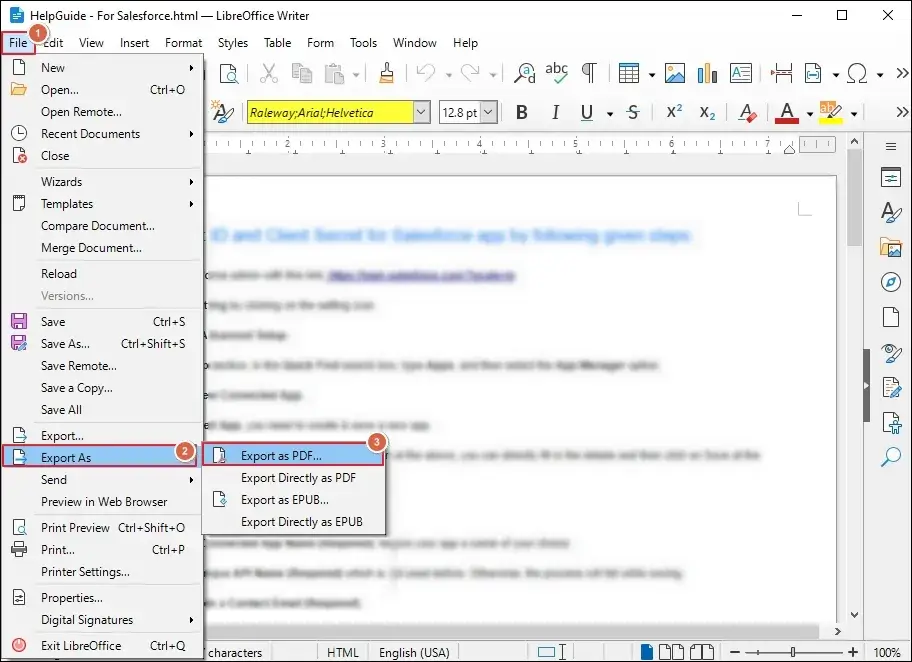
Step 10. Choose the required PDF settings and save the document.
Important to Know: You can also use mobitool and Calibre together to convert MOBI files into PDF. Mobitool first converts the supported MOBI file into EPUB format, which you can then import into Calibre and export as PDF
Method 5. Convert MOBI File to Adobe PDF Format Using A Straightforward Way
You can use the Recoveryfix Free Document Converter tool to skip complex commands, intermediate file conversions, and multiple-tool workflows. It provides a simpler way to convert MOBI files to PDF format quickly and avoid the technical effort involved in manual conversion methods. Here’s how:
Note: The software performs the entire conversion locally without an internet connection to keep your confidential files safe and secure.
Step 1. Download, install, and launch the software.
Step 2. Choose the MOBI format and Browse to Add Files (single or multiple).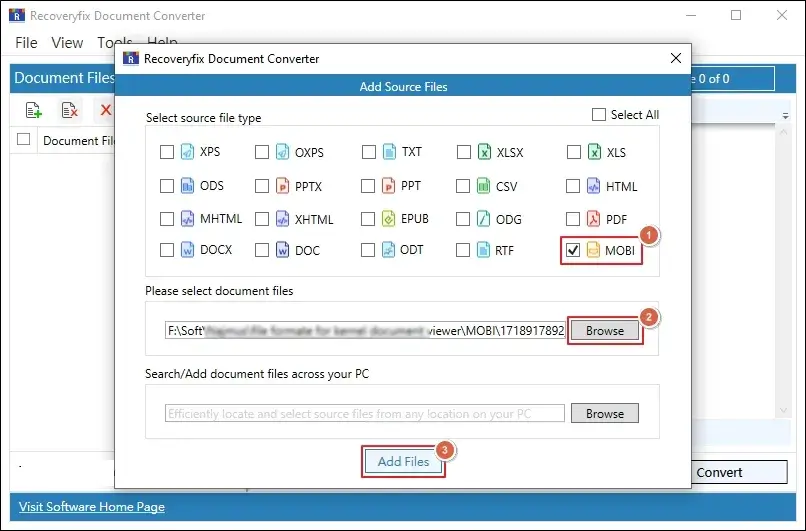
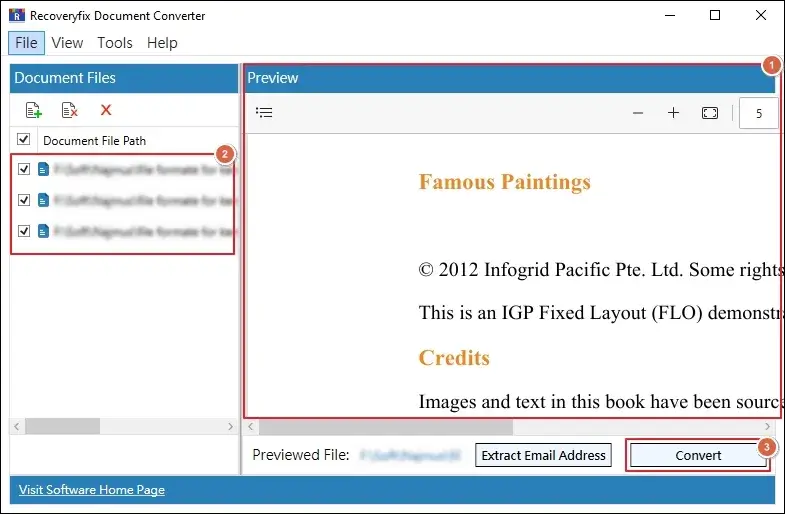
Step 3. Preview the added files and click Convert for MOBI to PDF conversion with text selection.
Note: You can Extract Email Addresses from the added files.
Step 4. Select the Adobe Acrobat PDF as an output type.
Step 5. Then, Apply Page Filter and Start the conversion.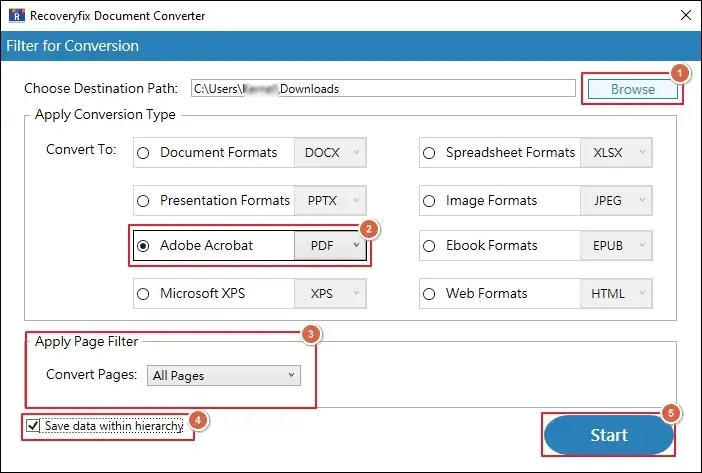
Step 6. The software will start converting the added MOBI files.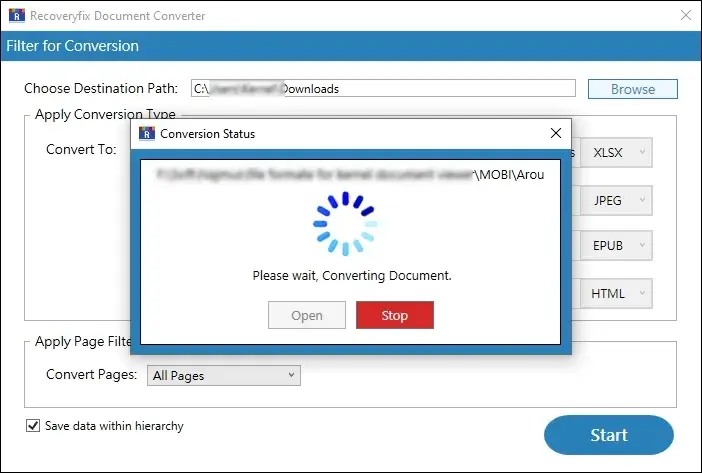
Step 7. Open the saved file location directly if needed. Then, click Close.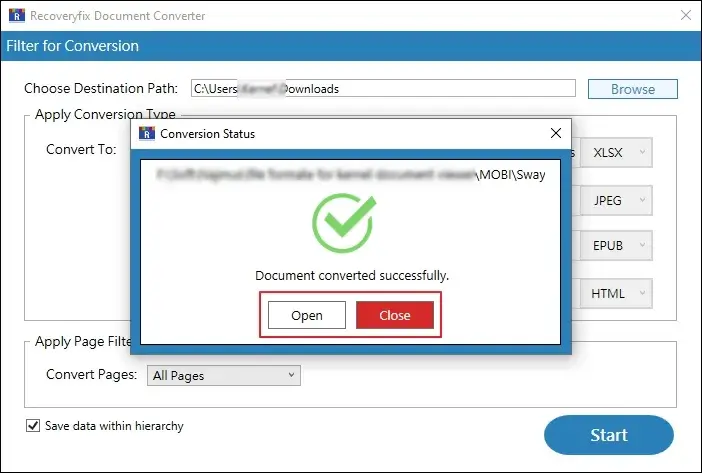
Final Thoughts
We have covered a detailed guide to convert MOBI to PDF format with easy accessibility and shareability. You can use the provided solutions to convert your eBook files for free. However, not every method provides the same level of convenience or formatting control.
If you want to avoid complicated commands and multi-application workflows, consider using the recommended solution. The software keeps the original content of the added files intact throughout the conversion process, including TXT to PDF format.
FAQs: Instant Query Resolution
Q- How can I convert a MOBI file to PDF for free?
A- Yes. You can use free tools such as Calibre to convert MOBI files into PDF. Add your MOBI file, select PDF as the output format, adjust the conversion settings, and start the conversion.
Q- Can I batch convert multiple MOBI files to PDF?
A- Yes. You can use Calibre ebook-convert command-line utility to automate the conversion of multiple MOBI files using scripts.
Q- How can I convert MOBI to PDF without losing formatting?
A- You can use reliable tools like Recoveryfix for converting MOBI files with control over page size, margins, fonts, and layout.
Q- How can I convert a MOBI file into a searchable PDF with selectable text?
A- You can use the Recoveryfix Document Converter software to preserve the original text as actual PDF text rather than rendering pages as images.
Q- Can DRM-protected MOBI files be converted to PDF?
A- DRM-protected MOBI files may not be supported by standard conversion tools. Conversion depends on the DRM protection and the tool’s capabilities. Only convert files when you have the necessary rights and authorization.
Q- Can I open MOBI files directly in a PDF reader?
A- No. MOBI and PDF are different file formats. Most PDF readers do not support MOBI files directly. You need to convert the MOBI file into PDF before opening it in a standard PDF reader.
Q- Does converting MOBI to PDF affect images and hyperlinks?
A- Yes, converting MOBI to PDF can affect images and hyperlinks, which depends on the selected conversion method. Our Recoveryfix tool retains embedded images and clickable links, image placement, and resolution.