How to Convert ODS to PDF Format for Free? – All Steps Covered

Published On - October 22, 2026
Your spreadsheet looks perfect on screen, but will its tables and figures still make sense when you share it? Presenting financial reports, invoices, budget sheets, or project summaries matters as much as file preparation.
If your data is stored in ODS spreadsheets, sharing it directly can be complicated because the recipient has to have the compatible application to open it. So, converting the file to PDF provides a more consistent document layout for viewing, printing, and sharing.
To help you out in such situations, we will explain the following:
- Practical ways to convert ODS to PDF format.
- A dedicated solution to handle the conversion of all scales with ease.
- Tips to avoid common problems like missing sheets, cut-off columns, and unwanted blank pages.
What Are the Benefits of ODS to PDF Conversion?
Converting ODS files to PDF format provides several key benefits. Below, we have listed the most significant ones.
- Print-ready output with defined page sizes and margins.
- Consistent document layout across different PDF viewers.
- Reduce accidental modifications among the distributed copies.
- Easy file sharing with recipients who don’t have compatible software.
- Convenient archiving of completely prepared spreadsheets for future reference.
- Optional document protection by applying password and permission settings with supported apps.
Note: Keep the original ODS file for editing spreadsheet cells, updating formulas, or modifying the workbook later.
Methods to Convert ODS to PDF: Which One Should You Choose?
You have multiple ways to transform .ods file into .pdf document format. But the method selection depends on the device, document size & numbers, internet availability, and information confidentiality. For more clarity, check out the table below.
| Conversion Method | Availability | Internet Requirement | Best For |
|---|---|---|---|
|
LibreOffice Calc |
Completely free |
No, after installation. |
Offline conversion with page-layout controls. |
|
Microsoft Excel |
Requires access to Excel |
No, with the desktop application. |
Users who already work with Excel. |
|
OpenOffice Calc |
Completely free |
No, after installation |
Offline conversion with page-layout controls |
|
Google Sheets |
Free for standard personal use |
Yes |
Browser-based conversion. |
|
LibreOffice Command Line |
Completely free |
No, after installation |
Converting multiple ODS files at once. |
|
Online Converters |
Depends on the service’s free limits |
Yes |
Quick conversion of non-sensitive files. |
Top 6 Ways to Convert ODS to PDF Format for Free
The following section will provide the different methods to convert your ODS file into PDF format. Check them out now to find the best methods based on your requirements.
Method 1. Convert ODS to PDF Format Using LibreOffice Calc
Here are the detailed steps to transform your ODS files with the help of LibreOffice Calc:
Step 1. Launch LibreOffice Calc on your system.
Step 2. Click on File tab to Open and access the ODS file.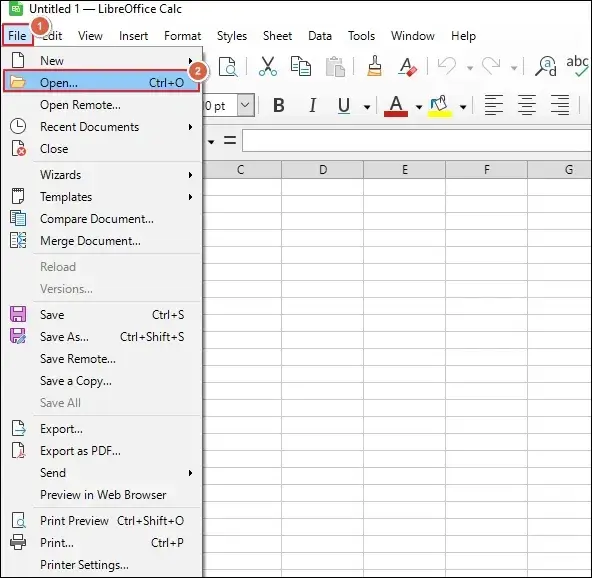
Step 3. Choose the file and proceed to Open option.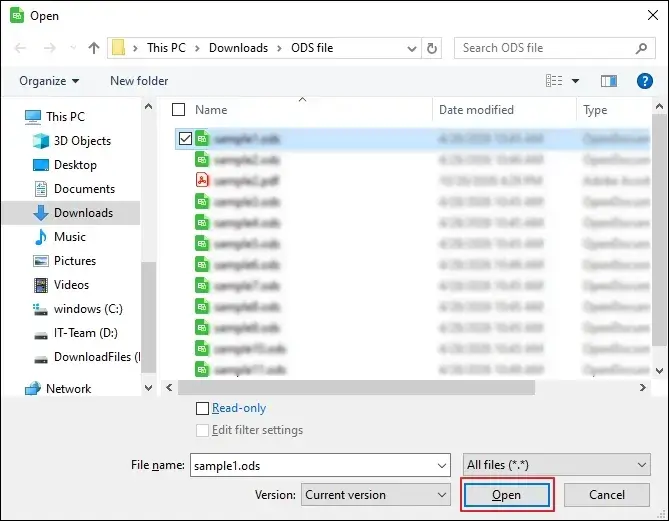
Step 4. Once the file is accessed, navigate to File > Export as PDF.
Note: Use the Export option to get only the items from the spreadsheet. For this, go to Export > check Selection > Save.
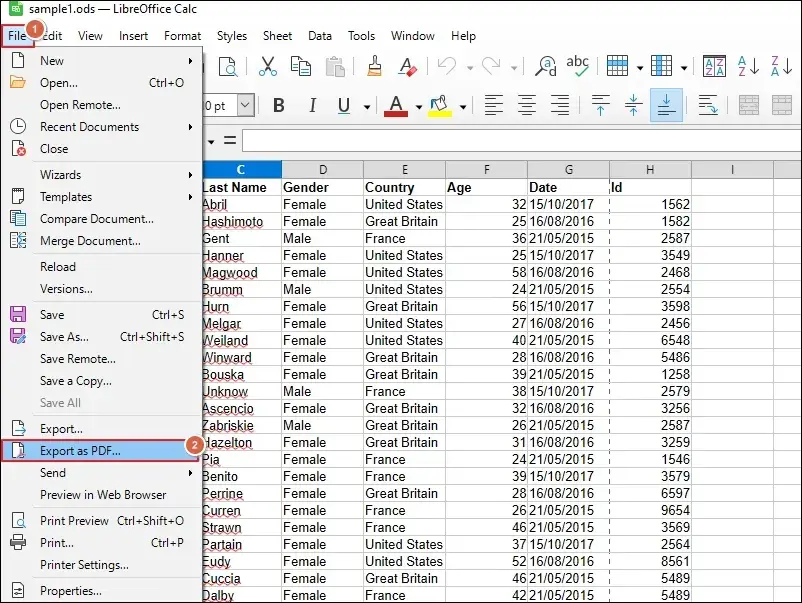
Step 5. Apply the General settings to proceed.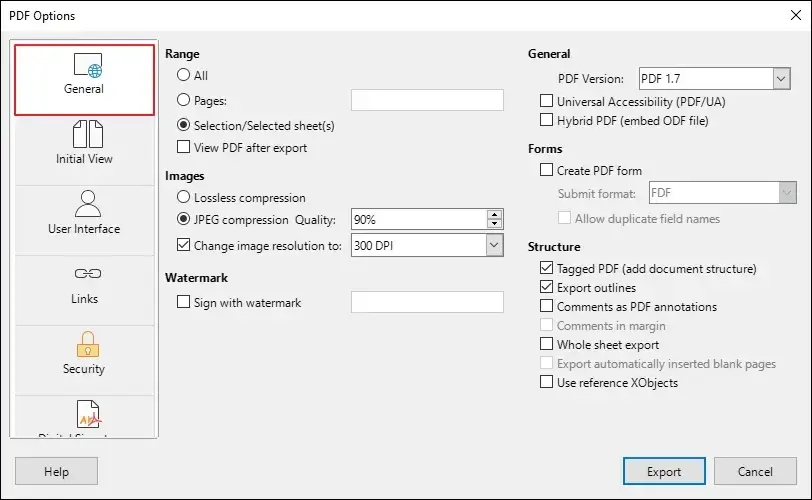
Step 6. Navigate to Initial View for layout-related settings.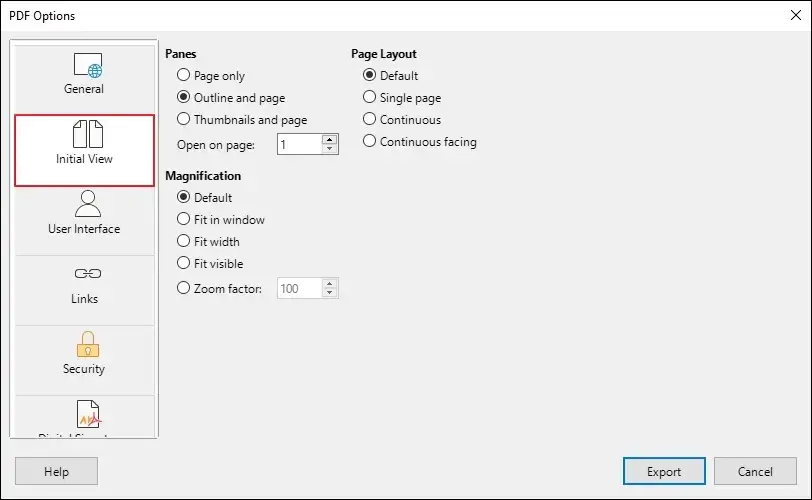
Step 7. Configure the applicable User Interface settings to continue.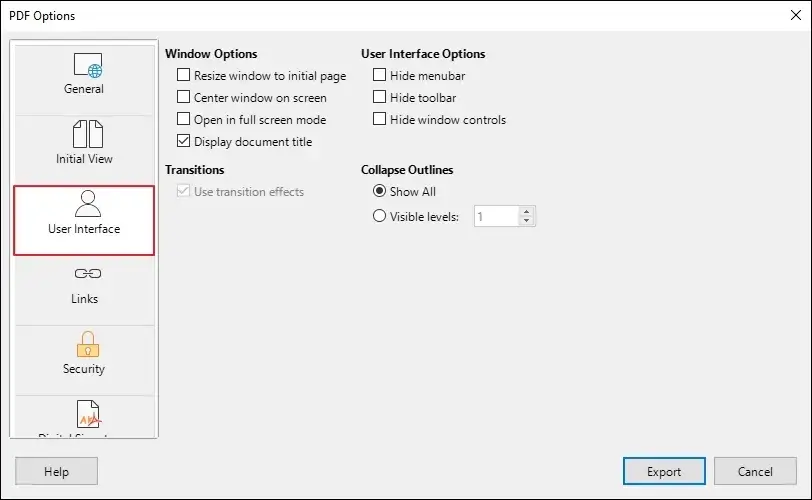
Step 8. Go to Links for applying related settings.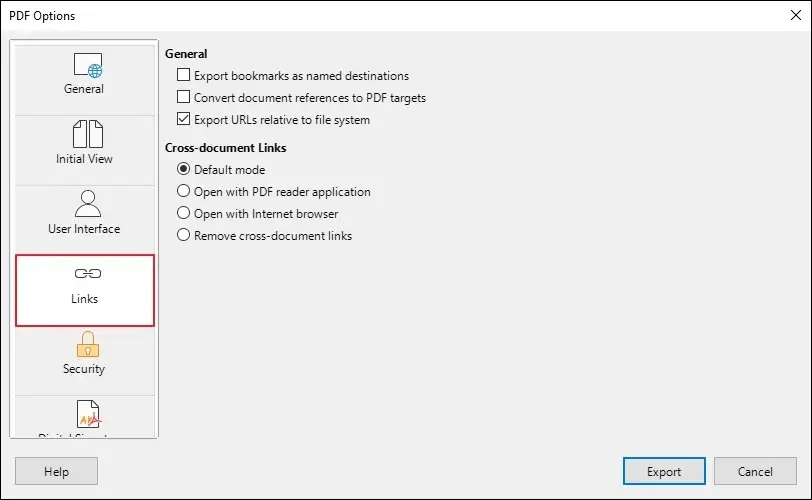
Step 9. Access the Security tab to Set Password and click OK.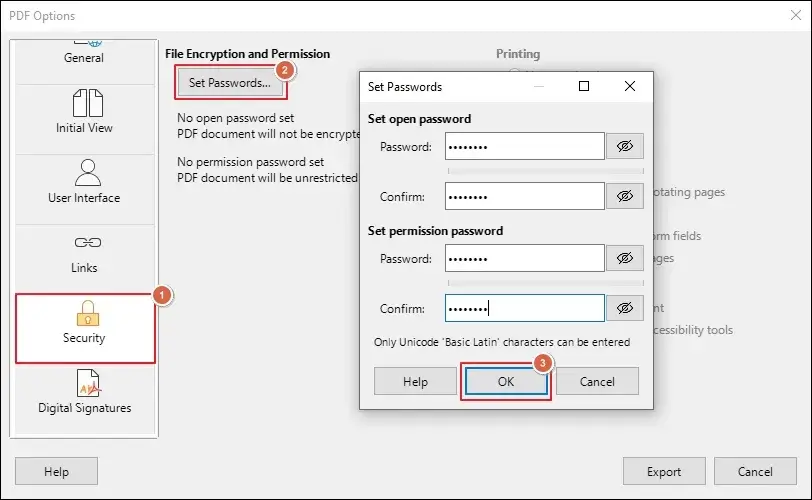
Step 10. Add the Digital Signatures if needed and Export.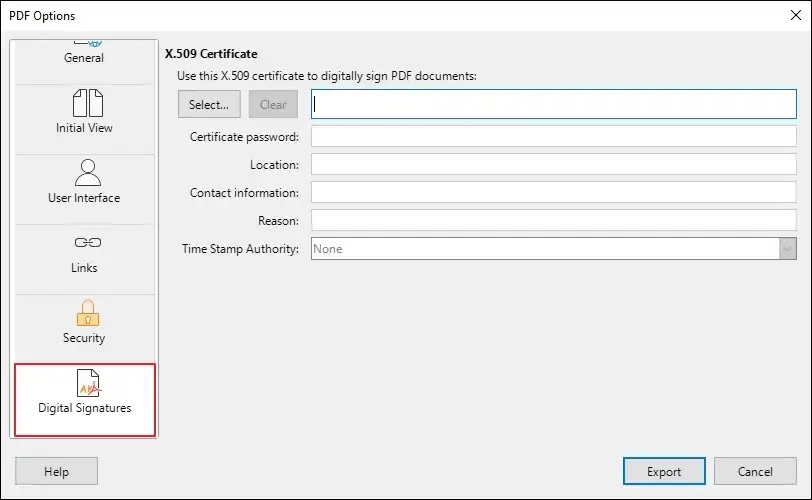
Step 11. Click the Save option to begin.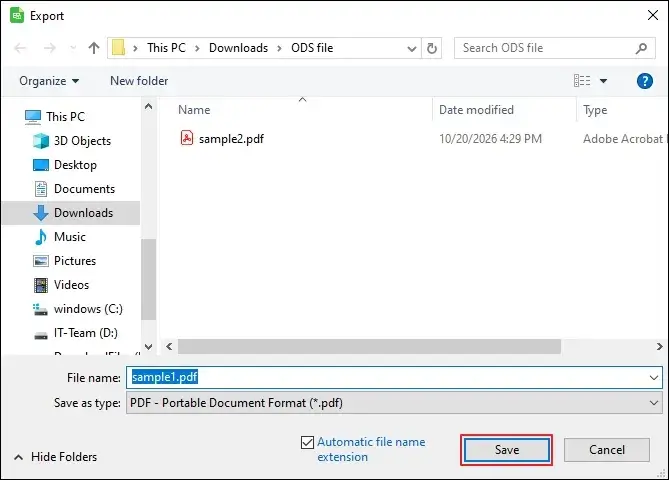
Step 12. It will start exporting your ODS file to PDF format.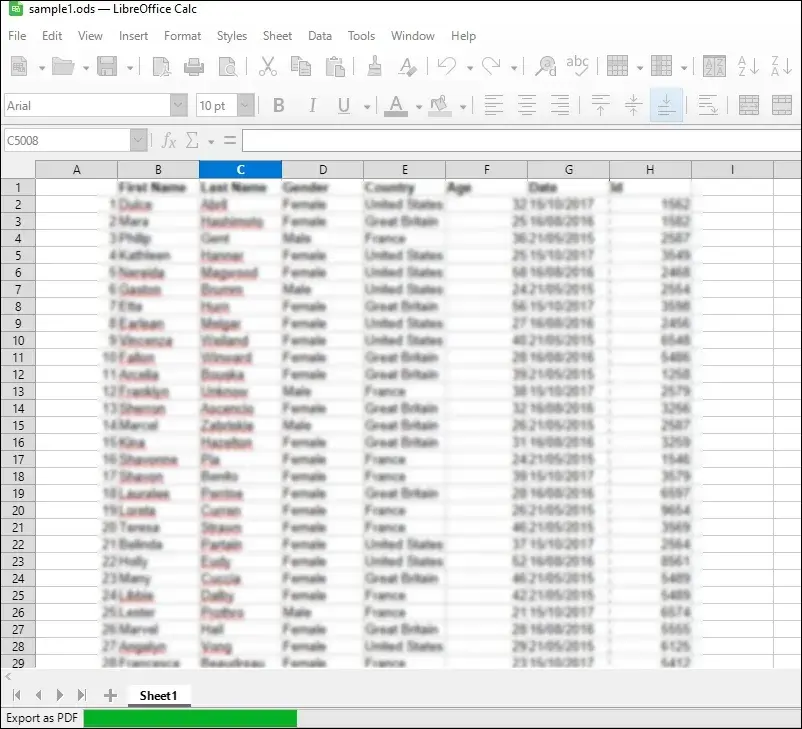
Method 2. Use Microsoft Excel to Save ODS File As PDF
Follow the given steps to convert ODS files to PDF using Microsoft Excel.
Step 1. Click on Open and Browse option to proceed.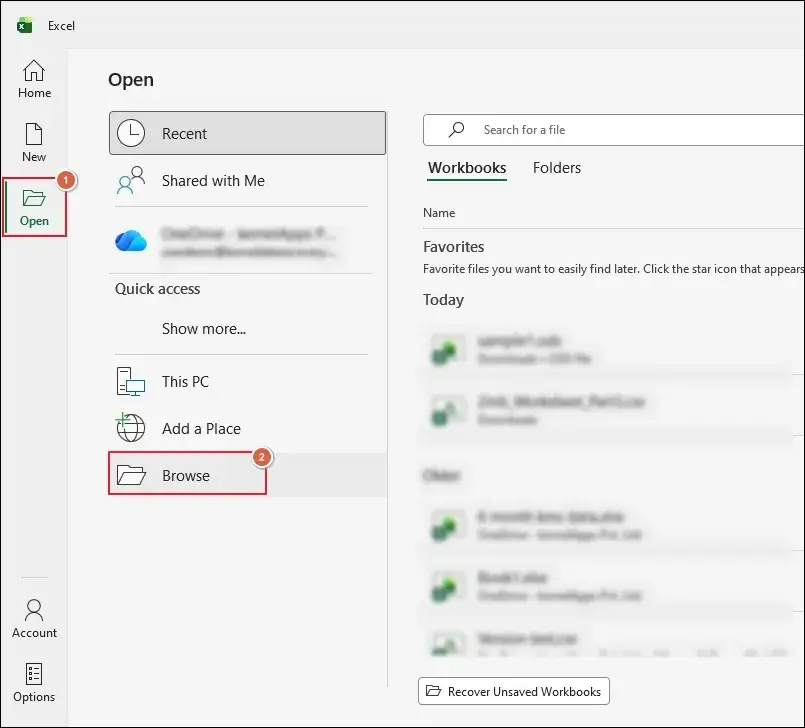
Step 2. Wait for the ODS file to open in Microsoft Excel.
Step 3. Go to File > Save As > PDF (.pdf) > More options.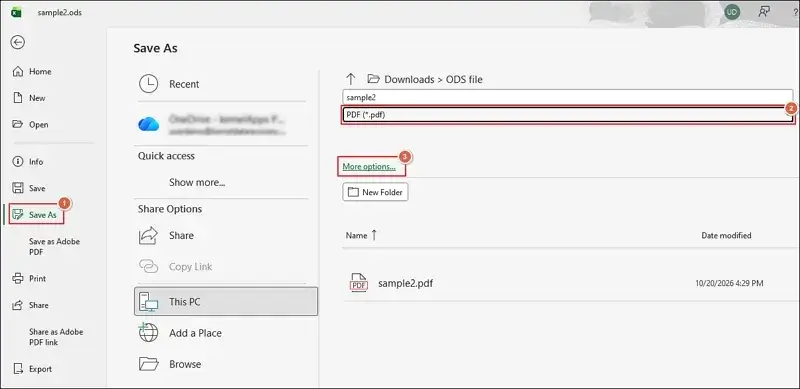
Step 4. In the saving wizard, Optimize the file and click on Options.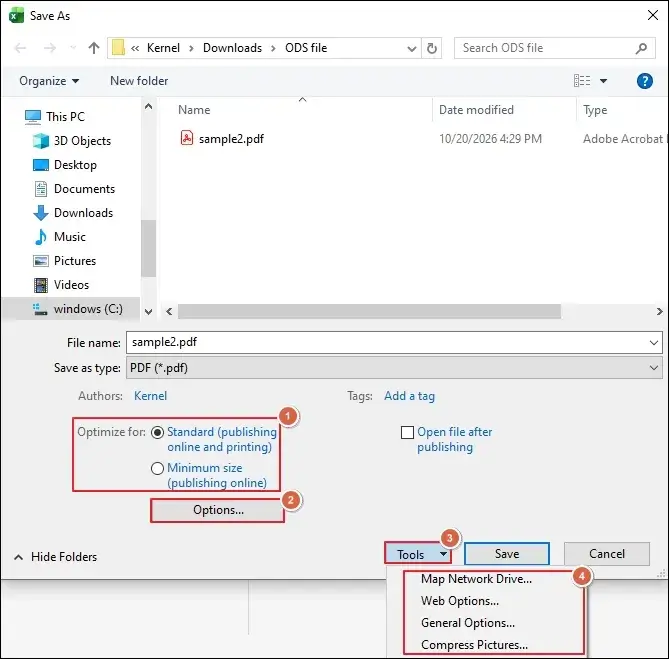
Step 5. Apply the necessary Options and tap OK.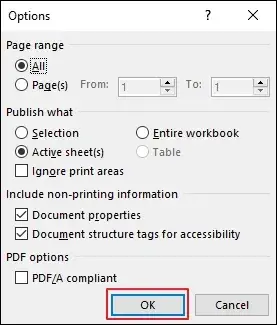
Step 6. Expand the Tools option to set up the following:
- Map Network Drive
- Web Options
- General Options
- Compress Pictures
Step 7. Browse to Map Network Drive and click Finish.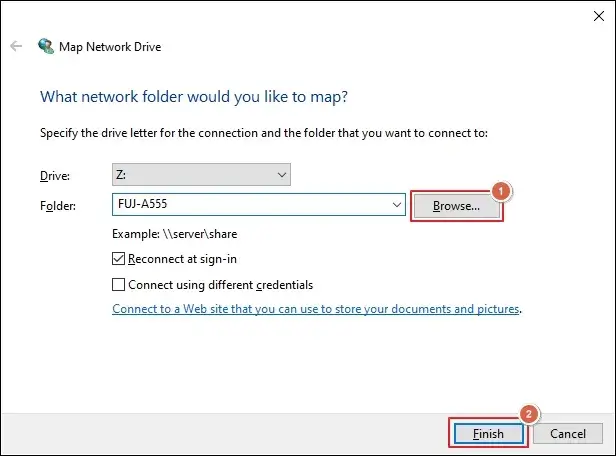
Step 8. Apply the necessary Web Options and proceed to OK.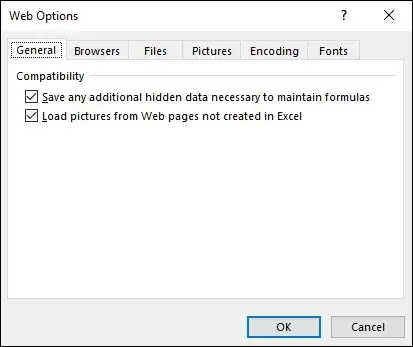
Step 9. Use the General options to protect the file and click OK.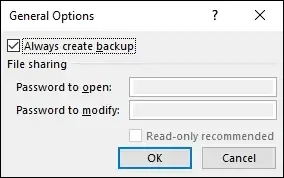
Step 10. Select the applicable Compress Pictures option and tap OK.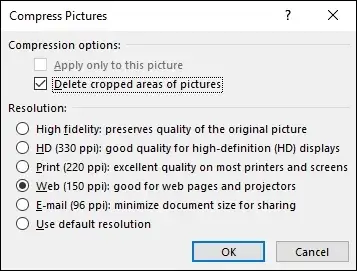
Step 11. Click the Save option once all settings are applied.
Method 3. Perform ODS to PDF Conversion Using OpenOffice Calc
Here’s how to save ODS file as PDF using the OpenOffice Calc application:
Step 1. Navigate to the ODS file and Open with OpenOffice Calc.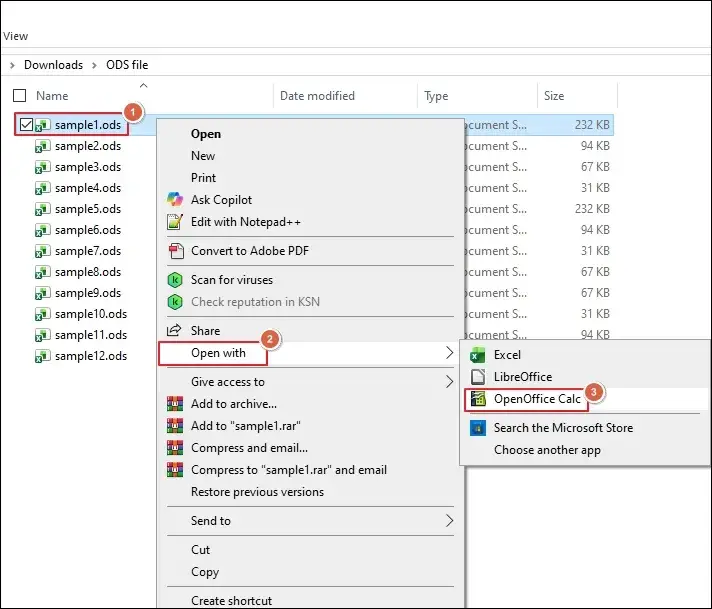
Step 2. Go to File and Export the selected data only.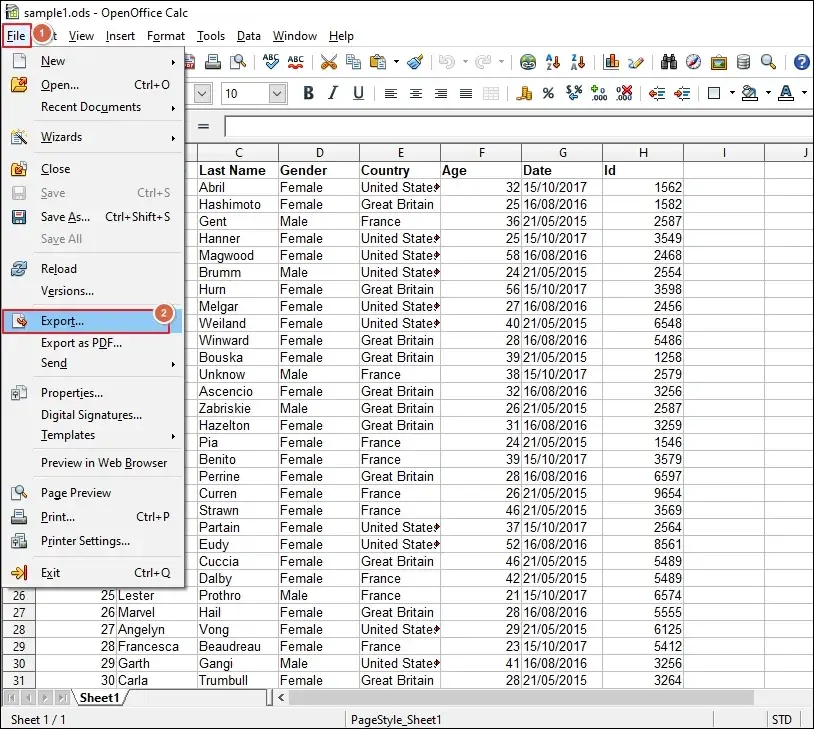
Step 3. Check the Selection option and click Save.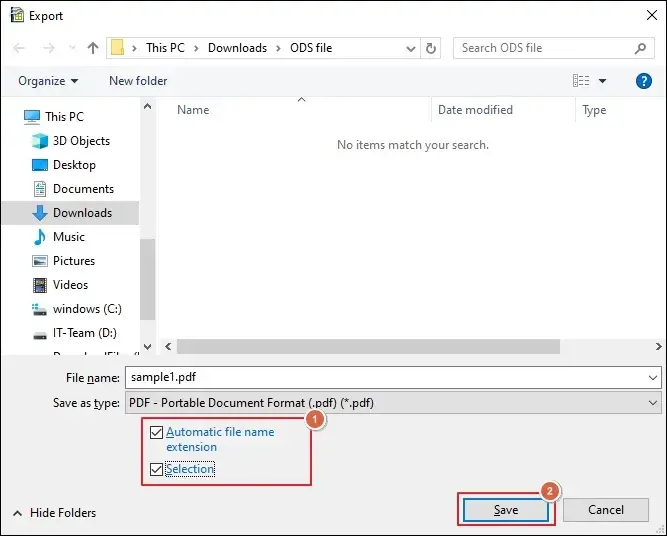
Step 4. Select Export as PDF to save the entire file.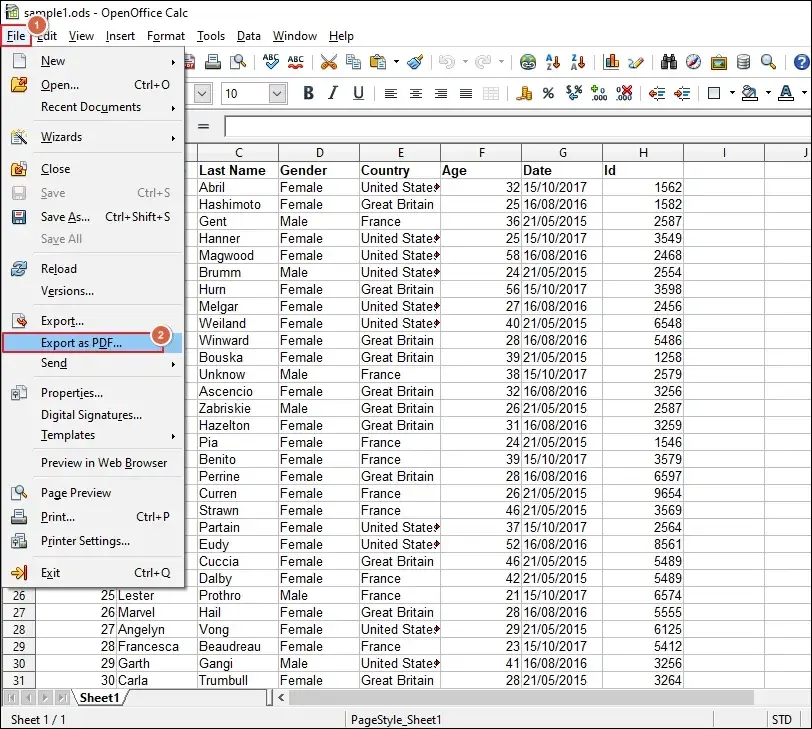
Step 5. Apply the General settings if needed.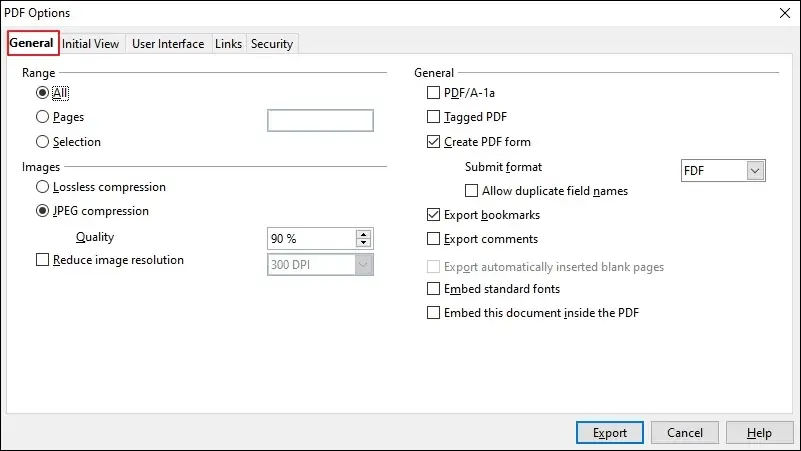
Step 6. Go to Initial View for page appearance-related settings.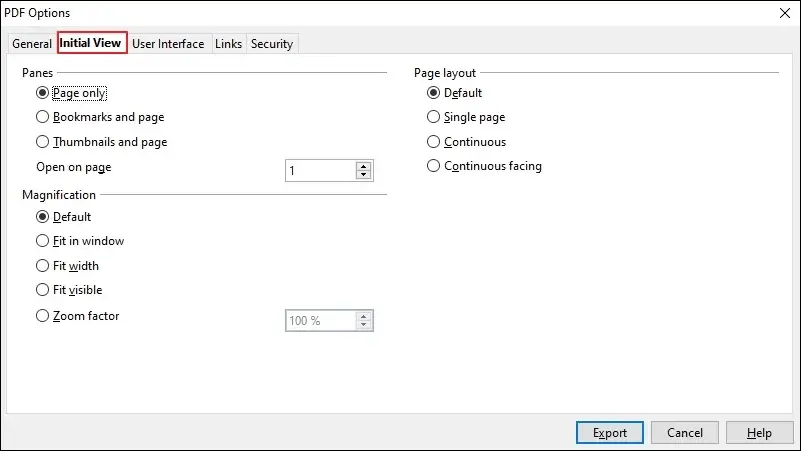
Step 7. Choose the User Interface settings if required.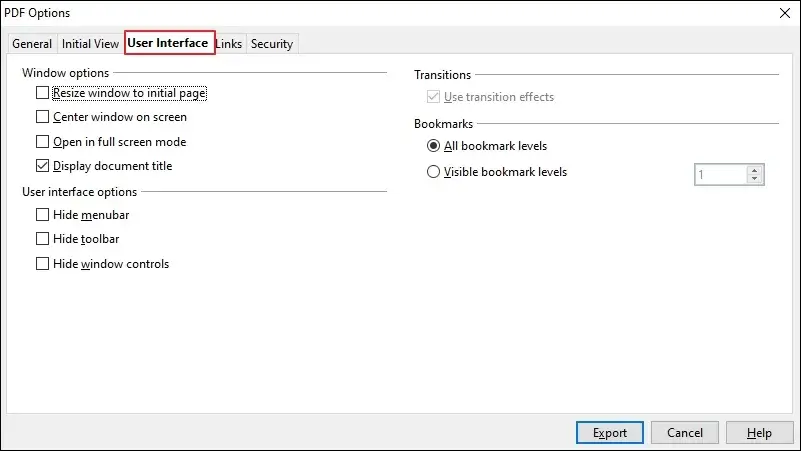
Step 8. Select the appropriate Links options.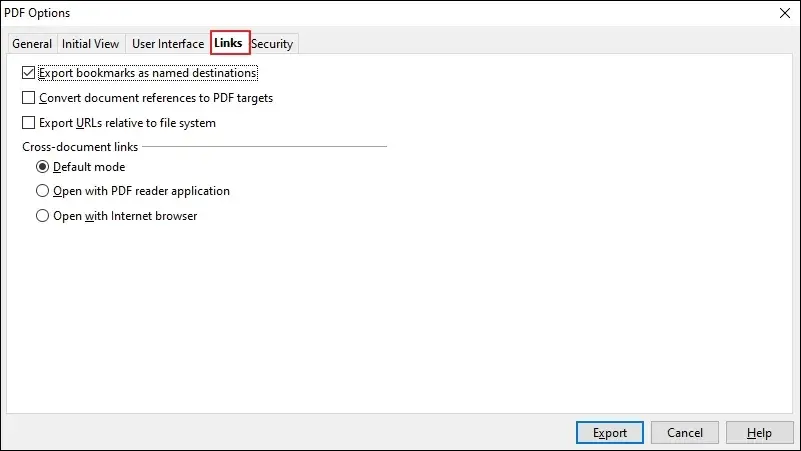
Step 9. Set passwords to protect the file and apply necessary settings.
Step 10. Then, click the Export option to Save the file.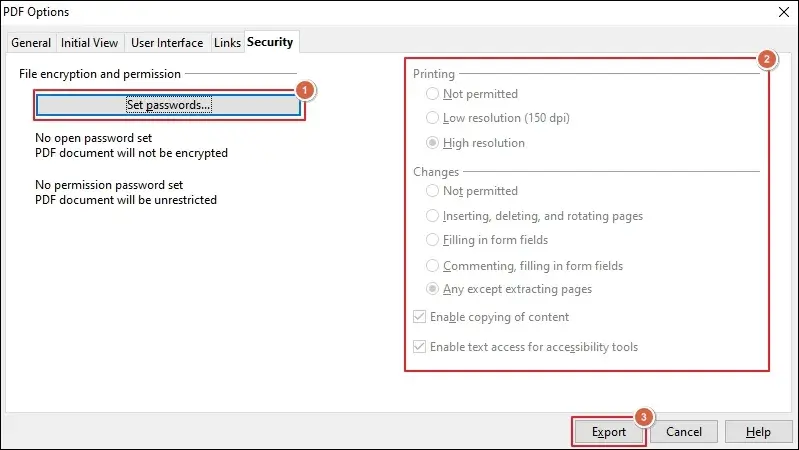
Method 4. Export ODS Files to PDF Using Google Sheets
Here are the detailed steps to convert ODS to PDF format via Google Sheets.
Step 1. Sign in to Google Sheets to proceed.
Step 2. Go to File menu and click Open.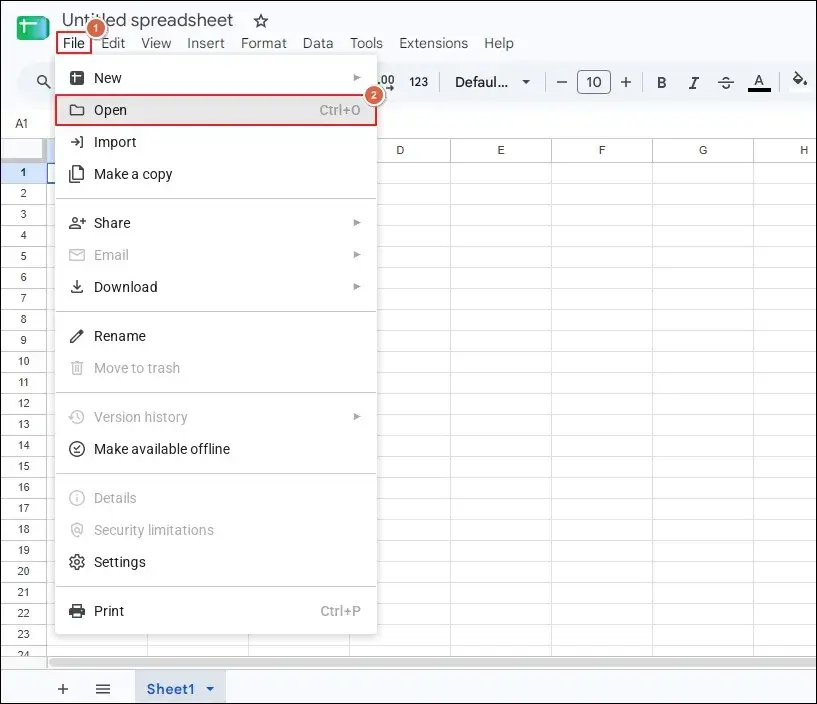
Step 3. Browse to Upload an ODS file to begin.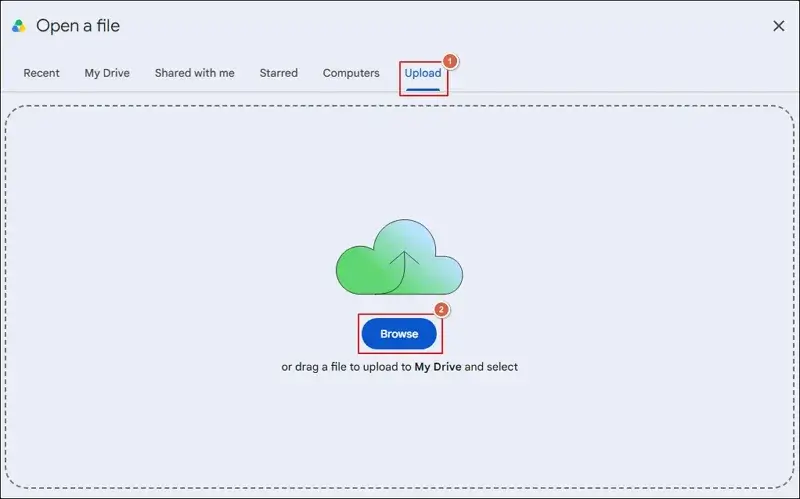
Step 4. Wait for the file to open completely in Google Sheets.
Step 5. Click on File > Download > PDF (.pdf).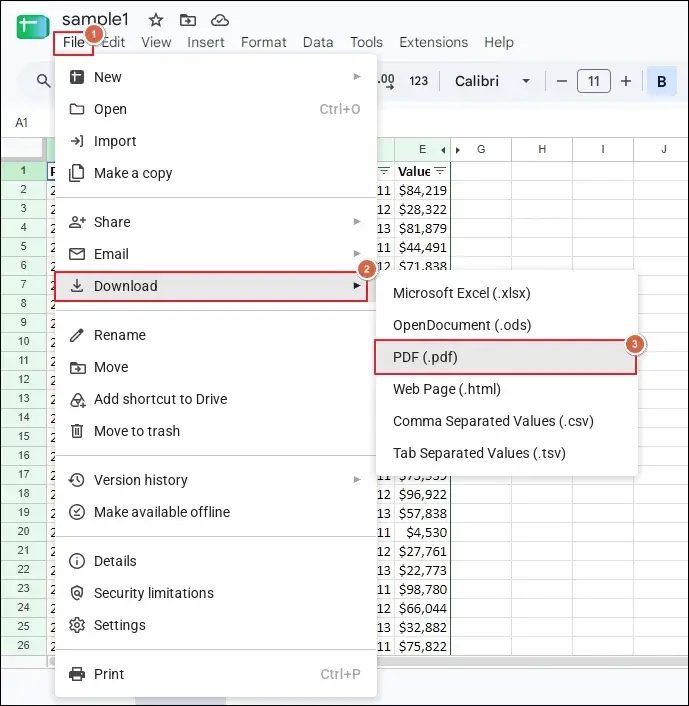
Step 6. Select the required settings and click Export.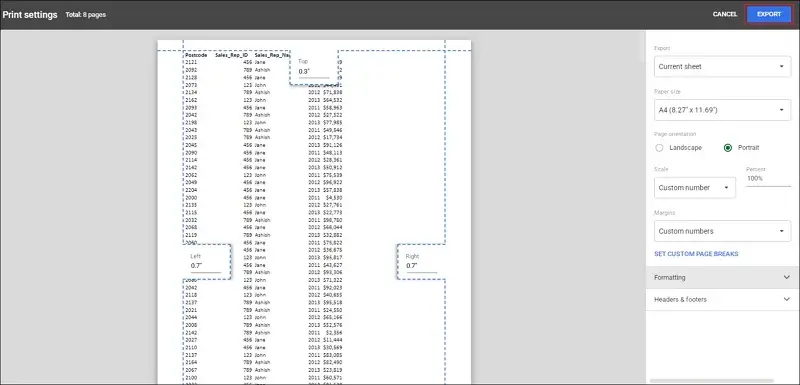
Step 7. It will start downloading the file in PDF format.
Method 5. Use the LibreOffice Command Line to Batch Convert ODS to PDF
LibreOffice command line will be helpful when you have several ODS files for conversion in one operation. Here’s how:
- Keep the ODS files in a dedicated folder.
- Create a separate destination folder for output PDF files.
For Windows:
Step 1. Access the Command Prompt on your system.
Step 2. Locate the ODS files using the following command:
cd C:\Users\YourUsername\Documents\MySpreadsheets
Step 3. Run the command below for conversion using the LibreOffice executable location:
“C:\Program Files\LibreOffice\program\soffice.exe” –headless –convert-to pdf *.ods
For macOS
Step 1. Launch the Terminal app and run the command below.
cd ~/Documents/MySpreadsheets
Step 2. Execute the batch ODS file conversion using the LibreOffice binary path.
/Applications/LibreOffice.app/Contents/MacOS/soffice –headless –convert-to pdf *.ods
For Linux
Step 1. Access the Terminal and navigate the ODS file folder using the given command.
cd /path/to/your/ods/folder
Step 2. Use the following command to convert ODS files in batches.
libreoffice –headless –convert-to pdf *.ods
Note: You can also use soffice in place of libreoffice.
Custom Command Line Options With More Control
Use the provided command to save PDF files to a different folder:
soffice –headless –convert-to pdf –outdir /path/to/output/folder *.ods
Execute the specific Calc export filters command for systems that struggle to detect the spreadsheet files.
–convert-to pdf:calc_pdf_Export
Run the GUI multi-instance conflicts using the command below.
soffice “-env:UserInstallation=file:///tmp/LibreOffice_Conversion” –headless –convert-to pdf *.ods
Method 6. Use A Reliable Online Converter Tool for ODS File Conversion
An online converter can be useful when you need a quick conversion without installing additional applications. However, free services may have restrictions on file size, number of files, and daily conversions. Remember to avoid uploading spreadsheets that contain sensitive information unless the service is authorized for the data.
Read also: How to Convert TXT Files to PDF Format?
Bonus: Tips to Prevent Column Cut-Offs During ODS to PDF Conversion
Sometimes the conversion completes, but the PDF contains incomplete tables, missing columns, unwanted page breaks, or excessively small text. These problems usually relate to spreadsheet page settings or print ranges. So, apply the following adjustments before exporting ODS spreadsheets to PDS format.
- Define the applicable print range.
- Check all worksheets before exporting them.
- Change the spreadsheet to landscape orientation.
- Adjust page scaling to fit within a specified number of pages.
- Review the content of spreadsheets before exporting them to PDF.
Read also: How to Convert RTF Files to PDF Format?
Why Consider A Dedicated Solution If Free Methods Are Available?
Each free method works for occasional use, but these limits add up when you convert spreadsheets regularly or handle confidential data.
- Most methods help you convert one file at a time.
- Layout is the biggest concern for the output PDF file.
- Google account and Office suite installation & license are required.
- Contains privacy risks when you upload files to a third-party server.
- The LibreOffice command line makes the process harder for non-technical users.
- Formatting or formulas can change due to re-reading in Google Sheets and Excel.
Our Recoveryfix Free Document Converter Software removes these limitations by converting multiple ODS files to PDF in one run. The Free Document Converter software keeps your spreadsheet layout intact and processes files on your own system completely offline. You don’t require any sign-ups or command lines for conversion.
Summing Up
Here, we have covered different methods to convert ODS to PDF format. You can use the detailed steps of each method to perform the conversion on your own. However, if you want to convert multiple ODS files, then consider using the LibreOffice Command Line method or the recommended software. For technical users, the LibreOffice Command Line is suitable, and Recoveryfix software is for non-technical users.
FAQs: No Guessing, Clear Answers
Q- What is an ODS file, and which apps open it?
A- An ODS file is an OpenDocument Spreadsheet that is the default format of LibreOffice Calc and OpenOffice Calc. You can also open the file in Microsoft Excel and Google Sheets, along with the native ones.
Q- Do my formulas and formatting stay in the output PDF file?
A- NThe output PDF keeps the values, text, and layout as you see on the screen. But it doesn’t carry the editable formulas or cell logic. All of these carry over through page settings provided by the chosen application.
Q- Can I convert a password-protected ODS file to PDF format?
A- Yes, you can use LibreOffice, Excel, Google Sheets, and LibreOffice commands to convert password-protected files one at a time. But for batch password-protected file conversion, use the Recoveryfix Free Document Converter.
Q- Why won’t my ODS file convert to PDF?
A- It can happen due to various reasons like file corruption, password lock, a large workbook, or unsupported elements. Open the file separately to check and re-save the copy as ODS.
Q- Can I convert ODS to PDF on my phone?
A- Yes, through a mobile browser using an online converter or spreadsheet apps that export to PDF.
Q- Are charts, images, and links kept in the PDF?
A- Yes, charts and images appear as they look on the screen if they fall inside the print range. Hyperlinks may not stay clickable when files are converted via manual solutions. So, use dedicated software like Recoveryfix to maintain such elements in the PDF file.
Q- What are the limits of the Recoveryfix Free Document Converter?
A- You can convert up to 50 ODS files in a single batch using our tool. To convert more files, upgrade from the current version.
Q- Can I convert my PDF files back to ODS format?
A- Yes, but the final results may vary because they are built for viewing and not for editing. For consistent results, do check out the secure ODS to PDF converter software by Recoveryfix.