How to Convert TXT to PDF Format? – A Complete Guide

Published On - October 12, 2026
Your text file may contain the right information, but does it look professional enough to share? This happens because they lack defined page layouts, margins, and font styling. As a result, long lines can wrap awkwardly, spacing may look different, and special characters might not appear correctly. All these issues make text files hard to read or share.
So converting your text files to PDF format helps you distribute, print, and read content without relying on the preferred text editor app. Let’s see how to convert TXT to PDF format on Windows, Mac, iPhone, and Android devices to keep the final document clear and well-organized.
Key Benefits Explained: What Makes PDF A Better Choice for Text Files?
A plain-text file is lightweight and easy to edit, but it provides limited control over the content. With TXT to PDF conversion, you can avail these benefits:
- Consistent page layouts and fonts throughout the document.
- Add password protection or restrict editing for additional security.
- Better document organization with headings, spacing, & page numbers.
- Easily share PDFs with anyone without requiring a particular text editor to open the file.
- Print-friendly documents with page size, margins, orientation, & page breaks review.
- Makes archiving & storing finalized reports, meeting notes, & technical documentation convenient.
TXT to PDF Conversion: Know Methods, Tools, and Options
An appropriate method for text file conversion depends on your operating system, formatting requirements, and number of files. Below, we have listed the self-tested methods that are still working in 2026.
| Method | Best For | Requirements |
|---|---|---|
|
Windows Notepad |
Basic conversion |
Compatible Windows installation |
|
Microsoft Word |
Formatting reports & documents |
Word desktop application with license |
|
Mac TextEdit |
Text File conversion on macOS |
Mac system environment |
|
Google Docs |
Editing text files in browsers or phones |
Google account and internet access |
|
Mobile Document Apps |
File conversion on Android or iPhone |
iCloud Notes and Keep Notes |
|
Online Converter |
Conversion via third-party online tools |
Internet access & supported TXT input service |
Note: Always prefer offline methods to convert confidential or restricted files.
Manual Ways to Convert TXT Files to PDF Format [Free & Self-Tried Steps]
Go through the following section to find different methods to convert text files on different platforms. Try them one by one to identify the most appropriate one for yourself.
TXT to PDF Conversion On Desktop
Below, we have highlighted the methods to convert text files on Windows & Mac operating systems.
For Windows Users (Notepad, Google Docs, & Microsoft Word)
1. Using the Windows Notepad Application
Step 1. Open the TXT file in Notepad application.
Step 2. Go to File and proceed to the Print option.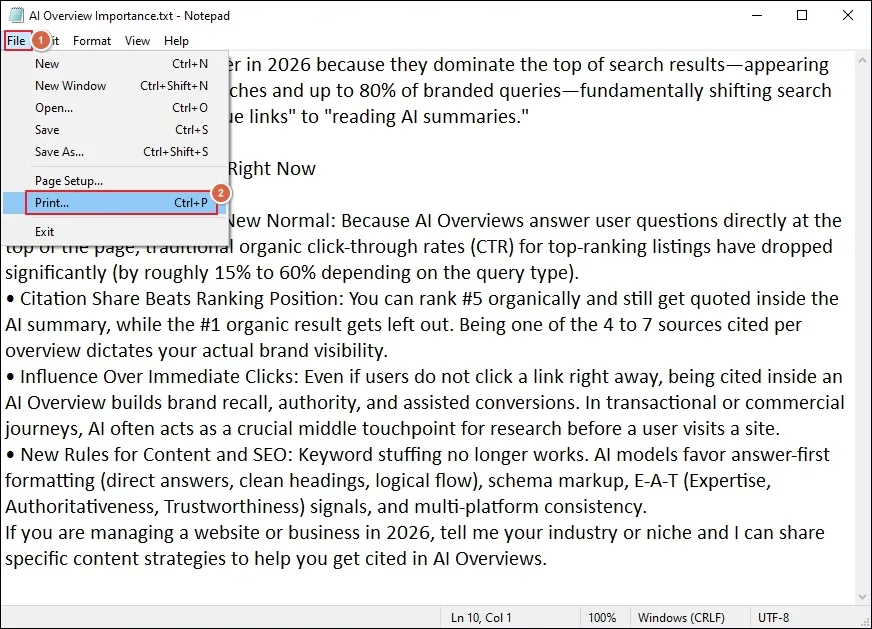
Step 3. Select the Microsoft Print to PDF option & click Print.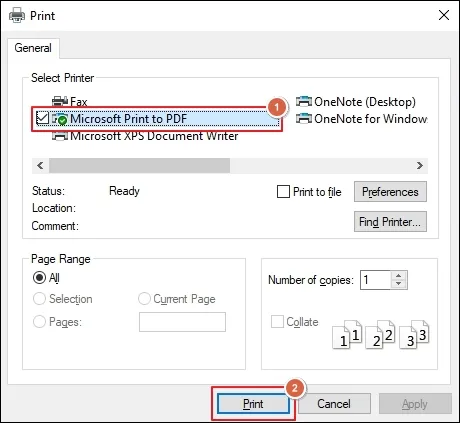
Step 4. Choose the PDF Document type and click Save.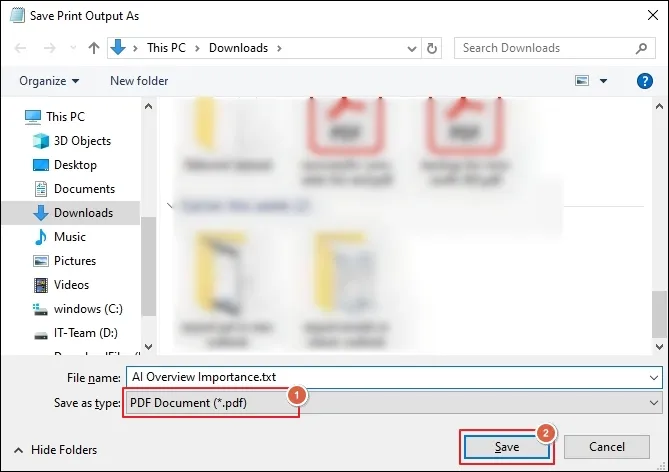
Step 5. It will save the text file in PDF format.
2. Using Google Docs
Step 1. Go to your browser and sign in with your Google account.
Step 2. Access Google Docs and Open the TXT file.
Note: You can also copy & paste the text into a blank document, but it is not recommended.
Step 3. Review the content for extra spaces, missing characters, and unwanted line breaks.
Step 4. Now, format the text with headings, fonts, paragraph spacing, and page settings.
Step 5. Go to File > Download > PDF Document (.pdf).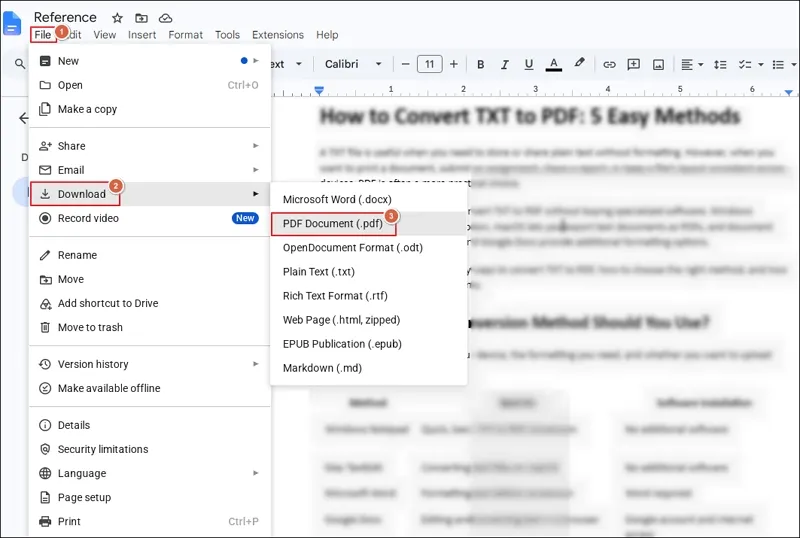
Step 6. Save the downloaded file and open it to verify.
3. Using the Microsoft Word Application (Recommended One)
Step 1. Right-click on the TXT file and select Open with Word app.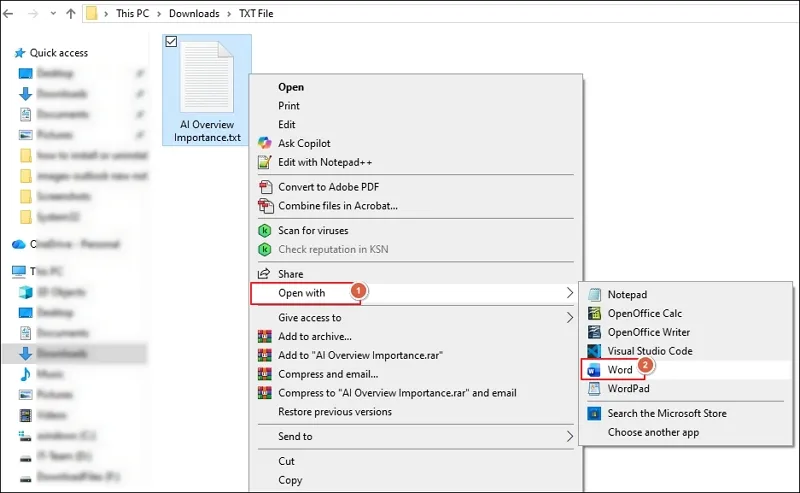
Step 2. Review the opened file and make changes if needed.
Step 3. Then, go to File > Save As > Browse.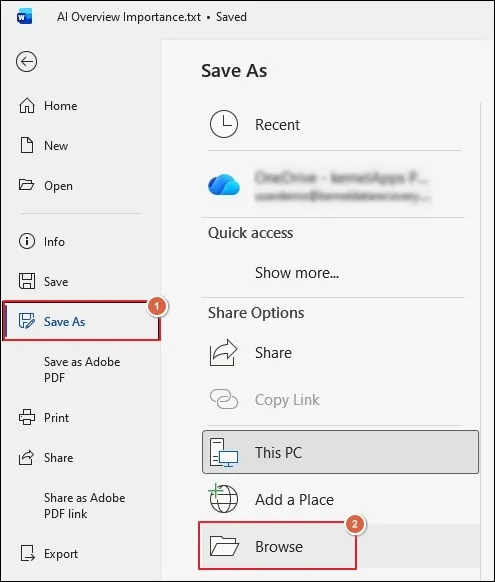
Step 4. Choose PDF (.pdf) as the file saving type.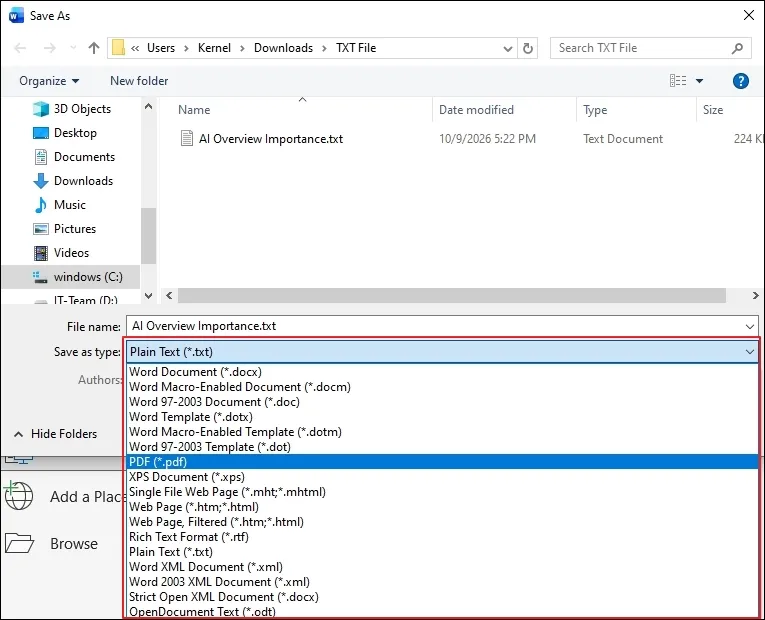
Step 5. Optimize the PDF files and click Options.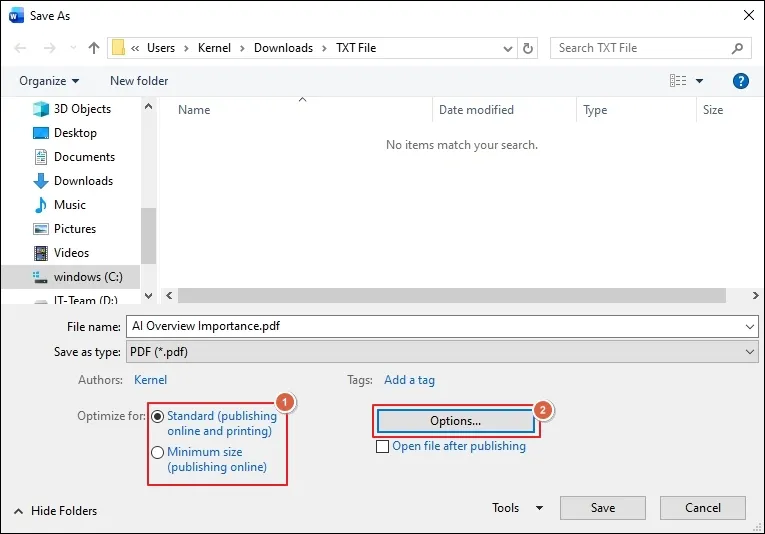
Step 6. Select the required Options and tap OK.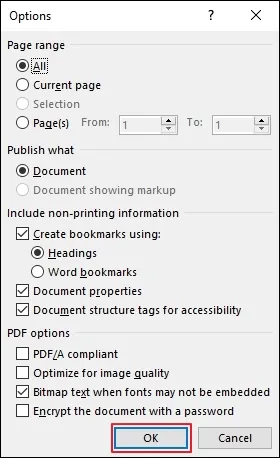
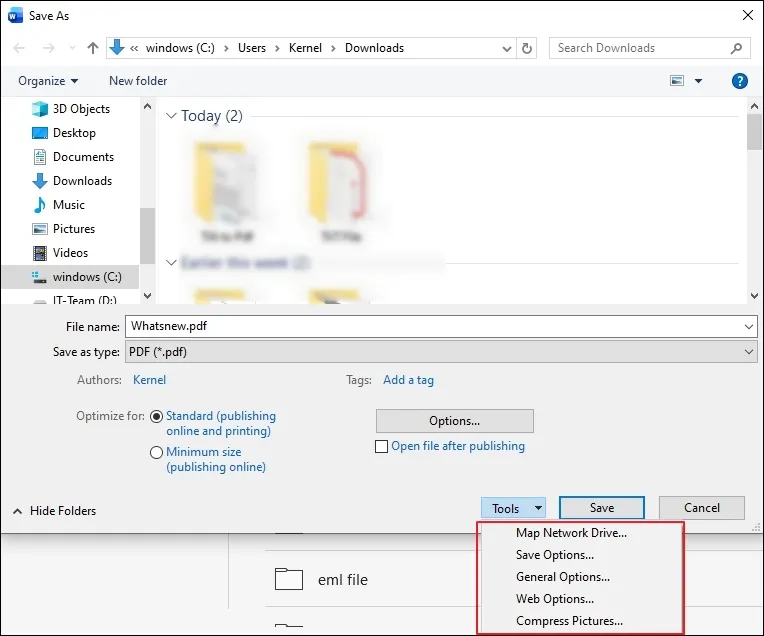
Step 7. Expand the Tools drop-down menu to:
- Map Network Drive
- Save Options
- General Options
- Web Options
- Compress Pictures
Step 8. Browse to the network folder & click Finish.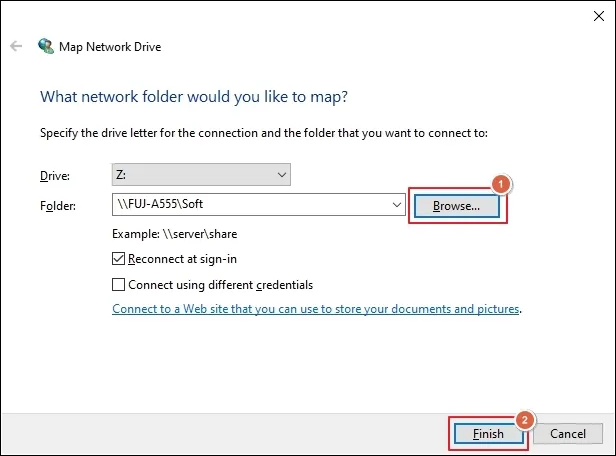
Step 9. Choose the necessary Save and other settings and tap OK.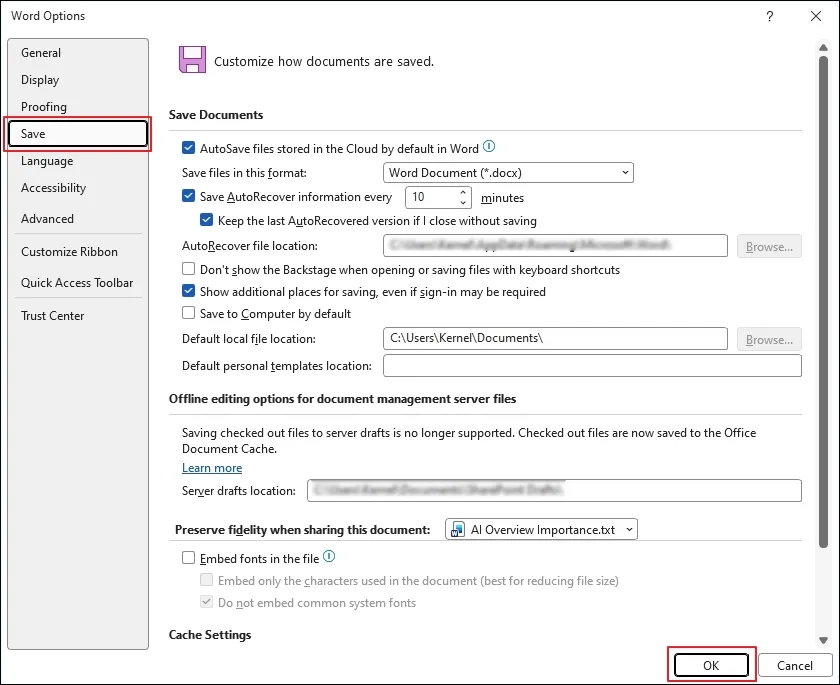
Step 10. Protect Document by encrypting it and clicking OK.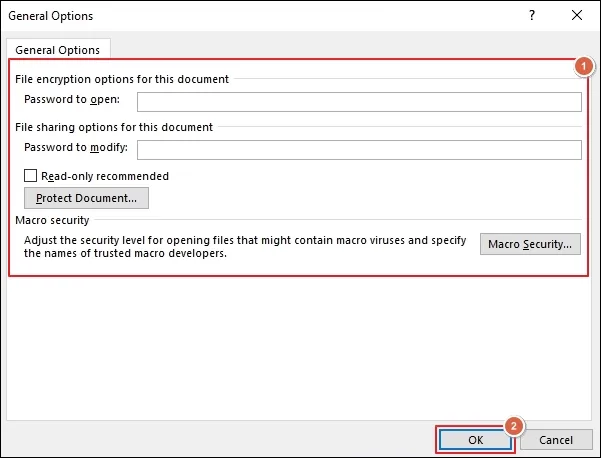
Step 11. Apply the needed Web Options and tap OK.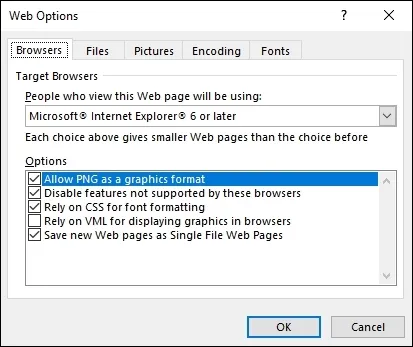
Step 12. Compress Pictures if required and click OK.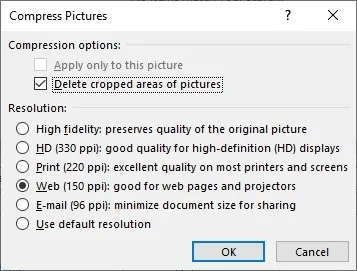
Step 13. Then, click Save. Microsoft Word will start saving the PDF file with all the applied settings.
For Mac Users
Step 1. Open the text file using TextEdit on Mac.
Step 2. Review the accessed file and make changes as needed.
Step 3. Once done, go to File and proceed to Export as PDF.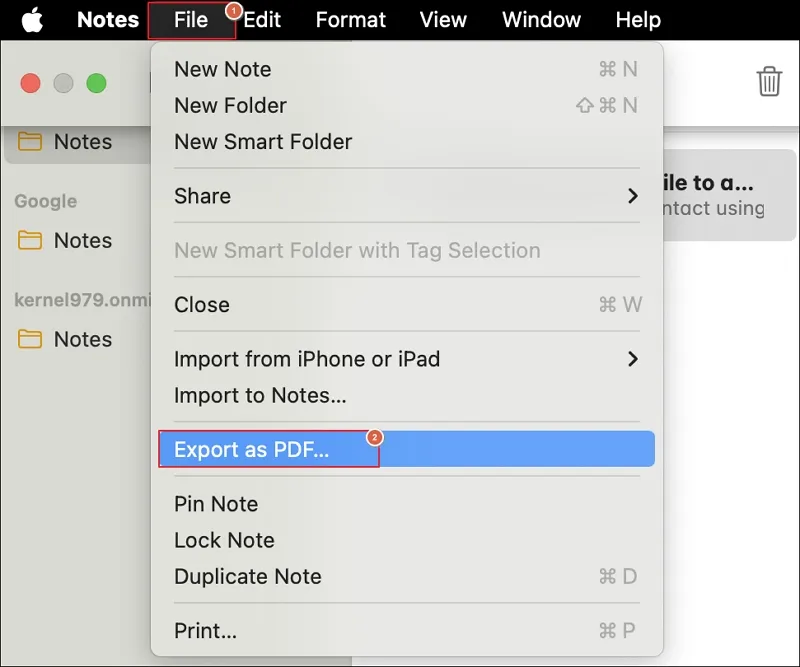
Step 4. Choose the destination to Save the file.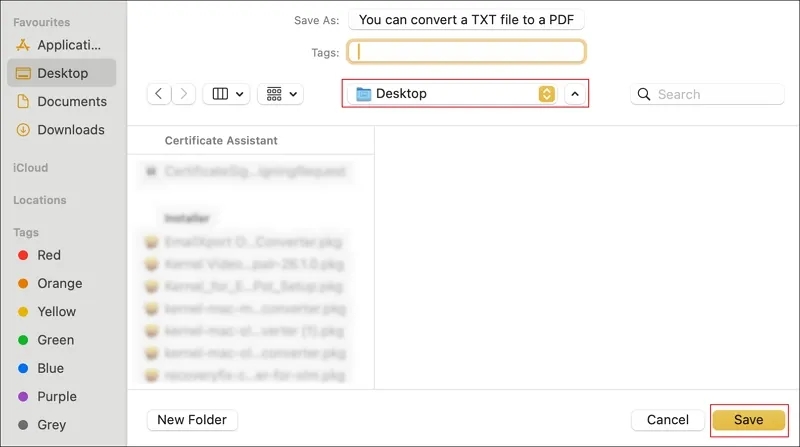
Step 5. After completion the file will appear on your Mac system.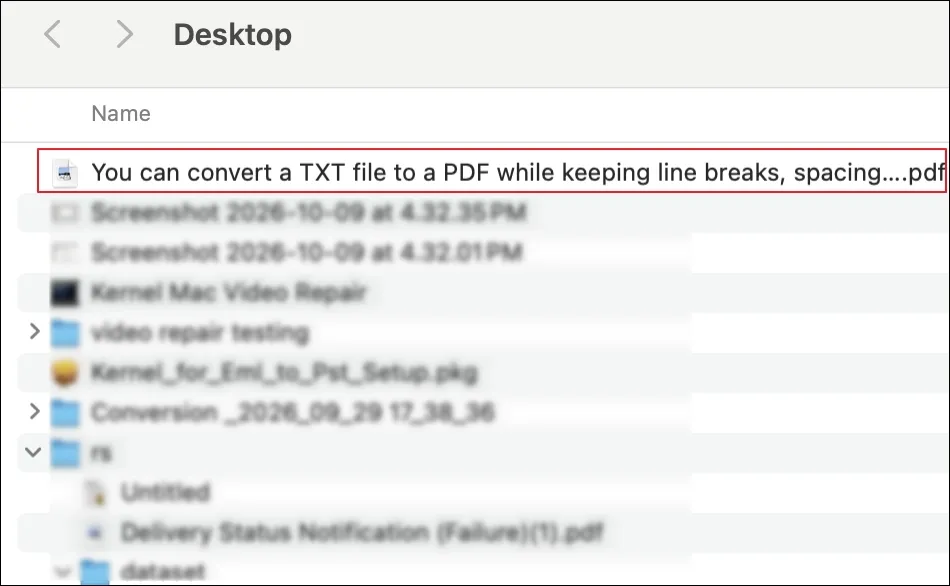
Convert TXT to PDF Documents On Mobile Devices
Here are the detailed methods that help you convert text files on both Android and iOS.
For iOS Users
Step 1. Open the text file in iCloud Notes.
Step 2. Review the text and make the necessary corrections.
Step 3. Go to the Share menu icon to proceed.
Step 4. You have two options here:
- Save to Files directly.
- Print the text file as a PDF.
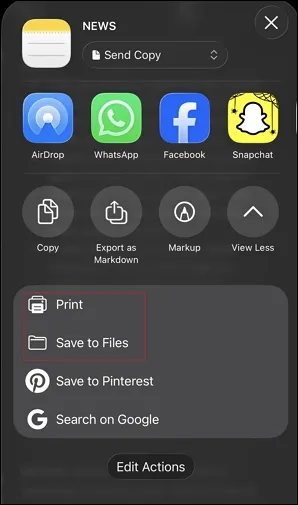
Step 5. Preview the text file by clicking on Print option.
Step 6. Apply changes if needed and click on Share icon.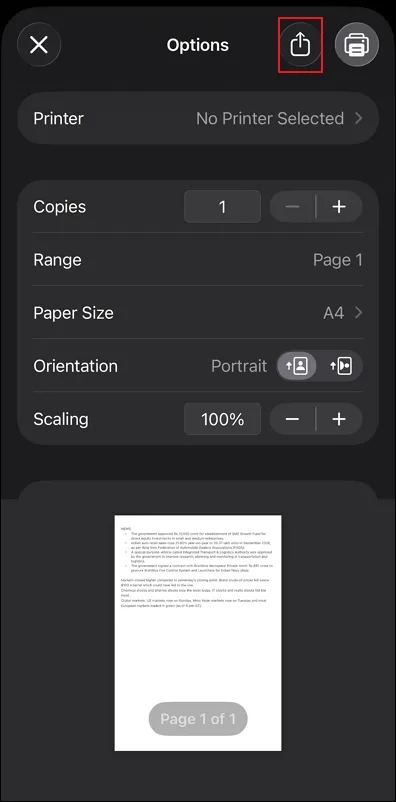
Step 7. It will convert TXT file to Adobe PDF format.
For Android Users
Step 1. Open the text file in Keep Notes.
Step 2. Click on three dots to access additional settings.
Step 3. Tap on the Send option to proceed.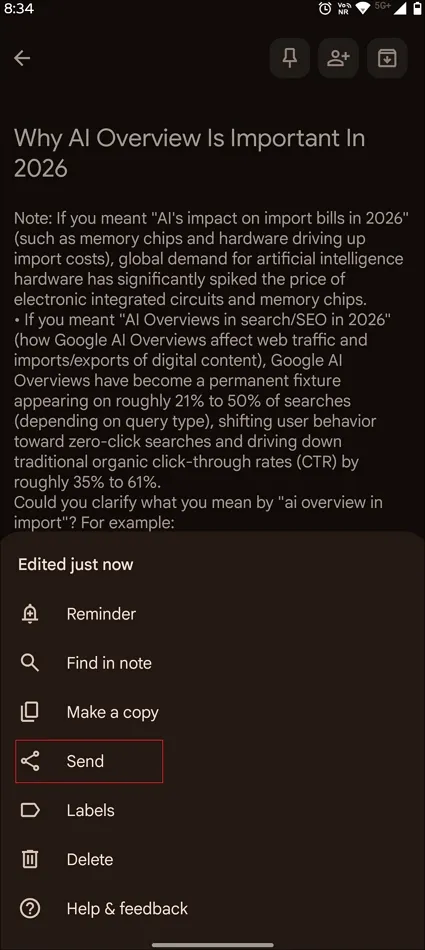
Step 4. Select the Copy to Google Docs option.
Step 5. Once completed, go to File > Download > PDF Document (.pdf).
Limitations: Where Manual TXT to PDF Conversion Falls Short?
Manual methods for converting text files work well when you have limited files. But they instantly become ineffective when you have to:
- Process files on a large scale.
- Maintain consistent formatting & layout.
- Avoid manual cleanup or text corrections.
- Handle the conversion of large-sized text files.
- Keep your files private and secure throughout the conversion.
Need A Faster Way to Convert Multiple Documents? – Know the Right One
Now, you may wonder which method would be more reliable to convert TXT files to PDF format after seeing the constraints of the native solution. For such scenarios where you have to convert text files not occasionally but on a regular basis, our Recoveryfix Free Document Converter Software will be one of the best approaches. It processes multiple TXT file conversions without imposing any size or number restrictions with the upgraded version.
Final Tips For A Smooth TXT to PDF Conversion
Here, we have discussed different ways to convert TXT to PDF format, including manual and dedicated ones. You can use the native approaches when you have to convert a handful of text files, and the recommended one for converting multiple files at once. The dedicated approach eliminates the need for manual review of each file during the conversion.
TXT to PDF Conversion: Your Questions Answered
Q- How do I fix missing characters in a converted PDF?
A- Access the original text file and check whether the characters appear correctly there. If not, open the file in a text editor that supports the character encoding and export as a PDF.
Q- Why does my PDF have different line breaks from the TXT file?
A- Text files do not have a fixed layout, so the application fits the text within the selected page size, margins, and font settings. So, review the file properly before exporting it to PDF.
Q- Can I convert TXT to PDF documents without installing software?
A- Yes, you can use the default applications like Windows Notepad & Mac TextEdit to convert your text files.
Q- Does converting TXT files to PDF delete my original file?
A- No, the built-in methods & dedicated solutions create a separate PDF file when you save it under a new filename.
Q- Am I able to convert TXT to PDF format on my phone?
A- Yes, you can use applications like iCloud Notes (iOS) and Keep Notes (Android) to convert your text files on your phone.
Q- Can I convert multiple text files using native approaches?
A- No, generally all the provided manual solutions help you convert individual text files at a time. For converting text files in bulk, go with dedicated solutions like Recoveryfix.
Q- Is it safe to use free online converter tools for TXT to PDF conversions?
A- No, avoid using online converters for text files to any website without prior verification. For data safety, always rely on offline tools that process conversion locally on your system.
Q- Can I add password protection while converting TXT files to PDF?
A- Yes, you can use the Microsoft Word application to convert text files & add password protection to the output PDF files.
Q- Do manual solutions allow me to add large files for text file conversion?
A- Yes, you can use manual solutions to convert large TXT files to Adobe PDF documents. But large files take additional processing time.