How to Convert ODS to Excel? Simplified Guide

Published On - October 28, 2026
Have you ever had an ODS file that does not open properly in Microsoft Excel? ODS files are typically created using LibreOffice or OpenOffice; however, most companies and clients use Microsoft Excel. This can cause many issues when sharing your files. Fortunately, converting an ODS file into Excel (.xlsx or .xls) can be done very easily using the correct methods. In this blog, we will explain how you can convert ODS to XLSX or XLS.
Why Do You Need to Convert ODS to Excel (XLS/XLSX)?
There are multiple reasons why users need to convert .ods to .xls or .xlsx; some of them are:
- Better software compatibility
- Seamless collaboration
- Client expectations
- Proprietary add-in integration
- Mobile app optimization
- Header and footer printing options
- Direct cloud and SharePoint co-authoring
- Excel-only features (VBA, Power Query, Power Pivot)
- Microsoft 365 collaboration
Methods to Convert ODS to XLSX/XLS
Converting ODS to Excel brings many advantages to users. There are a few manual methods available to convert ODS to Excel. Let’s discuss the steps for each in detail:
Method 1. Convert ODS to XLSX Using Microsoft Excel
This is the easiest method if you have Microsoft Excel installed on your system. Follow the steps for ODS to Excel conversion with ease:
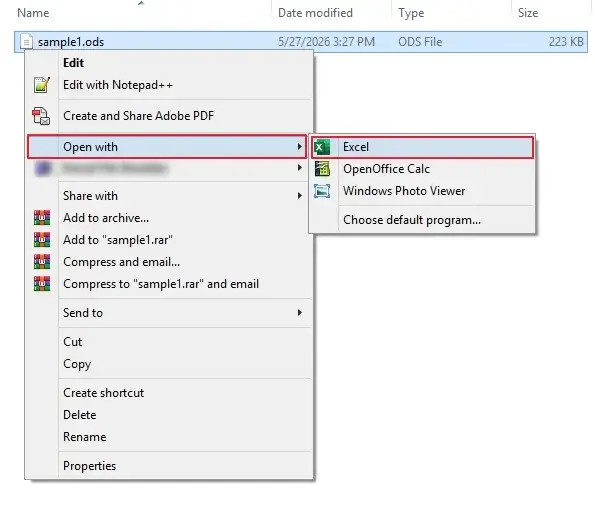
- Open your ODS file in Microsoft Excel by right-clicking on it > Open with > Excel.
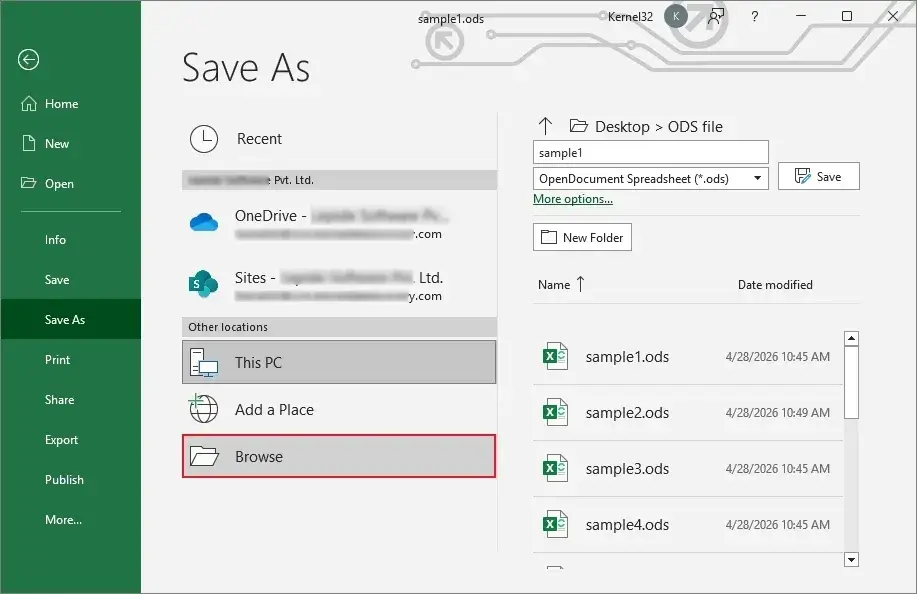
- Click on File > Save As > Browse.
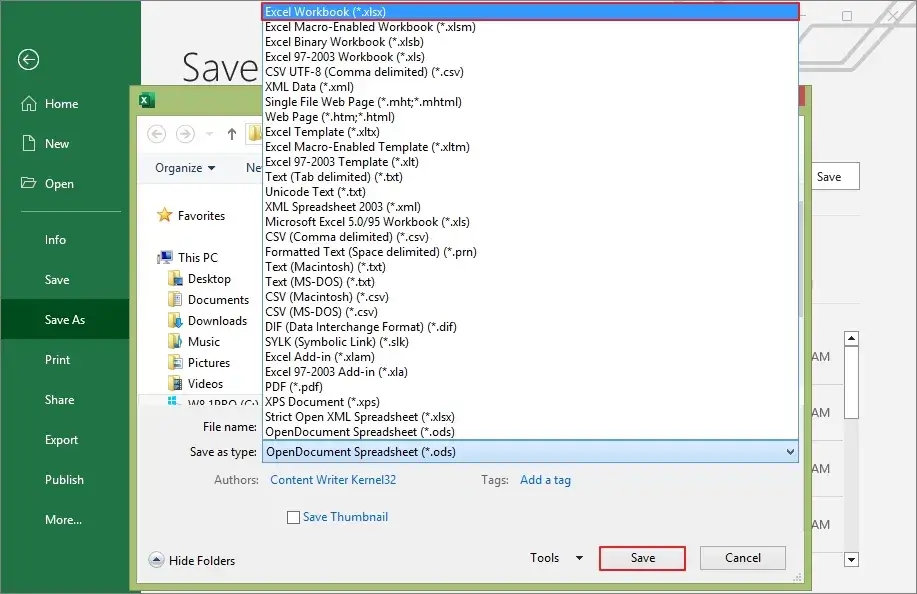
- Select Excel Workbook (*.xlsx) in Save as type and click Save.
- Repeat the process for all your ODS files one by one.
In this way, you can convert your ODS files to Excel’s XLSX/XLS format.
Limitations: There may be some changes in formatting, or Excel may warn that some features can’t be preserved. Moreover, this option does not allow you to convert in bulk.
Method 2. Convert ODS to Excel Using Google Sheets
If you do not have any desktop application installed on your system to convert your ODS files, then you can use Google Sheets. The following are the detailed steps for converting ODS files:
- Launch any web browser and open Google Sheets.
- Click on Blank spreadsheet.

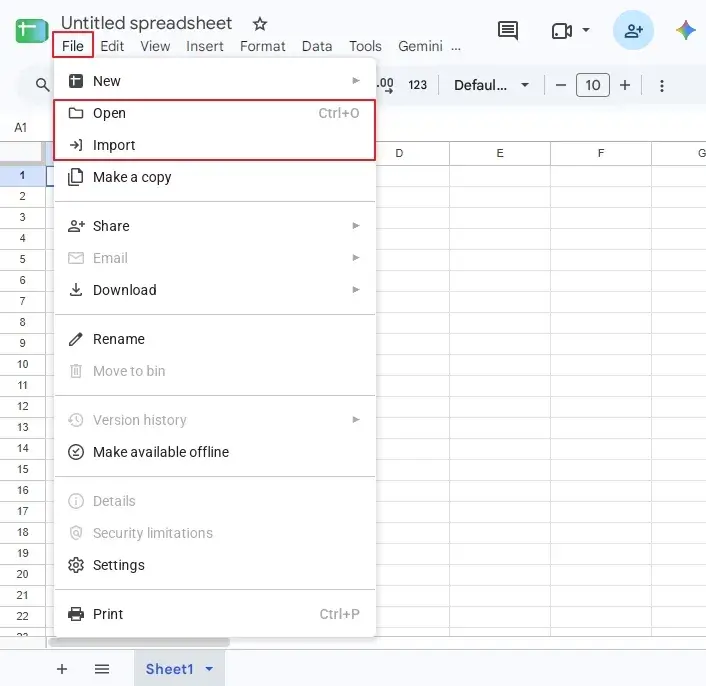
- Now, click on File, then click on Open or Import.
- Move to the Upload tab, browse, or drag and drop the required ODS file.
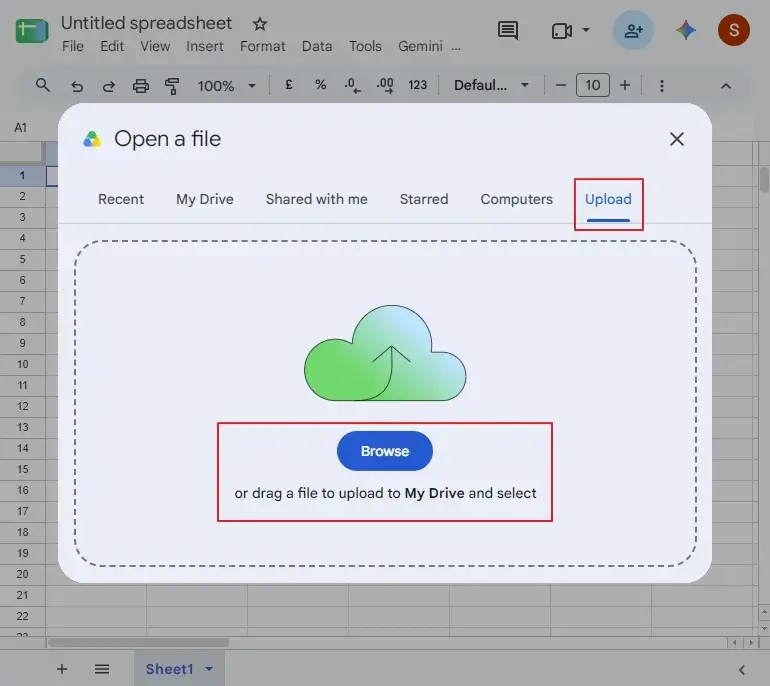
- Wait for a few seconds, and your ODS file will open in Google Sheets.
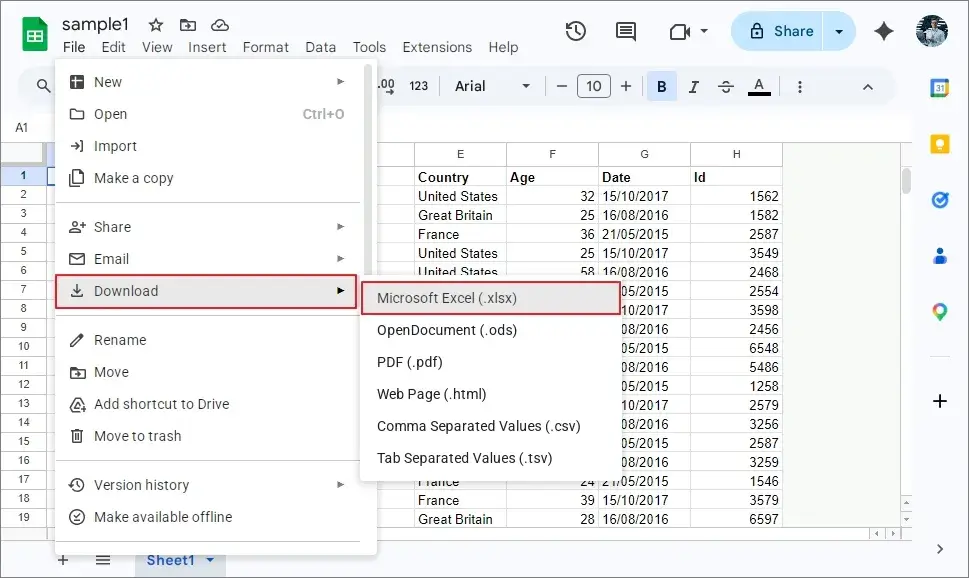
- Now, click on File, then click on Download > Microsoft Excel (.xlsx).
Limitations: This method requires an active internet connection along with a Google account.
Method 3. Convert .ods to .xls Using Apache OpenOffice Calc
Apache OpenOffice Calc allows you to convert ODS files to XLS format. Follow the steps below for hassle-free conversion:
- Go to the location where your ODS file is saved.
- Right-click on it and select Open with > OpenOffice Calc.
- Once the file is opened, click on the File button at the top-left corner, then select the Save As option.
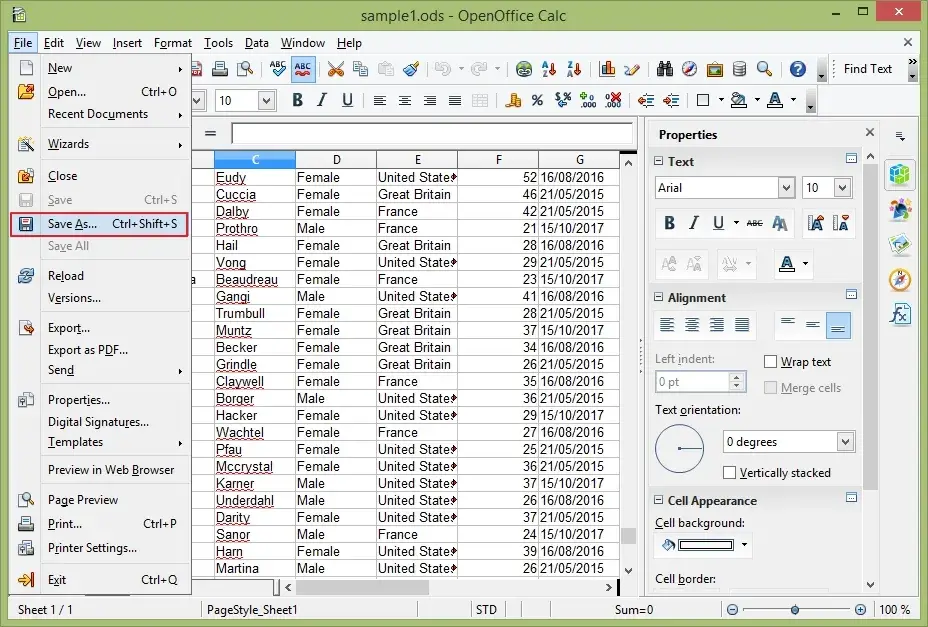
- Provide the saving destination, then select Microsoft Excel in Save as type.
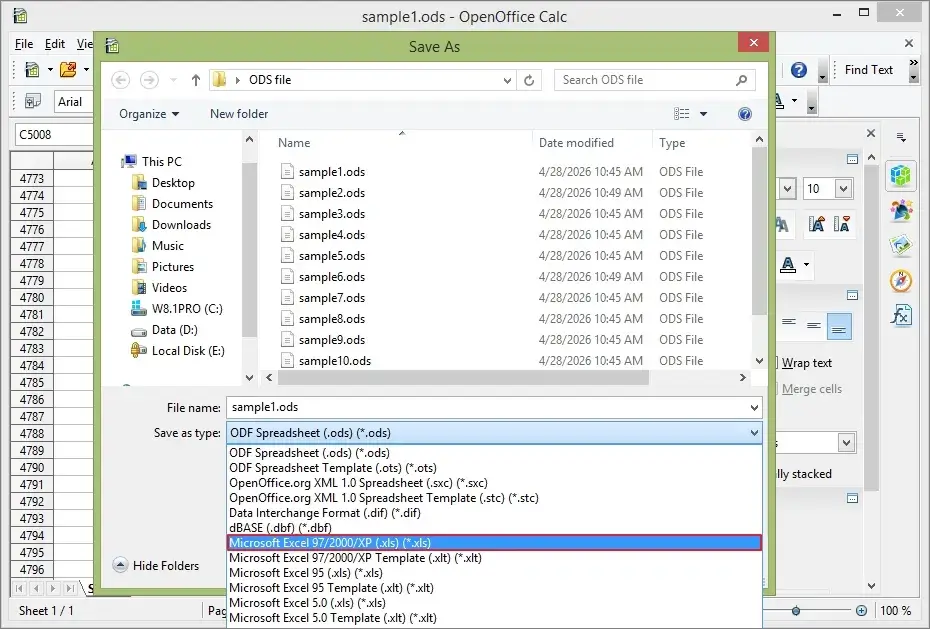
Note: If you have LibreOffice Calc installed on your system, then open the ODS file in it and click File >Save As >Excel 2007-365 (.xlsx) and Excel 97-2003 (.xls). In this way, you can save LibreOffice Calc as Excel.
Limitations: You will need OpenOffice Calc or LibreOffice Calc installed on your system. Additionally, these methods will convert a single file at a time.
Method 4. Batch Convert ODS to Excel Using LibreOffice Command Line
LibreOffice can convert a whole folder of ODS files with one command. Here are the steps to do it:
- Make sure all LibreOffice or Calc windows are closed in the background.
- Locate the LibreOffice installation path. The default path for LibreOffice on 64-bit Windows is:
- Press Windows+S, search for Command Prompt.
- Now, navigate to the folder containing your ODS files using the cd command:
- To pass each file to LibreOffice explicitly, use a for loop script directly in the terminal:
- If you want to specify an output directory for your resultant files, append –outdir to the command:
C:\Program Files\LibreOffice\program
Note: Verify the path in File Explorer or Command Prompt.
cd /d “C:\Path\To\Your\ODS_Folder”
To convert to Excel XLSX (Recommended – .xlsx):
for %i in (*.ods) do “C:\Program Files\LibreOffice\program\soffice.exe” –headless –convert-to xlsx “%i”
To convert to legacy Excel XLS (.xls):
for %i in (*.ods) do “C:\Program Files\LibreOffice\program\soffice.exe” –headless –convert-to xls “%i”
Note: If you are placing this command inside a Windows .bat script file rather than typing it directly into the command shell, double the percent signs: use %%i instead of %i.
for %i in (*.ods) do “C:\Program Files\LibreOffice\program\soffice.exe” –headless –convert-to xlsx –outdir “C:\Path\To\Output_Folder” “%i”
Limitations: This method requires technical knowledge, and there is no preview feature. Moreover, formatting and complex features may be lost during conversion.
Method 5. Convert .ods Using Online ODS to XLSX Converters
There are many online/web-based ODS to XLSX converters available on the internet. You just need to find a reliable one and convert your files using it. However, avoid this for sensitive files, since you are uploading the data to a third-party server.
Convert ODS to Excel Without Losing Formatting: Bulk Conversion
Although the manual methods are free, they can be risky. Converting ODS files manually can cause data loss and formatting issues. When converting large or multiple files, these methods may not work. Using the Free Document Converter software will ensure that your data is converted safely and accurately.
Recoveryfix Free Document Converter supports bulk conversion at once. It preserves formulas, charts, formatting, and other properties. Moreover, it provides a detailed preview of your files before saving them. Convert large ODS files to Excel for free using the demo version and test software capabilities before purchasing. Also, you can convert ODS to PDF, DOC, HTML, and many other formats using this tool.
Last Say
Converting ODS files manually may work for a few files but is not the most reliable option for important business data or bulk file conversion. To prevent any formatting issues and save bulk conversion time, using a dedicated ODS to XLSX Converter is the safest option.
Frequently Asked Questions
Q- Can I open an ODS file in Excel directly?
A- Yes, you can open an ODS file directly in Microsoft Excel, though some formatting and features may change.
Q- Will my formulas be lost when I convert ODS to Excel?
A- By manually converting, there is a risk that some complex formulas may not work or may be lost.
Q- Is it safe to use an online ODS converter?
A- No. Using an online ODS converter can be risky when dealing with confidential data, as the files are uploaded to their server.