How to Convert RTF to PDF? – One Guide, All Answers

Published On - October 14, 2026
Need to get your RTF documents in PDF format, but don’t know where to start? Installing new software or trying unfamiliar online tools can be risky when you only want a readable & shareable file.
You might have all the necessary applications or document management tools already installed on your computer for conversion.
Here, we will explore such built-in setups along with their detailed steps to convert RTF to PDF format. Let’s see how you can make your files more consistent for accessing or sharing them with anyone.
RTF to PDF Conversion: Why Should You Convert?
You can get the following benefits by converting your RTF files to PDF. Check them out:
- Easier data accessibility and shareability with PDF files.
- Reduce the chances of accidental editing with PDF files.
- Keep information for a longer duration by storing it as a PDF.
- Preserve document layout and other intended page elements.
- Protected PDF files are highly secure when compared to hex-encoded password RTFs.
- Makes document printing more convenient with page breaks, margins, & print layouts.
Overview: Different Methods to Convert RTF File to PDF
Check out the section below to find a list of self-tested ways to convert your RTF files to PDF.
| Method | Platform | Best For |
|---|---|---|
|
Microsoft Word |
Windows |
Word is already installed & activated. |
|
Print to PDF |
Windows 10 & 11 |
Conversion without installing a dedicated converter |
|
Adobe Acrobat |
Mac & Windows |
Adobe Acrobat is already installed & activated. |
|
TextEdit |
Mac |
Mac users seeking a built-in option. |
|
Google Docs |
Web Browser |
Users who work with documents in Google Drive. |
|
Dropbox |
Web Browser |
Already manages files in Dropbox. |
|
Mobile Document Apps |
Android & iPhone |
Document conversion on a smartphone. |
Manual Ways to Convert RTF to PDF: Tested & Working Ones
Below, we have listed different methods to convert RTF files on Windows, Mac, Android, & iOS devices. Try them out to identify the most appropriate one for yourself.
RTF to PDF Conversion On Desktop
Here are the methods to convert RTF files on your Windows & Mac systems.
For Windows Users
1. Convert RTF Files Using Microsoft Word (Preferred One)
Step 1. Right-click on the RTF file and select Open with Word app.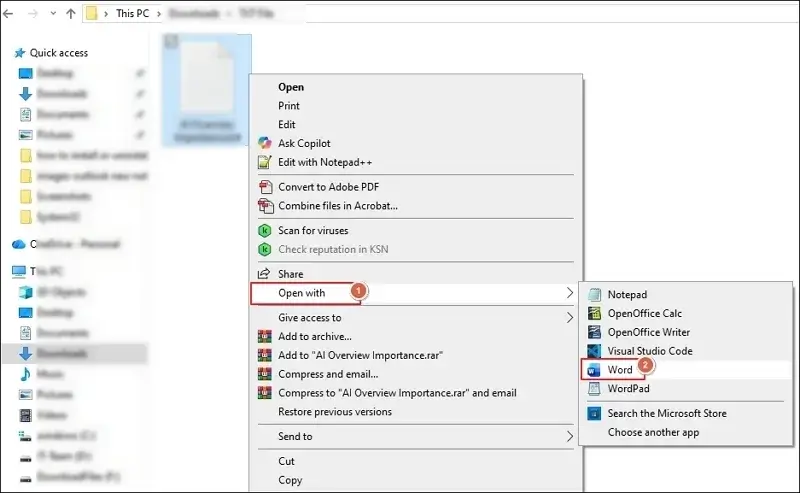
Step 2. Review the opened RTF files to check formatting & structure.
Step 3. Go to File > Save As > Browse.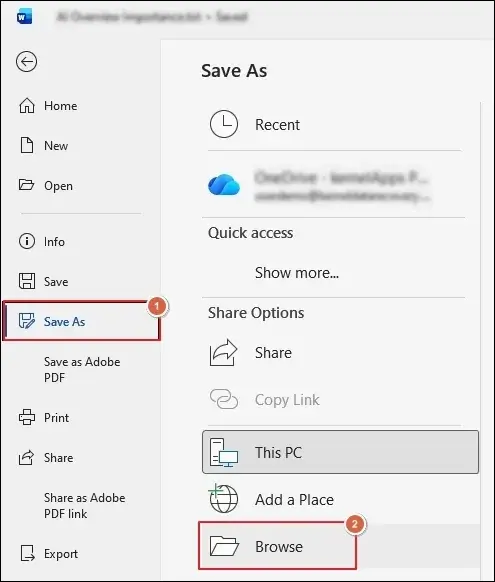
Step 4. Select the PDF (.pdf) format by expanding the Save as type options.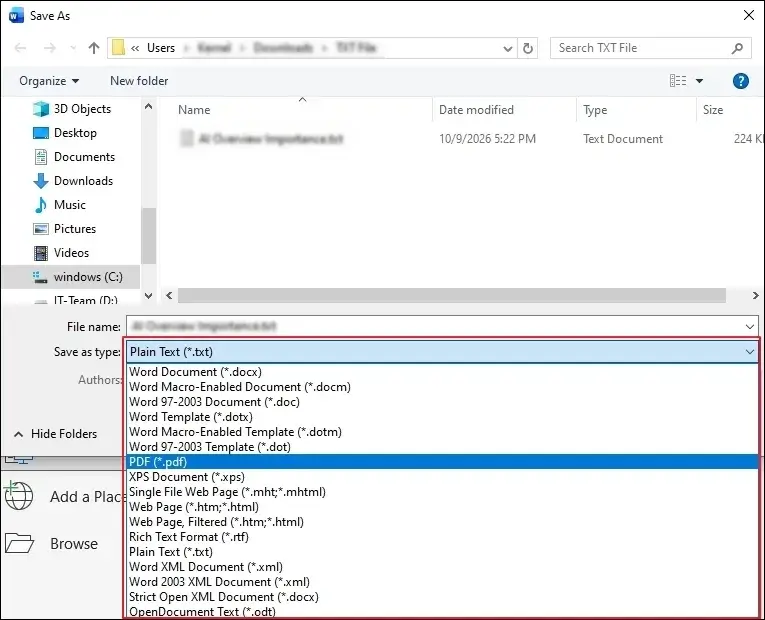
Step 5. Choose Standard or Minimum size for Optimization and proceed to Options.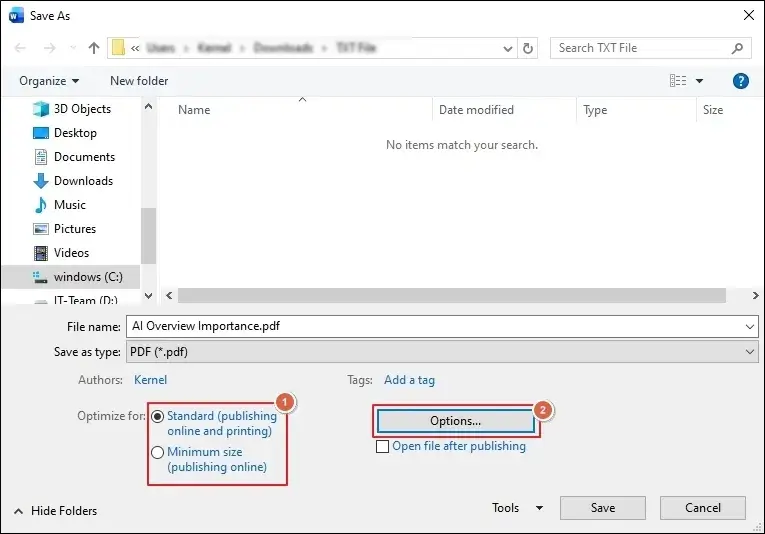
Step 6. Select the appropriate Options and click OK.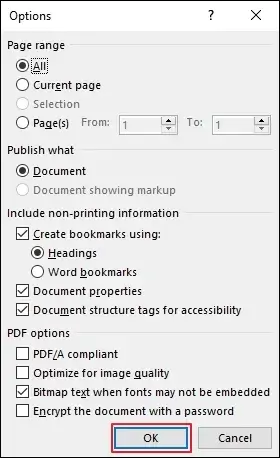
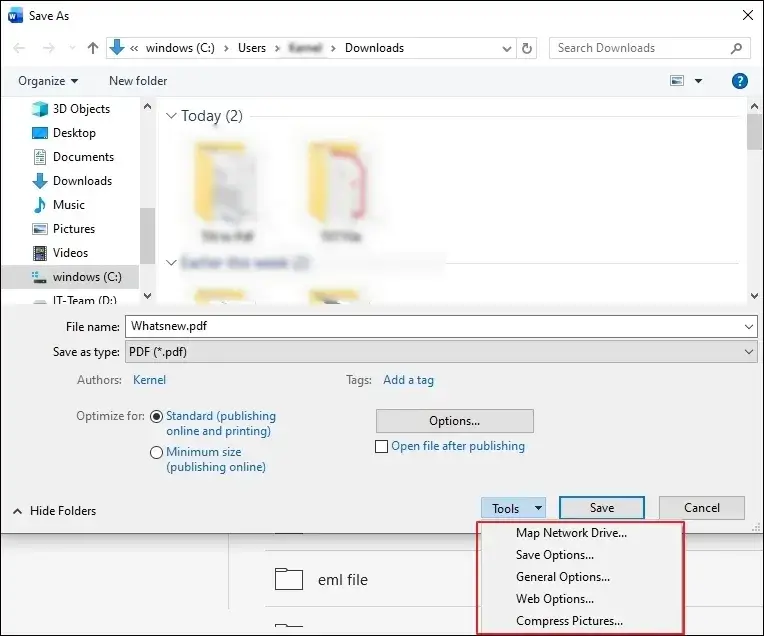
Step 7. Access the Tools drop-down menu:
- Map Network Drive
- Save Options
- General Options
- Web Options
- Compress Pictures
Step 8. Browse to Map Network Drive and click Finish.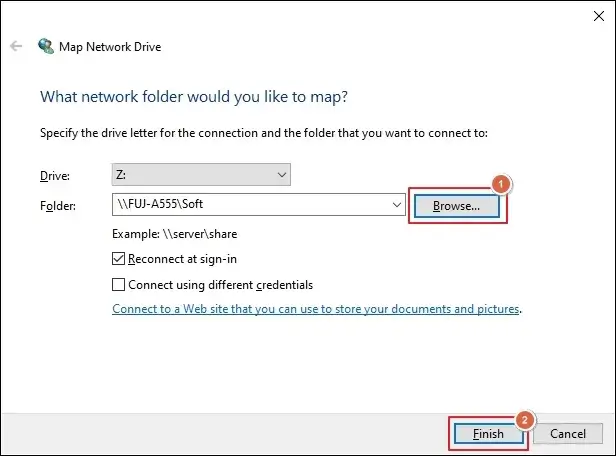
Step 9. Review Save or other related settings to change if needed. Then, click OK.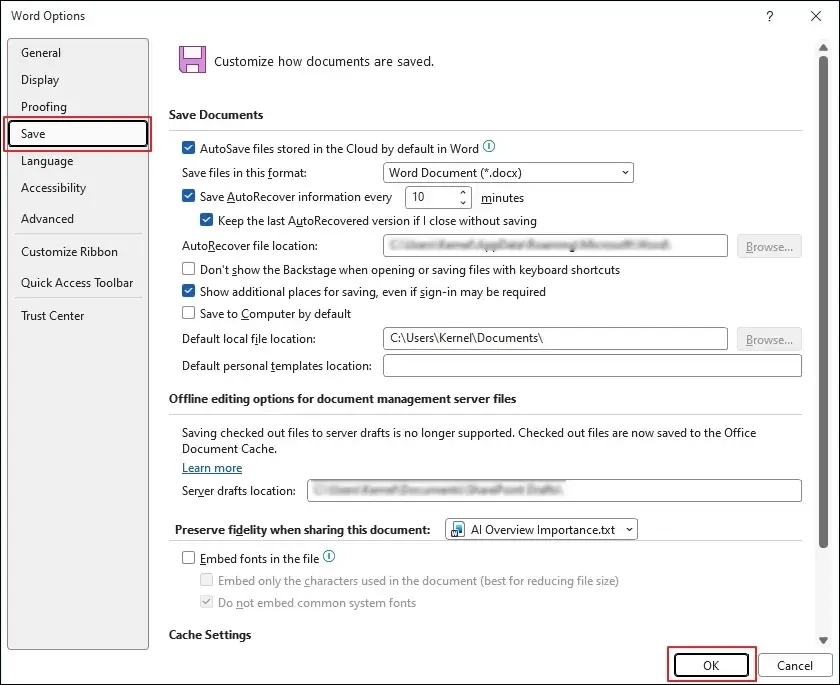
Step 10. Protect Documents using General Options and proceed to OK.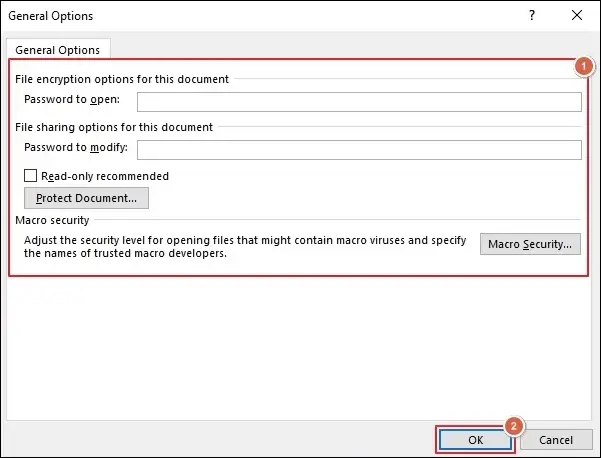
Step 11. Apply the necessary Web Options and click OK.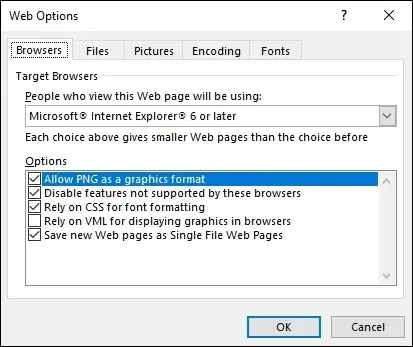
Step 12. Compress Pictures & proceed to OK.
Step 13. Now, Word will save the RTF files in PDF format.
2. Use Windows Virtual Printer to Convert RTF Files
Step 1. Access the RTF file in Microsoft Word.
Note: You can use WordPad, Microsoft Edge, and other supported applications to use the Windows Virtual Printer.
Step 2. Click on File and proceed to Print.
Step 3. Select Microsoft Print to PDF and click Print.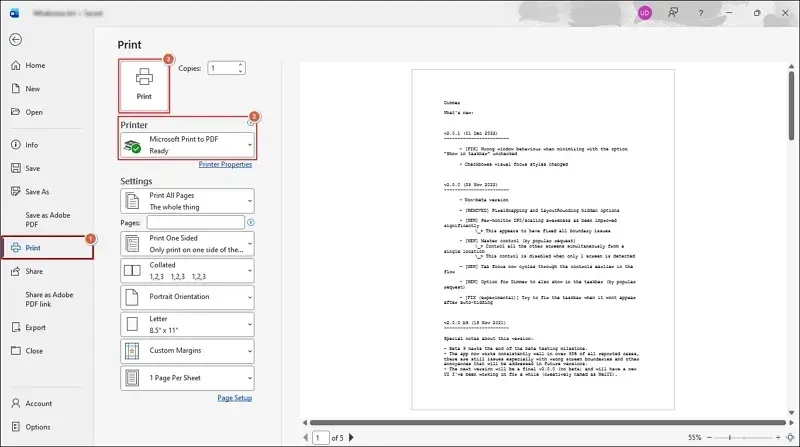
Step 4. Enter the File name to Save it.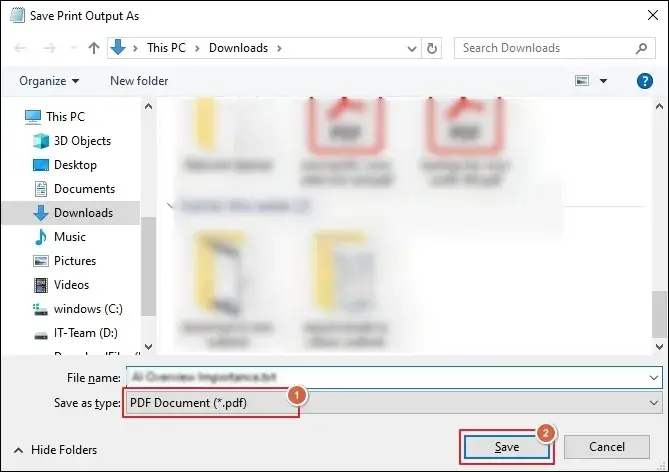
Step 5. It will create and save the PDF file in the selected location.
Use Adobe Acrobat to Convert RTF to PDF in Bulk
Step 1. Open Adobe Acrobat and go to Menu.
Step 2. Choose the Create PDF option and Select Files to proceed.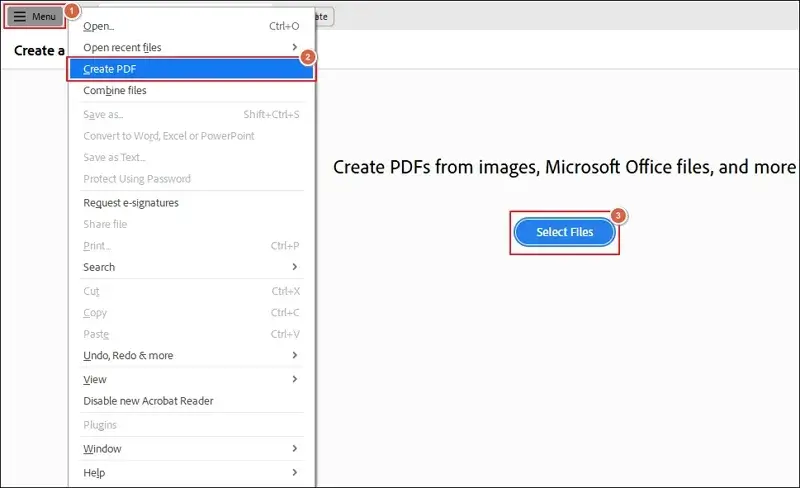
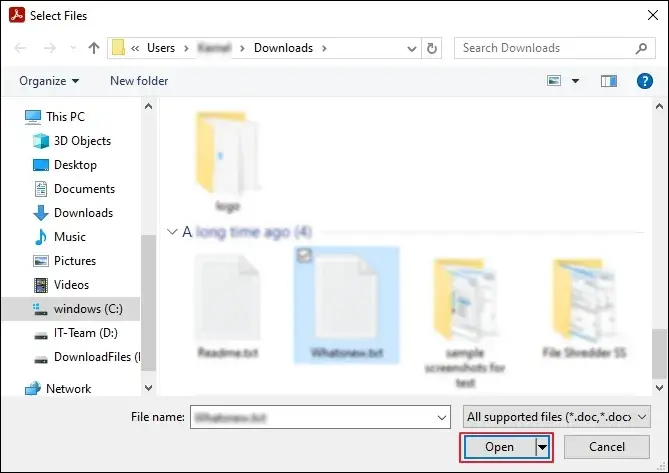
Step 3. Open the RTF file to begin the conversion.
Note: You can add multiple RTF files for conversion.
Step 4. Then, tap the Create to PDF option.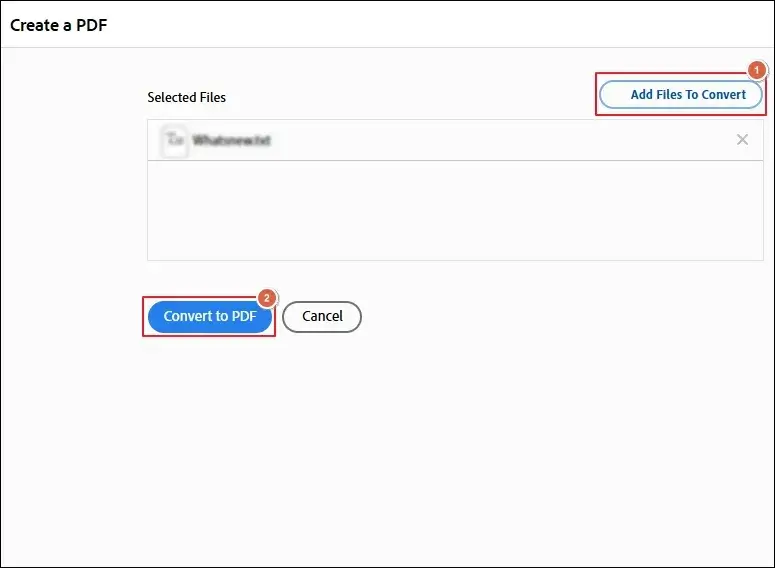
Step 5. It will convert the added files to PDF format.
Note: You can only convert the RTF files using the paid version of Adobe Acrobat.
For Mac Users
Step 1. Open the RTF documents in TextEdit.
Step 2. Review the file to fix the formatting & structure.
Step 3. Go to File and select the Export as PDF option.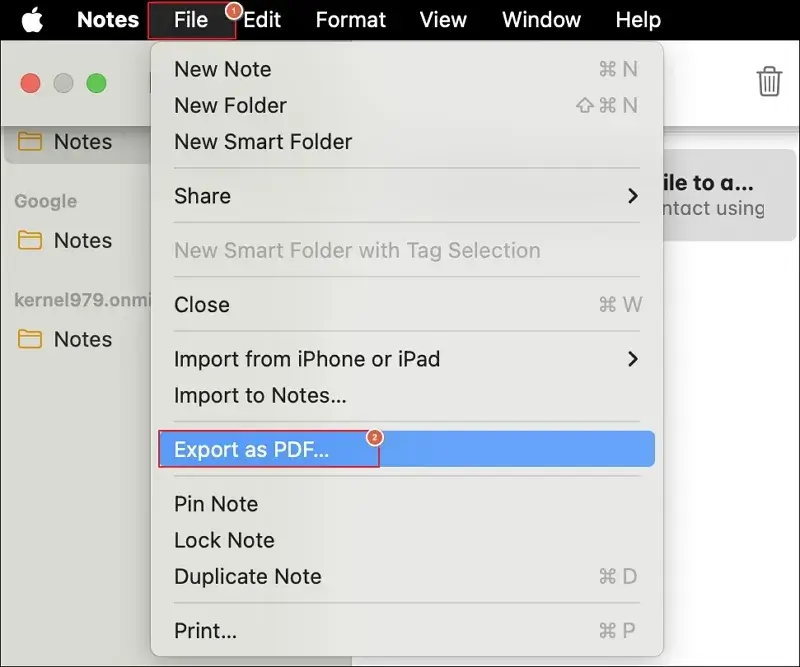
Step 4. Choose the drive location to Save the output PDF file.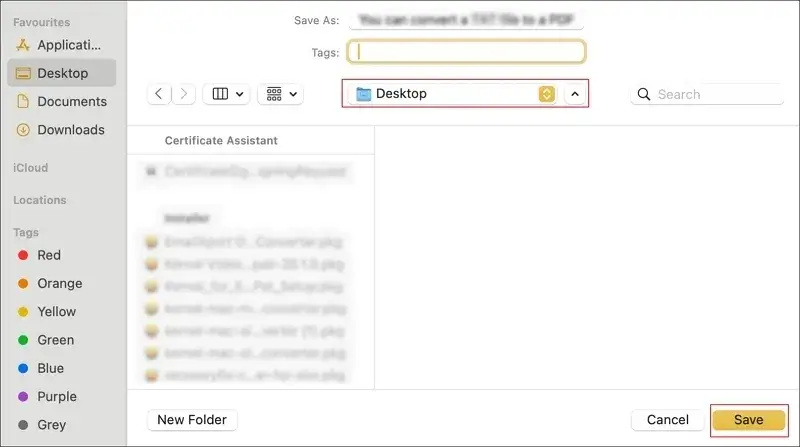
Convert RTF File to PDF In Web Browsers
1. Use Google Docs to Convert RTF Files
Step 1. Sign in to Google Docs in your browser.
Step 2. Access the RTF file by clicking on File > Upload > Browse.
Step 3. Review the uploaded file for spacing and formatting.
Step 4. Once completed, go to File > Download > PDF Document (.pdf).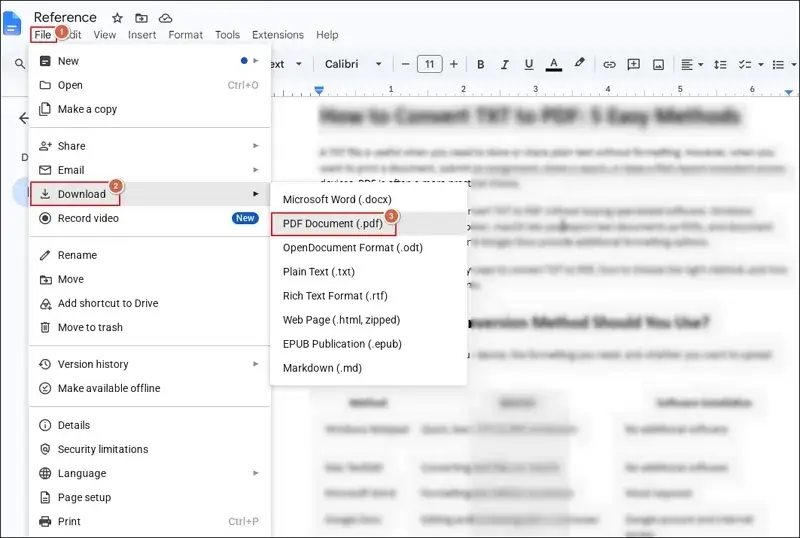
Step 5. It will download and save the file on your system.
2. Convert RTF Files Using Dropbox
Step 1. Go to Dropbox and log in with your credentials.
Step 2. Upload the RTF file you want to convert.
Step 3. Once uploaded, hover over it and click on the ellipsis (…).
Step 4. Then, hover over Save as to select the PDF option.
Step 5. Dropbox will save your RTF files in PDF format.
RTF to PDF Conversion On Mobile Devices
Check out the section below to convert RTF files to PDF on your iOS and Android devices.
For iOS Users
Step 1. Open the Rich Text File in iCloud Notes.
Step 2. Examine the added files for structure, formatting, and other details.
Step 3. Click the Share menu icon to begin.
Step 4. Choose either the Save to Files or Print option.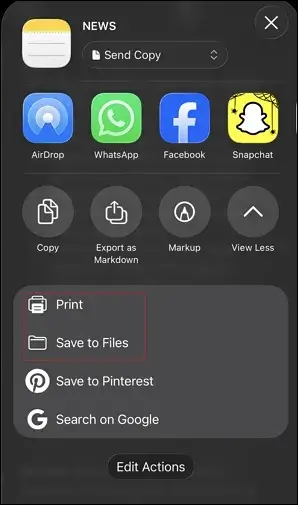
Step 5. Preview the contents before selecting the Print option.
Step 6. Review or change the necessary options and click on the Share icon.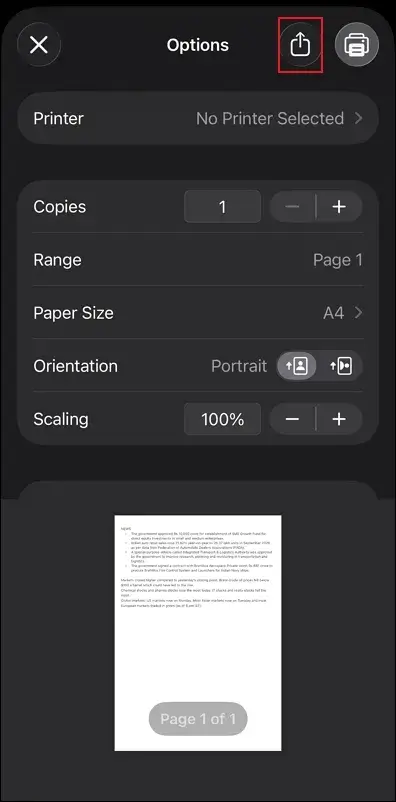
For Android Users
Step 1. Open the RTF file using a compatible document-editing application.
Step 2. Review the document to confirm its formatting is displayed correctly.
Step 3. Navigate to Export, Share, or Print option.
Step 4. Choose the Save as PDF if the Print option is available.
Step 5. Choose the destination folder and save the file.
Step 6. Access the saved file to verify the results.
Also read: How to Convert TXT Files to PDF Format?
When Free Methods Aren’t Enough: Go Beyond Manual Limits
All the provided methods will help you convert RTF file to PDF for free. They work for a single file, but their limits appear instantly when you need speed, accuracy, and volume. Here are limitations of such methods:
- Converts only a single document at a time.
- Microsoft Word & Adobe Acrobat require a subscription.
- Large batches are impractical with any of the native methods.
- RTF file formatting can change during the rendering or import.
- Virtual printers and copy-pastes may drop hyperlinks, images, or tables.
- Free apps and virtual printers may add watermarks, add, or lock export options.
- File uploads to Google Docs, Dropbox, and online converters contain privacy risks.
To remove these obstacles, use our Recoveryfix Free Document Converter Software. The software allows you to add and convert RTF to PDF in bulk with complete formatting and layout.
Let’s Recap
Here, we have covered a detailed guide to convert RTF to PDF. You can use the provided methods to convert files on different platforms & devices. Built-in applications may be enough for converting a limited number of files. On the other hand, the recommendation will be suitable for recurring tasks or large collections of files. The software operates completely offline to make conversion more secure & offline.
FAQs: Resolve Your Doubts Instantly
Q- How do I convert an RTF file to PDF for free?
A- You can use built-in options like Microsoft Word, Print to PDF, TextEdit, and other applications to convert your RTF files for free.
Q- Does converting my RTF files to PDF make them impossible to edit?
A- No, PDF files can still be edited with the help of compatible PDF editing tools.
Q- Why does my PDF look different from the original RTF file?
A- It mainly happens due to font substitution, unsupported document elements, changes in page settings, or RTF file interpretation by the application. To fix it manually, review the source file to adjust its layout before saving it.
Q- Can I convert multiple RTF files to PDF using native solutions?
A- No, you have to either rely on the paid version of Adobe Acrobat or dedicated software like Recoveryfix for bulk conversion.