How to Convert HTML Files to DOC Formats? – Get Complete Steps

Published On - November 23, 2026
Downloaded an HTML file but can’t edit its content the way you want? Converting HTML to DOC can help you edit the content without copying and pasting it. But the issue is which method you should choose to keep the existing layout and formatting the same.
Therefore, the guide explores practical ways to convert HTML files into editable Word documents while retaining important content and formatting.
HTML to DOC Conversion Methods: Overview and Comparison
The right method depends on the number of files, whether Microsoft Word is installed or not, and the level of output control required by you. Check out the table below to identify the most applicable one for yourself.
| Conversion Method | Cost | Best For |
|---|---|---|
|
Microsoft Word |
An active subscription is needed. |
Direct conversion of single files to DOC or DOCX format. |
|
Google Docs |
Free with a Google account. |
Browser-based conversion of copied data or saved files to DOCX. |
|
OpenOffice Writer |
Free and open-source |
Save HTML to DOC format directly. |
|
LibreOffice Writer |
Free and open-source |
Direct HTML to DOCX/DOC conversion for a single file. |
|
LibreOffice Command Line |
Free and open-source |
Automated and batch file conversion. |
|
Apple Pages |
Free for Mac Users |
Copy HTML file content and export it to DOC or DOCX based on the installed version. |
|
TextEdit |
Free for Mac Users |
Export HTML files to DOCX or DOC format. |
|
Browser Print-to-PDF Functionality |
Free |
Save web pages to PDF before converting them to Word DOC. |
|
Free HTML to DOC Converter |
Free up to 100 files. |
Secure & bulk file conversion with original formatting. |
DOC Vs. DOCX: Which Output Format Should You Choose?
Both DOC and DOCX formats are used for Microsoft Word documents. But they have different file structures and compatibility characteristics. Therefore, understanding the difference between them is important.
| Features | DOC | DOCX |
|---|---|---|
|
File Extension |
.doc |
.docx |
|
Format Type |
Older binary Word format. |
Modern Office Open XML format. |
|
Compatibility |
Older Word versions and legacy applications. |
Modern Word versions & many other word processors. |
|
File Structure |
Binary format. |
XML-based package. |
|
Recommended Use |
Older applications that require DOC. |
Document editing, sharing, & storage. |
Note: Use DOC only when you need compatibility with an older version of Word or a system that specifically requires the legacy format.
Free Ways to Convert HTML Files to DOC Formats Manually: 8 Best Ones
There are several methods available for converting HTML files to Microsoft Word-supported formats. However, some of them help export HTML file content to DOC format, and others to DOCX format. So, check them all out to find the most applicable one for yourself.
Method 1. Convert HTML File to DOC/DOCX Using Microsoft Word
Microsoft Word desktop provides a direct way to save its content to DOC and DOCX formats. Here are the complete steps:
Note: You can’t convert HTML files using Word on the web service. For conversion, you must have the Word application installed on your system with an active subscription plan.
Step 1. Navigate to saved HTML file > Open with > Word.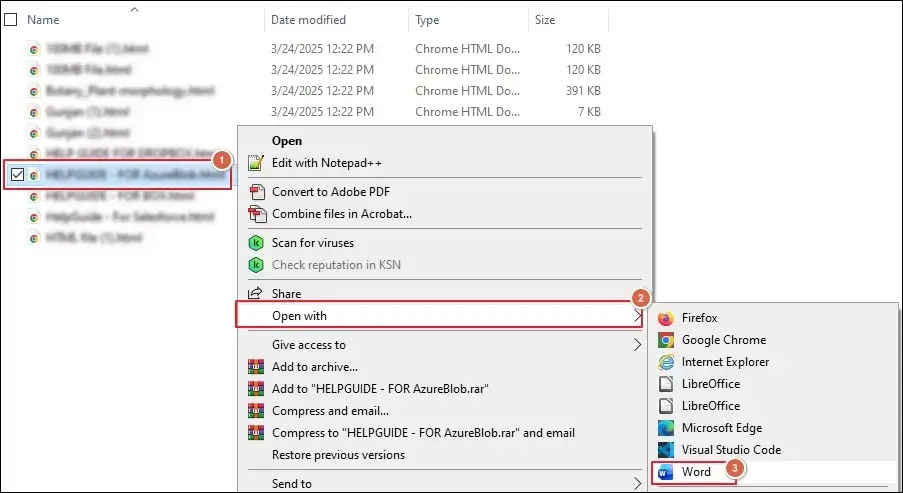
Step 2. It will open HTML file in Word. Then, click on the File tab.
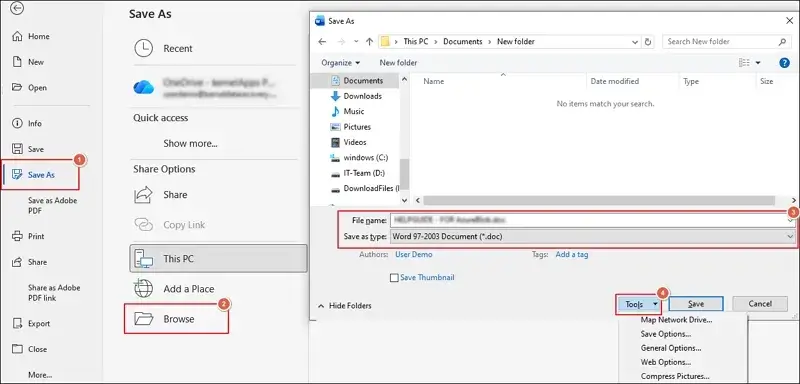
Step 3. Tap on Save As option and Browse for destination.
Step 4. Provide the File name and choose the applicable saving format.
Step 5. Go to Tools to apply the additional settings:
- Map Network Drive
- Save Options
- General Options
- Web Options
- Compress Pictures
Step 6. Browse to Map Network Drive and click Finish.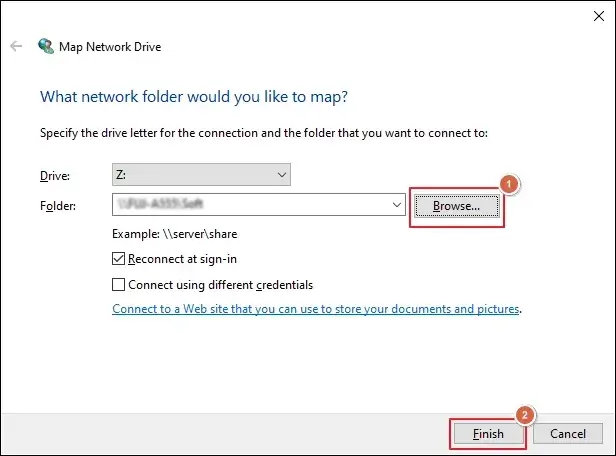
Step 7. Choose the appropriate Word Options and proceed to OK.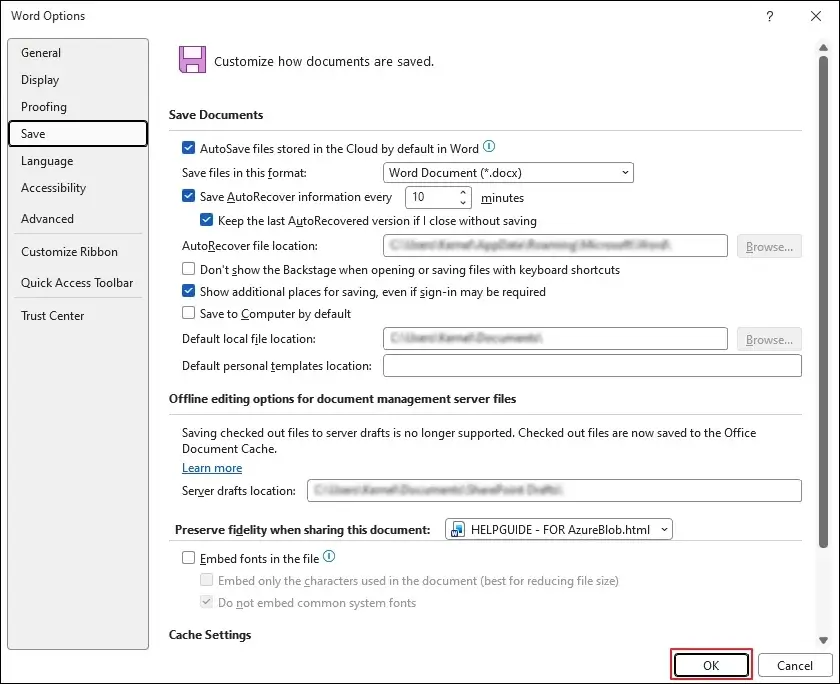
Step 8. Apply the required Web Options and click OK.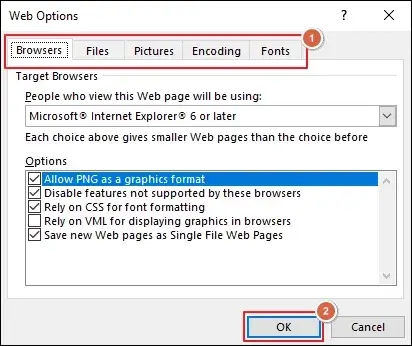
Step 9. Compress Pictures if required and proceed to OK.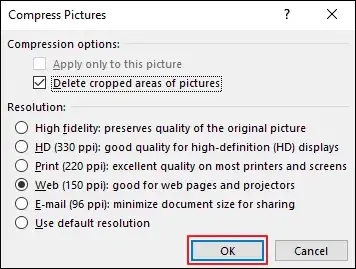
Method 2. Use Google Docs to Convert HTML File to DOCX Format
Google Docs is a free online Word processor that allows you to create, edit, and download documents, including HTML, to DOCX format. Here’s how:
Step 1. Sign in to Docs with your Gmail account credentials.
Step 2. Create a Blank document and Open the HTML file.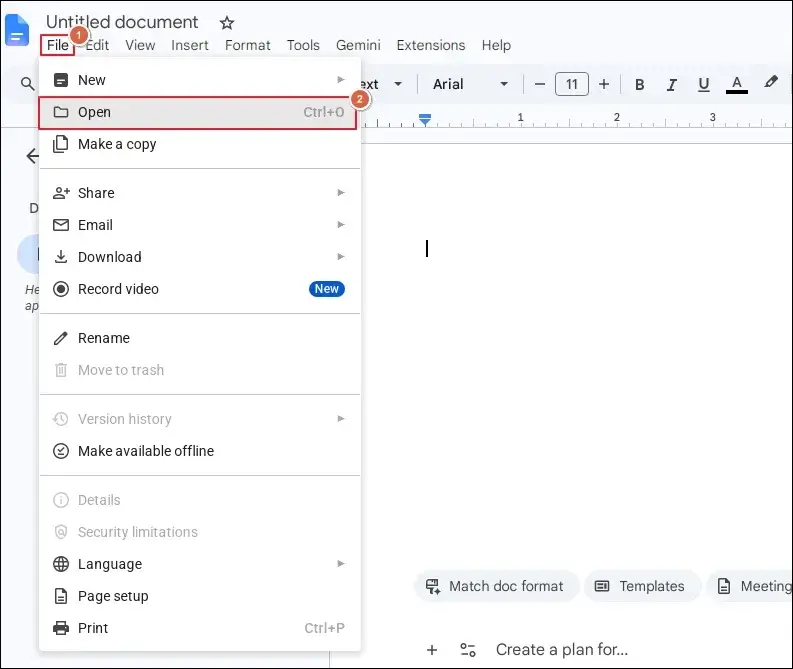
Step 3. Browse to Upload the locally stored HTML file.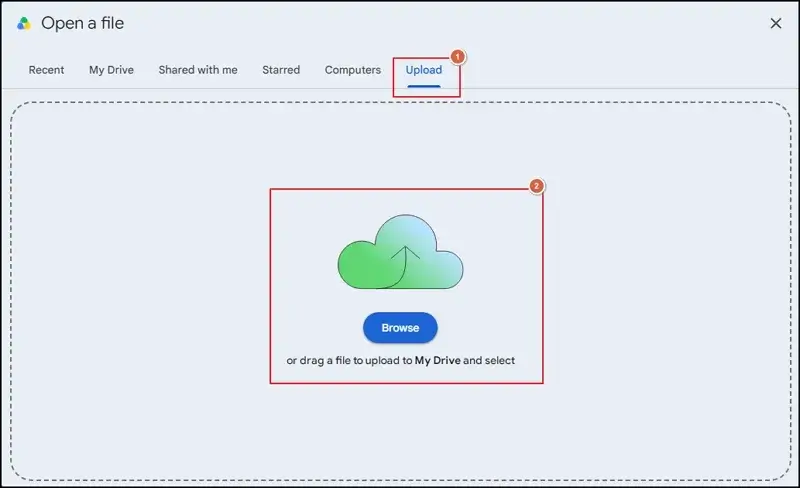
Step 4. Select the file and Open it to proceed.
Step 5. Wait for the file to open in Docs.
Step 6. Once done, go to File > Download > Microsoft Word (.docx).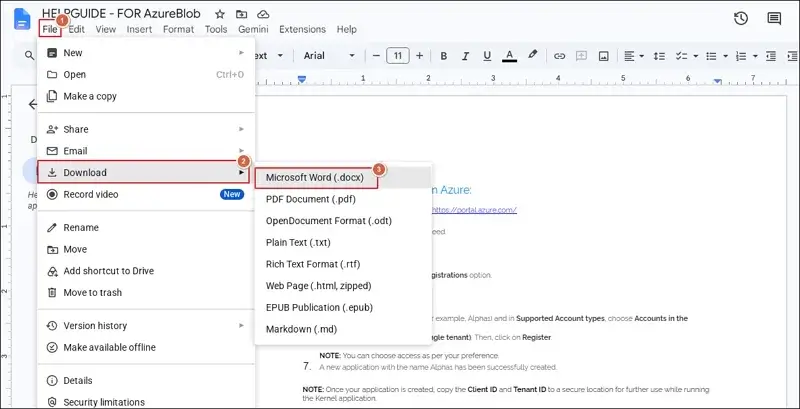
Step 7. It will start downloading the file in DOCX format.
Also Read: How to Convert ODS to PDF Format for Free?
Method 3. Perform HTML to DOC Conversion Using OpenOffice Writer
Besides Microsoft Word, you can also use OpenOffice Writer to save HTML files into a Word-supported format. Here’s how:
Note: When you open an HTML file directly in OpenOffice, it switches to editing mode (Writer/Web) that restricts the standard document saving options. So, always insert a file instead of opening it.
Step 1. Download Apache OpenOffice from the official website and install it.
Step 2. Launch OpenOffice Writer > Insert > File.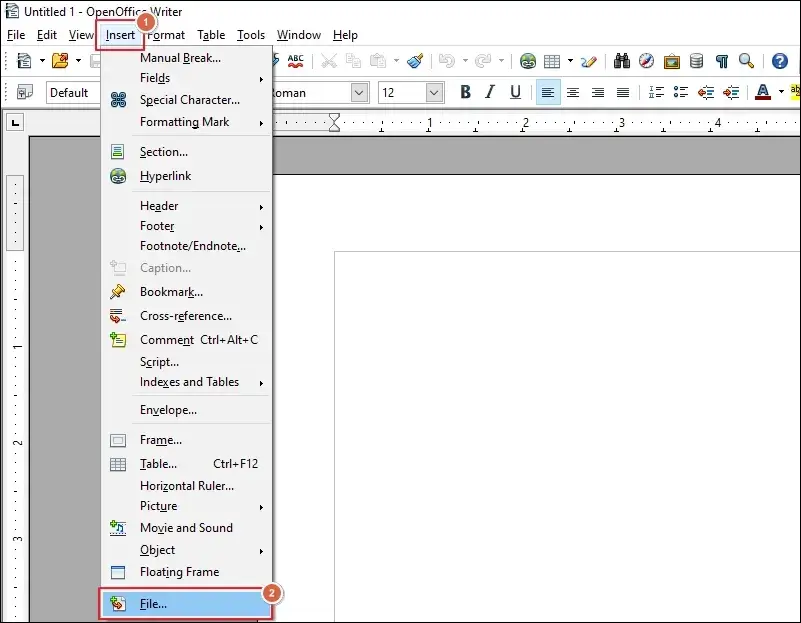
Step 3. Choose the required HTML file and Open it.
Step 4. Review the contents of the inserted file.
Step 5. Go to the File tab and choose the Save As option.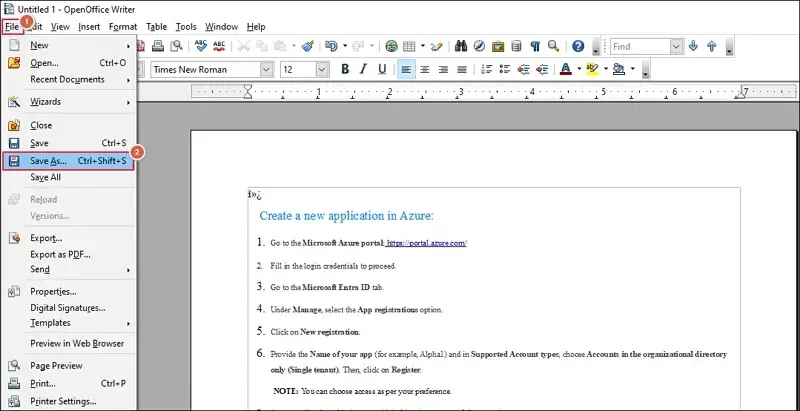
Step 6. Enter the File Name and choose the applicable Word document format.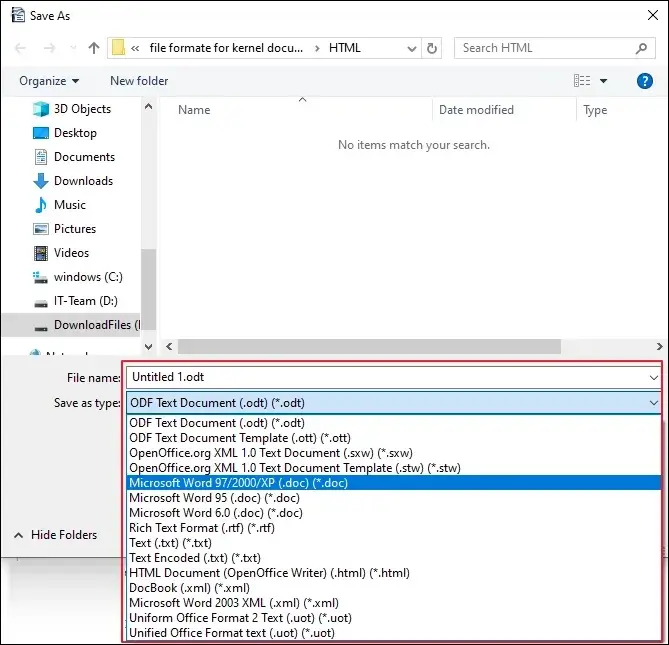
Step 7. Check the available options if required and click Save.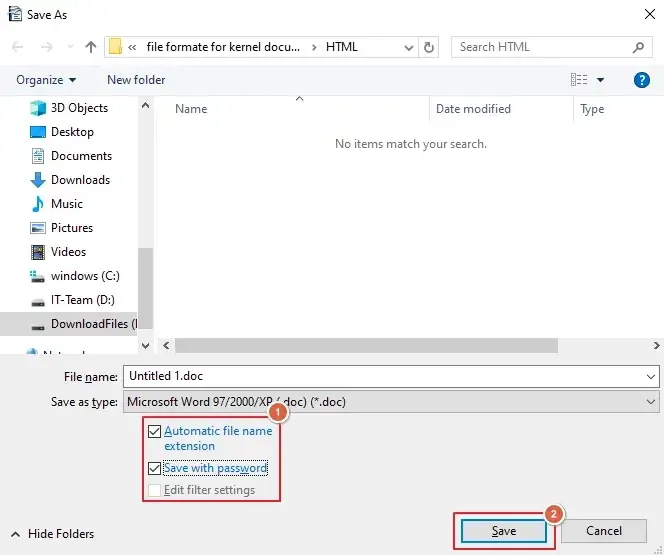
Step 8. Provide the File encryptions and sharing password if chosen. Then, click OK.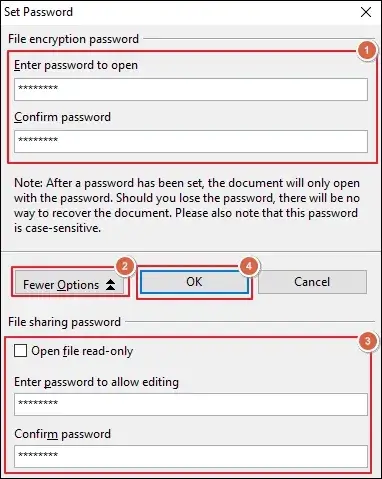
Step 9. Select the Keep Current Format option to save the file.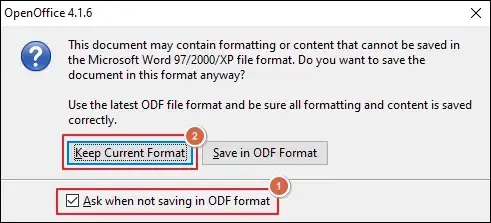
Step 10. It will save the file in DOC format.
Method 4. Use LibreOffice Writer to Save HTML to DOCX format
Follow the steps below to convert your HTML files to the latest Word document format as well as the legacy one using LibreOffice Writer.
Step 1. Download and install LibreOffice on your system.
Step 2. Launch the LibreOffice Writer and go to the File menu. Then, click Open.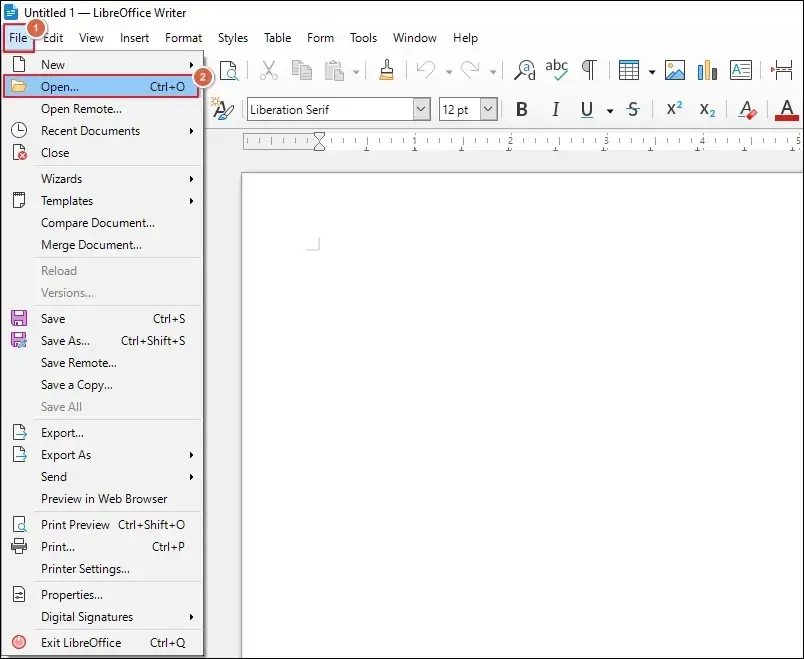
Step 3. Select the required HTML file and Open it.
Note: You can choose the available options and file Version if applicable.
Step 4. Review the accessed file and proceed to File > Save As.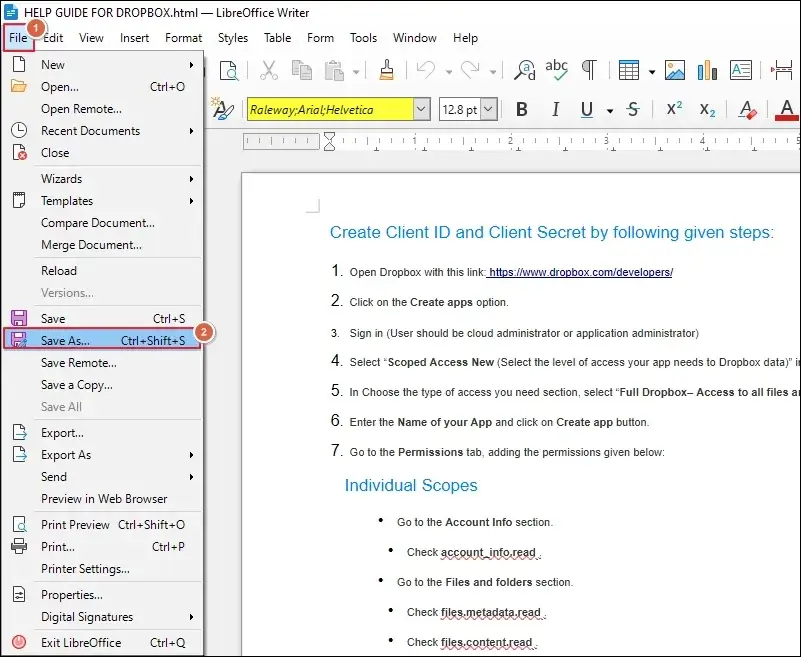
Step 5. Choose the required Word document format to proceed.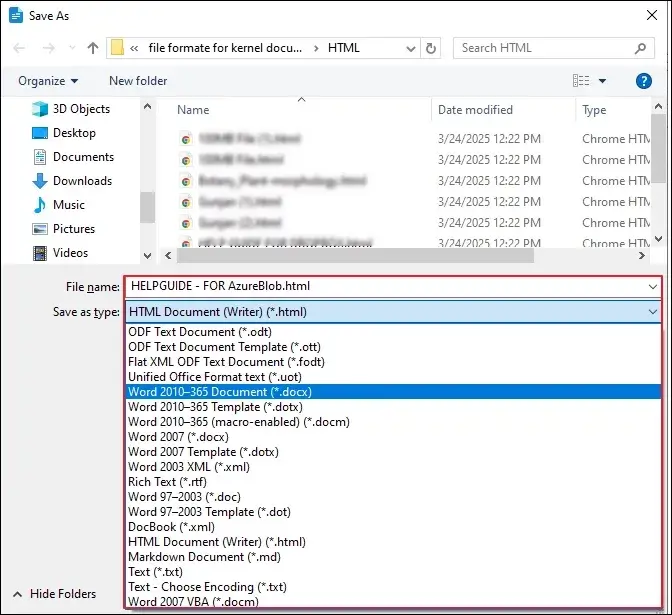
Step 6. Check the available options if needed and Save.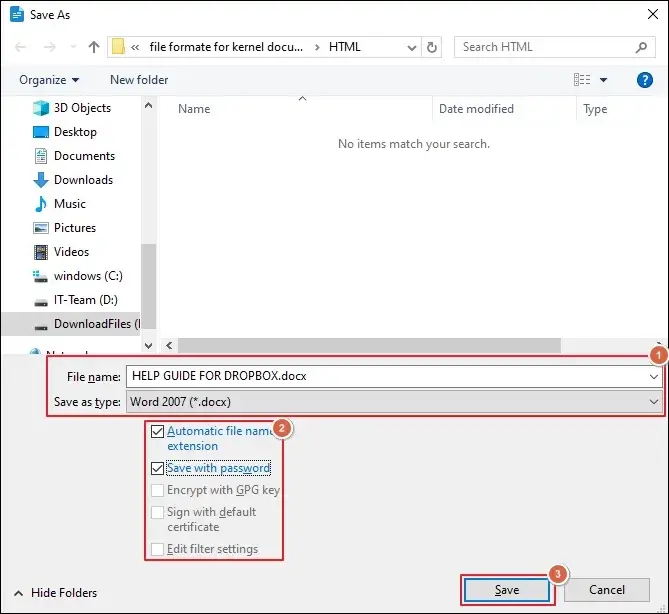
Step 7. Set the File Encryption and Sharing Password if required. Then, click OK.
Step 8. Select the Use Word 2007 Format option to continue.
Method 5. Convert HTML to DOC & DOCX Formats Using LibreOffice Command Line
You can also use the LibreOffice command line to convert HTML files to DOC and DOCX formats. It automates the batch processing of file conversion with cross-platform consistency. Here are the steps:
Close LibreOffice applications
Verify your terminal command as per your operating system
- Linux: libreoffice or soffice
- macOS: /Applications/LibreOffice.app/Contents/MacOS/soffice
- Windows (Command Prompt/PowerShell): “C:\Program Files\LibreOffice\program\soffice.exe”
Step 1. File Conversion Commands
Open your terminal or command prompt to run the following commands.
Convert HTML to DOC format with the following command:
soffice –headless –convert-to docx filename.html
Run the given command to convert HTML Files to DOCX format:
soffice –headless –convert-to doc filename.html
Step 2. Additional Options & Bulk Conversions
To save the output into another directory, execute the mentioned command:
soffice –headless –convert-to docx filename.html –outdir /path/to/output_folder
Run the given command to convert multiple HTML files at once.
soffice –headless –convert-to docx *.html
Note: Explicitly define the input and output filters if LibreOffice struggles to recognize the HTML structure or produces formatting errors.
Explicit DOCX Filter
soffice –headless –infilter=”HTML (StarWriter)” –convert-to “docx:Office Open XML Text” filename.html
Explicit DOC Filter
soffice –headless –infilter=”HTML (StarWriter)” –convert-to “doc:MS Word 97” filename.html
Important to Know:
- Add this to give each process a separate temporary profile when running multiple conversion commands at once: env:UserInstallation=file:///tmp/LO_profile_$RANDOM (Linux/macOS)
- External stylesheets and images linked via relative paths must exist locally in the exact relative folder structure expected by the HTML file during conversion.
Method 6. Use Apple Pages to Convert Webpage to Word Document
Apple Pages lets you export documents in Microsoft Word format. To convert a webpage, first copy its visible content into Pages and then export the document.
Step 1. Open the webpage you want to convert in Safari.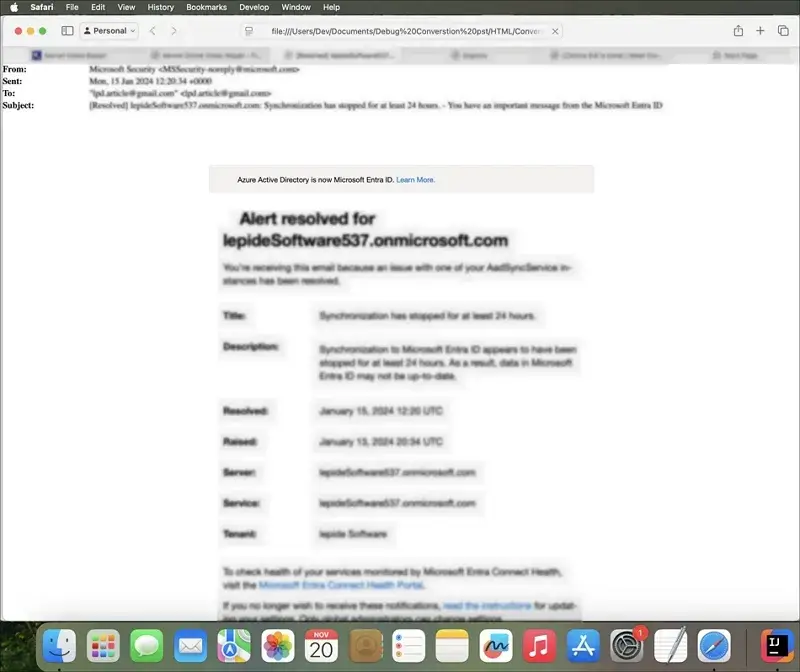
Step 2. Select the webpage content you want to save.
Step 3. Press Command + C to copy the selected content.
Step 4. Open Apple Pages and create a new blank document.
Step 5. Press Command + V to paste the copied content.
Step 6. Review the content and make necessary adjustments.
Step 7. Go to File > Export To > Word.
Step 8. Follow the export prompts and save the document.
Step 9. The content will be saved as a Word document in .docx format.
Also Read: How to Convert ODS to Excel? Simple Guide
Method 7. Export HTML Files to DOC & DOCX Formats With TextEdit
TextEdit is a built-in Mac application that can open HTML files and save documents in Microsoft Word format. You can use it to convert a saved HTML file without installing additional software.
Step 1. Open TextEdit on your Mac system.
Step 2. Locate the HTML file and Open with TextEdit app.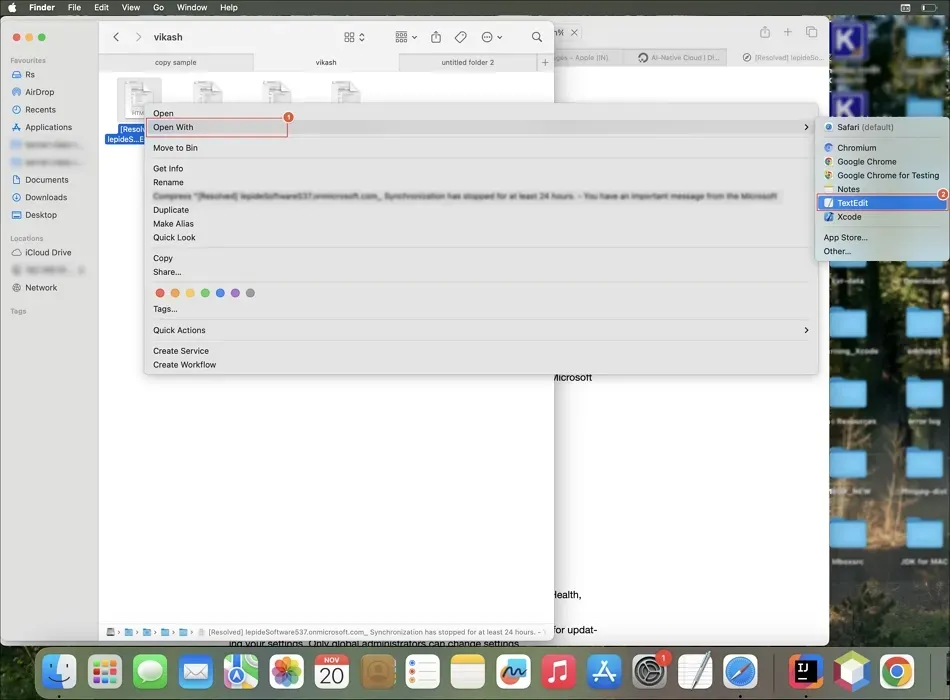
Step 3. Then, go to TextEdit > Settings and navigate to Open and Save tab.
Step 4. Check Display HTML files as HTML code instead of formatted text.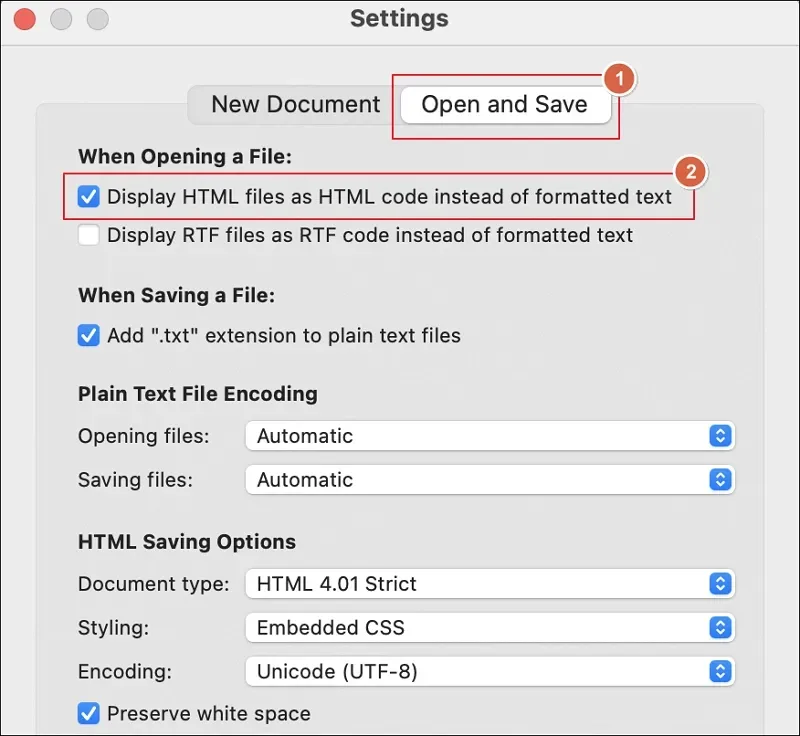
Step 5. Review the document and click File > Save.
Step 6. Name the file and apply tags. Then, select Word Document from the File Format drop-down.
Step 7. Choose the destination folder and Save the document.
Note: For better formatting, use Pages. TextEdit is more suitable for handling plain text or basic HTML content.
Method 8. Use Browser Print-to-PDF Function to Save HTML Webpages
Here are the steps to convert and save HTML files to DOC or DOCX format using the Print-to-PDF function of browsers.
Step 1. Open the webpage in the browser and press Ctrl + P.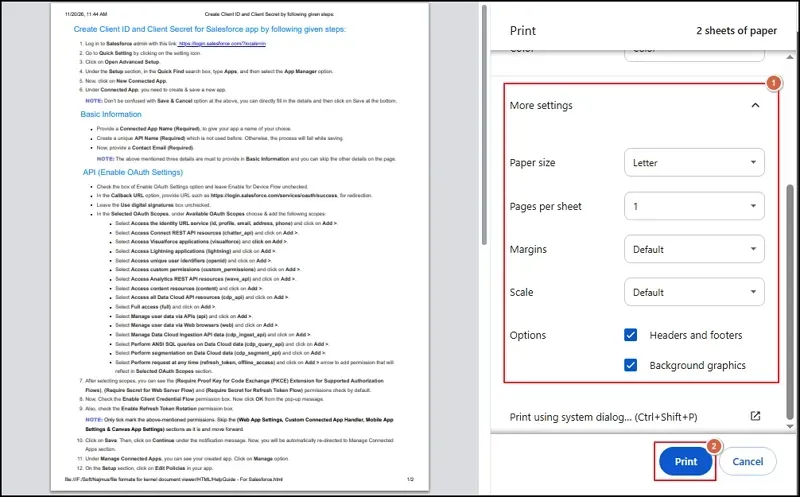
Step 2. Choose Microsoft Print to PDF as Destination and click More settings.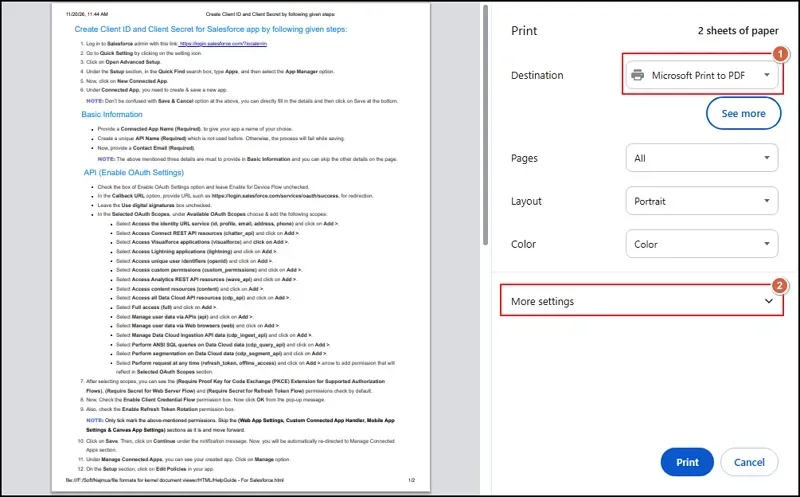
Step 3. Apply the appropriate settings and proceed to Print.
Step 4. Then, click on the Save option.
Step 5. Once done, open the same PDF file in Word.
Step 6. Go to File > Save As > Tools > Save.
Note: You can also save the file in Word 97-2003 Document (*.doc) format.
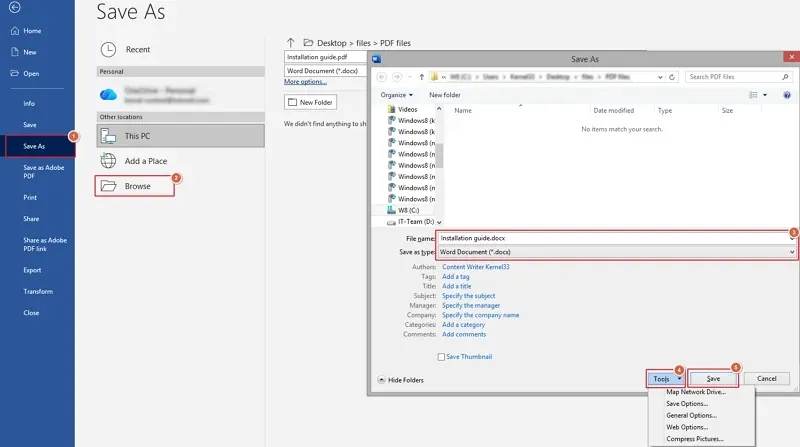
Step 7. It will save the file in the selected format.
Read More: How to Convert RTF to PDF?
Post Checklist: What to Check After the HTML to DOC/DOCX Conversion?
Make sure to review the following things before using the converted documents:
- Tables and lists.
- Images and graphics.
- Page layout and breaks.
- Fonts, spacing, and colors.
- Text and heading structure.
- Hyperlinks and external resources.
Why Look For Dedicated Solutions When Free Conversion Approaches Exist? (Recoveryfix Free Document Converter)
The manual methods discussed above are useful when you need to convert a few HTML files. Although LibreOffice Command Line provides bulk conversion, it requires familiarity with the command line interface.
In such cases, a dedicated solution like Recoveryfix Free Document Converter will be the best option. It supports features like offline conversion, processing multiple files simultaneously, multiple-format support, formatting retention, and direct conversion of password-protected documents with a password.
Let’s Recap
Converting HTML to DOC or DOCX is possible through several desktop applications, online services, and command-line tools. Microsoft Word, LibreOffice, and OpenOffice are useful options for direct conversion, while Google Docs, the browser’s Print-to-PDF feature, and Apple Pages offer alternative workflows.
You can select any method according to your requirements. For regular or bulk document conversion, consider the recommended solution as the more convenient option. The software helps you perform different document conversions with ease.
FAQs About HTML File to Word Document Conversion
Q- Can I convert HTML files to DOCX without installing Microsoft Word?
A- Yes. You can use Microsoft Word, Google Docs, LibreOffice Writer, OpenOffice, TextEdit, or Pages to convert HTML files into DOCX without installing Microsoft Word.
Q- How can I convert multiple HTML files to DOCX at once?
A- You can use the LibreOffice Command Line and Recoveryfix tool to process multiple HTML files at once.
Q- Why do images or formatting change after HTML-to-Word conversion?
A- HTML and Word use different document structures. Unsupported CSS, external images, fonts, tables, and page layouts may not transfer exactly. For this, you can use the Recoveryfix software to get all the elements in the output file.
Q- Can I convert an HTML file containing images and tables to DOCX?
A- Yes, but the result depends on the conversion method and how the HTML content is structured. Make sure linked images and other external resources are accessible during conversion, then check the output document.
Q- Is it safe to use online HTML-to-DOCX converters?
A- Yes, but it depends on the service’s privacy and file-handling practices. Before uploading a document, review its privacy policy, data retention period, and file deletion options. For confidential documents, consider an offline conversion method like Recoveryfix.
Q- Can I convert an HTML webpage directly into an editable Word document?
A- Yes. You can open a saved HTML file in Microsoft Word or LibreOffice Writer and save it as DOCX. For webpages, you can also copy the visible content into a word processor and export it as a Word document.