Backup BlueYonder Emails to Computer [Instant Ways]

Published On - June 3, 2026
Fear of losing important BlueYonder emails due to accidental deletion, account issues, server downtime, or system failure? Here, the importance of backup can be understood that users often overlook.
Users usually struggle to find a reliable method to create a complete local backup of their computer because BlueYonder email accounts primarily operate through webmail or third-party email clients.
This easy write-up will help you with the best possible solution to backup BlueYonder emails to computer.
Why Do I Back Up BlueYonder Emails?
Here are some advantages of backing up BlueYonder emails to a computer.
- Full protection against data loss.
- Offline access available to emails.
- Email retention for legal or compliance purposes.
- Offers easy transfer flexibility to another email client or platform.
- Get a long-term archive of important business or personal records.
- Check login credentials, like server settings, email address, & password.
- Large mailboxes need enough free disk space. So, verify storage availability before initiating the backup process.
- Know the BlueYonder account type, like IMAP or POP. It affects how emails synchronize or download.
Backup BlueYonder Emails to Computer: Best Ways
This section will help you with the practical approaches to back up all folders of the BlueYonder mailbox to a computer. Follow them carefully.
Way 1. Use Microsoft Outlook’s Feature
It is one of the safest & easiest approaches for local email backup. Here, we will use Outlook’s feature to execute the process successfully. Check out the steps below:
Step 1. Open Outlook, go to the File > Add Account.
Step 2. Configure the BlueYonder email account with the needed credentials & server settings, like
- Incoming Server: imap.virginmedia.com
- Port: 993 (SSL/TLS)
- Outgoing Server: smtp.virginmedia.com
- Port 465 (SSL/TLS).
Step 3. Once Outlook is synced with the BlueYonder mailbox data, tap on the File menu.
Step 4. Click on the Open & Export > Import/Export tab.
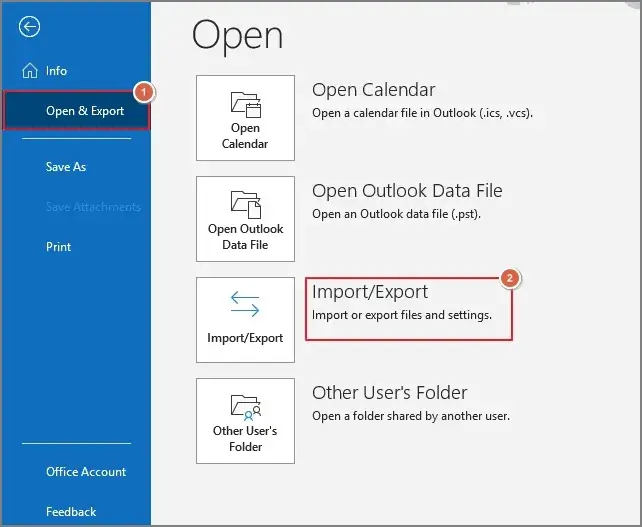
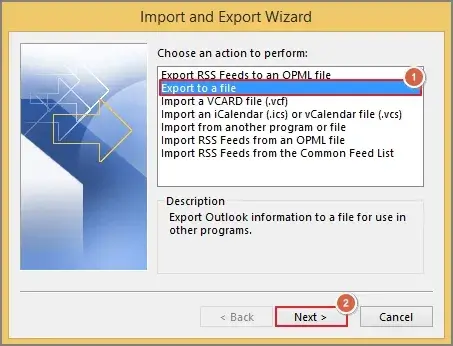
Step 5. Select Export to a file & click on Next.
Step 6. Select Outlook data file (.pst) & hit Next. 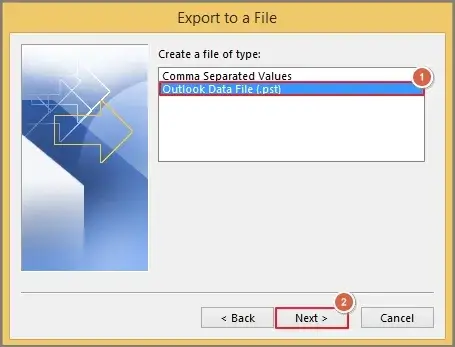
Step 7. Select the specific mailbox folders that you want to export with suitable subfolders. Hit Next.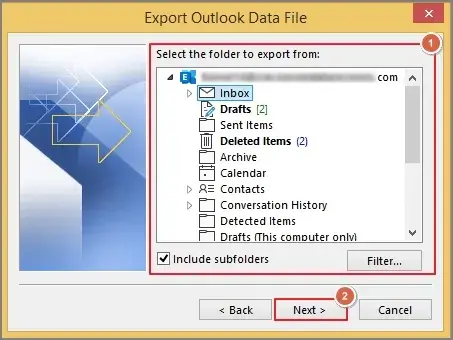
Step 8. Browse the saving location & click on Finish to complete the backup process. 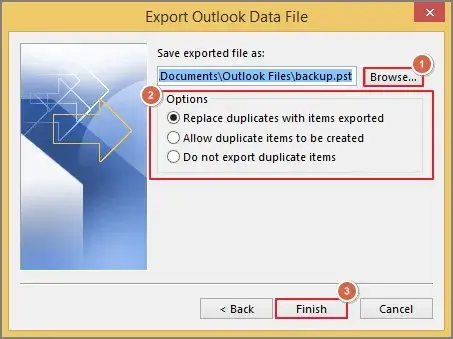
Note: After configuring the BlueYonder email account, you can also use Outlook’s AutoArchive feature to save mailbox data in PST format.
Way 2. Take the Help of the Thunderbird Email Client
Using the Thunderbird email client can also be another free alternative for backup of BlueYonder emails. Follow the steps below.
Step 1. Launch Thunderbird & sync it with the BlueYonder email account.
Step 2. Navigate to Account Settings > Synchronization & Storage option. Then, ensure that “Keep messages in all folders for this account on this computer” is checked. 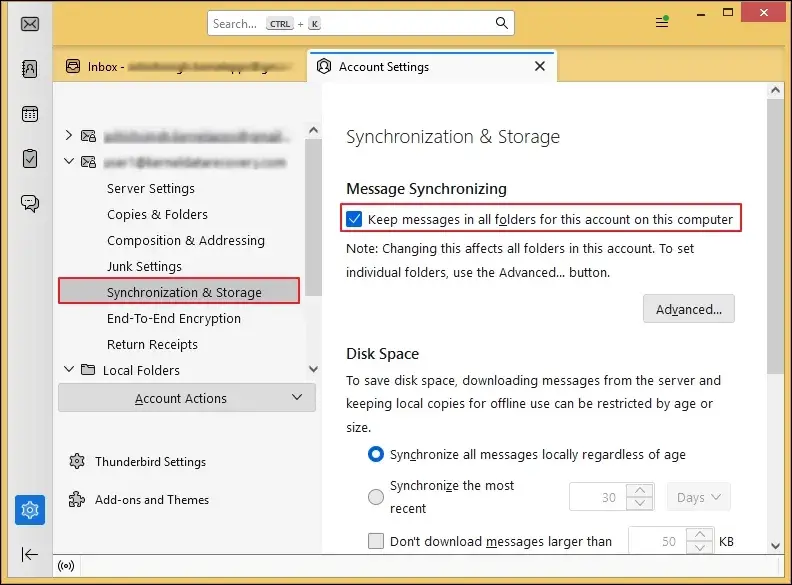
Step 3. Wait till the Thunderbird downloads the mailbox data completely.
Step 4. Go with the default location to check the stored mailbox data:
C:\Users\Username\AppData\Roaming\Thunderbird\
Step 5. Then copy the entire profile folder to the desired location.
Important to Know: For less mailbox data, users can manually save important emails like attachments, PDF copies, & printed email archives by downloading them.
Need a Direct, Error-free and Instant Way? Try this!!
As you see, whatever manual methods are available, they will not give 100% satisfactory results. Also, they can bring other limitations like data loss & file integrity issues.
But if you go with the advanced solution, the chances of ambiguity will be minimized. Among all the available options, IT professionals or experts recommend choosing the Recoveryfix IMAP Backup software.
You can backup all the major IMAP servers, including BlueYonder, Gmail, Yahoo, etc., into PST & other formats. It ensures a precise & quick process with no data loss & zero downtime. Download its free trial version to check out its smart features & powerful algorithms.
Common Problems As You Backup BlueYonder Emails to Computer
Look at some common issues with their causes & suitable solutions.
| Issue | Causes | Solutions |
|---|---|---|
|
|
|
|
Incomplete Mail Synchronization |
|
|
|
Missing attachments |
|
|
Last Thoughts to Backup BlueYonder Emails to Computer
To protect important communication, ensure offline access and maintain long-term email records, it is essential to back up all folders of the BlueYonder mailbox to a computer. Hence, we have covered all the possible ways to execute it safely. But those may work for small-scale needs. That’s why you can consider the suggested advanced tool for larger mailboxes and business-critical data.
FAQs
Q- Does backing BlueYonder emails to a computer delete them from the server?
A- No. IMAP-based backups usually create copies locally without disturbing the emails on the server.
Q- Can I restore backed-up BlueYonder emails later?
A- Yes. You can restore the exported files, like PST, MBOX, or EML, into compatible email clients.