Evertek Email Discontinued: Complete Shutdown Guide for Existing Users

Published On - June 3, 2026
On 15 September 2026 email services of Evertek will be discontinued as per the official announcement. After this news, existing Evertek users are searching for answers to these questions:
- How do I move my data?
- Will my emails be deleted?
- Can I still access my mailbox?
This change could directly impact your communication if you still use an @evertek.net or @netllc.net email address. There is still time to protect your mailbox and move to a better email platform.
So take action now to avoid last-minute complications. Read the provided information to protect your mailbox data before you lose access to the account.
Important Dates for Evertek Legacy Email Shutdowns
| Event | Date |
|---|---|
|
Email Retirement Announced On |
January 2026 |
|
Email Services Ends |
15 September 2026 |
|
Permanent Mailbox Deletion |
15 October 2026 |
|
Access to Emails After Deletion |
Not Available |
Important Note: Don’t wait for the final week and migrate Evertek emails as soon as possible.
Top Reasons Why Evertek Is Ending Its Email Services?
The increasing cost of third-party email providers is one of the main reasons behind the service discontinuation.
Here are the additional factors that may also be the possible ones:
- Infrastructure costs are rising every year.
- Independent email services are better than ISP-linked addresses.
- Small service providers struggle to match the security standards.
- Focus on core business operations instead of maintaining legacy email platforms.
What Happens After the Evertek Email Service Closes?
You may experience the following things after the discontinuation of Evertek email services:
- Not able to receive new messages at your email address.
- You will no longer be able to send emails using your Evertek account.
- Permanent deletion of historical emails like contracts, invoices, receipts, and tax records.
- Face challenges to recover the associated accounts with the Evertek email address.
How to Migrate Evertek Emails Completely?- Know All Steps
Explore the section below to find the best solutions to transfer data from Evertek email services. Try them now to find the most appropriate one for yourself.
Method 1. Use the Outlook Application to Move Mailboxes
In the first method, we are using the Outlook option to backup and migrate Evertek emails to different providers. Here’s how:
Step 1. Launch Outlook > File > Add Account.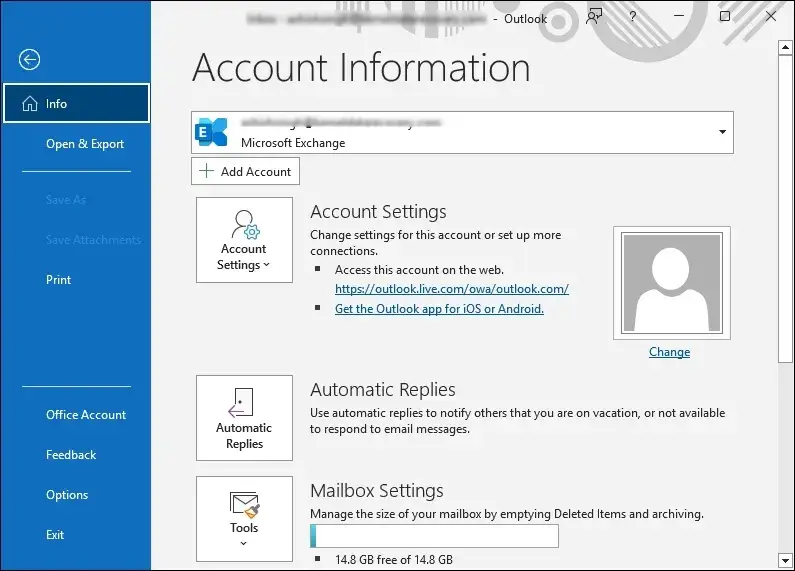
Step 2. Type your Evertek Email address and expand Advanced options.
Step 3. Check mark the Let me set up my account manually option to Connect.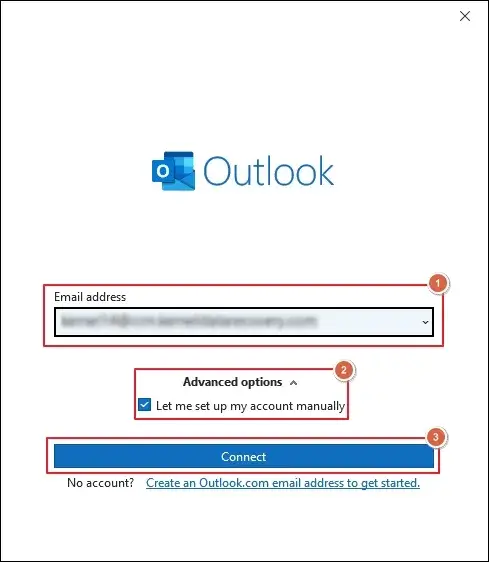
Step 4. Tap on POP settings under the Advanced setup wizard.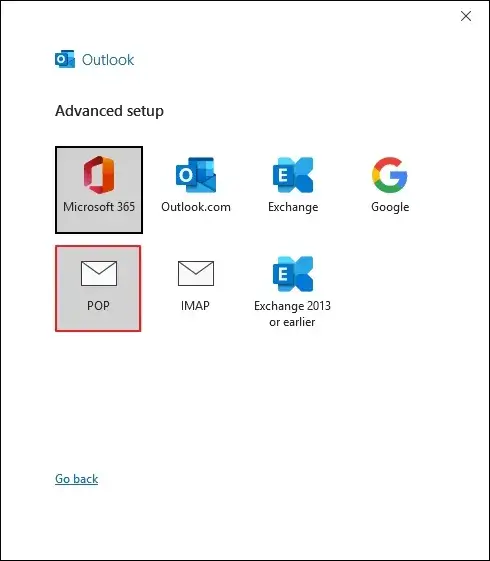
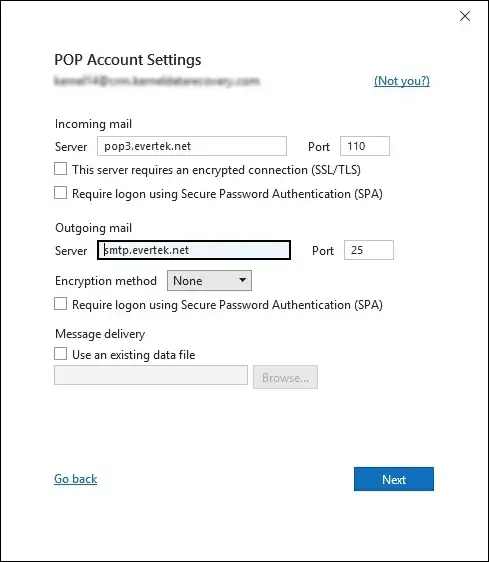
Step 5. Enter the following details in POP Account Settings:
- Incoming Mail Server: pop3.evertek.net
- Default Port Number: 110
- Outgoing Mail Server: smtp.evertek.net
- Default Port Number: 25
Note: Use the following port numbers for secure and encrypted connections (SSL/TLS).
Incoming Port: 995
Outgoing Port: 465
Step 6. Type your Password in the prompted wizard and proceed to the Sign in option.
Step 7. Click on Done after the successful authentication.
Step 8. Now, repeat the same steps for the chosen email provider.
Step 9. Drag and drop the folders from Evertek emails to the newly set up email address in Outlook.
Step 10. Once it is completed, export the mailbox folders to create a backup for additional safety.
Method 2. Migrate Evertek Emails Via Thunderbird
Another native solution to move Evertek emails is Thunderbird. Follow the detailed steps to do the same.
Section 1. Configure Evertek Mail & Export Data
Step 1. Open Thunderbird and go to Settings > Account Settings.
Step 2. Expand Account Actions and click on Add Mail Account.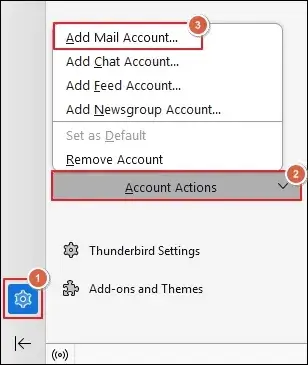
Step 3. Enter Your full name, Email address, and Passwordin the respective boxes.
Step 4. Tap on Configure manually to proceed.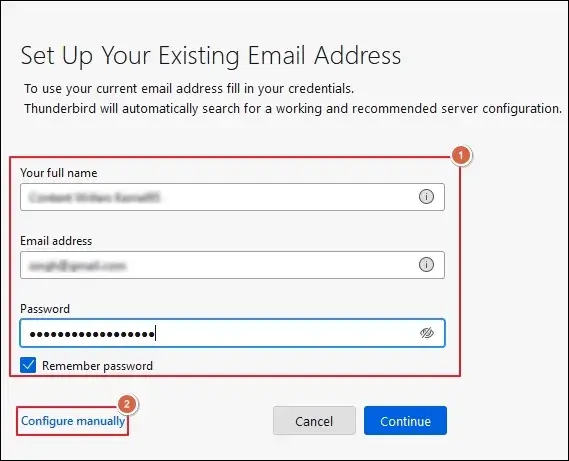
Step 5. Fill in the required configuration details and click Done.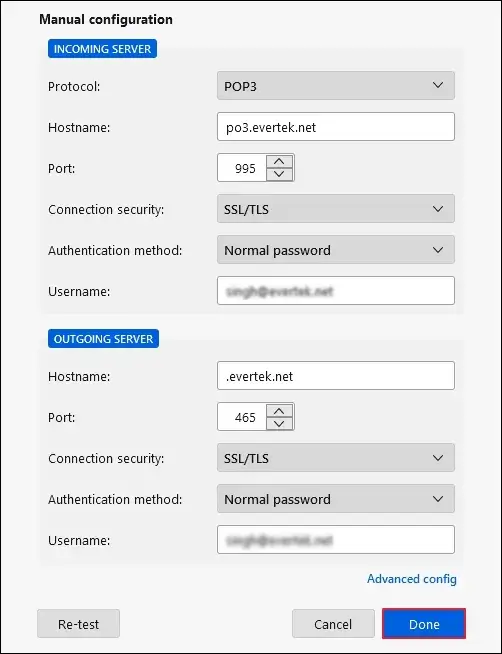
Step 6. Go to Menu and proceed to Tools > Export.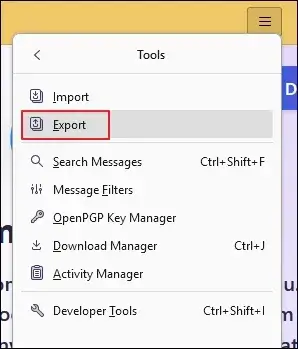
Step 7. Export mailbox data and Save it locally.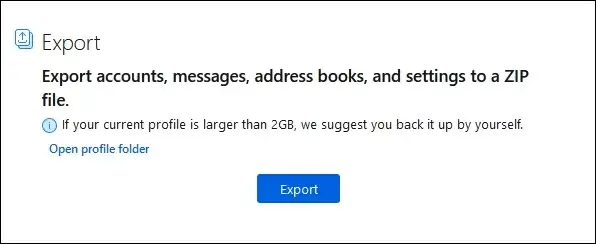
Section 2. Import the Exported Data Into Thunderbird
Note: Configure the newly chosen email provider in Thunderbird before executing the steps below.
Step 1. Access Menu and go to Tools > Import.
Step 2. Choose the Import from a file option and hit Continue.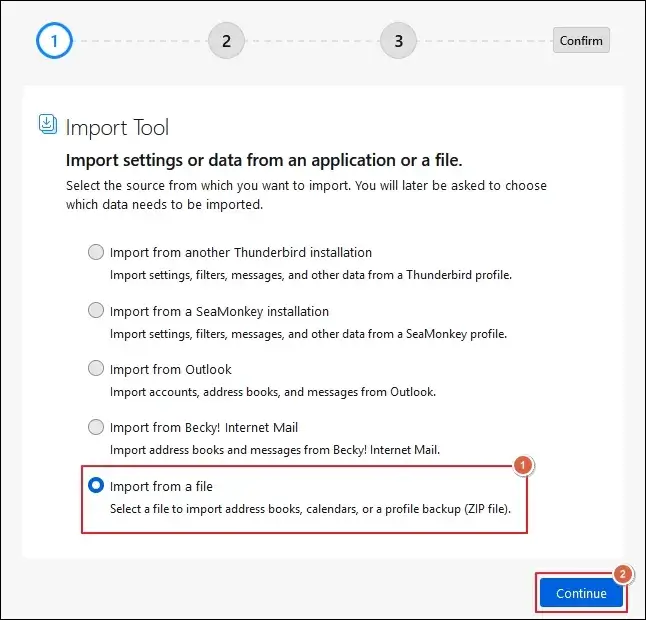
Step 3. Select the Import Backed-up Profile and proceed to Continue.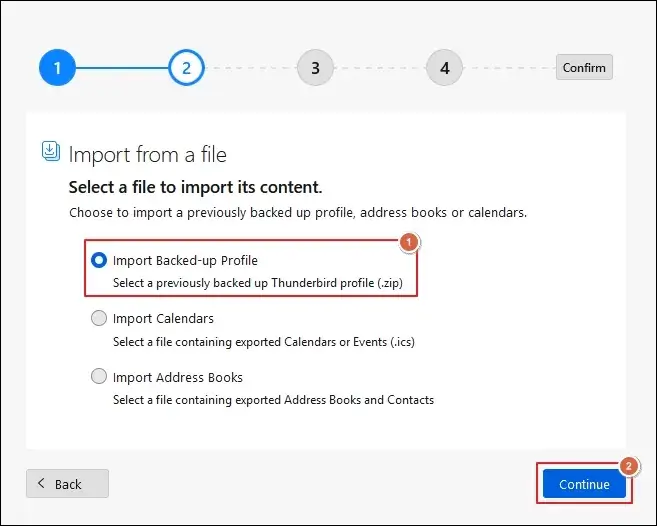
Step 4. Choose a ZIP file option to Continue further.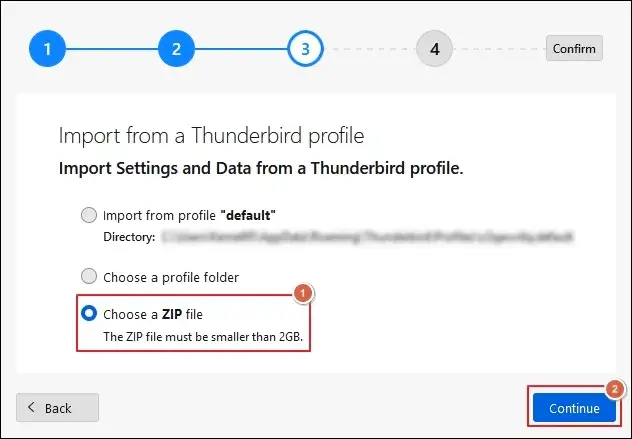
Step 5. Select the locally backed-up file and Open it.
Step 6. Check the required boxes to import data and hit Continue.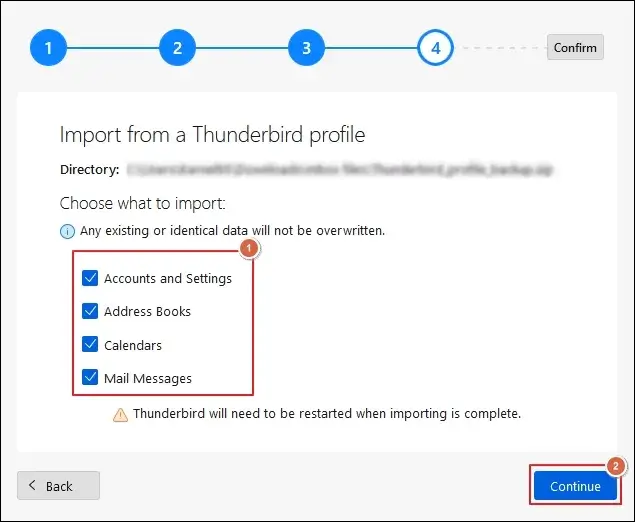
Step 7. Verify the selected data before you Start Import.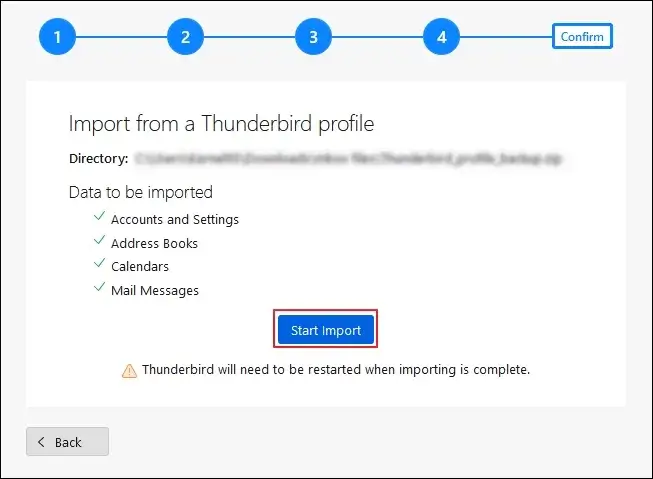
Step 8. Wait for the process to complete. Then, tap on Finish and restart Thunderbird.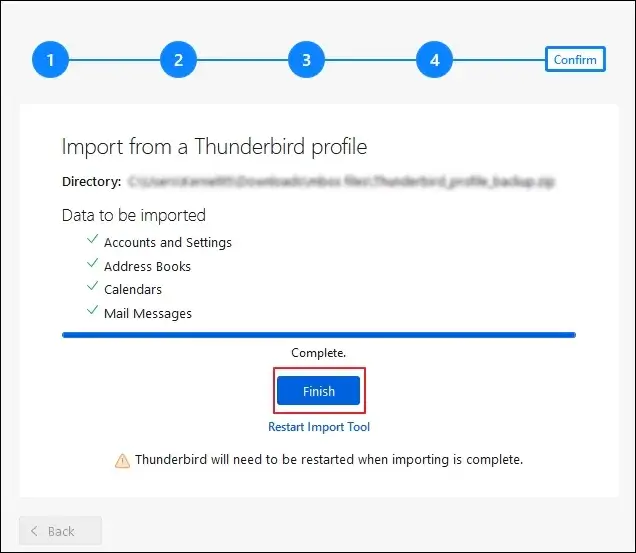
Skip Long Solutions & Migrate Evertek Emails Using Expert Tool
You can transfer mailbox data with the help of the above-provided solutions. But these solutions may fail when it comes to migrating mailboxes in large quantities. You may end up facing a disrupted folder hierarchy, missing emails or attachments, and time-consuming tasks.
So, to avoid all of these issues, use professional solutions like Recoveryfix. The IMAP Migration tool simplifies the entire migration process for both technical and beginner users. It even allows you to migrate IMAP to Exchange Server in a few simple steps.
Closing Thoughts
The Evertek Email Discontinued announcement provides users a significant amount of time to secure their mailbox data. It clearly says a simple message: Don’t wait until the deadline approaches.
Here, we have covered the structured plan to handle the same situation strategically. You can either use a manual or an automated solution, as per your convenience. However, advanced solutions migrate data from hosts like Yahoo to Gmail instantly.
FAQs: Instant Query Resolution
Q- How do I know the Evertek associated account or services?
A- You can check password manager entries, saved login details, subscription emails, and banking or shopping accounts.
Q- Does the announcement mean Evertek out of business?
A- No, it is a common misconception that the company is shutting down completely. The announcement clearly says that it only affects your email services, rest all remains operational.
Q- What are the common mistakes that I need to avoid?
A- Here is the list of mistakes that you must avoid:
- Waiting for the last moment to transfer data.
- Not creating proper backup plans or a strategy.
- Forgot to update the email address in online accounts.
- Missed archived folders may become impossible to recover later.
Q- Can I recover Evertek emails after the final shutdown?
A- No, you can’t recover mailbox data once it is removed from Evertek servers permanently. So, it is recommended to take necessary actions immediately.