 Like Us On
  Follow Us On
  Follow Us On
  Follow Us On
  Follow Us On
 - +
- Data Recovery
- RecoveryFIX for Windows
- Database Recovery
- RecoveryFIX for SQL Database
- Backup Recovery
- RecoveryFIX for BKF



How to Schedule, Record and View Offline Recording ?
computer monitoring software allows you to record and save activities when you are not at your desk. You might worry that if you are not present to monitor, the monitored user might perform any activity which is illegal or might transfer company information in your absence. You can view the recordings when you come back with Windows Media Player.
RecoveryFix Computer Monitor creates offline recording in the monitored client computer. The images get saved on remote client computer which are then required to be imported to server with the help of RecoveryFix Computer Monitor software. View the steps to create offline recording and to view more details and the process of importing offline recording from remote computer, visit RecoveryFix Computer Monitor Online Help
2. How to Create Offline Recordings?
Step1: Select Schedule Offline Recording option from the Recordings menu. Schedule Offline Recording window will appear to configure offline recording:
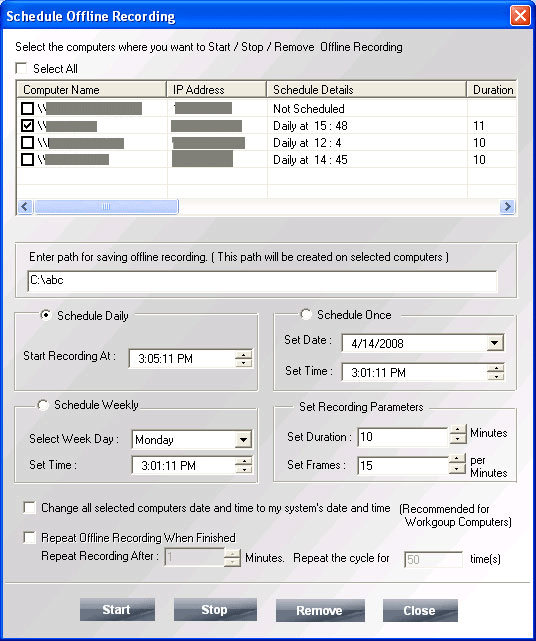
Figure 1: Schedule Offline Recording
Figure 1 displays the window to create offline recording. Field wise description is as follows:
RecoveryFix Computer Monitor searches for agent on client computers in LAN and lists the available recordings scheduled before and for future. Software displays computer name, IP address, schedule details, duration(in minutes), frame per minute, repeat recording up to, recording path fields are displayed with every detail related to the scheduled offline recording. Following is the field description:
Select All: Selects all listed computer(s)
Enter path for saving offline recording: Type the path location where you want to save the recorded movie file on the remote computer selected for offline recording creation.
Schedule Daily: Lets you to define settings to create offline recording daily
Start Recording At: Define the time on which you want to start the scheduled offline recording
Schedule Once: Lets you schedule offline recording once at the set time
Set Date: Define the date on which you want to schedule offline recording
Set Time: Define the time at which you want to start the recording
Schedule Weekly: Lets you define settings to create offline recordings weekly
Select Week Day: define the week day on which you want to schedule offline recording. If you define Monday, then offline recording for the user will be created every week on the defined day i.e. Monday
Set Time: Define the time at which offline recording will start on every defined week day
Set Recording Parameters: Define recording settings
Set Duration: Set the time duration of offline recording
Set Frames: Define the number of frames which will be created in one minute for a movie. Maximum is 60 frames per minute.
Change all selected computers date and time to my system's date and time (Recommended for Workgroup Computers): Selecting this option will change time and date of every remote system in the network according to your computer systems date and time. It is recommended for the Workgroup network computers and not for Domain based network computers as this may expire any installed software or lock any client.
Repeat Offline Recording When Finished (Repeat Recording After): Selecting this option will continue the recording even after it gets completed for its scheduled time. For suppose, recording duration is set to be for 10 minutes and the repeat offline recording is set to be 1, now when the 10 minutes recording gets completed, software will take a break for 1 minute and start the recording again after 1 minute of completion of the previous recording.
Note: This feature do not works with the Schedule Once option
Repeat the Cycle for: This option is connected with the above two mentioned options. It is related to duration and repeat of offline recording fields. The entered value signifies that the offline scheduled recording will get repeated after every 1 minute for 50 cycles.
Step 2: Select the user for recording and define settings for offline recording and click the Start button. Software will warn you against any other offline recording in process for the client computer selected for offline recording:
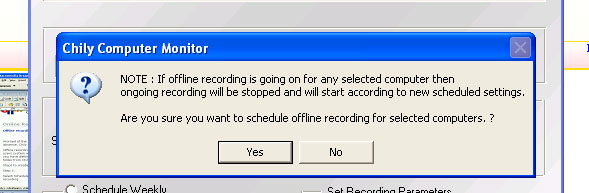
Step 3: Click Yes or No button as per your recording schedules
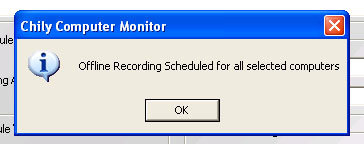
If you click Yes, software will display confirmation message of the scheduled recording and delete previous recording settings (if any). If you click No, software will preserve the previous offline scheduled recording settings and delete the current settings.
RecoveryFix Computer Monitor Info.
Version: 11.03
Price: Starting from $79
Free Trial: 7 Days
Supported OS: Windows10/ Windows8.1/Windows8/Windows 7/Windows Vista / 2003 / 2000 / XP (with Service Pack 2 and 3)
