 Like Us On
  Follow Us On
  Follow Us On
  Follow Us On
  Follow Us On
 - +
- Data Recovery
- RecoveryFIX for Windows
- Database Recovery
- RecoveryFIX for SQL Database
- Backup Recovery
- RecoveryFIX for BKF



How to Create Online Recordings ?
RecoveryFix computer monitoring software allows you to record and save activities instantly when you see any suspicious activity being performed by your employee. RecoveryFix Computer Monitor facilitates you to capture any wrong activity going on immediately as you see them.
You can save and view the recordings with Windows Media Player. RecoveryFix Computer Monitor enables to create online and offline recordings. Process to create, save and view recordings are explained step by step in the below sections.
To view more detailed online help, visit: https://www.computer-monitoring-software.net/online-help-index.html
1. How to Create Online Recordings?
2. How to Create Offline Recordings? (Opens in New Window)
1. How to Create Online Recordings?
Note: to create online recording, both server and client should be in working condition and monitoring of the client computer should be going on.
You can create online recording of any user which you are monitoring. Online recording as the name suggests is instant recording which can be created instantly without losing any second. The steps mentioned below begin when you are monitoring any user:
Step 1 : Select any user for whom you want to create online recording.
Step 2 :Select Record User Activity option from the Options menu of the software. Record User Activity window will appear to select user for online recording:
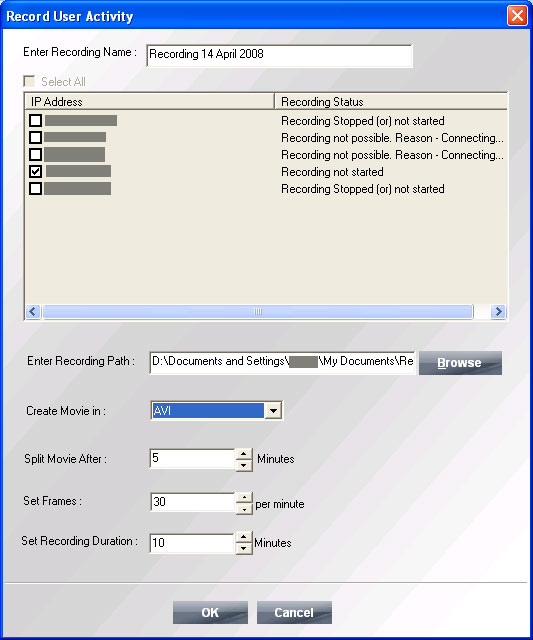
Figure 1: Select User for Online Recording
Figure 1 displays the window to create online recording. Field wise description is as follows:
Enter Recording Name: Type name of the recording which you want to create
From the text box like field, select the user for whom you want to create online recording.
Enter Recording Path: Select the disk location of your computer where recording will get saved.
Create Movie in: Select the movie format in which you want to create movie.
>Split Movie After: Define the split time of the movie which you are creating. With this option, you can split the movie in two parts. For instance, you are creating a 10 minute movie and you define the split time of 5 minutes. Software will now create two movie files of 5 minutes each.
Note: Time specified in Split Movie in field should be less than the time specified in Set Recording Duration field.
Set Frames: With this option, you can define the number of frames that will be created in one minute. In Figure 1, Set Frames is defined as 30 and the movie duration is for 10 minutes. The number of frames that will be created in this movie would be 300 frames in 10 minutes i.e. 10 x 30 = 300 Maximum frames that can be set are 60 frames per minute.
Set Recording Duration: Specify the recording time up to which you want to create the online recording for a user. Minimum time is 1 minute and maximum time is 720 minutes
Select the Recording Name from first section and the recorded images associated with the recordings will be displayed in the second section.
After defining values in the Figure 1 fields, Click OK. Recording will start immediately and RecoveryFix Computer Monitor will display starting of the recording in All Computers tab of the Preview Pane :
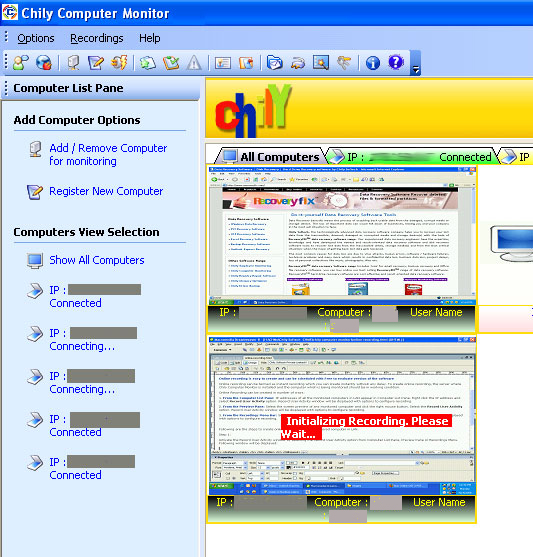
RecoveryFix Computer Monitor will display the message on the user thumbnail in the All Computers tab "Initializing Recording. Please Wait...
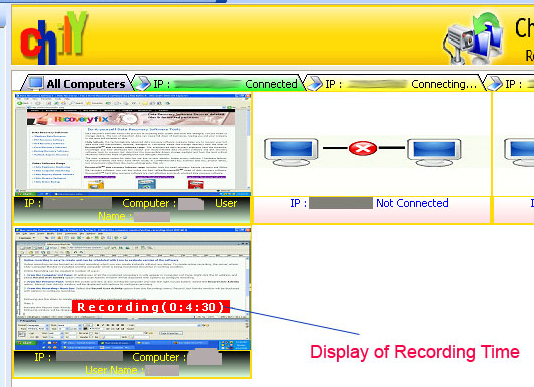
As the recording begins, software will then display the recording time in user thumbnail:
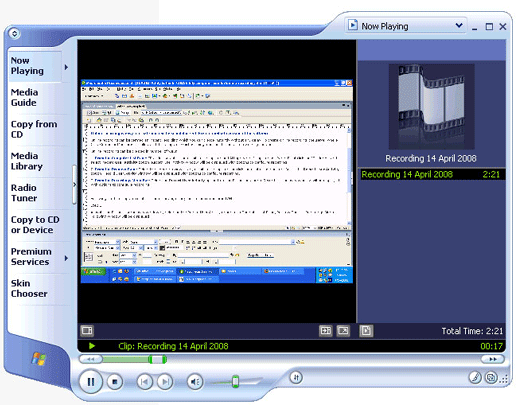
As soon as the recording gets completed, you can view it from the saved location.
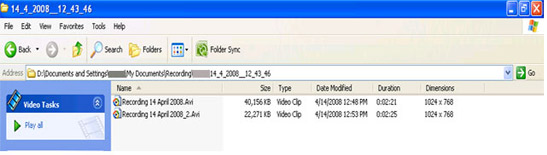
Step 3: Double click the recording name and view it with Windows Media Player:
RecoveryFix Computer Monitor Info.
Version: 11.03
Price: Starting from $79
Free Trial: 7 Days
Supported OS: Windows10/Windows8.1/Windows8/Windows 7/Windows Vista / 2003 / 2000 / XP (with Service Pack 2 and 3)
