 Like Us On
  Follow Us On
  Follow Us On
  Follow Us On
  Follow Us On
 - +
- Data Recovery
- RecoveryFIX for Windows
- Database Recovery
- RecoveryFIX for SQL Database
- Backup Recovery
- RecoveryFIX for BKF


Disable Anti-spyware Warnings and Install Computer Monitoring
Some Antivirus programs may detect Computer Monitoring, AgentSetup files as spy ware and block them from installing to your PC and target PC.
While installing Computer Monitoring software and AgentSetup file on your and target computer system, you may face warnings from the installed antivirus software like McAfee, Symantec.. j on your computer system and the target PC, which will show warning messages. Here you will need to manage the antivirus blocking messages to install Computer Monitor software and its agent files.
Instructions to set up and enable Computer Monitor software and Agent where Symantec Antivirus is installed on PC:
1. Run the AgentSetup.exe on the target computer.
2. Follow the online screen steps for installation of the Agent file.
3. After the installation process gets completed, a message from Symantec will be displayed:
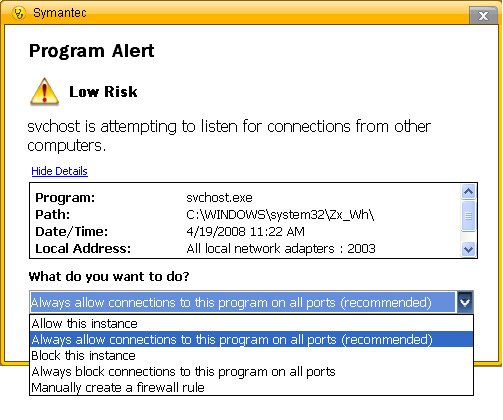
Here, the Symantec message will ask you for several options in the "What do you want to do?" section:
4. Select the "Always allow connections to this program on all ports (recommended)" option and click the OK button.
5. Agent file will successfully get installed on the target system.
If in case, you again receive this message from Symantec software, You just need to allow the program and Computer Monitor software will work effectively.
Agent is not an ad ware, spy ware or any virus and will never harm any computer in any aspect. Its just a monitoring agent which helps to monitor activities in LAN.
Know more about anti virus unblocking with Computer Monitor software Online Help
Recoveryfix Computer Monitor Info.
Version: 11.03
Price: Starting from $79
Free Trial: 7 Days
Supported OS: Windows10/Windows8.1/ Windows8/Windows 7/Windows Vista / 2003 / 2000 / XP (with Service Pack 2 and 3)
