Resolved: YouTube Videos Not Playing On Android Issue

Updated On - July 31, 2026
When you face the issue “YouTube videos not playing on Android”, it’s easy to blame your internet. But the real cause is often a simple issue that takes only a few minutes to fix. So, this blog will help you find all the answers to fix the issues quickly. Let’s explore the different reasons and appropriate solutions to restore uninterrupted YouTube streaming again.
Why Are YouTube Videos Not Playing On Android Devices? – Common Reasons
You are facing the YouTube not working issue due to uncountable reasons. But the list contains the most reported ones:
|
VPN or Ad-blocking applications. |
Incomplete download corrupts the video file. |
|
Unstable or poor internet connection. |
Outdated or corrupted YouTube Cached data. |
|
Google Play Services is not up to date. |
Mismatched data & time with Google services. |
|
Old Version of the YouTube application. |
Insufficient system storage space or low RAM. |
|
YouTube Server outages or maintenance. |
Battery optimization restricts background actions. |
|
Android system bugs or pending updates. |
Conflicts with the app preferences. |
How to Fix YouTube Videos Not Playing On Android Devices Manually?
You know the issue may arise due to several reasons as per our previous discussions. That’s why one solution can’t be applicable in all scenarios. So, we have provided a list of solutions that address different problems related to YouTube. Try them all to identify the most beneficial ones:
- Restart the YouTube app & your Android device.
- Disable the VPN or Private DNS if you are using any of them.
- Make sure to enable mobile data for the YouTube application.
- Remove and add your Google account again to fix the authentication issues.
- Change the YouTube video quality to lower resolutions (like 720p or 480p).
- Update the Google Play services to fix media routing, background APIs, and account sync.
- Make sure the adequate device storage is available for temporary cached data (for buffer).
The above solutions will resolve YouTube problems at the basic level. If not, go with the technical ones.
Solution 1. Check Your Internet Connection
Network connection speed is the first thing you need to check if YouTube videos are not playing or showing errors. To resolve the issue, you can switch to a faster connection or reset the existing one with the help of these steps:
Step 1. Go to Settings and click on Network & Internet.
Step 2. Check whether the connected network is Mobile data or Wi-Fi.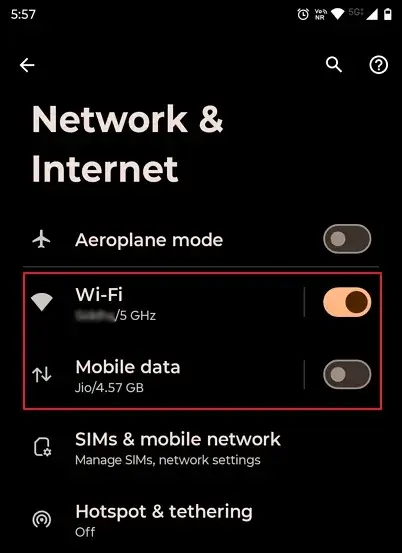
Step 3. Switch to the other option besides the existing one to check.
Step 4. Click on Wi-Fi and Forget the connected or Saved networks.
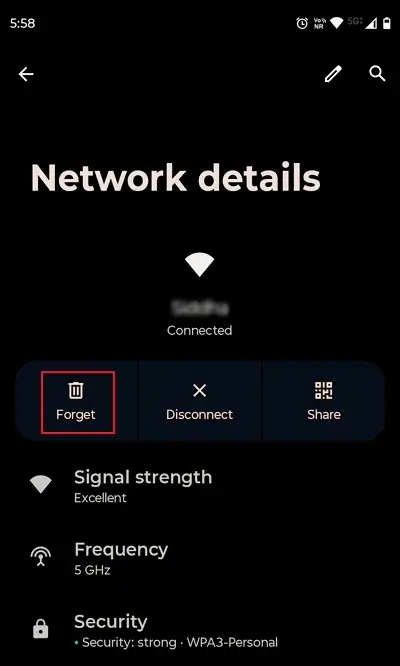
Note: You can also reset the Wi-Fi router configuration with the provided reset button.
Step 5. Re-establish the connection with the same network using its credentials.
Step 6. Open YouTube and play the video again to check.
Solution 2. Update the YouTube Application
An outdated version of the YouTube application can also be the reason for YouTube videos not playing on Android issue. Since its older algorithms might not support videos, you need to update YouTube to the latest version. Follow the steps below to do the same:
Step 1. Go to the Play Store and click your profile icon.
Step 2. Click on Manage apps and device.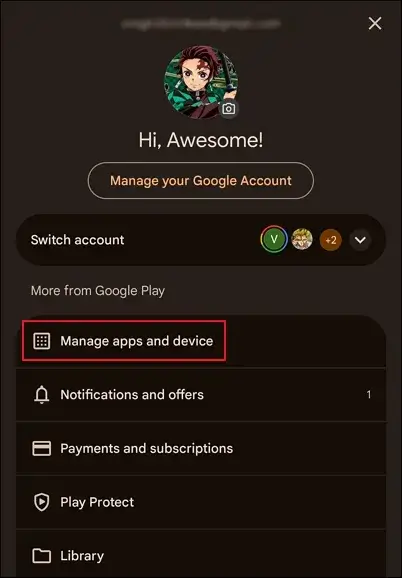
Step 3. Update the YouTube application to the latest version (if available).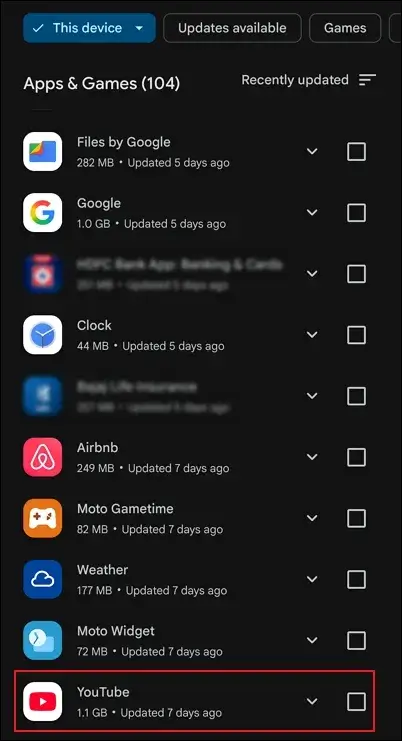
Step 4. Wait for its completion and play the video again.
Solution 3. Clear the YouTube Cache Data
Stored cached data increases with time and leads to the YouTube application malfunctioning. Clearing all cache files might be the best solution to boost the application efficiency & also to deal with issues like YouTube videos not playing on Android. Let’s look at the steps to execute the same:
Step 1. Go to your device Settings and proceed to Apps.
Step 2. Click on See all apps option and select YouTube.
Step 3. Tap on Storage & cache to continue.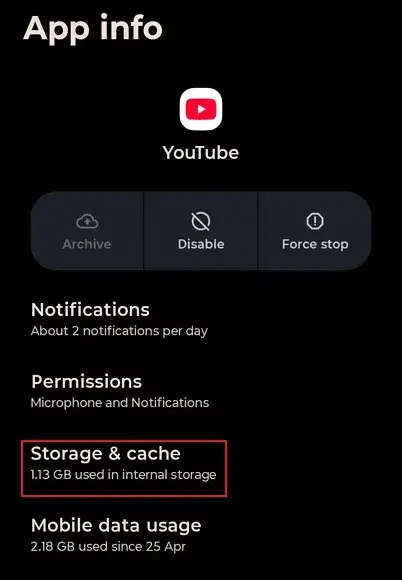
Step 4. Clear cache data to remove occupied space.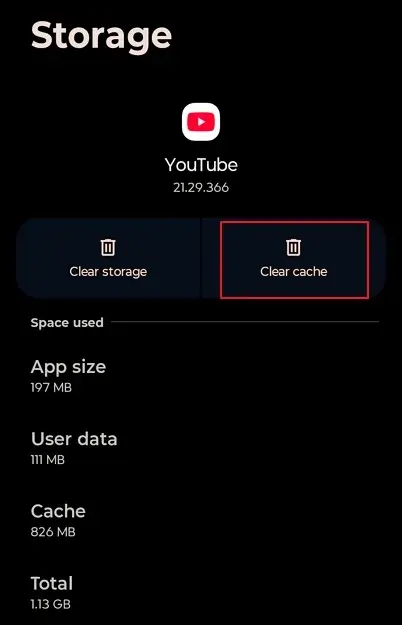
Solution 4. Sync Date & Time With Device
If your system date and time are not correct for your current time zone, then it will affect the functioning of YouTube. It leads to connection errors, security check failures, or improper data synchronization. All of these ultimately become the reason for YouTube videos not playing on Android. So, fix it now with the steps below:
Step 1. Go to the System option under the device Settings.
Step 2. Click on Date & time to match the current time zone.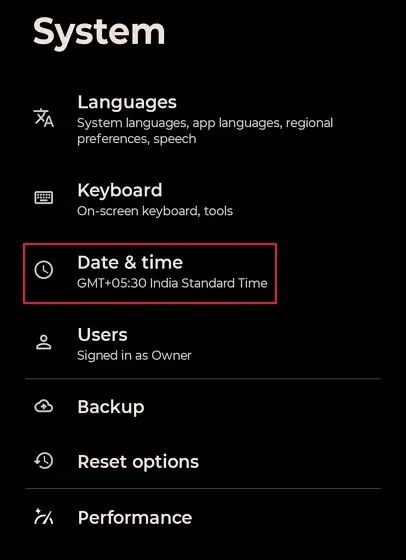
Step 3. Enter the correct time manually if mismatched.
Step 4. Enable all the options shown in the image shown.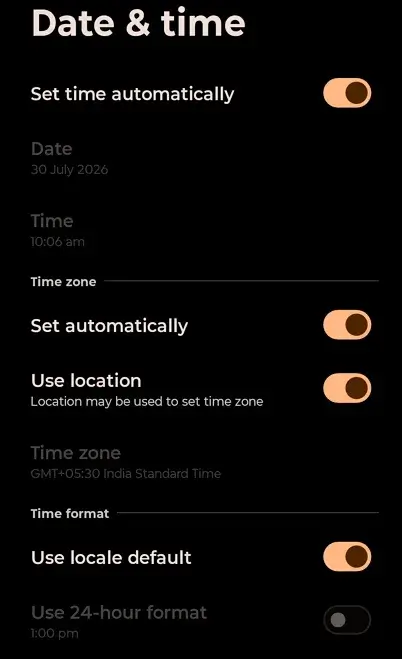
Solution 5. Run the Android Device in Safe Mode
Sometimes, YouTube itself is not the problem, but other problematic applications intervene the functionality. Hence, open your device in Safe Mode to identify the problematic app that interferes with YouTube playback. Here’s how to access your Android device in Safe Mode:
Step 1. Press and hold the Power button to access the Power Menu Options.
Step 2. Then, select Power off from the available options. Press & hold it longer.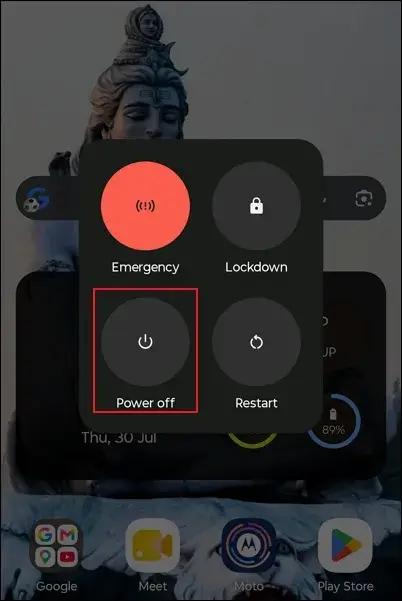
Step 3. Reboot to safe mode and click OK to proceed.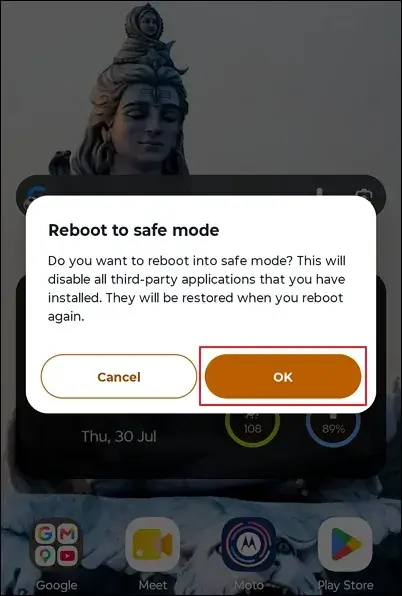
Step 4. This will help you detect the faulty app.
Step 5. Uninstall that app and restart your device to standard mode.
Solution 6. Update the System to the Latest Version
A simple system update can help you remove bugs or glitches that might be responsible for the error. So, follow the provided instructions to fix YouTube videos not playing on Android issues if a specific Android version causes it.
Step 1. Locate System updates under Device Settings.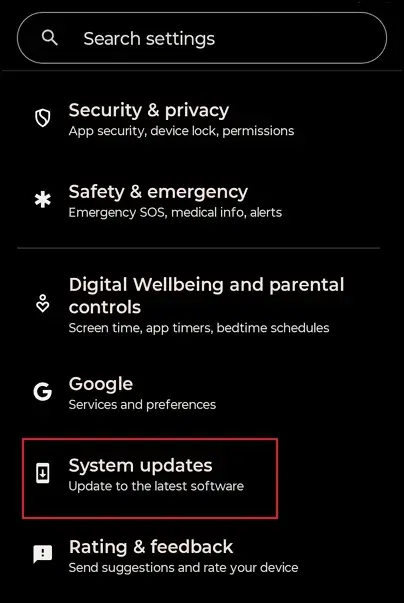
Step 2. Verify the current Update status.
Step 3. Check for updates and install them if available.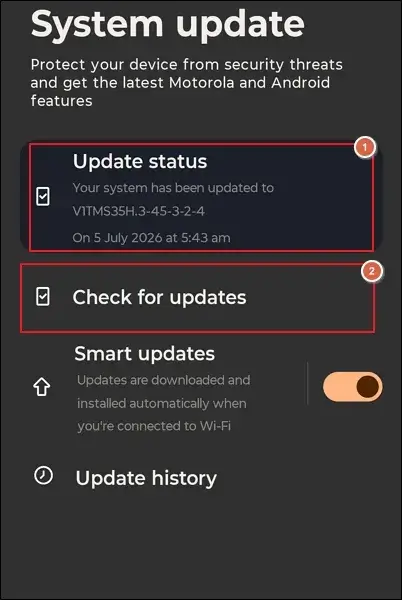
Step 4. Wait for the process to complete and open YouTube to check.
Solution 7. Reset the Current App Preferences
You can clear the default app links, enable forced-stop apps, and restore blocked permissions by resetting the app preferences. This will help you fix the “YouTube videos refuse to play” issue if that causes it. Here are the steps:
Step 1. Access the Settings and click on System.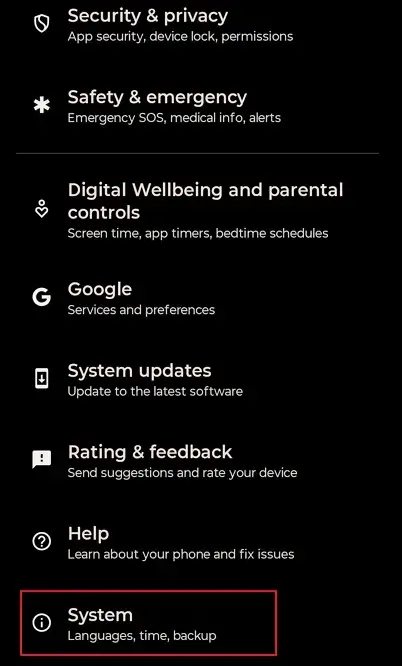
Step 2. Then, go to the Reset options.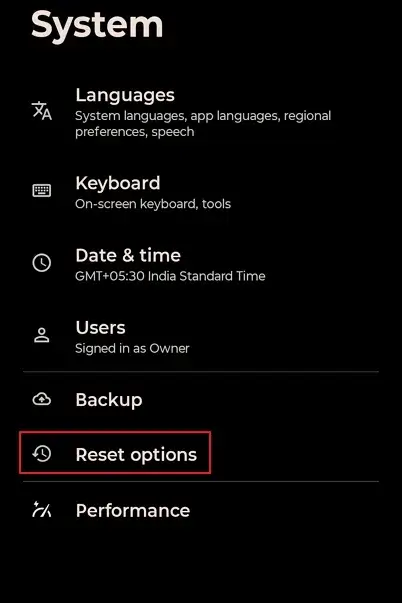
Step 3. Tap on Reset app preferences to proceed.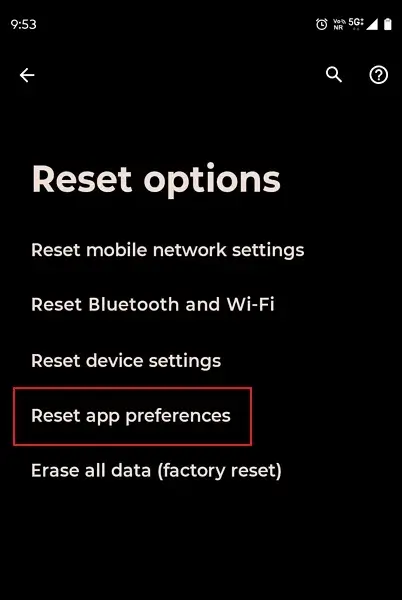
Step 4. Under the confirmation wizard, click on Reset apps.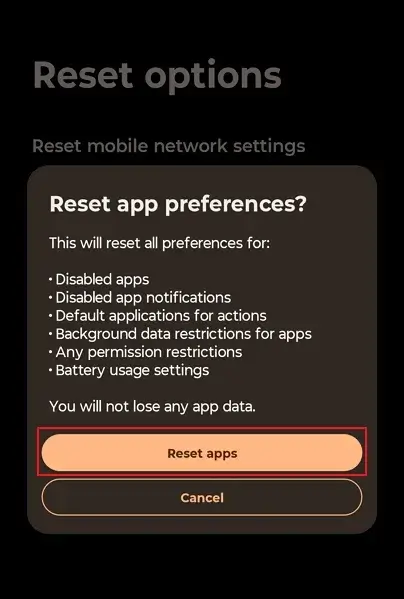
Solution 8. Disable Restricted Mode & Battery Optimization
YouTube’s restricted mode and battery optimization can sometimes cause this error. So, check and disable them to fix the related problems by using these steps:
Turn Off Restricted Mode
Step 1. Open the YouTube app and click on You.
Step 2. Tap on Gear icon in the top right corner.
Step 3. Go to the General section under Settings.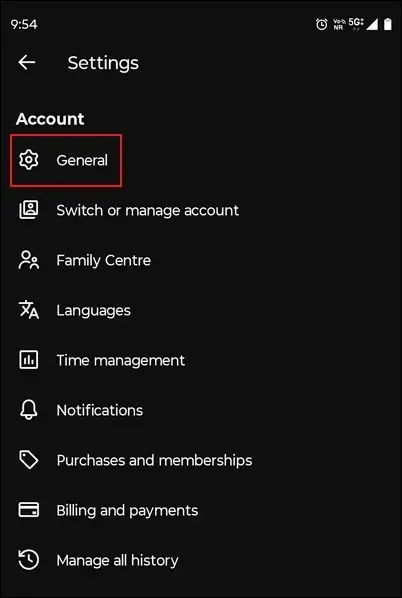
Step 4. Disable Restricted Mode if you open YouTube in Safe mode.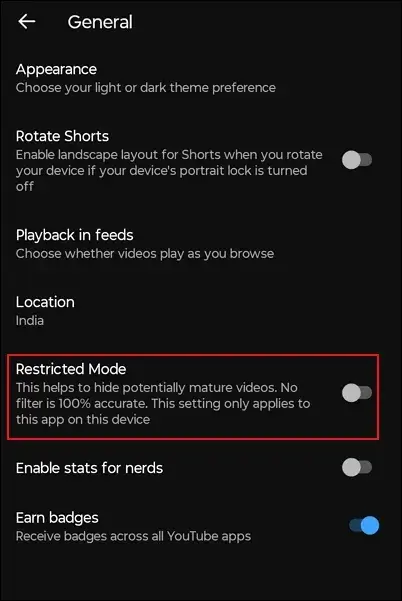
Turn Off Battery Optimization
Step 1. Go to Settings and click on Apps.
Step 2. See all apps and navigate to YouTube.
Step 3. Click on the App battery usage option.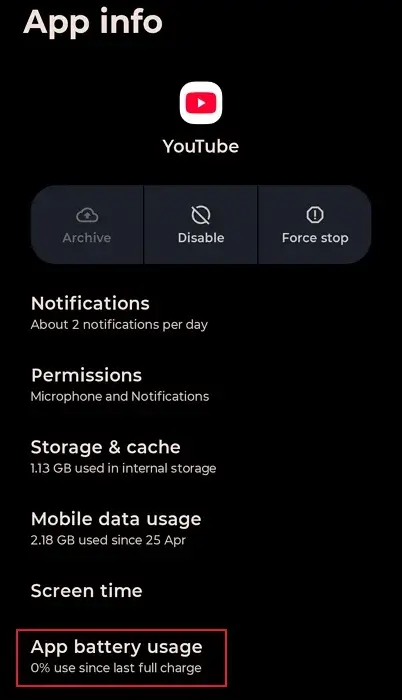
Step 4. Enable the Allow background usage toggle.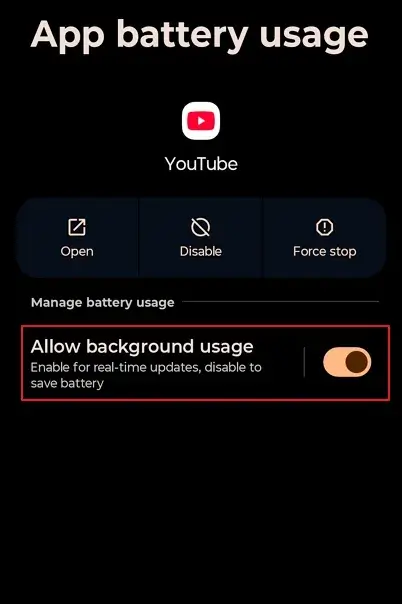
Solution 9. Factory Reset Your Android Device (Need Consideration)
A hard reset of your device is required in rare cases where the issue is deeply rooted in the Android software. If that’s the case, you can try a factory reset to fix YouTube videos are not playing or showing errors. Here are the steps you need to follow:
Note: It can erase all internal storage data, so consider carefully before doing that. Also, backup data if you are going to perform this method.
Step 1. Click on System under the Device Settings.
Step 2. Locate and access the Reset options.
Step 3. Go to the Erase all data (factory reset) option.
Step 4. Confirm the action by clicking on the Erase all data option.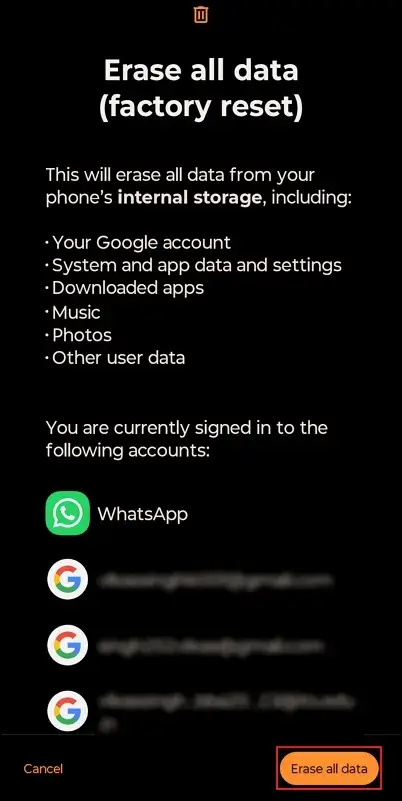
Solution 10. Contact the YouTube Support Team (If All Fails)
You have tried all the provided solutions, and they still failed to fix YouTube videos not playing on Android issues. This means the problem is very severe and can only be resolved by the YouTube support team. For this, you can go to the Help section to access the popular help resources, post issues to get help from the community, or contact YouTube support team.
Note: Before assuming anything, check first that YouTube videos refuse to play on your browser too.
How to Deal With the Corrupted YouTube Videos That Are Stored Locally?
Users frequently download YouTube videos using different third-party downloaders to watch them offline in their free time. Moreover, millions of users upload different video content on YouTube daily.
But what will you do if these videos get corrupted or distorted after downloading or before uploading?
Technical glitches or unwanted interruptions make these issues very common. Hence, it needs to be repaired to experience the videos as before. Therefore, opting for our specialized Recoveryfix Video Repair tool can help deal with offline videos won’t play on Android easily. The software repairs corrupt or distorted video files of any size or number in any format, with original quality maintained.
Final Thoughts
The blog has discussed all the best possible methods to avoid YouTube videos not playing on Android issues. By going through them, you can resolve the issue and play the YouTube videos again. We have also recommended the automated method to repair corrupt or inaccessible videos and several other issues like stuttering and glitching issue on Windows 10 with ease.