How to Synchronize Thunderbird Address Book With Gmail Contacts?

Updated On - August 17, 2026
- Export Gmail contacts to Thunderbird Address Book.
- Use the “gContactSync” extension of Thunderbird for contact sync.
- Access Gmail contacts in Thunderbird via “Google Contacts” extension.
For the detailed step-by-step guidance, check out the upcoming sections of our blog.
Your contact list is saved in Google contacts but you need them in the Thunderbird application. For this, you have two ways: either import Google Contacts to Thunderbird or synchronize both of them.
Contacts import via CSV or vCard is sufficient to access the same list in Thunderbird, and the other method helps you stay connected with Google contact and reflect all the change is the more suitable approach.
Here, we will cover all the necessary information to synchronize Thunderbird address book with Gmail contacts for better alignment and availability across platforms.
Explore Benefits: Why Sync Gmail Contacts With Thunderbird?
Contact synchronization offers several practical benefits. But the most frequent ones are listed below:
- Keep contacts accessible in both places.
- Reduce duplicate contact management.
- Avoid repetition of manual imports & exports.
- Makes email composing easier with contacts availability.
Now, we will go through different methods that help to synchronize Gmail contacts with the Thunderbird address book.
Top 3 Methods to Synchronize Thunderbird Address Book With Gmail Contacts
We have analyzed several available methods and found only these ones as effective. So, check them out now to identify the most appropriate methods for synchronizing Thunderbird address book with Gmail contacts.
Important to Know: CardDAV method is no longer needed because the Thunderbird supports inbuilt contacts import feature.
Method 1. Export Gmail Contacts to Thunderbird Address Book
Gmail and emails have become necessary for any organization or professional purpose. So, we will learn the synchronization methods of Gmail accounts with the Thunderbird address book. Follow the steps below:
- Open Gmail, click on the Google Apps icon, then click Contacts.
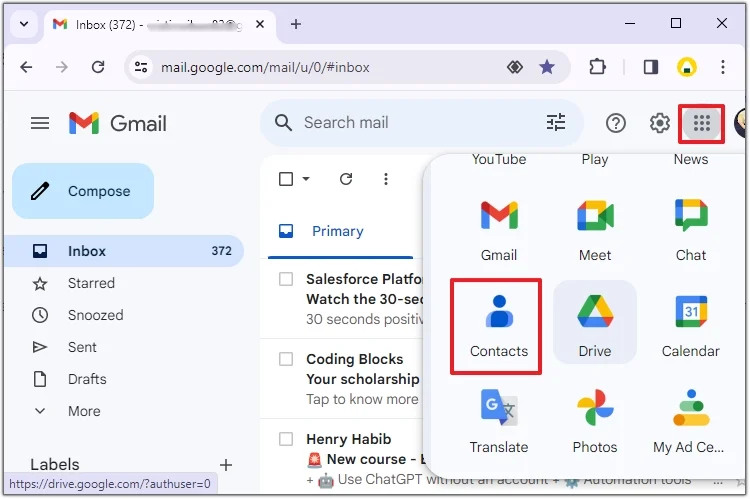
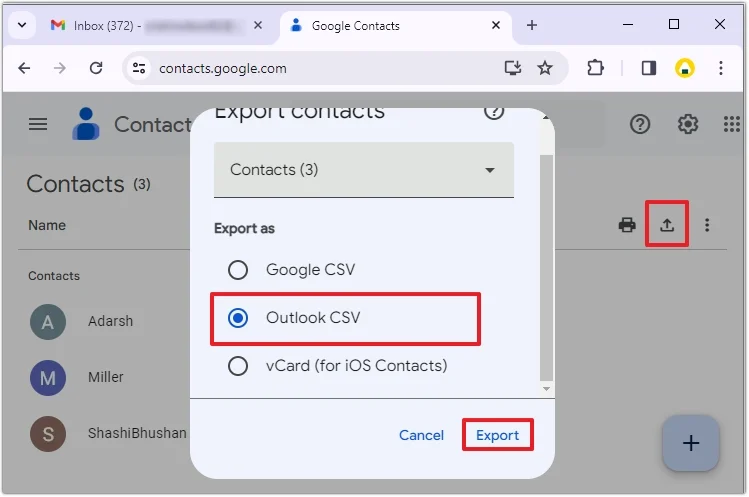
- Now check all the contacts you want to export from the new window, click the Export icon, and choose Outlook CSV. This process will download the CSV file automatically.
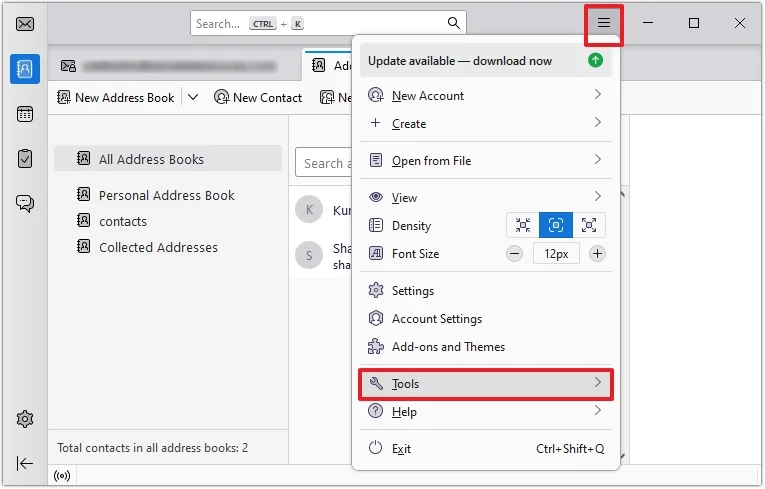
- Now, open Thunderbird, click on the Menu tab, and then Tools.
- Click on Import, choose the CSV file type, and Continue.
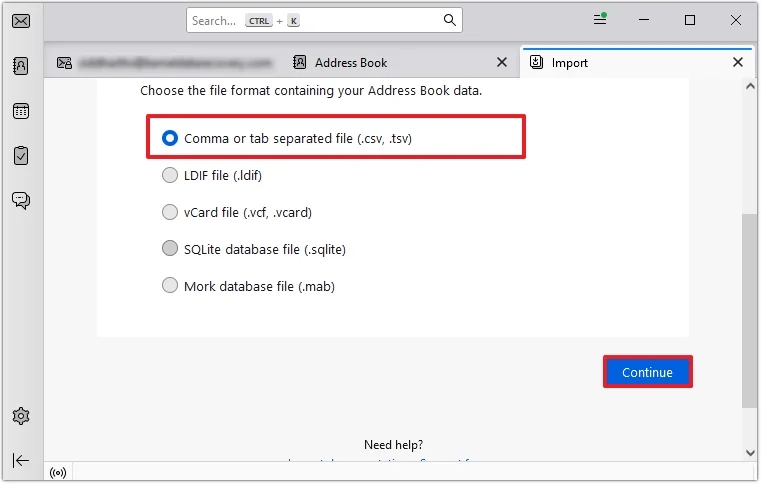
- Locate and browse the CSV file type you downloaded earlier in File Explorer and click Open.
- Check the appropriate checkbox for each contact and click Continue. Once done, tap on Start Import.
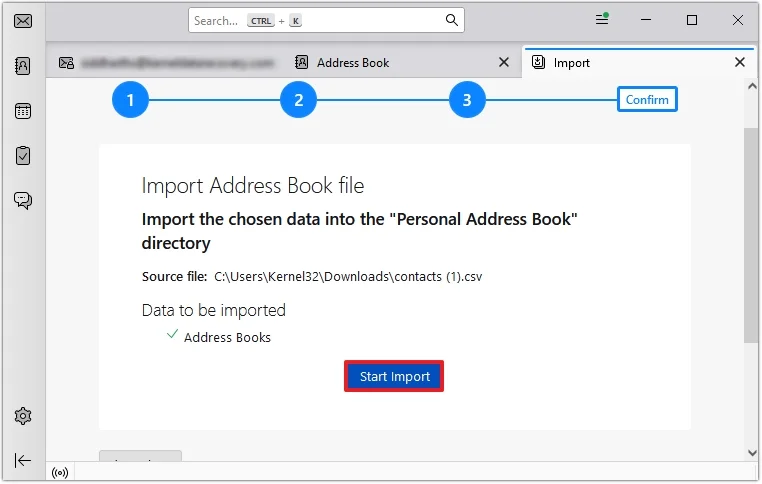
Now, check whether you have successfully imported the contact and go to Thunderbird’s address book section.
Method 2. Sync Thunderbird Address Book With Gmail Using A ‘gContactSync’ Extension
The gContactSync extension allows the user to synchronize the Gmail contacts with the Thunderbird address book. Let’s look at the steps to add the extension to Thunderbird.
- Start your Thunderbird program, click on the three bars in the right corner, then select Add-ons and Themes.
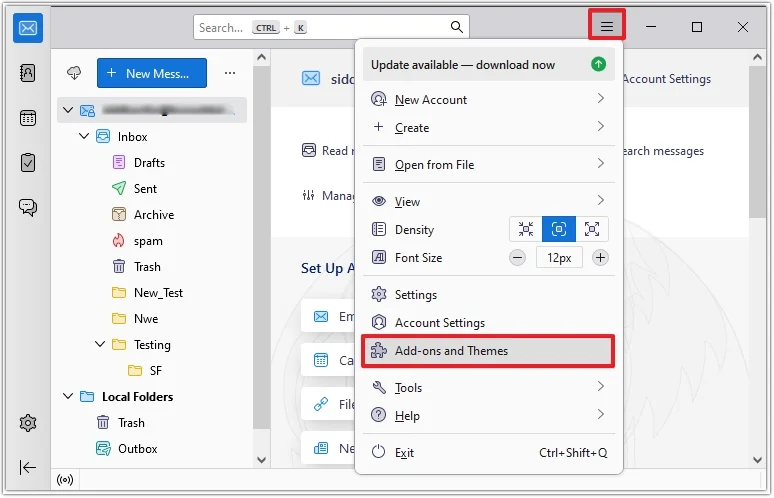
- The Add-ons Manager tab will open. Search gContactSync in the search bar and install the extension.
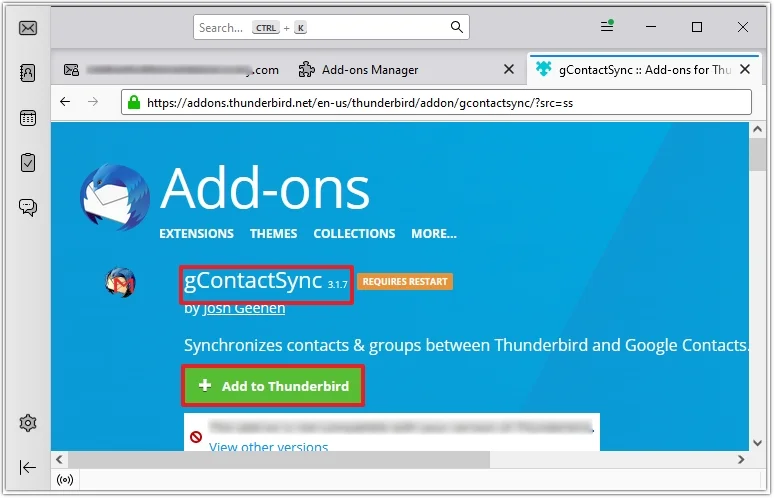
- Restart Thunderbird after installation of gContactSync.
- Go to the contact sync wizard, choose Use a new account, enter the Gmail credentials, and click Next.
- Click the Allow button to keep going, then the Finish button.
- Check the warning message checkbox and click the OK button.
Method 3. Sync Thunderbird Address Book With Gmail Contacts Using ‘Google Contacts’ Extension
Instead of the gContactSync extension, the Google Contact extension also plays a crucial role in synchronizing Gmail contacts with the Thunderbird address book. Let’s go through the steps:
- Open Thunderbird, click on three bars, and choose Add-ons and Themes.
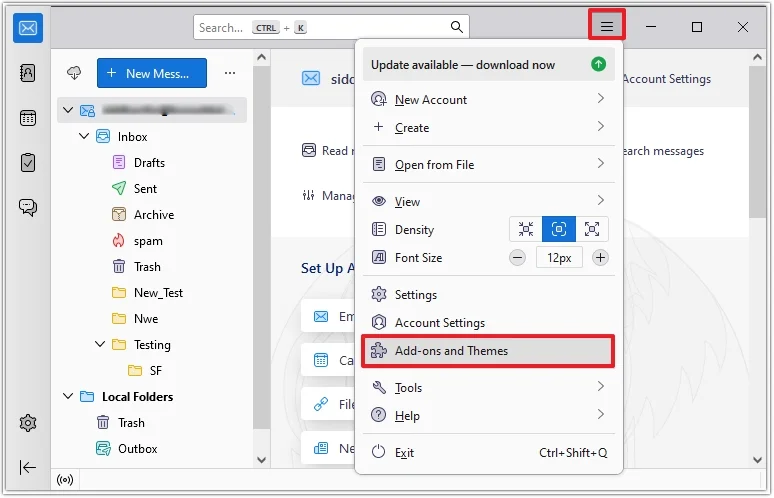
- Search and install the Google Contacts extension using the search bar.
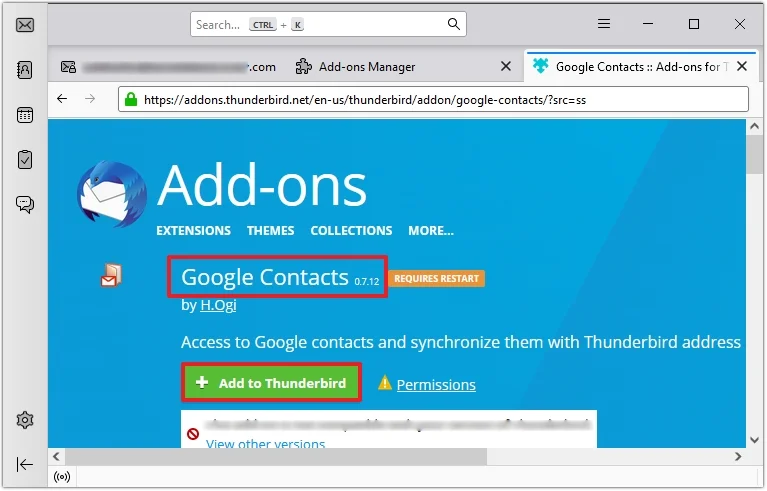
- Restart Thunderbird, provide the Gmail credentials and give access.
This process will create an address book as a Google account name. Google Contacts will retrieve and sync the contacts automatically every time Thunderbird starts.
Contact Sync Is Fine, But Try Dedicated Solution For Complete Migration
The above solutions will help you export or sync Thunderbird address book with Gmail Contacts. However, if you are looking for a complete mailbox migration, then using our Recoveryfix MBOX to PST Converter tool will be ideal. It helps you overcome the risk and limitations of manual solutions and makes the entire process smooth. You can retrieve damaged, corrupted, or inaccessible MBOX files and migrate them to Outlook.
Key Notes
Here, we have discussed the detailed methods to synchronize Thunderbird address book with Gmail contacts. You can go through the step-by-step approach to apply and get the desired result as per your convenience.
But, if you want to migrate mailbox data, then go with the recommended solution. The software easily converts MBOX files to Microsoft 365 without hampering the original hierarchy.