How to Import PST file to Outlook Manually? [100% Working Ways]

Updated On - June 24, 2026
Need: Looking for a simple way to import PST to Outlook? Want to access your old emails after changing systems, reinstalling Outlook, or migrating to a new computer?
Observation: Many users face situations where they need to recover or transfer mailbox data stored in PST files. Hence, it needs the right approach to import them without data loss. This easy write-up will explain how you can import PST file to Outlook using manual methods.
It is Outlook’s proprietary data file format used to store emails, contacts, calendars, notes, tasks, journal entries, etc. PST files are commonly used for:
- Mailbox backup
- Data migration
- Archiving Outlook data
- Restoring deleted Outlook profiles
Import PST File to Outlook: Know the Need
Check out the reasons that drive users to import PST file in Outlook:
- Moving Outlook data to a new computer.
- Restoring emails from previously created backups.
- Recovering mailbox data after reinstalling Outlook.
- Combining multiple PST files into one Outlook profile.
- Accessing old mailbox data in a new Outlook account.
- Verify PST file integrity.
- Check Outlook compatibility.
- Backup of the PST file before importing.
- Ensure that you have enough storage space.
Best Manual Methods to Import PST file to Outlook
The section will help you with the best manual methods to import PST in Microsoft Outlook successfully.
Method 1. Use Outlook’s Import/Export feature
It is one of the most common & personally recommended methods. Here, you need to take the help of Outlook’s Import/Export feature. It is applicable when your PST file is in a healthy state. Let’s explore the steps:
Step 1. Open Outlook & go to the File tab.
Step 2. Choose the Open & Export > Import/Export option.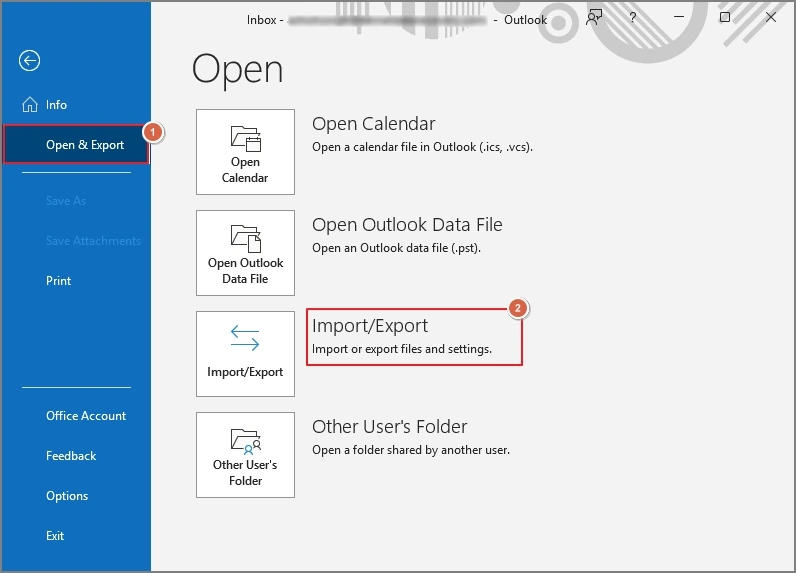
Step 3. Click on Import from another program or file Hit Next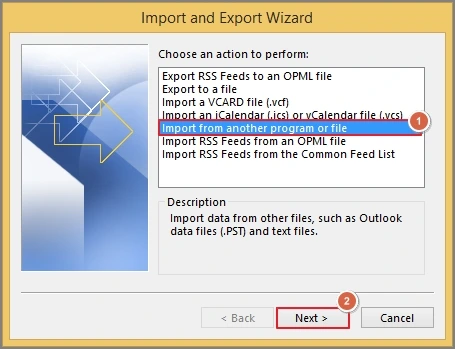
Step 4.Click on Outlook Data File (.pst) & choose Next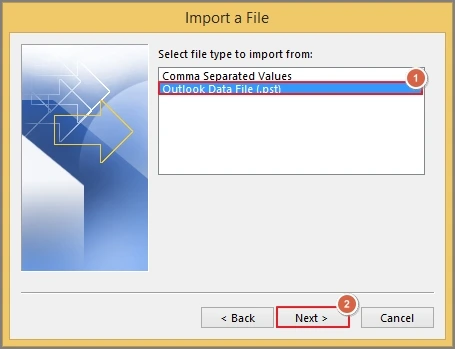
Step 5. Browse the PST file with the suitable Options. Select Next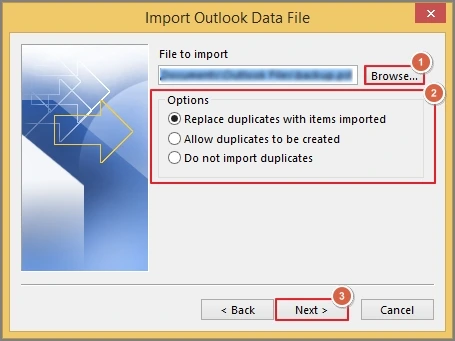
Step 6. Choose the Outlook mailbox or folder where you want to import the PST file data. Then, tap on Finish to start the importing process.
Note: This method is applicable to all the available Outlook versions, like 2024, 2021, 2019, 2016, etc.
Method 2. Open PST File in Outlook Directly
In case you want to access the PST file data temporarily, open it directly instead of importing. Then, access the data accordingly. Here are the steps to know:
Step 1. Launch Outlook & go to the File tab.
Step 2. Choose the Open & Export > Open Outlook Data File option.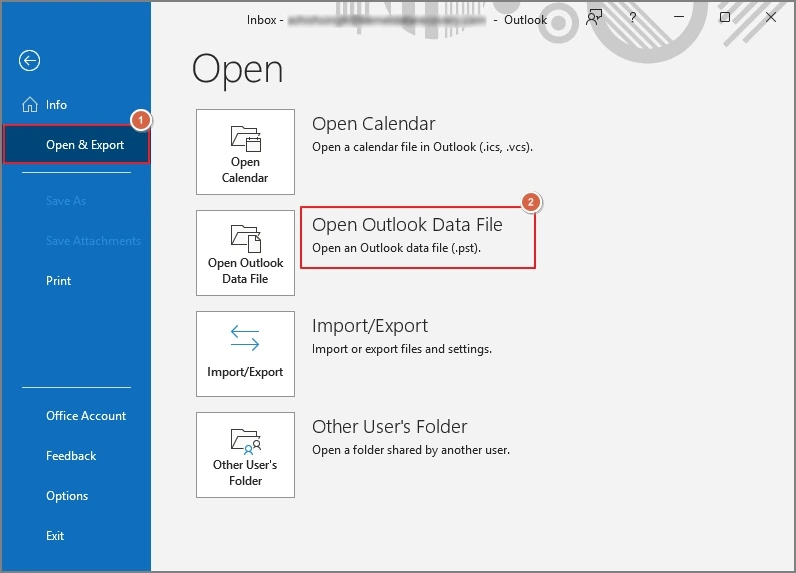
Step 3. Browse & select the desired PST file. This way, you can open PST file in Outlook directly.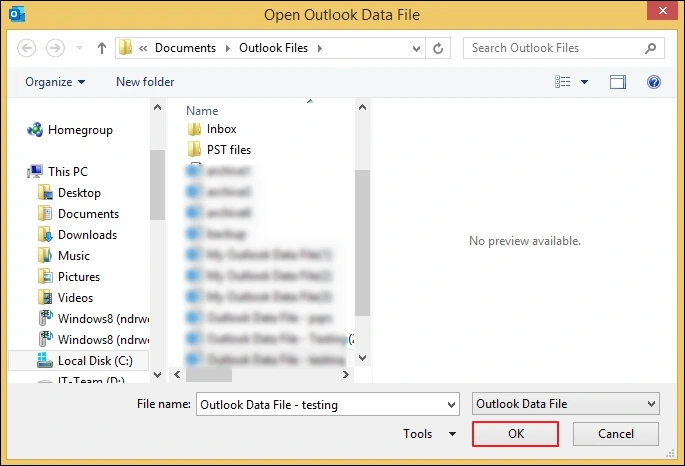
Common Issues While Importing PST File in Outlook
Take a look at some issues that you might face during the import PST to Outlook process, along with their causes & suitable solutions.
|
Issues |
Causes |
Solutions |
|
PST file not showing |
|
|
|
The import process freezes |
|
|
|
Duplicate emails after import |
|
|
|
Permissions errors |
|
|
What if the PST File is Corrupted or Damaged?
All the methods can be helpful when you are dealing with a healthy PST file. But if your PST file is experiencing severe-level corruption, then you can’t manage it until it is repaired.
No worries if you are on the same track, as Recoveryfix is always there for you to help with its smartest options. Its Outlook PST repair tool comes with all the advanced features in this category. The tool allows you to manage the storage space & save the repaired file in different formats like PST, MSG, DBX, EML, etc.
Tips to Prevent Import PST Issues
Here are some tips that can help you to avoid Import PST issues.
- Keep Outlook updated.
- Store PST files locally.
- Maintain healthy disk space.
- Archive old emails periodically.
- Avoid abrupt system shutdowns.
Last Thoughts to Import PST File to Outlook
It is essential to know how to import PST in Microsoft Outlook for restoring backups, migrating mailbox data, or accessing archived emails. Hence, I have provided all the necessary information about the concern with the right approach.
But all these methods are applicable to healthy PST files. If files are inaccessible or damaged, then try the suggested solution. It will handle all the PST corruption easily with instant & accurate results.
FAQs
Q- Does importing a PST file overwrite existing Outlook data?
A- No. Outlook generally merges imported data with the existing mailbox when duplicate settings are handled improperly.
Q- Can I import PST file in Outlook Web App [OWA]?
A- PST import is not directly supported in OWA. You need to use the Outlook desktop application or Microsoft 365 import services.
Q- Is it possible to import password-protected PST files to Outlook?
A- Yes. You can import them successfully, but you need to enter the correct password during the process.
Q- Does a stable internet connection require importing PST to Outlook?
A- PST import is performed locally & does not require internet unless connected to Microsoft 365 synchronization services.