Best 5 Ways to Fix Error 0xc00d5212 While Playing Video

Updated On - July 17, 2026
You have just hit the play button, but instead of smooth playback, an error message appears:
“Can’t play. This item was encoded in a format that’s not supported. Error Code: 0xc00d5212.”
The error may seem very difficult at first, but you can fix it with the right approaches.
If you are facing this error and looking for an effective solution to fix error 0xc00d5212, then this article will guide you with different solutions to overcome this error.
Error code 0xc00d5212 is a Windows media playback error that appears when the media player fails to decode the video stream. You can see this error commonly in:
- Movies & TV
- Microsoft Photos
- Windows Media Player
- Media Player (Windows 11)
Find Reasons: Why Does Error Code 0xc00d5212 Occur During Video Playback?
There are several reasons that can cause the 0xc00d5212 error while playing videos. Here are the most prominent ones that increase the possibility of causing this error:
- Outdated display drivers
- Damaged system files
- Unsupported video file format.
- Missing or incompatible codec.
- Corrupt or damaged video files.
- Functionality conflict among multiple audio drivers.
- Update the media player or Windows OS.
- Try to play the video file in another media player (like VLC).
- Use System Restore to revert the device to a past state when video files were played without issue.
How to Fix Error Code 0xc00d5212 Using Manual Ways?
After deep research, we have come up with several methods that can help you to resolve this issue. Try them one by one to find the most applicable solution for yourself.
Method 1. Download & Install the Required Codecs
Codecs are essential to play your video files. But if they are missing in your Windows Media Player, then you will need to download and install them to play your video file properly. So, follow the given steps to do the same & resolve 0xc00d5212 error code.
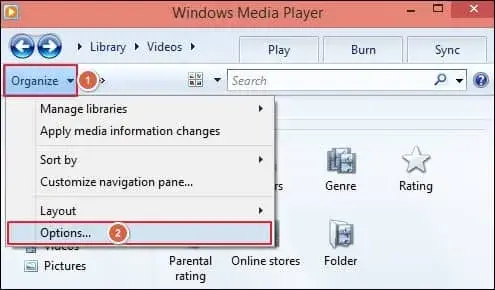
- Open Windows Media Player, tap on Organize and choose Options.
- Go to the Player section > select Check for updates: Once a week > tick on Download codecs automatically > click on OK.
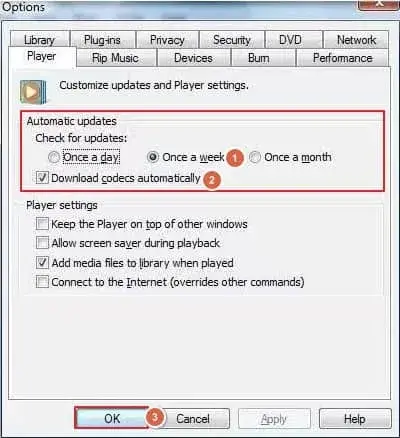
- It will keep your Windows Media Player up to date and download the required codecs automatically.
Method 2. Update the Display & Audio Drivers
In certain cases, this error occurs due to outdated display or audio drivers. Therefore, updating them might help you to fix missing codec 0xc00d5212 error. Here’s how to check and update drivers:
Update Display Drivers
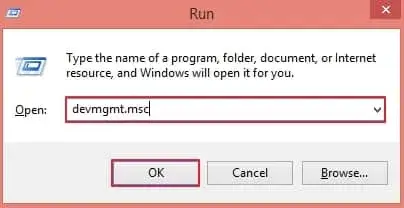
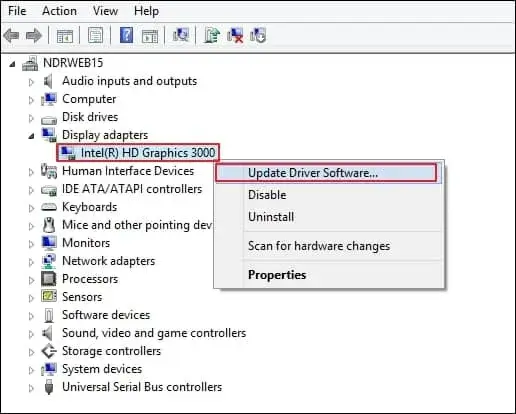
- Press Windows + R keys, type devmgmt.msc in the wizard then click on OK to access the Device Manager panel.
- Locate and expand Display adapters, right-click on the installed driver and proceed to Update Driver Software option.
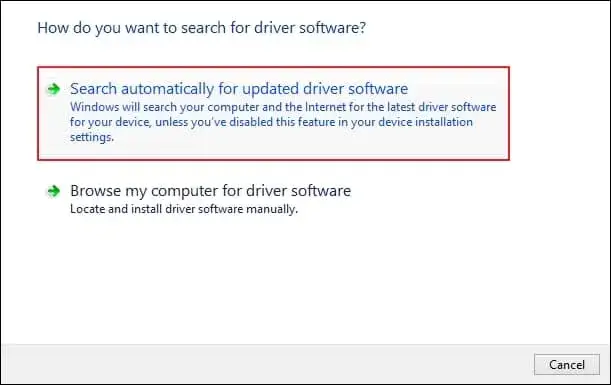
- Click on the Search automatically for updated driver software, which will initiate the automatic search for the latest driver and install it in your system.
Update Audio Drivers
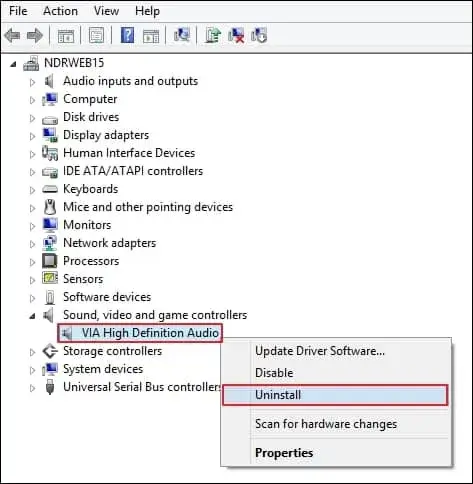
- Press Windows + R keys, type devmgmt.msc in the wizard then click on OK to access the Device Manager panel.
- Navigate and expand Sound, video and game controller, right-click on the installed driver and proceed to Uninstall option.
- After that restart your system play your video again.
Method 3. Change the Format Of Your Video File
Changing the format of your video may often fix error 0xc00d5212 while playing videos. You use open-source tools like HandBrake or VLC media player to do the same. Steps for VLC are as follows:
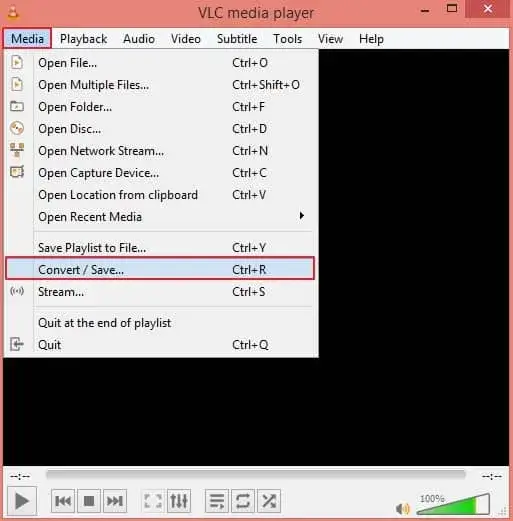
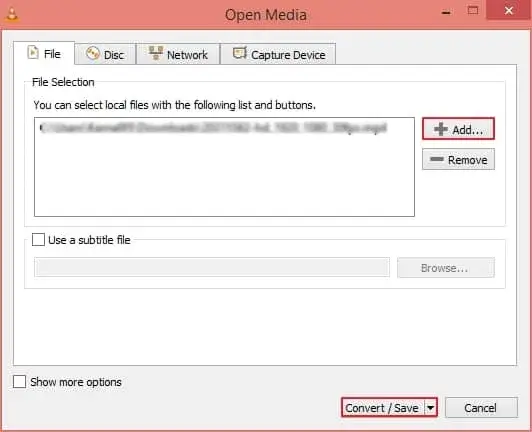
- Launch VLC media player, click on Media option, then proceed to Convert/Save option.
- Tap on +Add option to choose video file that you wish to convert and press on Convert/Save.
- Choose the conversion format for your file under the Profile section, then Browse to designate the location and press on Start option.
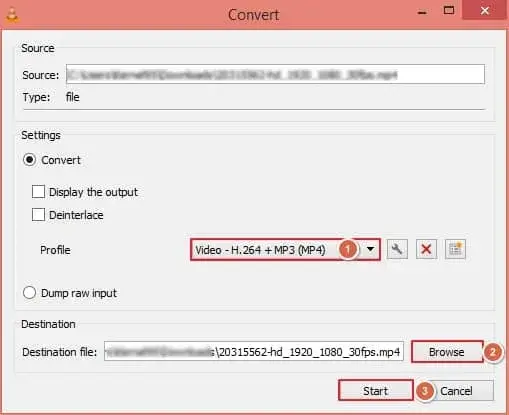
- It will convert your video file format with ease.
Method 4. Fix the Related Entries Of the System Registry
Sometimes, the damaged registry entries related to media playback (codec registration & file association) may cause the issue. To fix missing codec 0xc00d5212 error on Windows, install a registry fixer to remove all the related issues. Here’s how:
Step 1. Access the Run wizard and type regedit.
Step 2. Go to File and select Export to save a backup.
Step 3. Download and install registry cleaning tools (like CCleaner or Eusing Free Registry Cleaner).
Step 4. Access it and navigate to the Registry tab.
Step 5. Scan for Issues or Scan registry issues to identify the problem.
Step 6. Analyze the found issues to Fix selected Issues.
Step 7. Navigate to the following location.
HKEY_LOCAL_MACHINE\SOFTWARE\Microsoft\MediaPlayer
Step 8. Then, right-click on it to Delete corrupt entries.
Step 9. After that, restart the system to recreate Windows Media Player entries.
Step 10. Run Command Prompt as Administrator. Later, execute the following command lines:
regsvr32 qasf.dll
regsvr32 wmvcore.dll
Step 11. Once done, try to play the video after restarting the system.
Method 5. Repair the Damaged Or Corrupted Video Files
If all the previous methods fail, then it may be a possibility that your video file is corrupted. You use the VLC media player to remove minor corruption from video files to fix missing codec 0xc00d5212 error. Here are the steps:
- Open VLC media player, go to the Tools option, then proceed to Preferences.
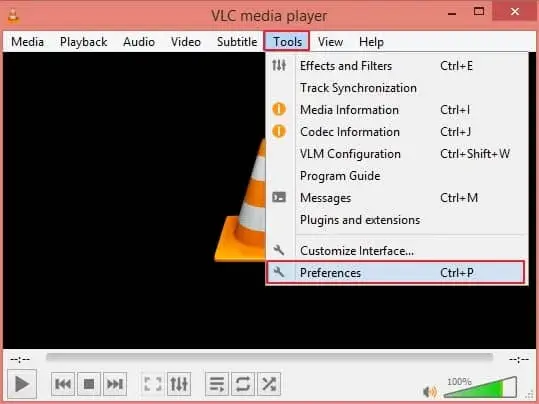
- Go to Input/Codecs tab > Browse to choose the folder where you have stored your video files > select Always fix from Damaged or incomplete AVI file > click on Save option.
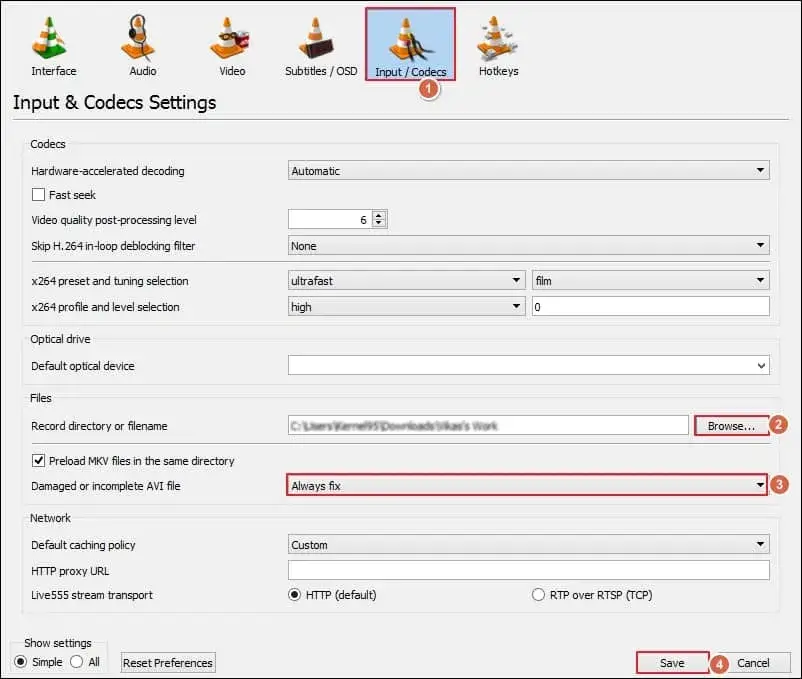
The VLC media player helps you to repair video files up to a certain extent. But, in case of severe video file corruption or damage, the method may not be effective. Thus, utilizing a professional tool will help you to overcome the video file corruption issue without disrupting its content.
Our Recoveryfix Video Repair can quickly fix your damaged or inaccessible video files. It supports different video file formats, such as MOV, MP4, 3GP, FLV, WEBM, AVI, and more. The software can fix damaged MTS video files or other video-related issues.
Key Notes
Here, we have covered different solutions to fix error code 0xc00d5212. You can resolve the video issues with the help of the methods mentioned above. If the issue remains the same, then try to check for corruption in video files.
To repair minor corruption, you can use VLC media player and the recommended one (video recovery tool ) for severely damaged files. The software helps you to repair corrupt MXF video files for free without disrupting their original structure.