Error Resolved: Dash Cam Videos Not Playing

Updated On - August 13, 2026
- Protect the device from overheating with better placement.
- Check and update to the latest version of Dash Cam firmware.
- Format the SD card only from the Dash Cam at regular intervals.
- Fix SD card-related issues like corruption, improper format, & free up space.
- Check the power supply (charging socket, USB ports, fuse box, or battery).
- Verify the recording settings (Loop recording, recording mode, selected resolution, parking/motion mode).
To get detailed information on resolving Dash Cam videos, read the blog carefully.
When the Dash Cam videos are not playing, users generally assume that their footage is gone forever. But in many cases, the recordings can be recovered with the right approaches.
Hence, this well-structured guide shows ways to identify and fix Dash Cam videos that won’t play. Let’s begin to recover insurance claim videos, legal evidence, or memorable journeys to access them again.
Common Symptoms: Quickly Identify Dash Cam Video Playback Issues
For each user, the Dash Cam video playback issues appear differently. So, the symptoms listed below can help you recognize the issues easily.
- Video files won’t open at all.
- VLC media player reports a damaged file.
- Audio plays but the display remains blank.
- The screen turns black during video playback.
- Windows Media Player indicates different errors.
- Dash Cam recording saved but file size shows 0 KB.
- Video playback starts and stops at a certain timestamp.
How to Fix Dash Cam Video Recordings Not Playing Issue? [Best 5 Ways]
Dash Cam videos need to be fixed as soon as possible because they serve an important role in an individual’s life. So, here we will discuss some practical approaches that can solve Dash Cam Video can’t play errors manually:
Note: Before going through the following solutions, make sure that your Dash Cam SD card should be connected to your computer.
Solution 1: Use CHKDSK Command to Fix System Integrity
Run the command to scan hard drives for system errors and fix them immediately. Let’s look at the steps to execute the command:
- Press the Windows + X keys and select Command Prompt (Admin).
- Type chkdsk D:/f in the command prompt and press the enter button.
- It might take time as the process starts to repair files.
Note: Restart your system if the process ends without an error before attempting to read the files from the drive.
Solution 2: Change the Video Format Using VLC Media Player
Sometimes, the media player doesn’t support a particular video file. It could be due to missing or incompatible codecs in the media player. So, using another media player or changing the format of the video file can be beneficial to address the Dash Cam videos not playing issue.
Here are the steps to convert the format of the video file using the VLC:
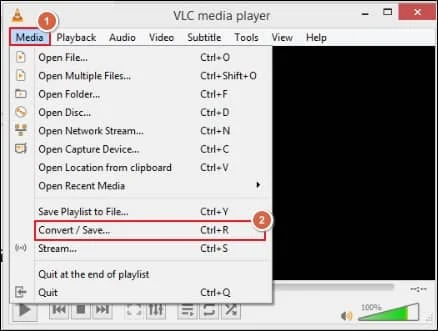
- Open the VLC media player, go to Media, and choose the Convert/Save option.
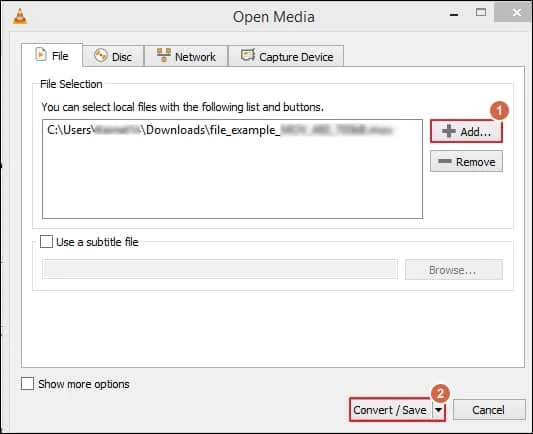
- Click on the Add option, browse the file that you want to convert, and click on the Convert/save option.
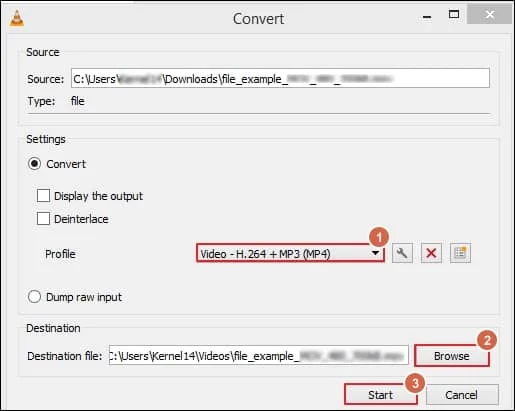
- Now, choose the format of the video followed by locating its destination and click on the Start option to execute the conversion.
Solution 3: Reinstall the Graphic Drivers
Outdated graphics drivers do not work properly and lead to several video-related issues. Therefore, reinstalling them may be an effective solution to handle the video stuttering and glitching issues. Let’s check out the following steps to update the Graphic drivers:
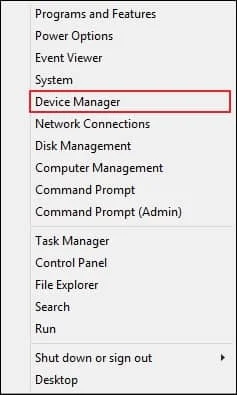
- Right-click on the Start icon and choose the Device Manager option.
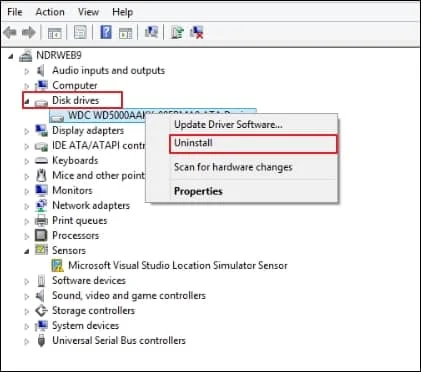
- Now, expand the Disk drives and select the removable drive from the list (SD card of Dash Cam).
- Click on Uninstall > Ok.
- Restart your PC after disconnecting the SD card safely.
- Connect your SD card again and check whether the error is resolved.
Solution 4: Modify the Drive Letters and Paths
Solve Dash Cam Video can’t play errors by allocating a new Drive Letter to the affected disk volume. It comes into use when your system identifies an inaccessible drive location. To execute this process, kindly adhere to the given steps:
Note: It is always advisable that you should be careful while formatting the drive to prevent data loss. To be on the safer side, always back up the files to a secure location.
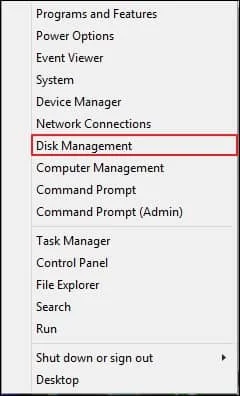
- Right-click on the Start icon and go to the Disk Management option.
- To change the drive letter, right-click on the drive and then select the Change Drive Letter and path option.
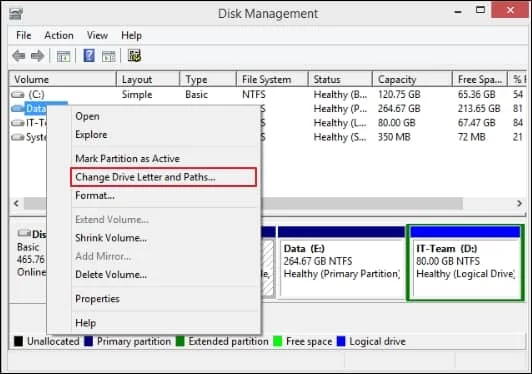
- Click on the Add/Change and choose the letter from the drop-down.
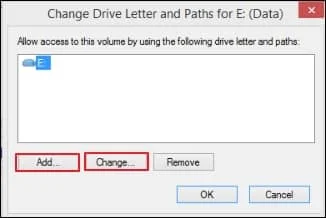
- Next, click OK to proceed.
Solution 5. Try Handbrake Utility to Rencode the Video Files
Use the HandBrake tool to re-encode the video files to resolve corruption related to headers, footers, synchronization, or video frames. Here are the complete steps to fix Dash Cam videos that won’t play using the open-source utility.
Step 1.Install and access the software on your system.
Step 2. Click on File to select the Dash Cam videos.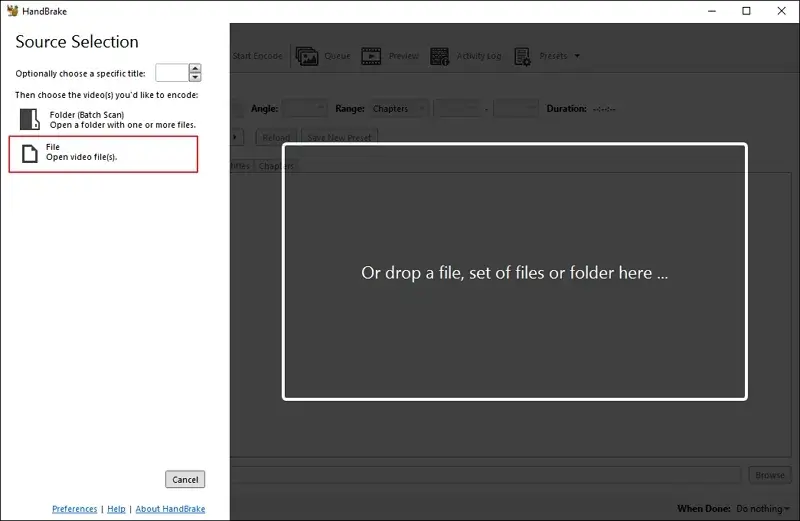
Step 3. Locate the Summary tab and enable the Web Optimized option.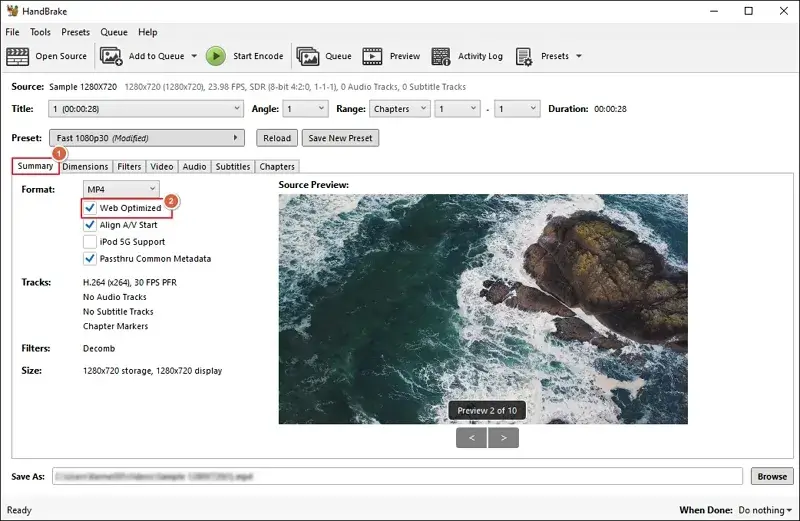
Step 4. Select the H.264 (x264) option under the Video section.
Step 5. Then, Browse to provide the file saving location.
Step 6. Click on the Start Encode option to begin.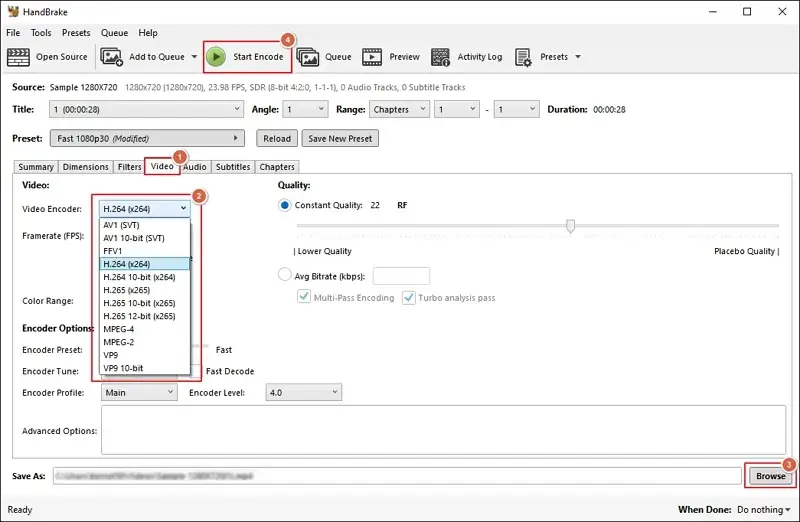
Step 7. Wait for the process to complete.
Step 8. Try to play the video file again to check whether the issue is resolved or not.
Got No Results With Manual Solutions? – Try This Out
The discussed manual methods (like VLC or HandBrake) can help you fix Dash Cam videos not playing issues to a certain extent. However, they may fail to repair highly corrupted or damaged video files.
To counter all limitations, our specialized Recoveryfix Video Repair tool is more suitable to tackle all video-associated issues. The software can restore a wide range of inaccessible videos from any camera model without compromising the hierarchy or integrity of the data.
Ending Notes
We have provided comprehensive knowledge to fix Dash Cam videos not playing issues using both native and automated solutions. You can try manual ones for fixing minor corruption and the recommended ones for severely damaged video files. Therefore, the specialized approach is preferable to overcome the issue, even if the video file is blurred or severely corrupted.
FAQs: Your Queries, Addressed Here
Q- Does the Dash Cam video not playing mean the recording is lost forever?
A- Not necessarily. In most cases, footage becomes temporarily inaccessible due to software or storage issues. You can restore them with suitable approaches.
Q- Can I recover Dash Cam videos from any severity level?
A- Yes, you can retrieve videos files from any severity level if data still exists. Use the native ways for basic recovery and professional tool for severe recovery of video files.
Q- Will repairing the Dash Cam videos reduce quality?
A- It depends on the methods you use for repair. Manual solutions might reduce the video quality, but the video repair tool retains it.
Q- What should I do after discovering a corrupted video recording?
A- Do the following things to increase the chances of footage recovery:
- Stop using the SD card.
- Backup the original video file.
- Perform all repair attempts on copied files.
- Avoid recording new videos to prevent overwrites.