Methods to Fix “Error Loading Media: File Could Not Be Played”

Updated On - August 13, 2026
- Disable VPN or Proxy temporarily.
- Check your internet speed & stability.
- Update the browser to its latest version.
- Open the video in Incognito or Private Mode.
- Refresh the Webpage or restart the browser.
- Try to access the same content on a different browser.
You click play expecting the video to start, but one frustrating error message appears.
Error loading media: File could not be played.
Before assuming your video is lost, there are several fixes worth trying. Here, we will cover those suitable approaches along with the possible causes that help you play your videos again. Stay with us to get all related information in a structured way.
How to Fix Error Loading Media File Issue Manually? [Best 5 Ways]
Check out this section to find the most appropriate solutions to fix the error. Note that all the provided methods are for the Chrome browser. If you use another one, then the steps may vary.
Method 1. Clear Browsing History, Cookies, & Cached Data
Browsers store temporary data to load websites faster. But over time, browser history, cookies, and cache data become outdated and interfere with required scripts. So, clearing them with the steps below will fix error loading media file:
Step 1. Access the Chrome browser and click on three dots.
Step 2. Go to History section to proceed.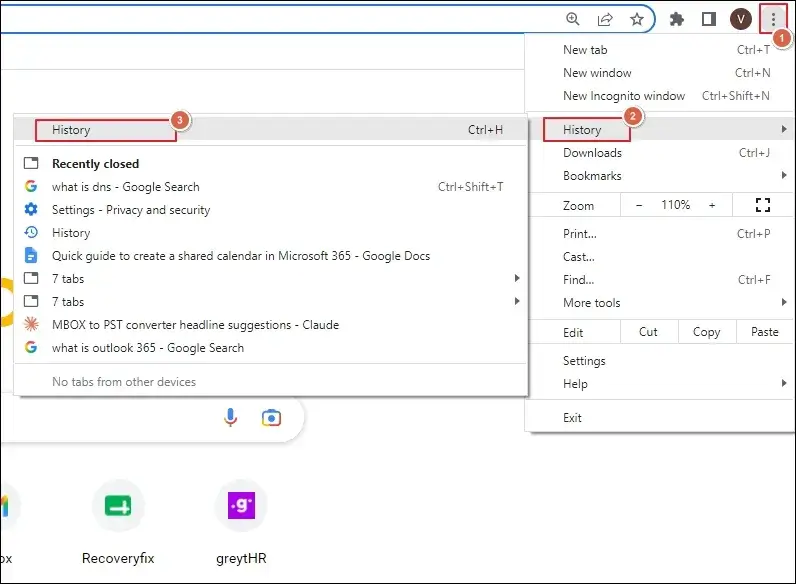
Step 3. Tap on the Clear browsing data option.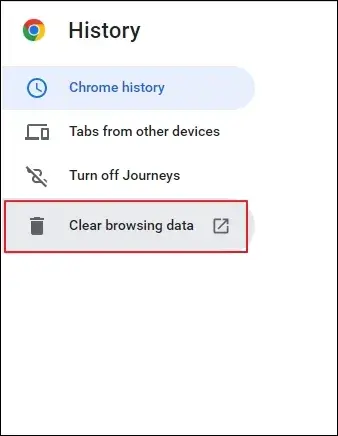
Step 4. Choose the Time range as All time and check these boxes:
- Browsing history
- Cookies and other site data
- Cached images and files
Once done, proceed to Clear data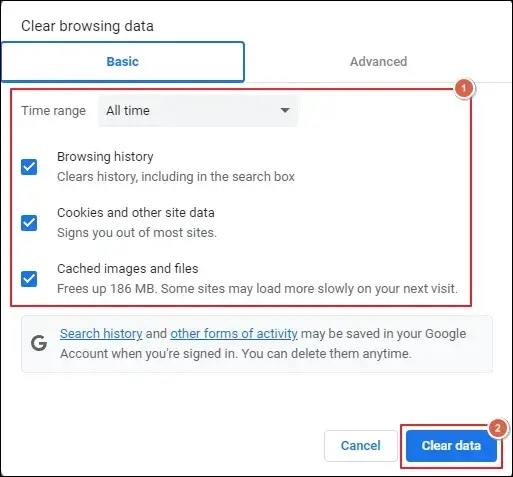 .
.
Step 5. It will remove all the stored data.
Method 2. Remove Installed Extensions From Browser
Browser extensions may change webpages, block scripts, filter content, or interfere with media requests. As a result, “Error loading media: File could not be played” appears. Remove them temporarily to resolve the error:
Step 1. Go to Settings and locate Extensions.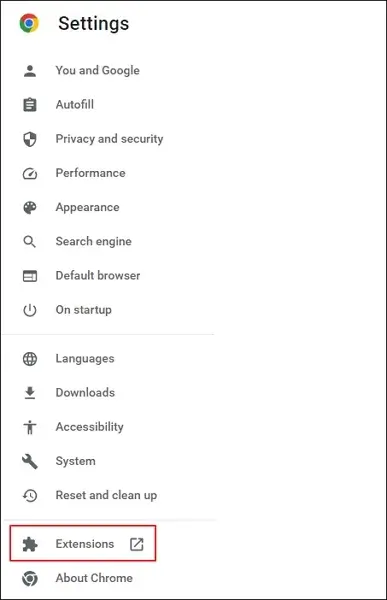
Step 2. Remove the installed Extensions temporarily.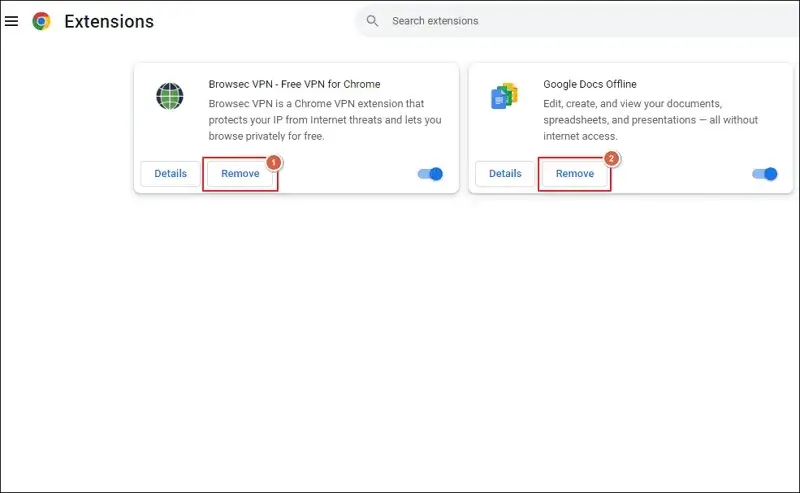
Step 3. Try to play the video again.
Step 4. If it plays without error, then the issue arises due to faulty extensions.
Step 5. Add the extensions one by one to find the faulty one.
Method 3. Enable JavaScript For Site Permission
JavaScript permission is necessary for websites to load the player, request & authenticate the media stream, or control playback. So, enable it now to fix the related issues.
Step 1. Navigate to Privacy and security under Settings.
Step 2. Click on Site settings to proceed.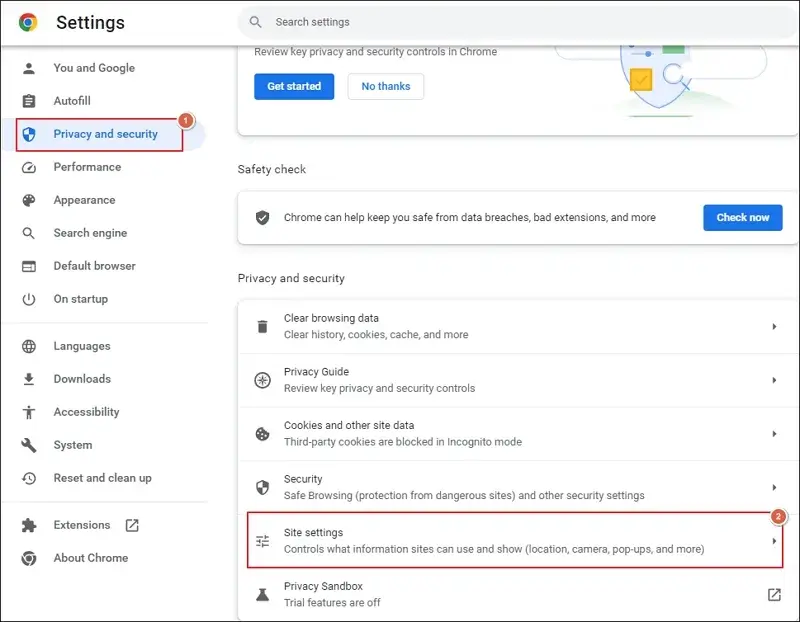
Step 3. Then, go to the JavaScript section.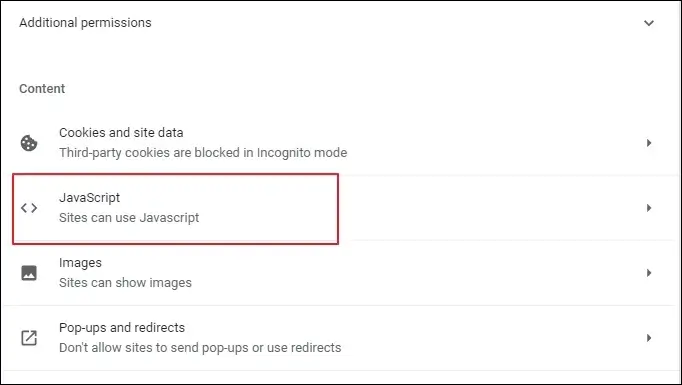
Step 4. Enable the Sites can use Javascript option.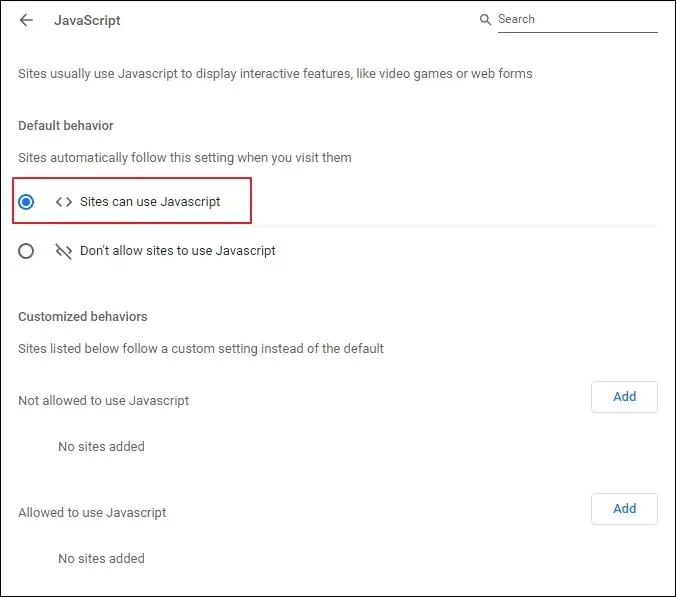
Method 4. Disable Hardware Acceleration In Browser
Graphic driver or GPU compatibility can sometimes interfere with video rendering on browsers. So, turn off hardware acceleration to fix error loading media file issue. Here’s how:
Step 1. Go to Settings and locate System.
Step 2. Disable the Use hardware acceleration when available option.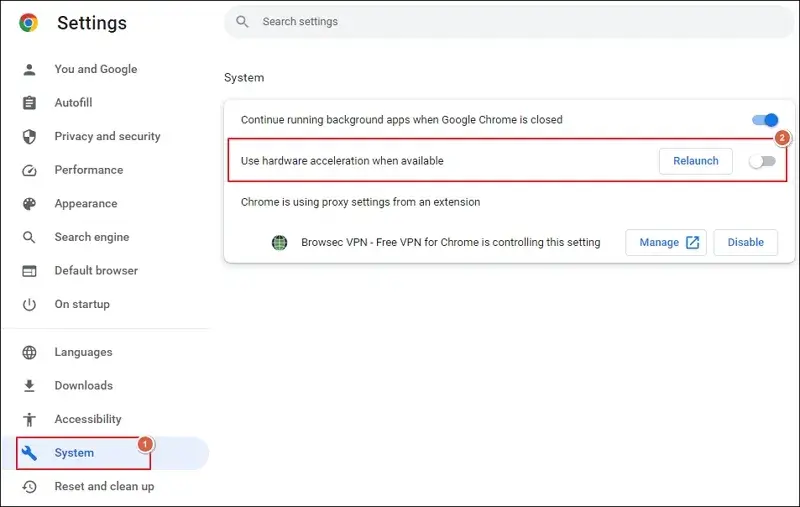
Step 3. Relaunch the browser to save the applied settings.
Step 4. Play the video and check whether the issue is resolved or not.
Method 5. Reset Chrome Browser to Default Settings
Misconfigurations or problematic experimental flags of the browser can interfere with media decoders. Resetting the Chrome to default settings will help you fix the issue. To do the same, use the steps below:
Step 1. Access the Settings to begin.
Step 2. Locate the Reset and clean up section.
Step 3. Restore settings to their original defaults to proceed.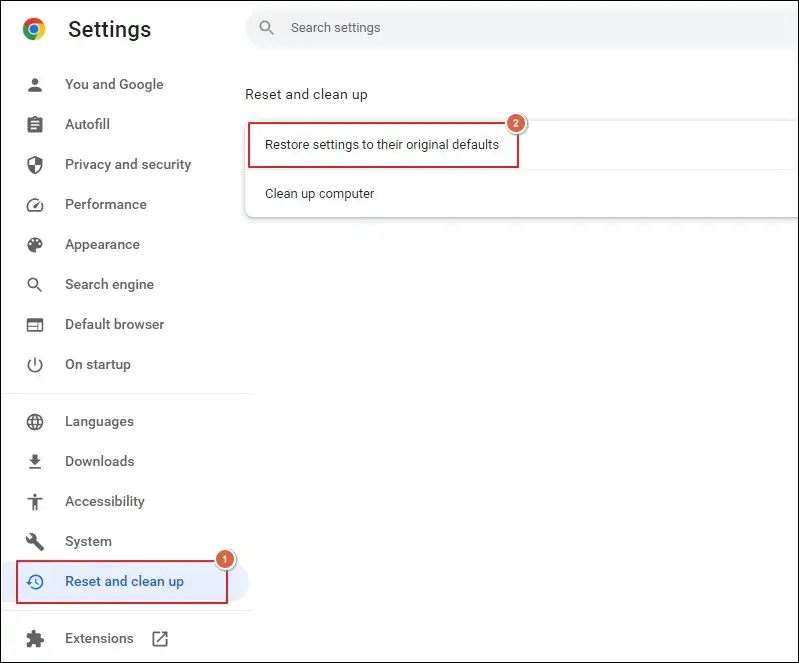
Step 4. Click on Reset settings in the confirmation wizard.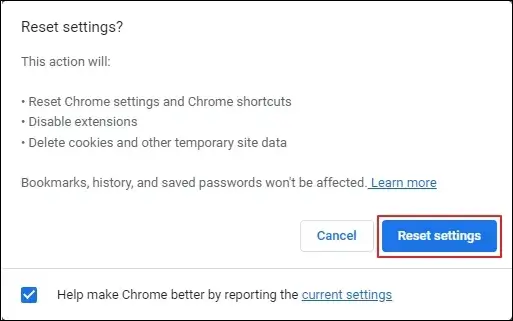
What if All Native Methods Fail? – Try the Alternate Approach
You have tried all the provided solutions and are still facing the same “Error loading media: File could not be played” issue? To fix it, you can download the video file to your local system to enjoy smooth playback.
However, if the downloaded file fails to play in multiple video players, then the file is damaged or corrupted. For this, you can check out our Recoveryfix Video Repair tool to fix it. The video repair tool supports all the available video formats to repair and restore them in their original quality.
Ending Notes
Here, we have discussed a structured approach to fix the “Error Loading Media File Could Not Be Played” issue while streaming videos. You can apply the methods in a sequential manner to get the desired results.
But if those methods fail, then downloading and playing the video locally is the best solution. Furthermore, go with the recommended solution to handle the video related issues, like repairing blurred videos.
You can easily restore video files from any device such as GoPro, CCTV, DSLR, or drones.