EDB to Office 365: Try the Best Available Options

Updated On - December 18, 2024
On-premises Exchange Server to Office 365 migration often needs to transfer mailbox data stored in EDB files. The Exchange Database [EDB] file contains mailbox components such as emails, contacts, calendars, attachments, & folder structure. But Office 365 doesn’t support importing an EDB file directly. Hence, it is necessary to convert EDB to Office 365-supported format, i.e., PST.
Check out this easy walkthrough in which you will get all the necessary information, including why this conversion is needed, with practical methods to import EDB file safely.
Note: EDB files are stored on the Exchange Server & accessed through Exchange Servers, unlike Office 365.
Why do I migrate Exchange EDB to Office 365?
Here is the list of the basic reasons that drive users to move from Exchange to Office 365:
- Increases the performance & scalability.
- Makes email administration simple & easy.
- Allows for providing remote workforce access.
- Enhance the backup reliability & data security.
- To move into a cloud-based email infrastructure.
- Helps in reducing the Exchange server maintenance cost.
Challenges to migrate Exchange EDB to Office 365 [Major Ones]
Explore all the challenges that users can face to import EDB into Exchange 2010 [or new version] & Office 365:
- Time-consuming for large mailbox sizes.
- Need correct permissions & configuration.
- Office 365 doesn’t support direct EDB import.
- Risk of data loss & theft if performed improperly.
- Requires Exchange Server or a conversion method.
Basic Guidelines to move from Exchange EDB to Office 365
Follow the provided guidelines to import EDB file into Office 365:
- Backup Exchange database.
- Assign proper admin permissions.
- Test migration with small mailboxes.
- Maintain stable internet connectivity.
- Verify Office 365 licenses & configuration.
- Monitor the migration process till its completion.
Method to convert EDB to Office 365 [Workable-One]
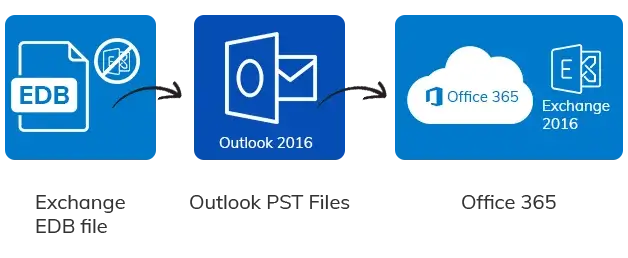
If you want to export your EDB mailboxes to Office 365 cloud, then you must follow two steps: first, you have to export the EDB file to PST and then import the PST files to Office 365.
- Step 1: Export EDB mailboxes to PST
- Step 2: Import PST files to Office 365
Step 1: Export EDB mailboxes to PST
To export EDB files to PST, you can use two methods.
- Using PowerShell cmdlets
- Using Exchange Admin Center
However, before using the above methods, you have to assign Mailbox Import Export Role to the user, and you have to make sure that your PST saving location is a shared network path.
Using PowerShell cmdlet
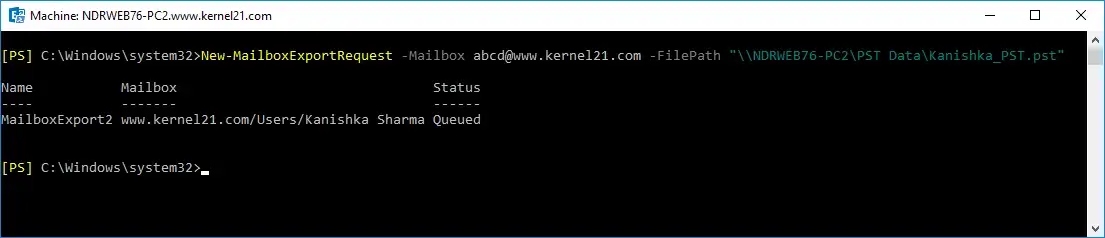
To convert EDB files to Outlook PST, you need to open Exchange Management Shell as an administrator and execute cmdlets in the following syntax.
New-MailboxExportRequest -Mailbox “username” -FilePath \\ServerName\SharedFolder\Filename.pst
- username is the name of the mailbox you want to export.
- FilePath is the file saving destination.
Once you have executed the above PowerShell command, your EDB mailbox gets exported to Outlook PST.
Note: When Exchange Server is available, but the database is disconnected, you can use the Exchange Recovery Database to recover the database. Then, use PowerShell to export mailboxes in PST format.
Using Exchange Admin Center
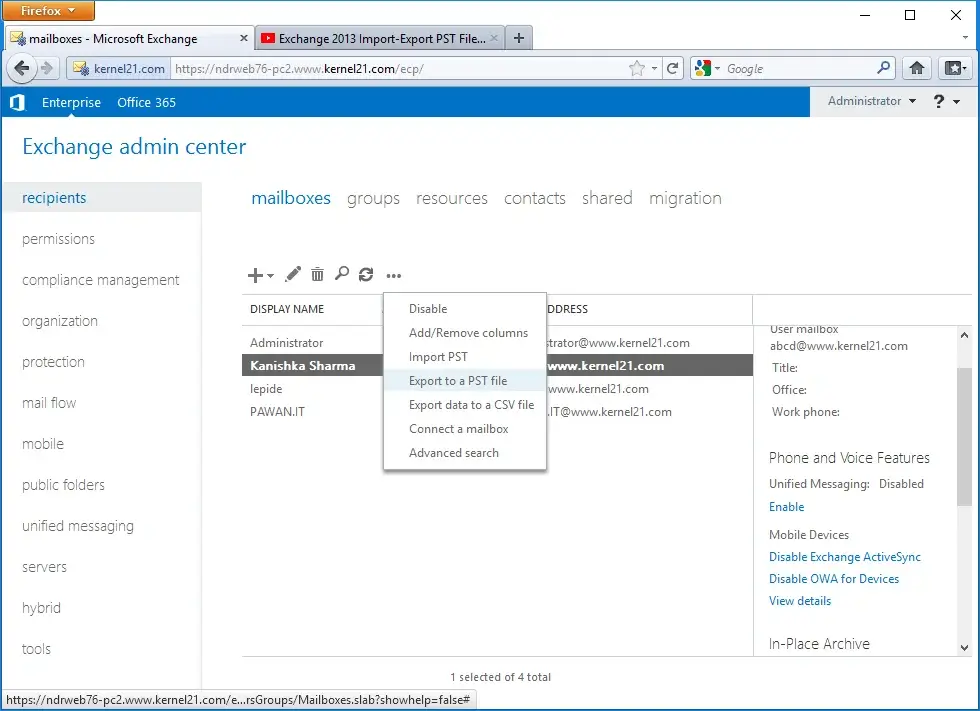
You can use Exchange Admin Center to export your EDB files to PST. Just go to recipients>mailboxes, select the desired mailbox and right click on it. Then choose Export to a PST file option. Later, provide a location to move this EDB file to PST.
Step 2: Import PST files to Office 365
Two methods are there to import PST file to Office 365 without paying a single buck.
- Network Upload method
- Drive Shipping Method
Network upload method
To use this method, you need to download and install the Azure AzCopy Tool. With the use of this tool, you can quickly upload PST files to Office 365. This Network Upload method to import PST files to Office 365 involves the use of the Azure AzCopy tool, SAS URL, cmdlets, mapping file, etc. You need to take proper care of the steps while executing them, as one improper step can lead to data loss situations.
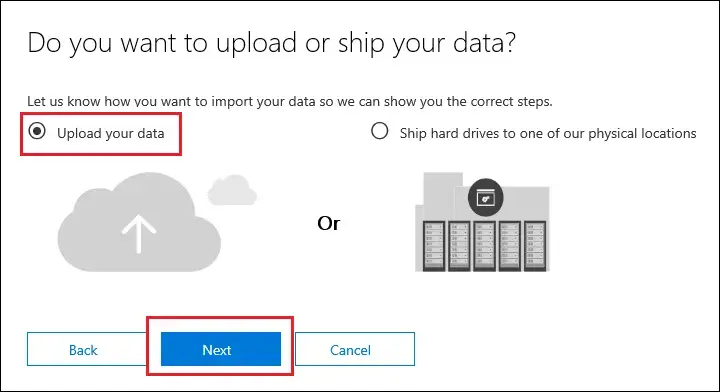
Drive shipping method
In the drive shipping method, you have to save your data in a hard disk and physically ship it to the Microsoft data center. In the Datacenter, Microsoft will upload your data manually to the cloud. Again, this method to import PST to Office 365 needs to be performed accurately and patiently to achieve the results.
Important to know: You can also take the help of Exchange Server Hybrid Migration or IMAP migration to migrate Exchange server data to Office 365 directly.
Common issues during EDB to Office 365 migration
Users may encounter the following errors during the Exchange to Office 365 conversion:
- Prompting mailbox mapping issues.
- Delays in the large mailbox conversion.
- Permission errors & migration failures.
- Network interruptions during the process.
An easier method to export EDB mailboxes to Office 365
It may be clear that going with the manual solutions for crucial data might not be the safest option. Hence, to save you from the complicated and long manual processes to move from Exchange to Office 365, professionals recommend using a smart tool.
Recoveryfix is known for its range of excellent services in the cloud sector, like Exchange Server Recovery software, which can directly export EDB files to Office 365. It comes with all the innovative features that make the migration smooth & efficient with no data loss. This tool offers a swift and accessible functionality for direct migration and helps you in solving Exchange Server errors, such as Exchange error content index state failed and suspended.
Outstanding features of the Exchange Server Software
Let’s explore major features of the Exchange Server recovery software:
- Recover bulk mailboxes from Exchange Database files instantly.
- Provide error-free recovery of even deleted Exchange mailboxes.
- Offers dual scan mode for successful results: Standard & Deep Scan.
- Restore corrupt Exchange mailboxes in the original state without data loss.
- Save the results in the Live Exchange Server, Office 365, & Outlook profile.
- Retrieve public folder & archive mailbox from the Exchange Database files.
Conclusion
Hopefully, the blog has covered all the needed information to migrate EDB files to Office 365 successfully. It includes reasons, guidelines before migration, manual methods, challenges, & an automated solution. You can go with the suggested advanced software for 100% accurate results in no time. Check out the free trial version of the tool to migrate EDB files to Office 365 & test its core features.