De-Mail Shutdown in 2026: Back Up & Transfer Your Emails Now

Published On - June 10, 2026
Are De-Mail usernames no longer a reality? This will be true in a few months as 31st December is the deadline for its shutdown. Now, imagine you open the inbox & discover that years of important communications, official documents, invoices, legal notices & personal records are no longer accessible.
With the De-Mail shutdown approaching, now is the right time to secure your mailbox data.
Get along with this article for the safest methods and ensure a smooth transition to a new platform with minimum data loss.
| De-Mail Ending Timeline | Impacts on its Functionality |
| December 31, 2026 | Final Shutdown [Services Stop] |
| January-March, 2027 | Read-Only Access [View Only] |
| After March 2027 | Permanent Deletion [No Recovery] |
Common Reasons Behind De-Mail Shutdown or Failure: It is introduced as a secure electronic communication platform. But its limited users’ adoption, complexity in usage, operational burden, & limited compatibility make it less prominent among users.
Why is there a need to back up De-Mail Data immediately?
Check out the importance of taking a backup of the De-Mail mailbox data:
- Uninterrupted access to historical records.
- Prevent permanent data loss after De-Mail discontinuation.
- Smooth email migration when moving to another email provider.
- Keep important attachments, like contracts and tax documents, safe.
Read more about how you can back up other IMAP-based email clients, like BlueYonder, Yahoo, Gmail, Virgilio, etc., locally.
The End of De-Mail: Back Up & Transfer Your Emails Now Manually
As De-Mail reaches its end, you want important emails, attachments, and records in a safe place. To back up De-Mail mailboxes, you can use other email clients like Outlook, Gmail & Thunderbird.
Before choosing a method, here’s what most users experience in real life:
| Method | User Reality |
|---|---|
| Email Forwarding | Fine for a few emails, frustrating when hundreds need to be moved. |
| Auto-Forwarding | Helps with new emails but leaves old mailbox data behind. |
| Outlook/Thunderbird | Better for large mailboxes but requires manual setup and monitoring. |
| Gmail Import | Convenient, but you have little control over what gets transferred. |
| Save as EML | Useful for preserving a few critical emails locally. |
Use the Professional Email Backup & Transfer Option [Safest One]
Choosing an automated solution will reduce the risk of manual De-Mail exit & provide a successful result without prior installation of any email client. All these discussions end with the question “Which software should we choose?”
For users who want a faster and more controlled backup process, dedicated IMAP backup software can simplify the migration. Recoveryfix IMAP backup can be the most suitable option as it covers a wide range of features with a good success rate. You can back up any IMAP-based email client into different formats like PST, EML, PDF, etc. Let’s understand the steps to know how it works:
Step 1. Install & launch the tool. Hit the Add option to sign your IMAP account.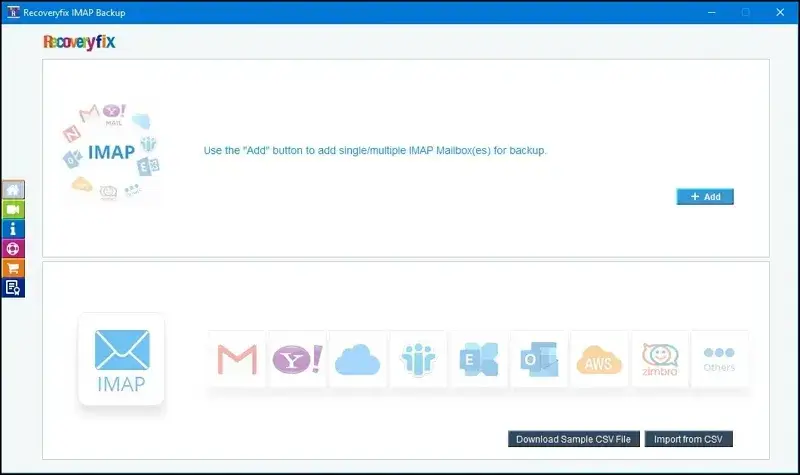
Step 2. Provide Server Name/ IP address, user ID, password, & port number on the next page. Click on Add. 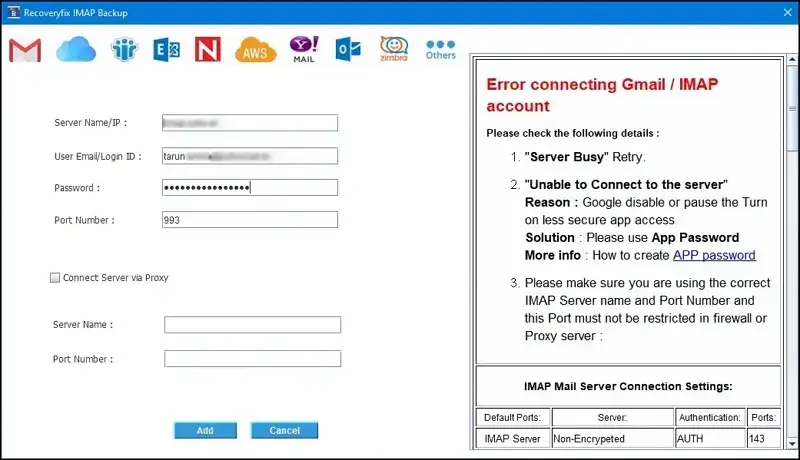
Step 3. Select the account & tap on the Set Filter and Backup tab.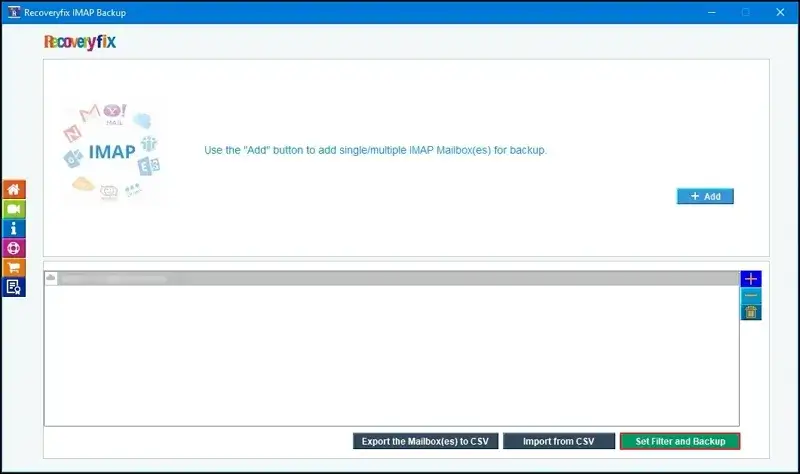
Step 4. Apply the filters like date filter, exclude deleted folder items, etc. Then hit the Start backup tab.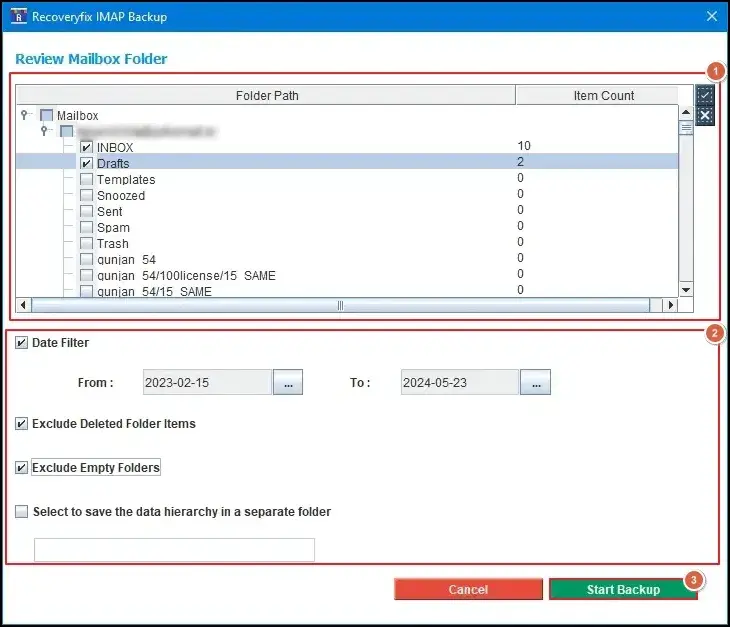
Step 5. Choose the PST format for saving the backup file & hit OK.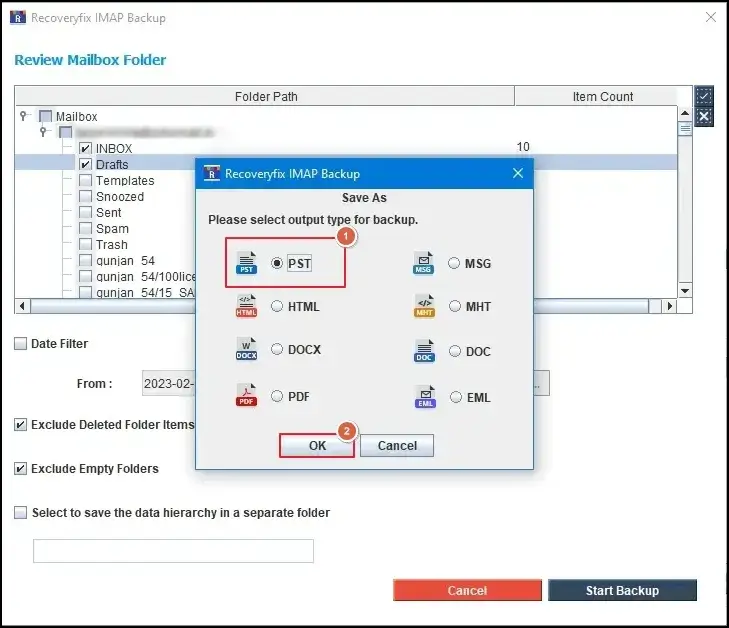
Step 6. Browse the saving location & tap on the Select Folder option.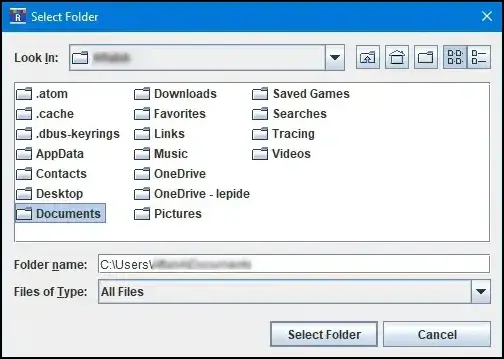
Step 7. It will start the backup process. 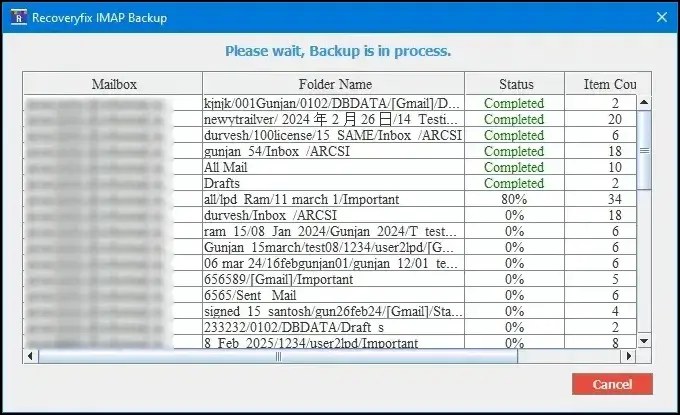
Step 8. Once the process is completed, access the saved location directly with the prompted link.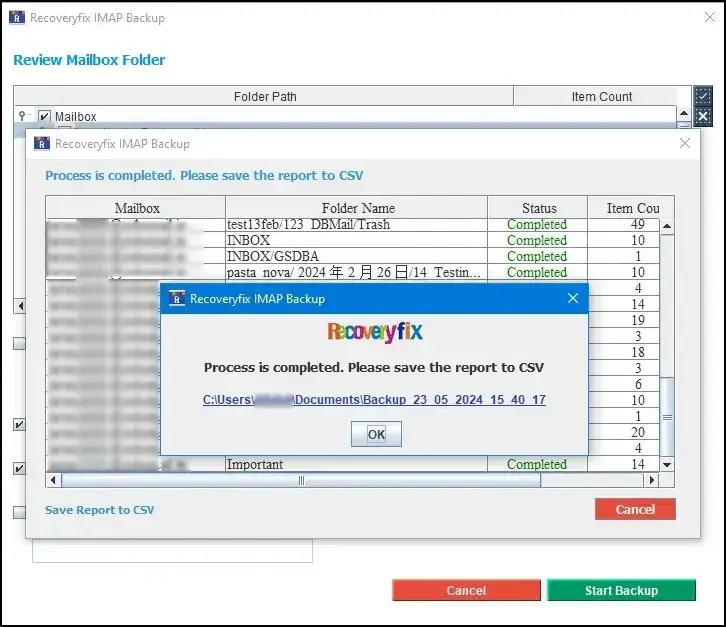
Know Common Mistakes to Avoid
Here are some common mistakes that users should take care of:
Mistake 1. Waiting until the final weeks
Since large mailboxes may require significant time to backup & verify, you need to take action in time.
Mistake 2. Ignoring attachments
Don’t ignore attachments, as it contains the most valuable information.
Mistake 3. Skipping Verification
It is always recommended to review backup files after export.
Mistake 4. Using only one backup copy
Maintaining multiple copies of critical data will keep you on the safer side.
- Loss of email access.
- Loss of attachments.
- Permanent loss of important records.
- Inability to access historical communications.
FAQs
Q- Will my De-Mail account automatically transfer to another provider?
A- No. Users are responsible for backing up & migrating their own mailbox data before the De-Mail shutdown.
Q- How much storage space should I reserve for a mailbox backup?
A- It depends on the mailbox size & attachment volume. Business mailboxes often require Gigabytes of storage.