How to Convert IMAP Emails to PST Format? – Step-by-Step Guide

Updated On - August 13, 2026
You are an IMAP Mail user and want to access your mailbox data offline? So converting them into EML format can be your ideal approach. These files are easy to share and access from various email applications. However, IMAP emails to EML format seem riskier when critical business conversations are involved.
Therefore, the guide will help you execute the entire conversion process with the most appropriate solutions.
Why Convert IMAP Emails to EML Format?
EML files have their own benefits, which you can avail yourself of by converting your emails. Here they are:
- Easily migrate emails from one platform to another.
- Archive email communication for future reference.
- Email backup protects data from accidental deletion.
- Creates individual email records for legal and compliance.
- Retain mailbox data before account closure or service termination.
- Keeps a permanent copy of important messages for data preservation.
Important Steps Before You Convert IMAP Emails to EML Format
Make sure to complete the provided actions before you start the conversion process to avoid in-between problems.
- Keep your email credentials ready.
- Enable IMAP Access from your email account.
- Confirm that you have sufficient storage space available.
- Always maintain a backup of the mailbox data before conversion.
- Check that the mailbox is accessible and synchronized completely.
- Note down important IMAP configuration settings for email sign-in.
Read More: Learn proven methods to backup an Apple Mail to an external hard drive.
Manual Method to Convert IMAP Emails to EML Format
Thunderbird application is the most common and effective way to convert mailbox data in EML format. You can follow the given steps to save data.
Step 1. Install Thunderbird and launch the application.
Step 2. Go to Settings > Account Settings > Account Actions > Add Mail Account.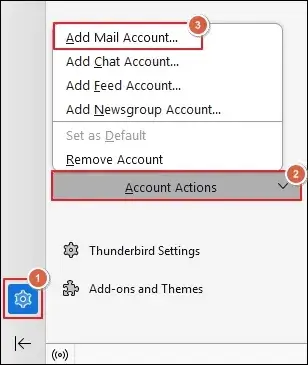
Step 3. Type Your full name, Email address, and Password in the respective spaces.
Step 4. Then, proceed to Configure manually option. 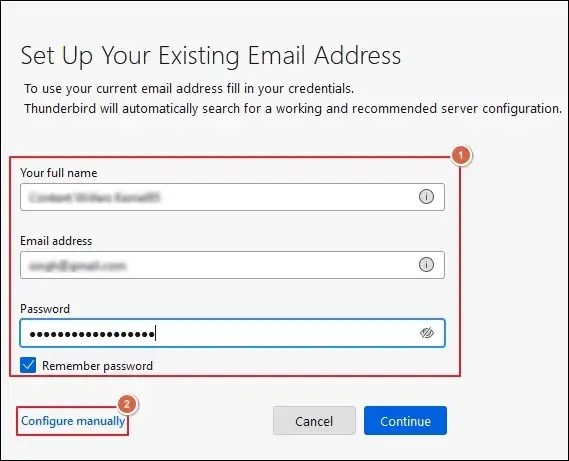
Step 5. Enter the required Manual configuration settings and tap on Done.
Step 6. Navigate to Menu and proceed to Add-ons and Themes. 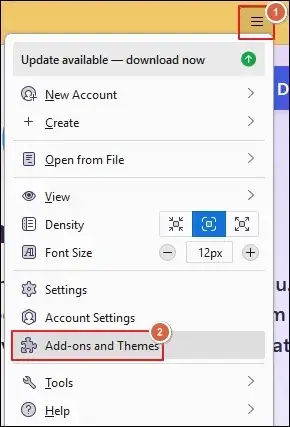
Step 7. Click on addons.thunderbird.net to continue further.
Step 8. Search for ImportExportToolsNG and hit the green arrow.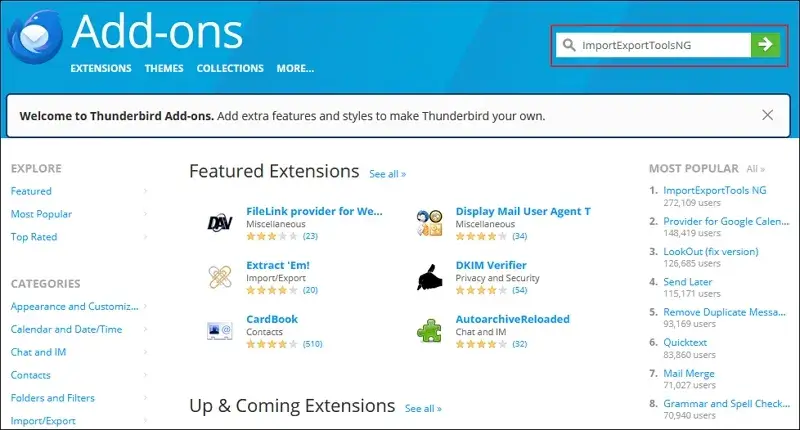
Step 9. Tap on Add to Thunderbird to proceed.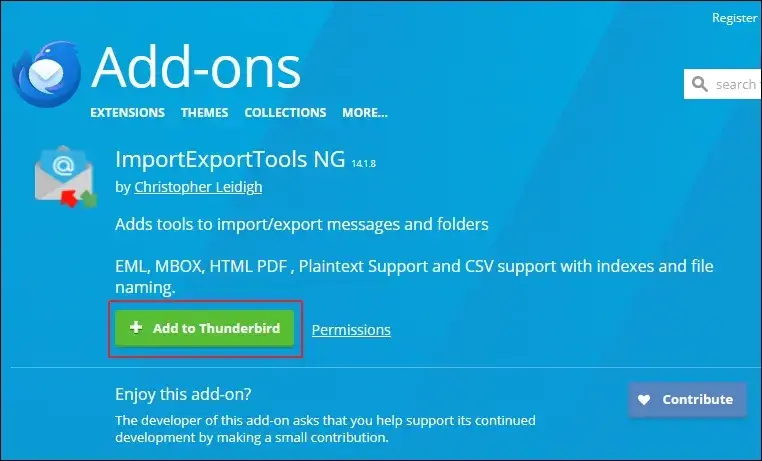
Step 10. Click Add on the confirmation wizard.
Step 11. A notification appeared that the add-on has been added.
Step 12. Right-click on the mailbox folder and go to ImportExportToolsNG.
Step 13. Select the Export All Messages In Folder option to continue.
Step 14. Choose the EML Message Format and proceed to Messages And HTML Index. 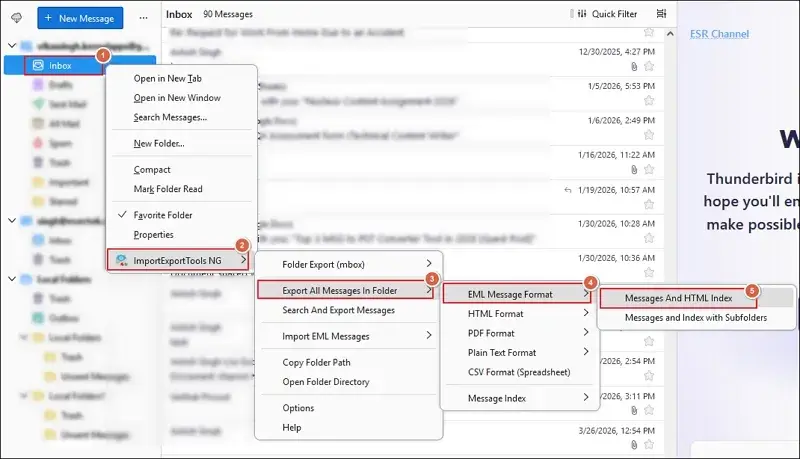
Step 15. Select Folder to save emails locally.
Step 16. It will start the export IMAP to EMLX files process.
Native Approach Seems Lengthy? – Try the Other Approach Now
The manual method works best when the mailbox size is limited. But it may fail to maintain the same results during the enterprise-level conversion of IMAP emails to EML format. Also, the selective backup of emails is missing in the native approach.
You can skip all these flaws by relying on advanced tools like Recoveryfix. The IMAP Backup tool helps convert multiple IMAP accounts to EML format in a few clicks. It supports multiple IMAP servers for easy data export from different email providers.
Ending Notes
Here, we have provided a detailed solution to convert IMAP emails to EML format. You can apply the instructions to access or store individual email messages locally along with the IMAP Server.
Thunderbird is free but not suitable for large mailboxes, multiple accounts, or business environments. So, go with the recommended solutions to export data on a large scale. Also, it helps you to backup Yahoo emails, Gmail emails, or other IMAP emails in their original structure.
FAQs: Quick Answer Section
Q- What are the different ways to backup IMAP to EML format?
A- There are two effective ways to backup IMAP emails:
- Thunderbird application, free but exports limited data.
- Professional tools, paid but suitable for large mailbox data export.
Q- Does storing emails in EML format preserve the original formatting?
A- Yes, EML files store a complete email message along with its attachments, formatting, and metadata.
Q- Can the Thunderbird application allow me to save specific data from an IMAP account?
A- Yes, the Thunderbird allows folder-level selection to export IMAP mailbox to EML format. For more precise filtration, use tools like Recoveryfix.
Q- Is it possible to export deleted emails from IMAP accounts?
A- Yes, only if they still exist in the synchronized folders. You have to select the folders that contain the deleted emails specifically to save them.