How to Transfer Hotmail Emails to Another Account?

Updated On - June 18, 2026
First, look at the glimpse of the Hotmail journey for a better migration understanding and concerns.
| Important Dates | Related Events |
|---|---|
|
1996 |
Launched as a free web-based email client that is ISP-independent. |
|
1997 |
Hotmail was acquired by Microsoft Corporation. |
|
2013 |
Retired Hotmail brand & services migrated to outlook.com. |
Although @hotmail.com is still active, users prefer to transfer Hotmail emails to another account for better services and support.
But the question is, how to do the same?
Our new write-up will help you get all the related information that is necessary for migration.
Find Reasons: Why Export Hotmail Emails to Another Account?
Additional benefits and specific requirements are the primary causes behind the export. We have listed the most frequent ones in the below section:
- Professional email address creation.
- Multiple account data consolidation.
- Backup email messages data on different platforms.
- Storage limitations, account security, and accessibility issues.
- Migrate from the old Hotmail account to Outlook/other platforms.
- Create mailbox backup for added security.
- In the Hotmail account, enable IMAP settings.
- Verify and keep your accounts credentials ready.
- Before you transfer data, remove unwanted email contents.
- Prepare a list of data (you want to migrate from Hotmail).
- Make sure the target email account has sufficient available space.
4 Best Ways: How to Transfer Hotmail Emails to Another Account Manually?
Go through this section carefully to find various methods to migrate data. Analyze each method to apply the most suitable one for your situation.
Way 1. Forward Hotmail Emails to Another Account
This method is for those who want to keep both accounts live and manage emails from destination. Check out the below steps:
Step 1. Go to Outlook.com and Sign in with your Hotmail account.
Step 2. Click on the Settings to proceed.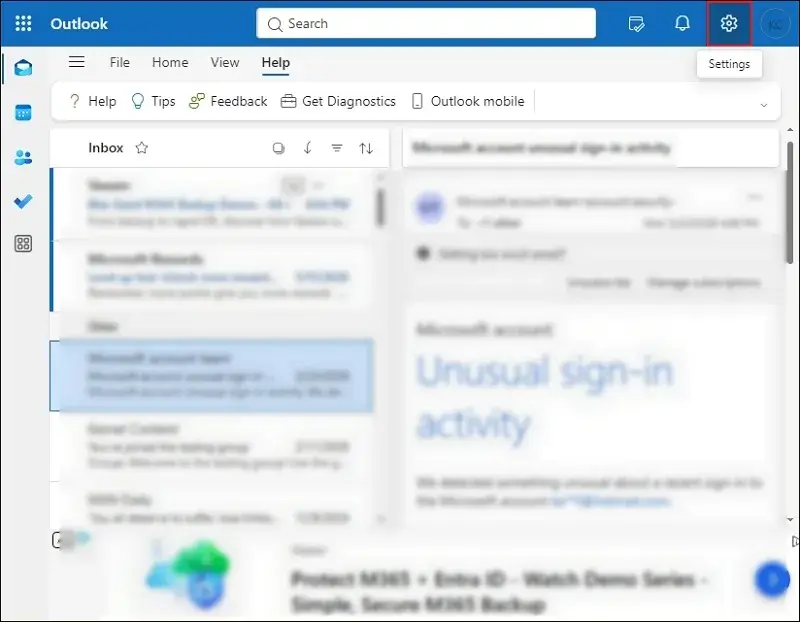
Step 3. Navigate to Mail and proceed to Forwarding and IMAP.
Step 4. Enable forwarding option and enter the targeted email address.
Step 5. Check the Keep a copy of forwarded messages box and Save.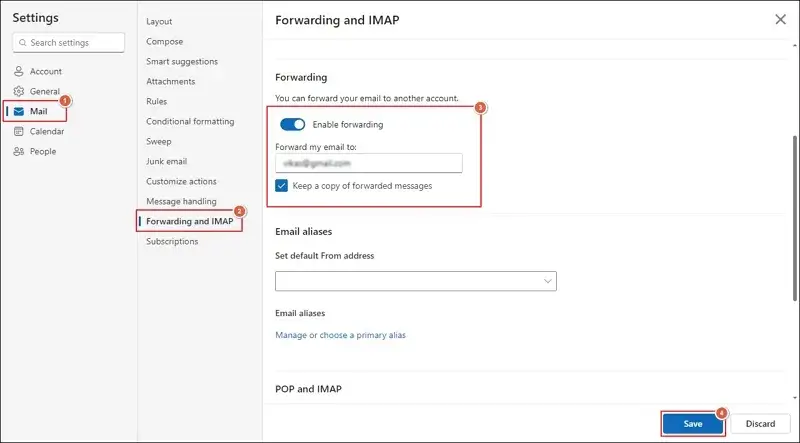
Step 6. This will forward emails from one Hotmail account to another.
Way 2. Move Hotmail Emails Via Import Feature [If Target Is Gmail]
The method is applicable when you are migrating emails from Hotmail to Gmail. So, follow the steps below to do the same.
Step 1. Access your Gmail account and click on the Gear icon.
Step 2. Then, hit the See all settings options.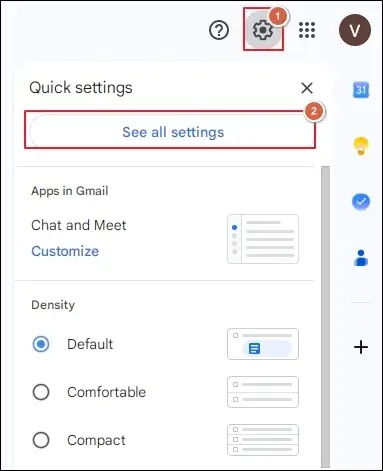
Step 3. Go to Account and Import and tap on Import mail and contacts.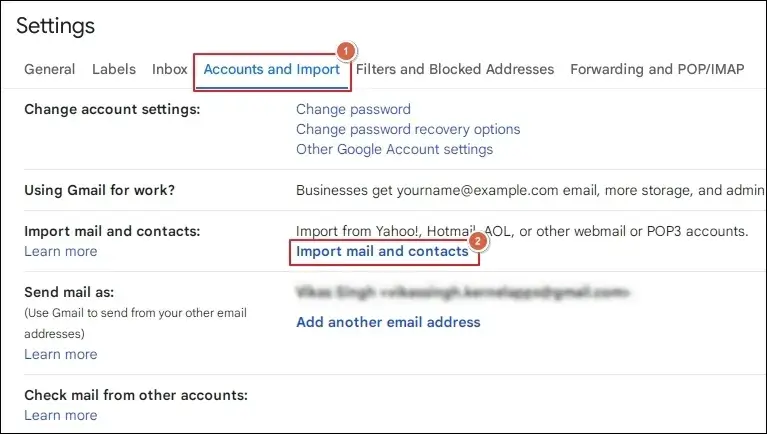
Step 4. Enter the email address to Continue. 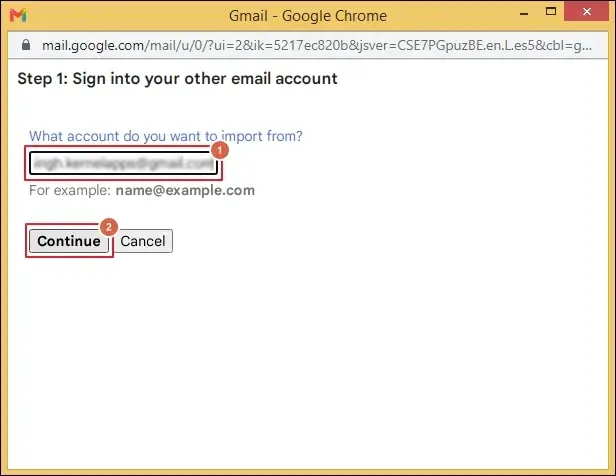
Step 5. Press Continue to follow on-screen instructions. 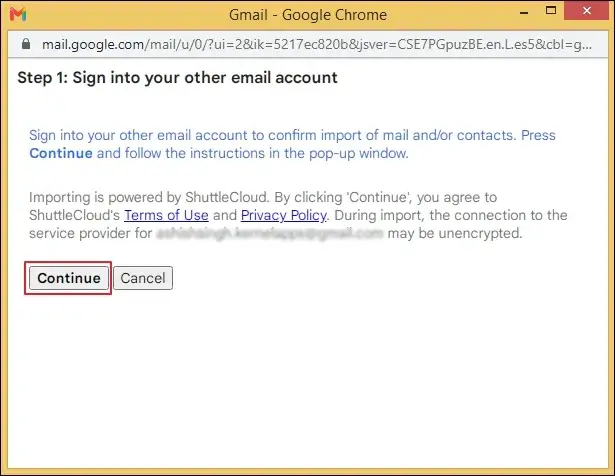
Step 6. Once completed, verify the imported emails.
Way 3. Use the Outlook Application to Migrate Hotmail Emails
Use the below steps to migrate Hotmail emails to Outlook and other email accounts.
Step 1. Launch Outlook to begin the migration.
Step 2. Access the File tab and hit the Add Account option. 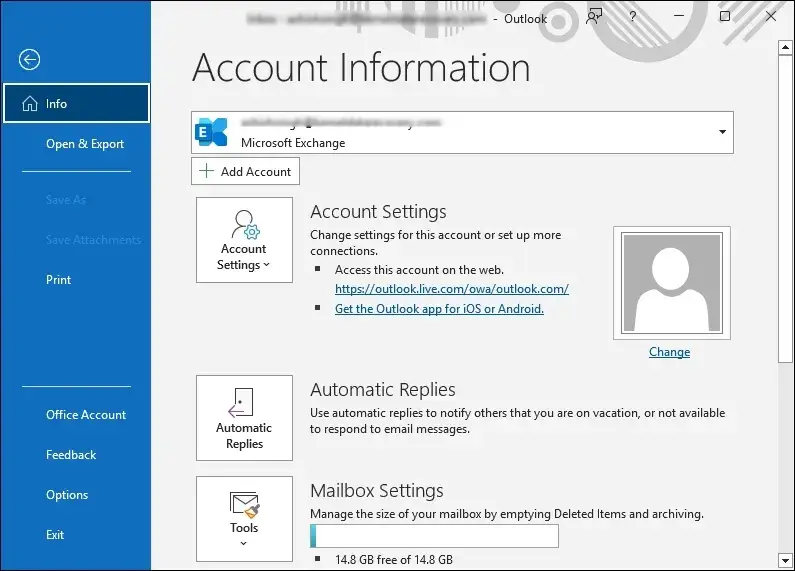
Step 3. Type your Email address and go to Advanced options.
Step 4. Check the Let me set up my account manually box and Connect.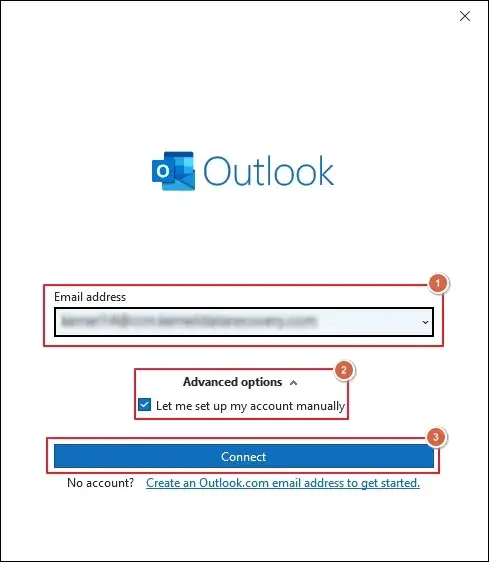
Step 5. Under Advanced setup wizard, proceed with the IMAP option. 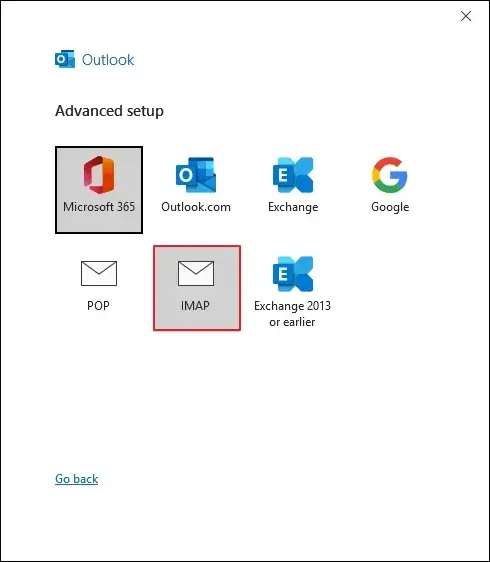
Step 6. Enter the required details in the IMAP Account Settings window. 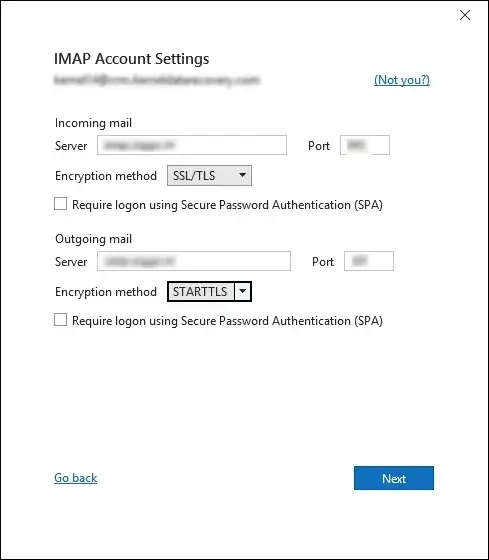
Step 7. Type your Password in the appeared wizard to Sign in.
Step 8. On successful authentication, click on Done.
Step 9. Follow the same steps to set up the target account.
Step 10. Drag and drop the folders from the Hotmail account to the destination account.
Step 11. Repeat the same steps until the desired folders are moved.
Way 4. Export Hotmail Emails to Another Account Using Thunderbird
Mailbox migration via Thunderbird is another reliable method and here are the steps to follow:
Section 1. Configure Hotmail Account & Export Mailbox Content
Step 1. Open Thunderbird and navigate to Settings.
Step 2. Click on Account Settings to proceed.
Step 3. Expand Account Actions and Add Mail Account. 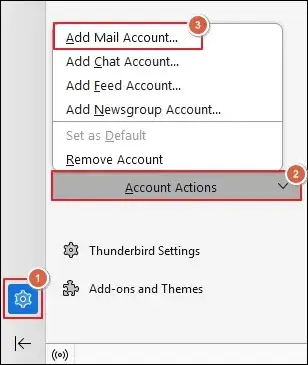
Step 4. Enter the following details in the relevant boxes:
- Your full name
- Email address
- Password
Then, proceed to Configure manually. 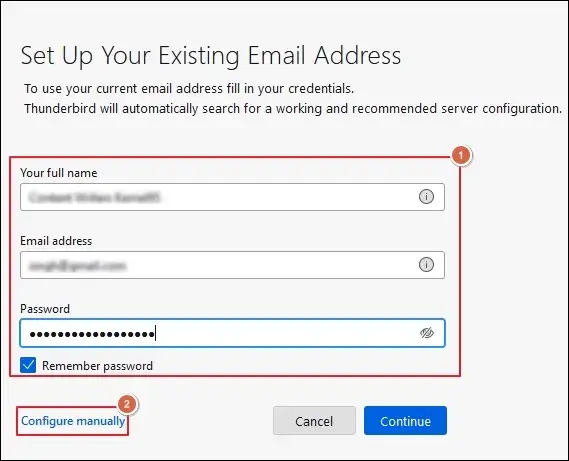
Step 5. Provide all the necessary details and hit Done.
Step 6. Go to the Menu bar and select Tools > Export.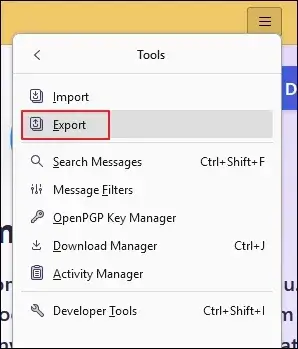
Step 7. Hit the Export option to Save mailbox data locally.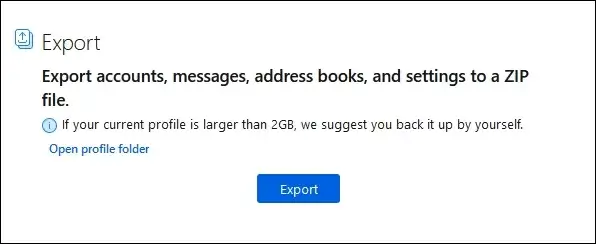
Section 2. Import the Exported Data to the Targeted Email Account
Step 1. Set up the destination email account to proceed.
Step 2. Access the Menu > Tools > Import.
Step 3. Go with the Import from a file to Continue. 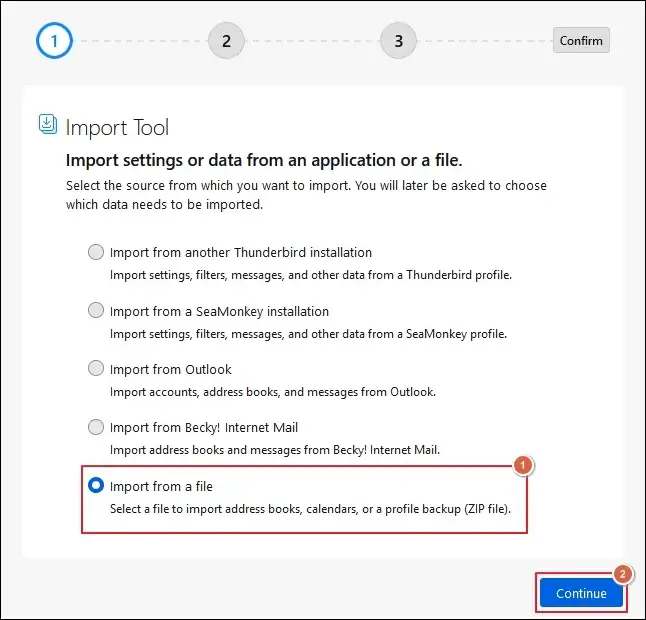
Step 4. Choose the Import Backed-up Profile and click Continue. 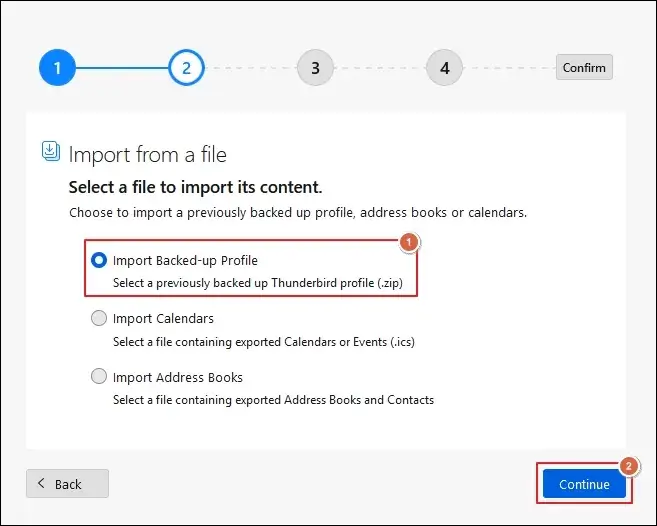
Step 5. Hit the Choose a ZIP file option and tap on Continue. 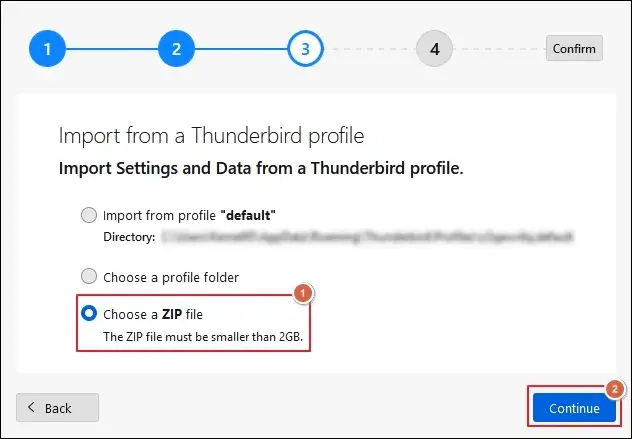
Step 6. Select the recently backed-up file to Open it.
Step 7. Choose what to import and proceed to Continue.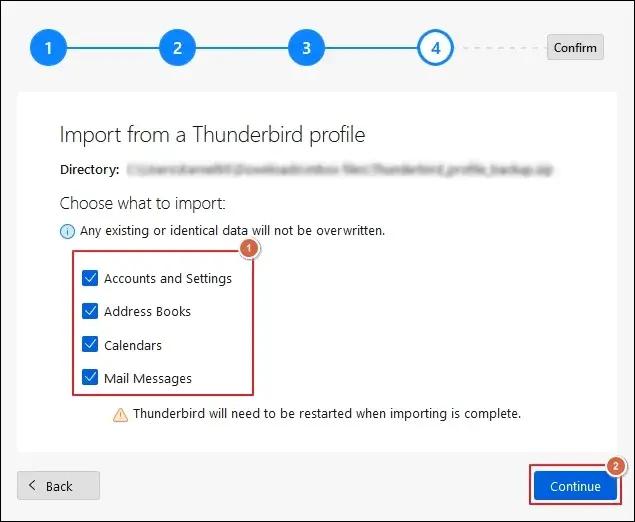
Step 8. Start Import process after confirming the selected data. 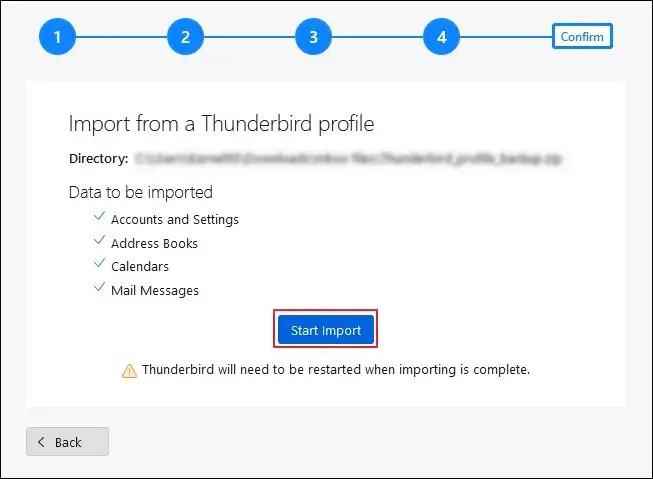
Step 9. After completion, tap on Finish button to restart.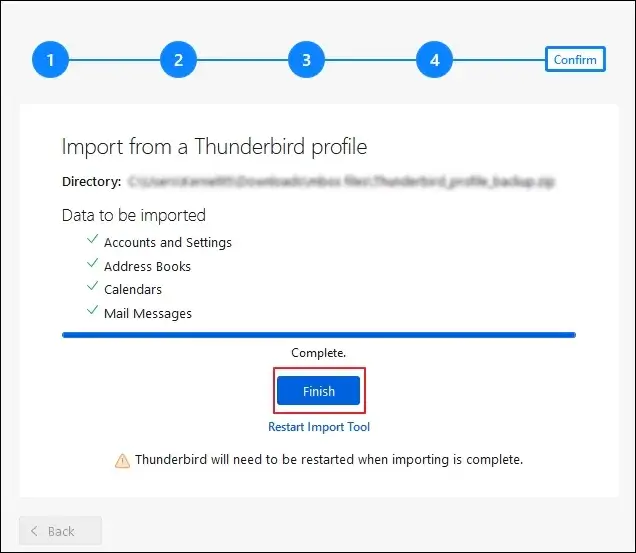
Related Article: Find Tested Ways to Migrate Zimbra to Carbonio Mail.
Why Not Try the Manual Approach to Skip Long Native Solutions?
Now, you know the available manual ways to transfer Hotmail emails to another account. But the below constraints may lead you to look for better alternatives:
- Authentication errors.
- Missing email messages.
- Duplicate mailbox items.
- Slow migration performance.
- Unpreserved folder structure.
Avoid all of these by choosing Recoveryfix IMAP Migration tool. The software simplifies the entire procedure and migrates large datasets directly to the destination account.
Ending Note
To conclude, migrating mailbox items from a Hotmail account isn’t as complicated as you think. With the right methods, you can transfer Hotmail emails to another account. The blog focuses on that to help users like you by providing all the relevant information.
As per us, use manual solutions for moving limited mailbox items and automated ones for large-scale data transfer. To know more about the tool, take the free trial today.