Backup Emails from Telenet Webmail [With High Success Rate]

Published On - June 9, 2026
Your Telenet Webmail inbox may contain important business communications, invoices, account information, and personal conversations that you cannot afford to lose. To protect this data, you must keep a backup and save it from any mishaps like accidental deletion, mailbox issues, and more.
With a proper Telenet backup, you get the flexibility to access your messages offline. In this article, we will offer you the best methods to backup emails from Telenet webmail.
Why is it Important to Backup Telenet Webmail Emails?
Look at some advantages that users get after using the Telenet Webmail email backup process:
- Protection against accidental deletion, which offers additional safety.
- Offers long-term email retention for legal or compliance purposes.
- No need for internet connectivity to access backed-up emails.
- Local backups simplify the future migration across platforms.
- Don’t forget to create a dedicated location for storing the backup files.
- Confirm the IMAP or POP configuration for the best backup approach.
- Ensure a sufficient amount of storage space for a smooth backup process.
- Check account credentials like email address, password, server settings, etc.
Top Ways to Backup Emails From Telenet Webmail
This section will help you with some manual adjustments through which you can backup Telenet Webmail emails to a computer.
Way 1. Take the Help of Outlook [Most Preferred Option]
It is one of the most suitable methods to create a local email backup. With its Import/Export feature, users can easily execute the process. Here are the steps:
Step 1. Open Outlook & add Telenet Webmail emails in Outlook by configuring its account.
Step 2. Now, go to the File tab once the mailbox synchronization is completed.
Step 3. Tap on the Open & Export > Import/Export tab. 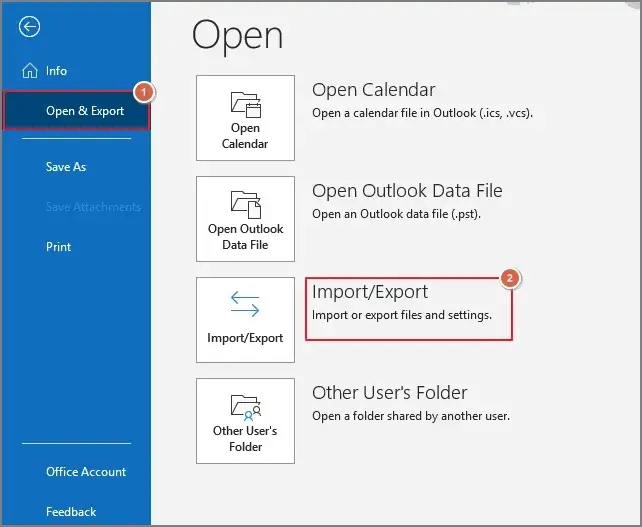
Step 4. Choose Export to a file & hit Next.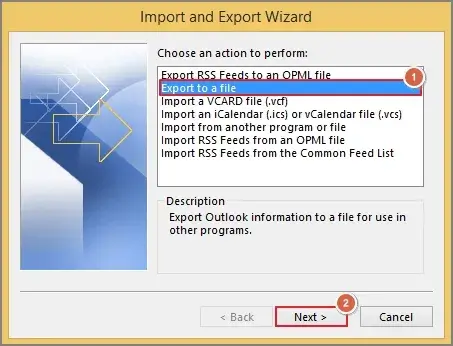
Step 5. Select the Outlook data file (.pst) & tap on Next.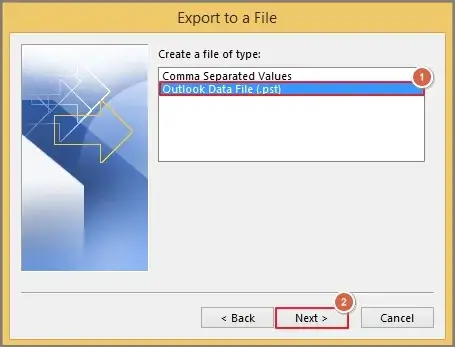
Step 6. Select the desired folders to export from along with the suitable subfolders & then hit Next. 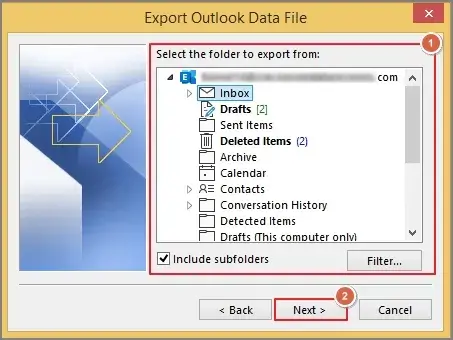
Step 7. Browse the saving location with suitable Options. Click Finish to complete the process.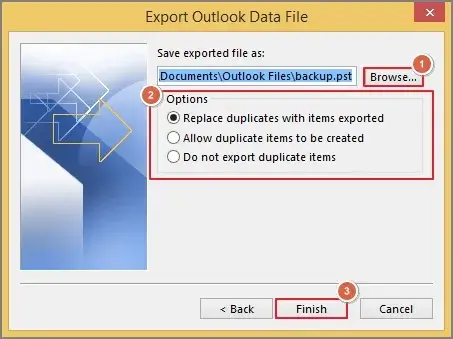
Way 2. Backup Telenet Webmail Emails with the Help of Thunderbird
Mozilla Thunderbird also offers an alternative free option for users who do not use Outlook. Check out the steps to know how it works:
Step 1. Add the Telenet Webmail account using the IMAP or POP settings.
Step 2. Allow Thunderbird to download all mailbox folders completely.
Step 3. Navigate to the Thunderbird profile directory & backup the folder at the desired storage space through copy/paste operations.
- For Windows:
C:\Users\
\AppData\Roaming\Thunderbird\Profiles\ .default - For Mac:
~/Library/Thunderbird/Profiles/
.default
Important to know: If you want to back up a limited number of Telenet Webmail emails, you can directly save them in different formats [PDF, EML, HTML, MBOX] corresponding to the platforms with their Save As option.
Want a Way Independent of Email Clients? Try this Option
There is no direct way to backup emails from Telenet webmail until you take the help of other email clients. But do you think going with the described manual approaches would be reliable & technically safe? The answer might be clearly “NO” as it can create other vulnerabilities like data loss, distorted folder hierarchy, etc.
But with the help of an advanced or professionally verified tool, like Recoveryfix IMAP backup, you can overcome all these vulnerabilities with minimal risk factor. It allows you to back up different IMAP-based email clients into multiple compatible formats like PST, PDF, HTML, EML, etc. You can even perform a bulk backup process & get specific output with its filters. The tool smoothly works on both Windows and Mac platforms.
General Issues During the Telenet Webmail Email Backup Process
Check out some common challenges that users often experience while backing up Telenet Webmail emails.
| Issue | Solution |
|---|---|
|
Incomplete mail synchronization |
Wait for complete synchronization before exporting. |
|
Missing Attachments |
Verify mailbox content before backup. |
|
Confirm account settings & login details. |
|
|
Large mailbox size |
Perform backups in stages if necessary. |
End Thoughts on Backup Emails from Telenet Webmail
The “backup Telenet Webmail emails to computer” process is a critical step in protecting valuable communication data. By using the Outlook or Thunderbird built-in utility, you can execute the process manually. However, choosing our professional tool can be the most affordable & certified option over others. Download its free trial version to verify its feature authenticity before purchase.
FAQs
Q- Does taking a backup of Telenet Webmail emails affect my original mailbox?
A- No. It is a common myth, but in actuality, it is not true as the process creates copies of emails & does not modify the source mailbox.
Q- How often should I back up my Telenet Webmail account?
A- The frequency depends on your mailbox activity. IT professionals recommend that users should perform weekly or daily backups for extra safety.