Issue Resolved: “Unable to Open Outlook Attachment”

Updated On - May 1, 2026
- Clear Outlook Temp folder.
- Turn off attachment preview in Outlook.
- Check OWA mailbox settings.
- Update Microsoft Outlook.
- Disable antivirus of your system.
Sending or receiving attachments by email is a common practice that users or organizations follow on a daily basis for effective communication. But, due to technical or application shortcomings, these attachments get stuck & display the “Unable to Open Outlook Attachment” error while accessing them. Addressing this issue might be a challenging task for the users. So, to simplify the process of fixing the issue, we will provide you with the best possible solutions. But, to identify the correct one, it is necessary to understand the significant reasons for displaying the error.
Causes of Having the “Unable to Open Outlook Attachment” Error
Usually, these errors occur due to some technical glitches or hardware malfunction. However, understanding the root cause of the error will help you address the issue efficiently. Hence, we have provided some of the major ones that might be responsible for this error:
- Default copies of temporary internet files have reached their storage limit.
- Outlook attachments become inaccessible when Outlook PST files are corrupt or inaccessible.
- While accessing the same Outlook attachments repeatedly.
- Due to security reasons, OWA has sometimes blocked some file extensions as attachments.
- Intervening of Default Security protocols might also increase the chances of getting this error.
- It might be possible that your system’s antivirus has blocked the attachments.
Top 7 Manual approaches to Fix the Issue
Upon analyzing the significant reasons, we have used several hit-and-trial approaches to encounter the issue. As a result, we have come up with 5 best possible solutions to fix the issue to a certain extent.
Solution 1. Change the Outlook Web Mailbox Policy
Outlook Web Applications, by default, block attachments having specific file extensions like .ade, .apk, .bas, .bgi, .crt, .der, .exe, .fxp, .grp, .htc, .img, .mdb, .reg, .url, .xnk & many more. So, if you are experiencing an issue like attachments in Outlook not opening, it might be possible that Outlook on the web restricts specific file extensions. Hence, you need to change the Outlook on the web mailbox policy to remove these restrictions by using the PowerShell command.
For understanding purpose, we have come up with an example to execute the PowerShell command for removing the .py file type from the Blocked File Types and Blocked Mime Types lists and adding it to the Allowed File Types and Allowed Mime Types lists:
Get-OwaMailboxPolicy | Set-OwaMailboxPolicy -BlockedFileTypes @{Remove = “.py”}
Get-OwaMailboxPolicy | Set-OwaMailboxPolicy -AllowedFileTypes @{Add = “.py”}
Get-OwaMailboxPolicy | Set-OwaMailboxPolicy -BlockedMimeTypes @{Remove = “text/py”, “application/py”}
Get-OwaMailboxPolicy | Set-OwaMailboxPolicy –AllowedMimeTypes @{Add = “text/py”, “application/py”}
Wait for a while, as it takes time to execute the commands & then try to access your attachments.
Solution 2. Turn off Attachment Preview option of Outlook
Using Outlook’s built-in facility also provides you an edge to tackle the issue. To access the attachments successfully, you have to turn off the Attachment Preview option. Therefore, follow the given steps to accomplish the process easily:
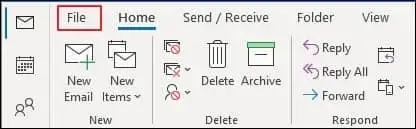
- Launch the Outlook application & go to the File option.
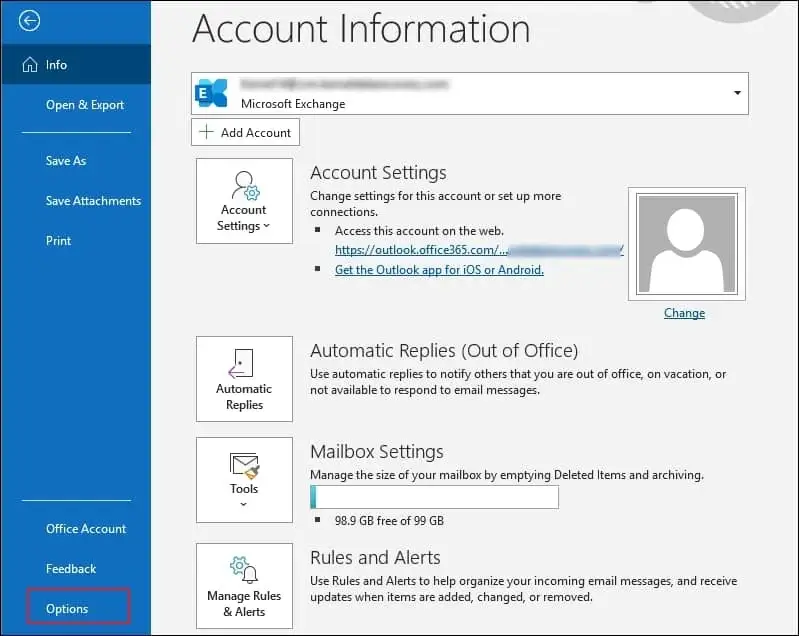
- Tap on the Options.
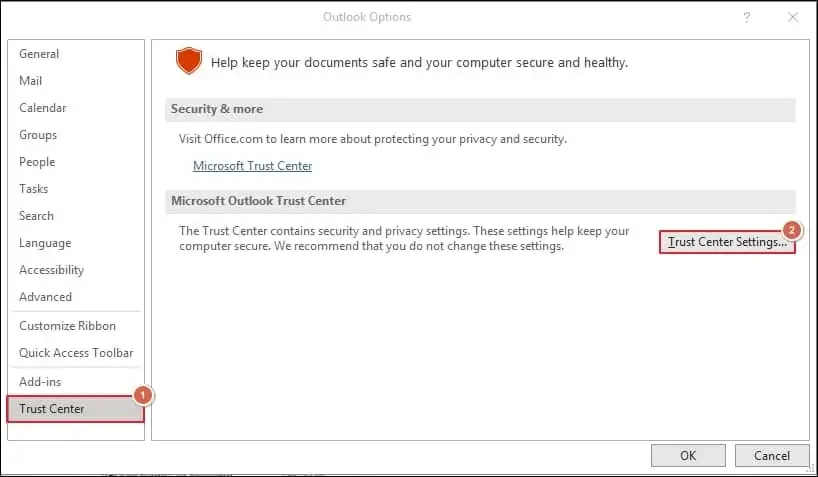
- Choose the Trust Center & select Trust Center Settings.
- Click on the Attachment Handling option, go to the Attachment and Document Preview section, check the Turn off Attachment Preview option & finally, click on the OK option.
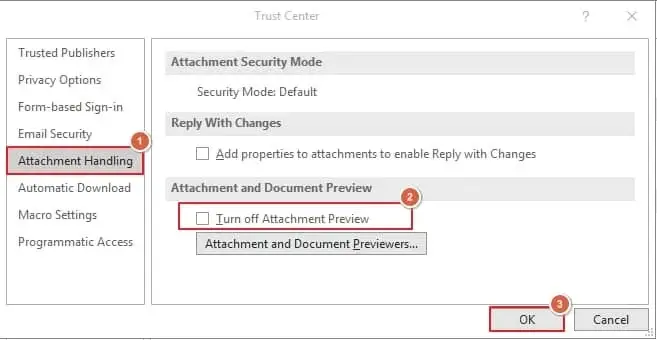
- Now, close the Outlook application & restart the Outlook application again & check whether you can access your attachment.
Solution 3. Clean the Temporary Internet File Folders
By default, attachments get saved in the subfolders of Temporary Internet File folders first while you download the attachments in Outlook. When this process goes on for a long time, its storage capacity reaches its maximum limit & then whenever you access the attachments further; it may display can’t open attachments in Outlook error. Therefore, you need to clear the folders to access the attachments. Hence, follow the steps given below to clean the Temporary Internet File Folders:
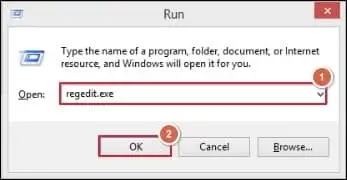
- Press the Windows+ R keys to open the Run utility, type regedit.exe & click on the OK option.
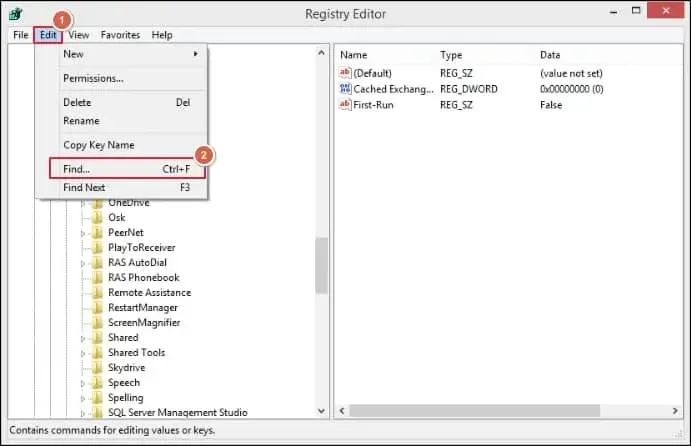
- Under Registry Editor tool, open the Edit tab & choose the Find option.
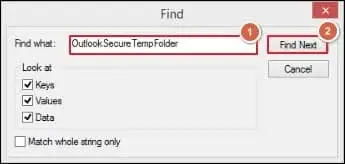
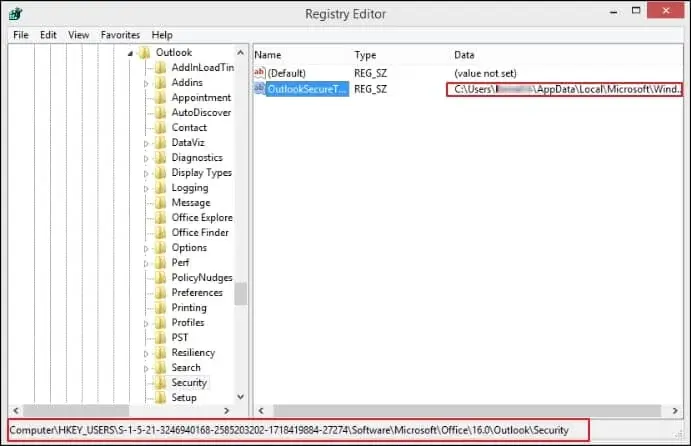
- Now, in the next window, type OutlookSecureTempFolder, followed by clicking the Find Next option.
- Find the registry key of the folder’s location & then copy it.
- Now, launch the Run feature, paste the folder’s location & press the Enter option to open the folder.
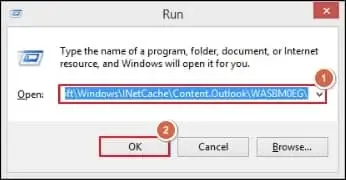
- Clean all the files that are stored in the folder. Restart the Outlook application & check whether you can access your attachments or not.
Solution 4. Disable Outlook Add-ins
Sometimes Outlook add-ins create issues while trying to view attachments. Follow the steps below to disable these add-ins easily:
- Launch Microsoft Outlook and click on Files > Options.
- Click on Add-ins in the new window and choose the COM Add-ins option. Then click on Go.
- Uncheck all the add-ins that are no longer needed and then click on OK.
- Restart Outlook for the changes to take effect and see if it resolved the issue.
Solution 5. Update Your Outlook Application
If the problem persists, then it might be due to some third-party software interference like your system’s antivirus application. Usually, antivirus applications mistakenly detect attachments as external threats, trojans, or malware attacks. So, they block that attachment. As a result, you will get a message unable to open the Outlook attachment error. Thus, to overcome these constraints, disable the application temporarily, download the attachment & then enable the application again.
- Launch the Outlook application & go to the File menu.
- Select the Office Account & choose the available Update options.
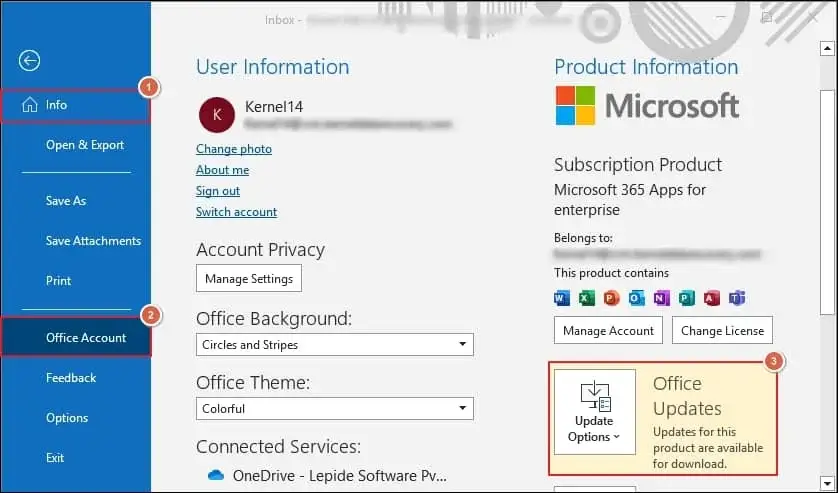
- After updating, check your attachments accessibility.
Solution 6. Run Outlook in Safe Mode
Running Outlook in safe mode allows users to access their emails without any issues.
- Press Win + R on your keyboard.
- Enter Outlook.exe /safe in the dialog box and click OK.
- Now try to access your email attachments once.
Solution 7. Disabling the Antivirus Application
If the problem persists, then it might be due to some third-party software interference like your system’s antivirus application. Usually, antivirus applications mistakenly detect attachments as external threats, trojans, or malware attacks. So, they block that attachment. As a result, you will get a message unable to open the Outlook attachment error. Thus, to overcome these constraints, disable the application temporarily, download the attachment & then enable the application again.
Using the Best Automated Tool to Resolve the Issue
Executing manual methods can help you resolve the attachments in Outlook not opening issues. However, it also makes your system vulnerable to security threats as you are dealing with the application settings. Additionally, if your attachments aren’t opening due to a corrupt Outlook PST file, then it’s important that you should repair it quickly. Thus, it is always beneficial or recommended to use a trusted Outlook PST Repair tool for a quick and error-free resolution.
Recoveryfix for Outlook PST Repair is one such tool that stands out as the best among professionals due to its robust algorithms. It helps users recover corrupted or deleted PST files with their complete mailbox items and save them in their desired email formats, including EML, MSG, PST, and many more. Its advanced filters, like splitting large PST files, help users manage their storage efficiently.
Final Thoughts
The blog has provided detailed solutions to fix the issue of can’t open attachments in Outlook. By following the steps mentioned, you will get satisfactory outcomes. However, to avoid any uncertainty and complexity, the recommended approach can be suitable for quick and error-free output. The user-friendly interface and effective results make this tool a one-stop solution to fix your Outlook PST file issues.
People Also Ask
Q- Why am I unable to open attachments in Outlook?
A- Maybe the Firewall or antivirus is causing problems or maybe your Outlook PST file is corrupt. Try to save the attachment to your PC and clear all the cache.
Q- Why are my PDF attachments not opening in Outlook?
A- There might be an issue with the file format or the file type may be blocked in your Outlook.