2026 Guide: How to Sync Google Calendars With Microsoft Outlook?

Updated On - July 24, 2026
- Import Google Calendar.
- Subscribe to Google Calendar.
- Two-Way Sync Google Calendar.
Stay with us to know detailed information about them to get complete access to your calendar events.
One missed calendar sync can lead to a canceled meeting. So, keeping Google Calendar and Outlook connected makes sure your schedule stays accurate wherever you work. Manually updating every event is the first thing that comes to mind, but that is not applicable at all. Therefore, the blog will guide you with different ways to sync Google Calendars with Microsoft Outlook for consistent schedules across platforms.
What Benefits Do You Get From Google Calendar to Outlook Synchronization?
You can add Google Calendar to Outlook and avail the below-listed advantages:
- Apply privacy control by choosing what you want to show.
- All reminders in a single ecosystem so you never miss any schedules.
- Native flexibility to access your schedules within the familiar interface.
- Eliminate double booking to update clients & coworkers with accurate status.
- Real-time updates (edits, cancellations, or new invites) with two-way sync for instant reflection.
Comparison Table: Distinguish Between Import, Subscribe, & Sync
The section below helps you find the basic difference between ways to sync Google Calendars with Microsoft Outlook.
| Feature | Import Calendar | Subscribe to Calendar | Two-Way Sync |
|---|---|---|---|
|
Copy existing events |
Yes |
Yes |
Yes |
|
Future updates |
No |
Yes |
Yes |
|
received automatically |
|||
|
Update made changes in Google Calendar |
No |
No |
Yes |
|
Shows made changes in Outlook |
No |
Yes (depends on refresh interval) |
Yes |
|
Supports editing from both applications |
No |
Usually No |
Yes |
|
Applicable for |
One-time migration |
View Google Calendar in Outlook |
Keep both calendars synchronized |
Key Takeaways:
- Use the Import solution to transfer events one-time.
- Go with the Subscribe method to only view the calendar in Outlook.
- Choose the Two-Way Sync to update changes in both calendars instantly.
Prerequisites: Do Before You Import Google Calendar to Outlook
It is always good to spend a few extra minutes to prepare the requirements to avoid setup errors and troubleshooting time.
- Identify your current Outlook version.
- Verify that you are connected to a stable network.
- Decide your final goal (view, import, or synchronization) first.
- Check whether the Google account is personal or Workspace.
- Before making any significant changes, backup calendar data.
- Review calendar permissions if modifying a shared or business calendar.
- Avoid multiple sync methods for the same calendar and save yourself from duplicate events or updates conflict.
Top 6 Manual Ways to Sync Google Calendars with Microsoft Outlook
After searching for a lot of methods, we have found several ways to access Google Calendar in Outlook. Each method has its own benefit, so try them all to figure out the most appropriate one for yourself.
A. Import Google Calendar
If you want to migrate entire mailbox data from Google to Outlook, including calendar schedules, then this method is for you.
Method 1. Import Google Calendar to Outlook
Here are the detailed steps to import existing calendar events to Outlook.
Step 1. Sign in to Google Calendar and navigate to the My calendars section.
Step 2. Click on three dots and proceed to Settings and sharing.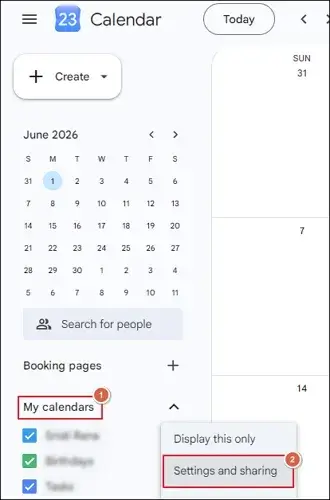
Step 3. Tap on the Export calendar option to get the ICS file.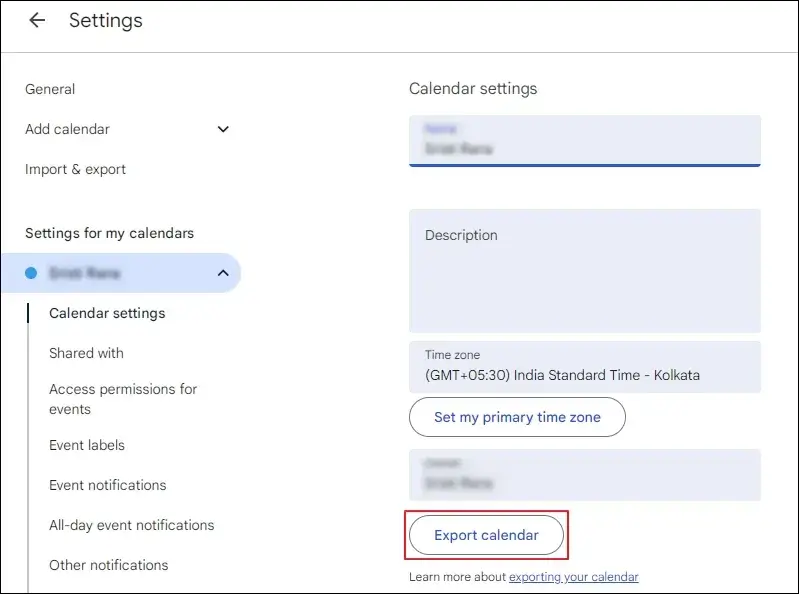
Step 4. Extract the ZIP file to access the calendar.
Step 5. Open Outlook and switch to Calendar view.
Step 6. Go to File > Open & Export > Open Calendar.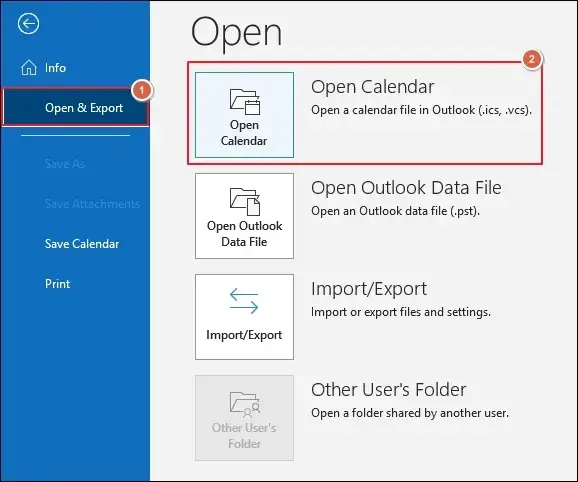
Step 7. Select the downloaded ICS file and click OK.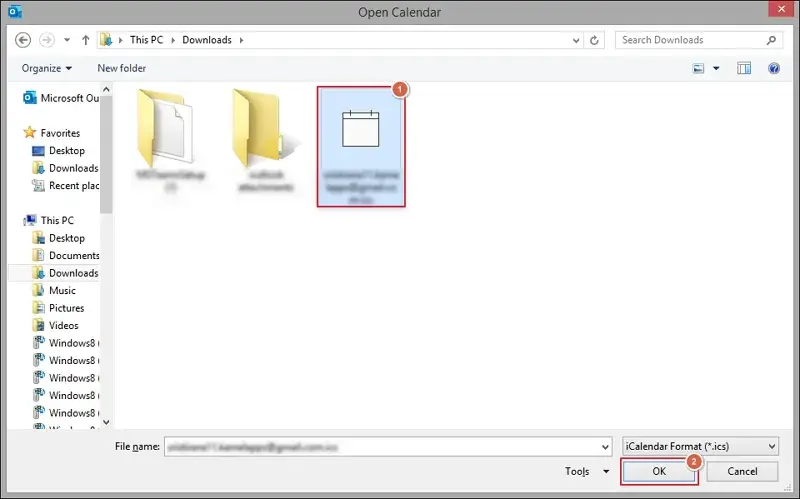
Step 8. Choose one of the available options:
- Open as New to create a separate calendar.
- Import to add events to an existing Outlook calendar.
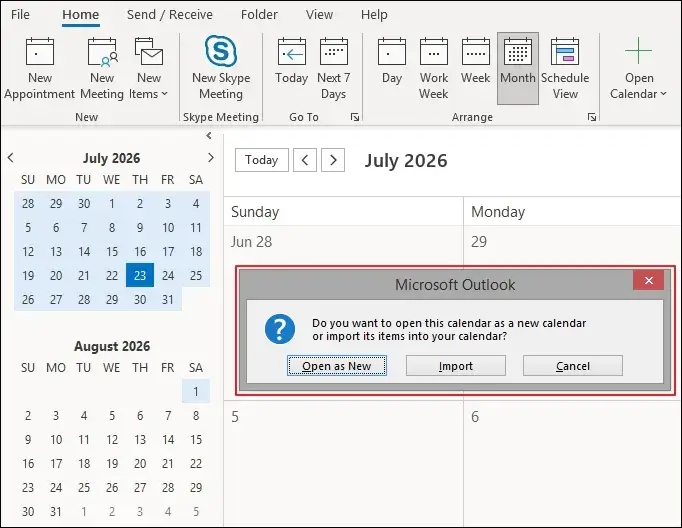
Step 9. Wait for the process completion and it will appear in Outlook.
Related Blogs: Know how to extract calendar data from OST files.
B. Subscribe to Google Calendar (View Only)
Go through the following methods to view events by performing Google Calendar synchronization with Outlook on different platforms.
Method 2. Add Google Calendar to Outlook Web Access (OWA)
Here’s how to sync Google Calendar to Outlook Web App.
Note: You can perform the same steps on the Windows desktop application. But you need to configure the Office account first.
Step 1. Access OWA and log in with a Microsoft account.
Step 2. Go to Calendar and tap on the Add calendar option.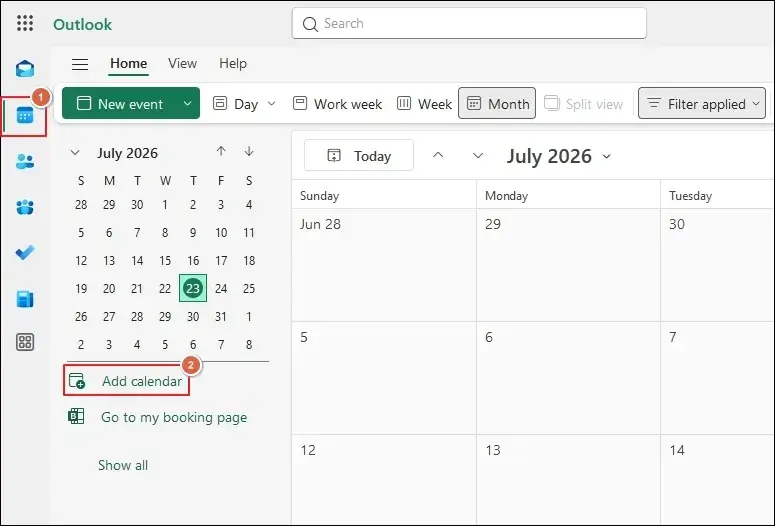
Step 3. In settings, navigate to Calendar > Accounts > Google.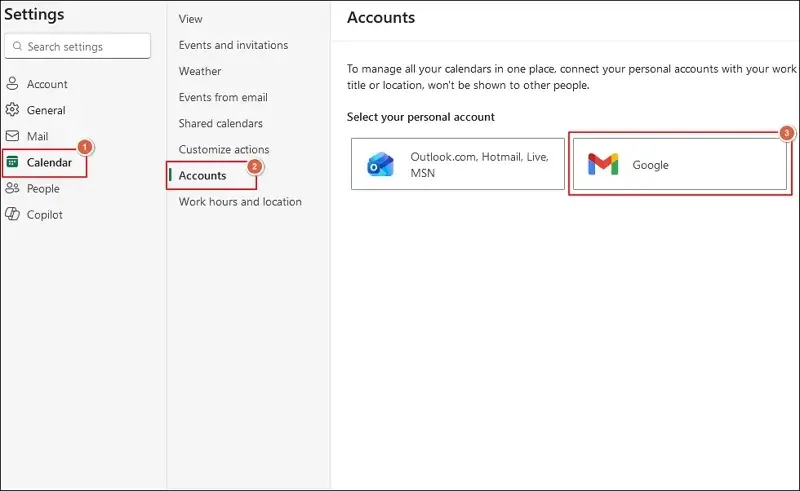
Step 4. Follow the on-screen instructions to add the calendar successfully.
Step 5. Review the added events from the Other Calendars section.
Step 6. Now, you can manage both schedules from one interface.
Method 3. Subscribe to Google Calendar With Outlook Desktop (Via ICS )
You can use the below steps to sync Google Calendar with Outlook 365 and its other versions. Also, the method updates the made changes automatically at certain intervals.
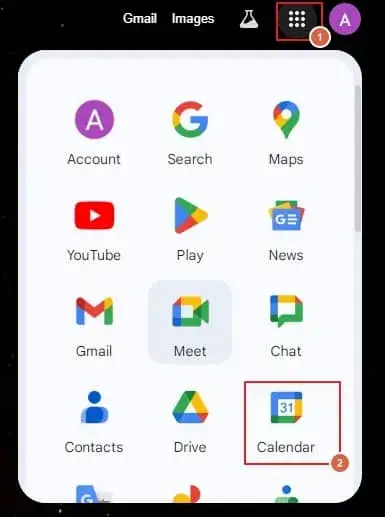
- Log in to your Gmail account and use the Calendar option.
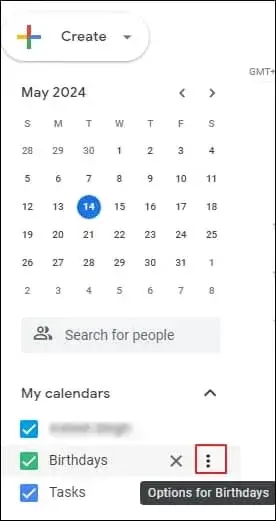
- Go to My Calendars, select three dots, and tap on Settings and Sharing option.
- Go to the Integrate Calendar section and copy the secret address in iCal format.
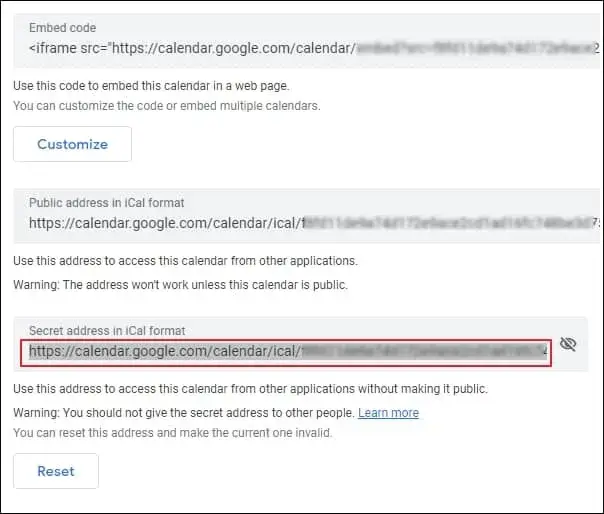
- Once you copy the URL of your Google Calendar.
You have two different options to synchronize Google Calendars with Outlook for the upcoming steps. Here they are:
Option 1: Using the Manage Calendars In Outlook
Follow the given steps to view Google Calendars in Outlook.
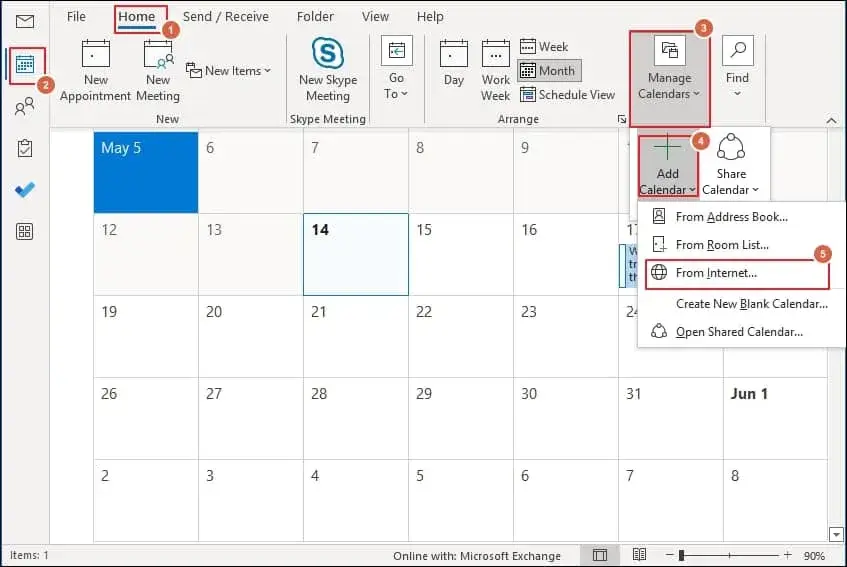
- Open your Outlook application and go to Home > Manage Calendars > Add Calendar > From Internet option.
- Now, paste the URL in the section and click OK.
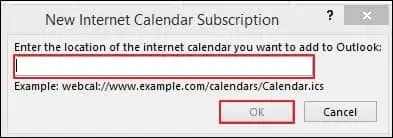
- From the next window, click on the Advanced option.
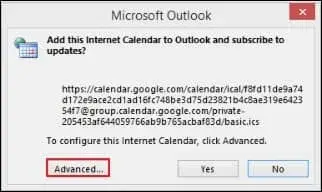
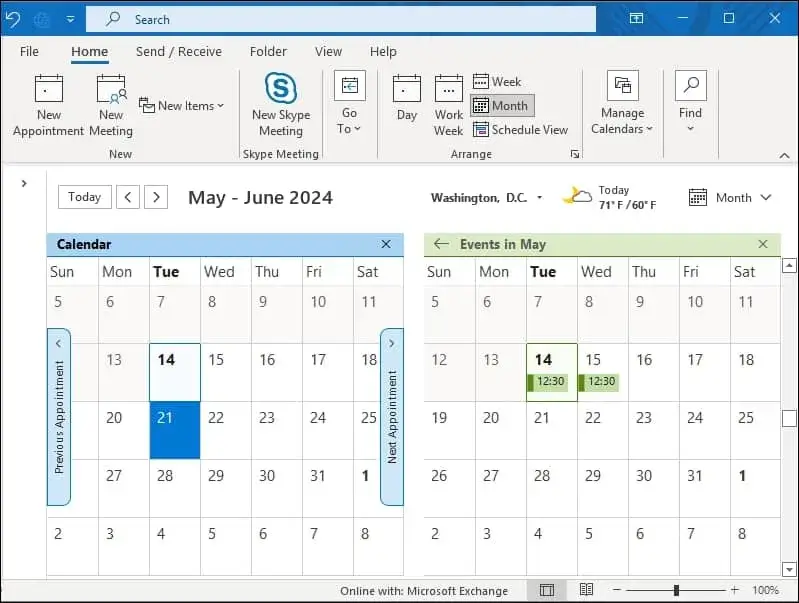
- Then, after choosing the favorable options, click on OK in the next window to integrate the Calendar with Outlook.
Option 2: Using Outlook’s Account Settings Feature
Account Settings is another way to sync Google Calendar with Outlook. Here are the complete steps to do the same.
- Launch the Outlook application.
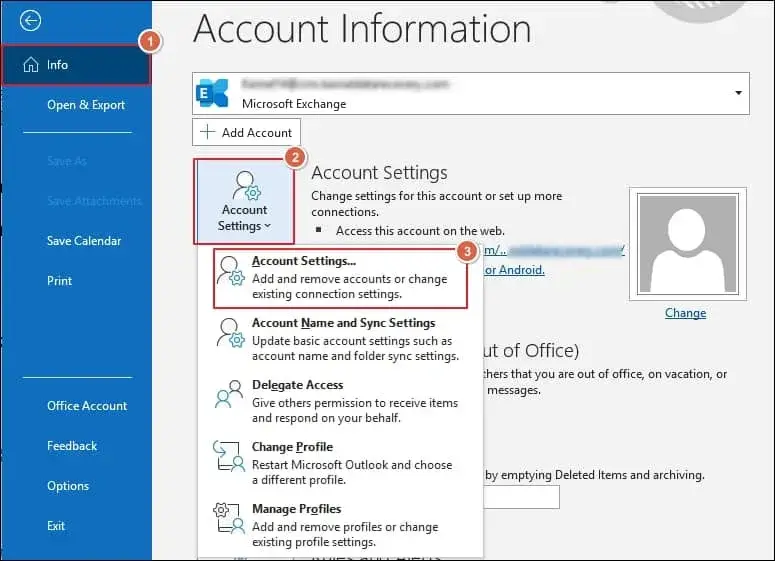
- Go to the File > Account Settings > Account Settings option.
- Tap on the Internet Calendar and go to the New option to add the calendar.
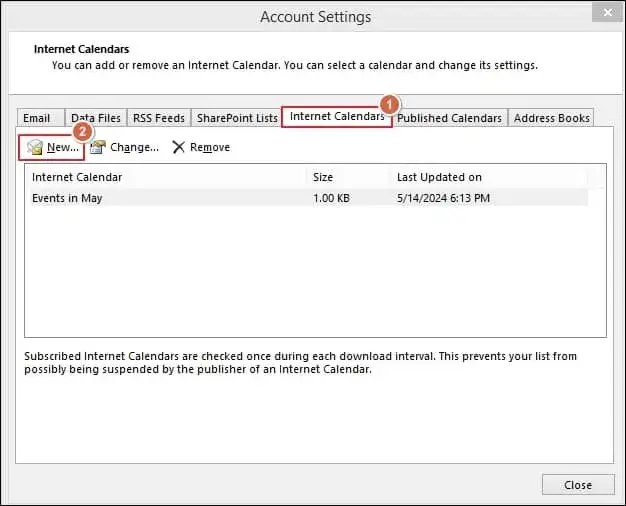
- Now, paste the URL in the next section and click on Add.
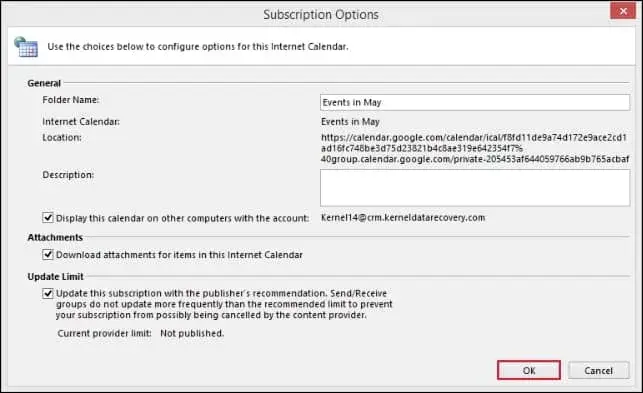
- Use the choices to integrate your calendar and click OK.
Method 4. Sync Google Calendar to Outlook Mobile Application
To sync Google Calendar in the Outlook application, use the provided steps:
Step 1. Access Outlook on your device (update if available).
Step 2. Sign in with your Microsoft account.
Step 3. Go to Settings to Add Account.
Step 4. Then, select Google from the available ones to proceed.
Step 5. Grant the required permission to access Google Calendar.
Step 6. Check and enable calendar synchronization.
Step 7. Test synchronization by creating a new event in Google Calendar.
Step 8. Navigate to Calendars to view events of both in one place.
Method 5. Access Google Calendar In Outlook for Mac
You have two options to view Google Calendar in Outlook for Mac. One is through the Microsoft 365 portal (using OWA elaborated in Method 2) or through the desktop application. Here are the detailed steps:
Step 1. Launch Outlook on your Mac device.
Step 2. Tap on Outlook and go to Settings.
Step 3. Under Accounts, click on the + icon to Add an Account.
Step 4. Provide your Gmail address and proceed to Continue.
Step 5. Follow the on-screen instructions to set up your Google account.
Step 6. Finally, Allow Microsoft apps and services to access calendar & email data.
Step 7. Click on Open Microsoft Outlook if prompted and proceed to Done.
Step 8. Go to the Calendar section to see the scheduled events.
C. Two-Way Sync Google Calendar With Outlook
Method 6. Try the Outlook Google Calendar Sync (OGCS) Tool
OGCS tool is an open-source application for Windows that allows you to synchronize calendar events between Outlook & Google for free. So, use the given instructions to perform the same action.
Step 1. Download and install the software from the official OGCS website.
Step 2. Go to the Settings tab and click Outlook under Profiles.
Step 3. Select the mailbox and your desired calendar.
Step 4. Then, proceed to the Test option.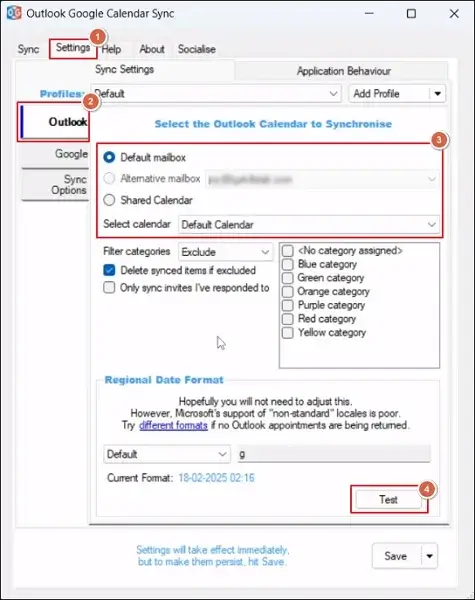
Step 5. Navigate to the Google tab and proceed with Retrieve Calendars.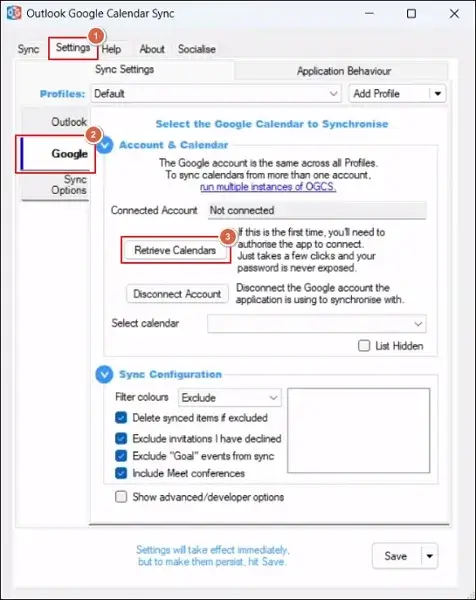
Step 6. Follow the on-screen instructions to grant the necessary permissions.
Step 7. Click Save after the account is connected.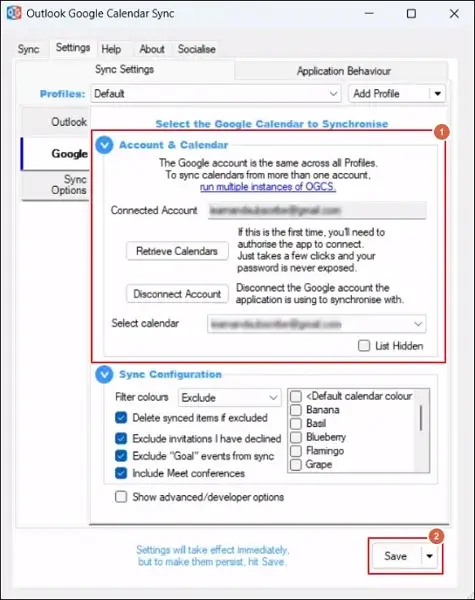
Step 8. Locate to Sync Options and choose the Outlook↔Google two-way sync direction.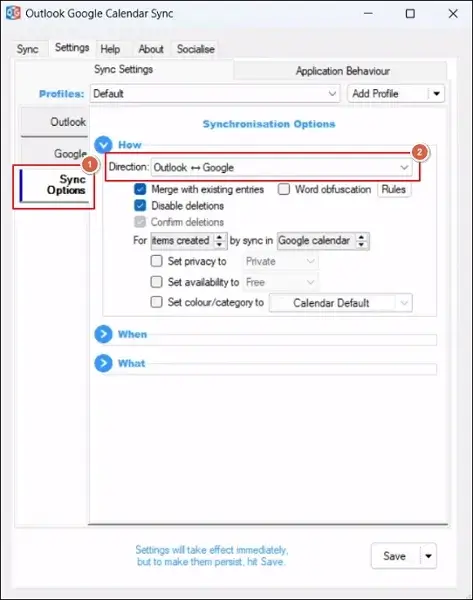
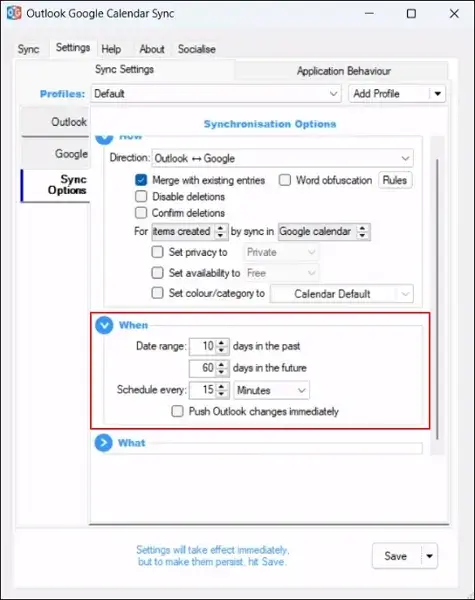
Step 9. Apply the necessary settings under the When section.
Note: Check the Push Outlook changes immediately option for faster updates.
Step 10. Later, select the needed options under the What section.
Step 11. Then click on Save to continue further.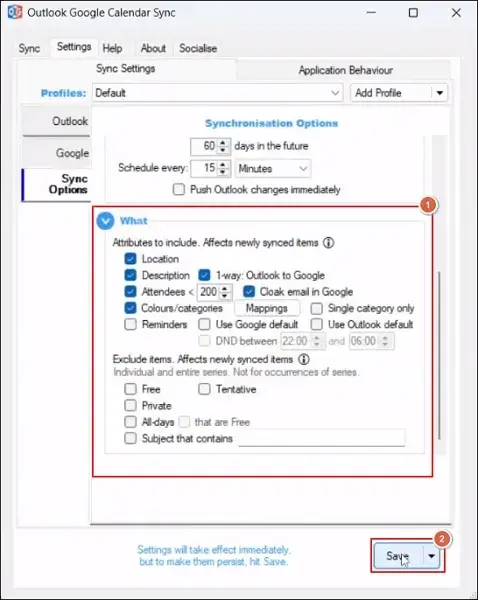
Step 12. Once all the settings are configured, tap on Start Sync.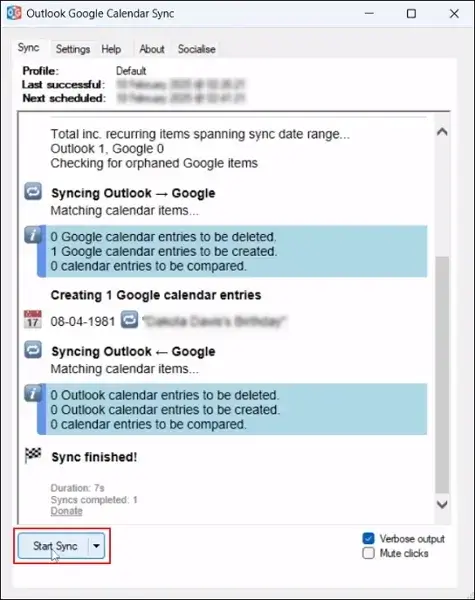
Step 13. Check for a successful status on your screen.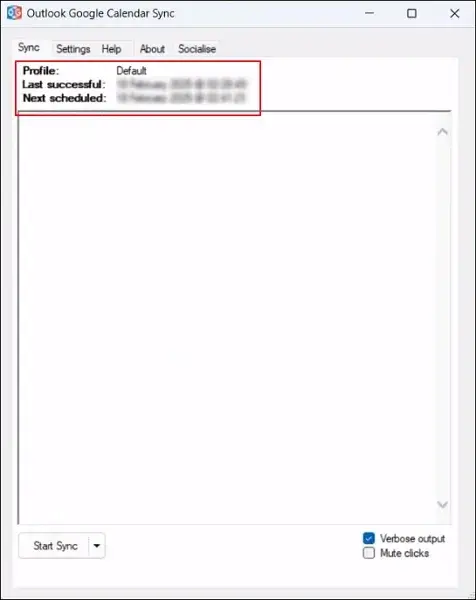
Step 14. Now, your calendars are successfully synced two-way.
Let’s Recap
The blog has highlighted the different ways to add Google Calendar to Outlook. You can use the provided methods to access and view calendars without platform restrictions. Import, subscribe, or use two-way sync calendars based on your requirements with ease. However, if you’re facing issues like Room Calendar not syncing, then go with the professional solutions. Our Recoveryfix OST to PST Converter resolves such issues instantly.