Resolved: “Errors Have Been Detected in the File xxx.ost”

Updated On - September 7, 2026
- Create a new Outlook profile.
- Clear locally stored cached data.
- Check the Outlook synchronization status.
- Repair the Microsoft 365 installation program.
- Open Outlook in Safe Mode (outlook.exe/safe) to check for conflicting add-ons or extensions.
Also, you will get to know advanced solutions to resolve the error completely in the upcoming blog sections.
Outlook won’t open, and all you see this message:
“Errors have been detected in the file
C:\Users
Before you panic about your emails, understand what this message actually means.
The error generally indicates corruption in OST files or synchronization-related issues. Here, we will discuss several solutions to resolve the issue provided by Microsoft itself. But first, let’s begin by understanding why this error occurs.
Why Are You Facing “Errors Have Been Detected in the File xxx.ost”?
You may encounter this error for several reasons. But the most significant ones are as follows:
- Damaged Outlook profile.
- Sudden system shutdown.
- OST files are corrupted or damaged.
- Problems with the local OST file cache.
- Insufficient disk space or storage problems.
- Outlook crashes during mailbox synchronization.
- Exchange connectivity causing synchronization failures.
How to Fix “Errors Have Been Detected in the File xxx.ost” Manually?
Go through this section to find out the ways to troubleshoot errors have been detected in the Outlook OST file problem. Try each method individually to identify the most appropriate one for your case.
Method 1. Backup & Create OST File Again
You may need to create a new OST file to access the mailboxes if the existing one is causing problems. Here’s how to do the same:
Note: Make sure to back up the OST file before deleting it to avoid data loss.
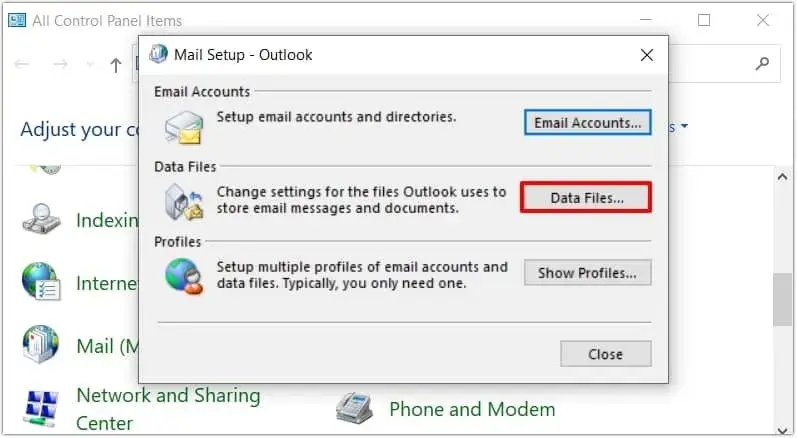
- Open the Control Panel, click on Mail > Data Files.
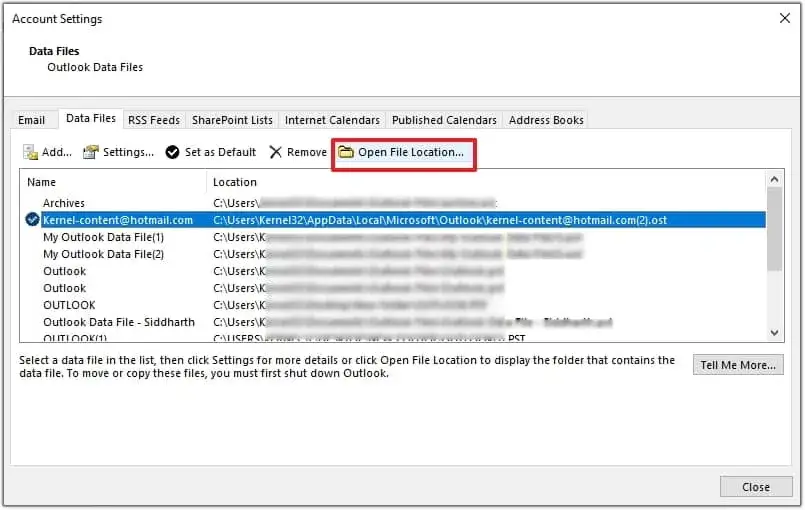
- Go to the Data Files tab and select the OST file. Then, Open File Location to proceed.
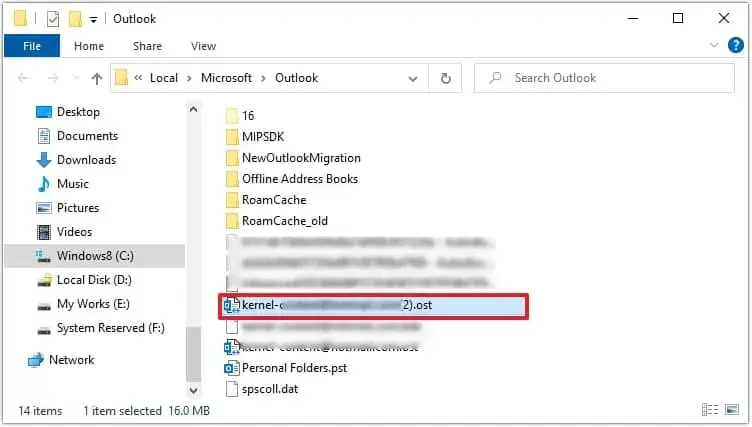
- Select your file and copy it to another secure location for backup. After that, delete the existing OST file from the default location.
- Restart Outlook to create a new OST file in the default location automatically.
Method 2. Disable the Cached Exchange Mode
Synchronization failures can sometimes lead to the “errors have been detected in the Outlook.ost file” issue. So, try disabling the Cached Exchange Mode to read and write mailboxes directly from the server instead of locally stored files. Here’s how:
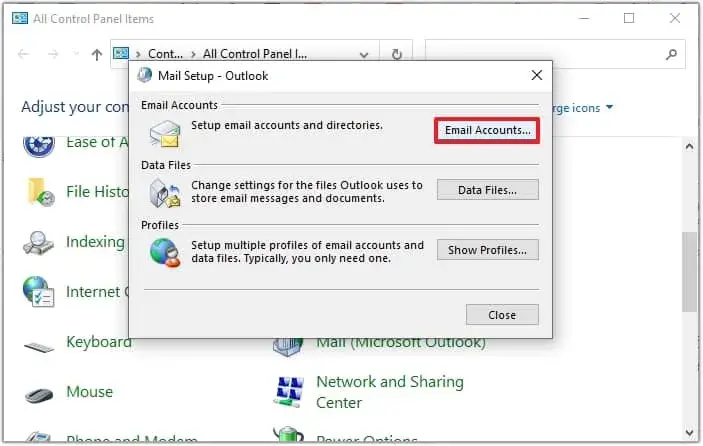
- Access Control Panel and click on the Mail option. Then, navigate to Email Accounts.
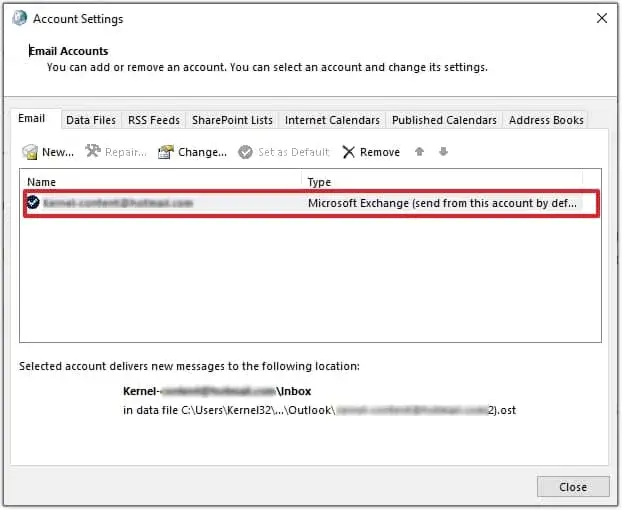
- Double-click on your account and click on More Settings.
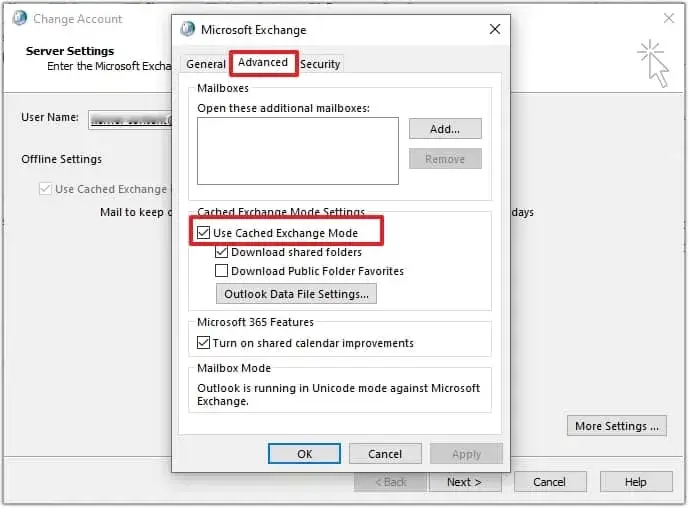
- In the Advanced tab, uncheck the Use Cached Exchange Mode checkbox and click OK.
- Now, restart Outlook and check whether the issue is resolved or not.
Method 3. Repair Outlook Data Files with SCANPST
Inbox Repair Tool is a free & built-in application provided by Microsoft to repair minor issues in Outlook data files. So, follow the given steps to repair your files.
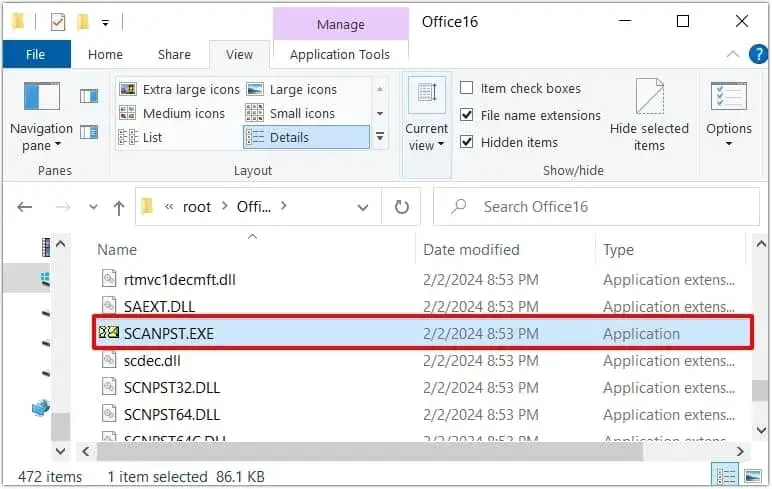
The default location of the file is: “C:\Program Files\Microsoft Office\root\Office16 as SCANPST.exe,” But it may vary with the Outlook version.
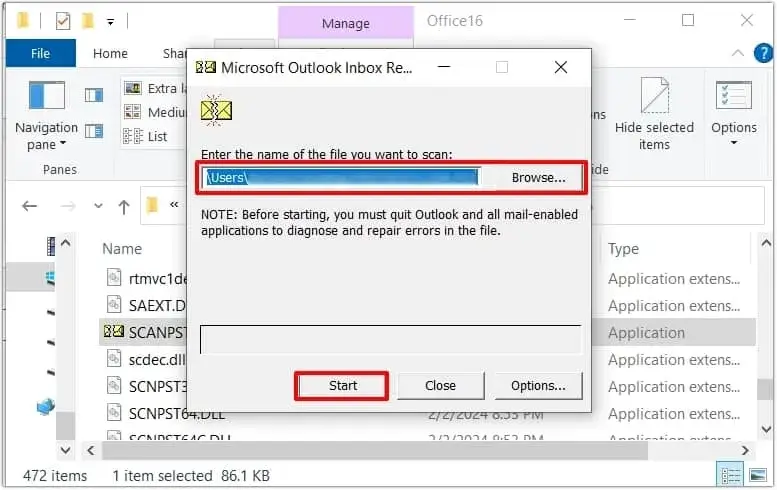
- Locate the default location in File Explorer and click on SCANPST.exe.
- Browse the OST file to repair and click on Start to scan the file thoroughly.
- Now, click on Repair and wait until the repair completion message appears.
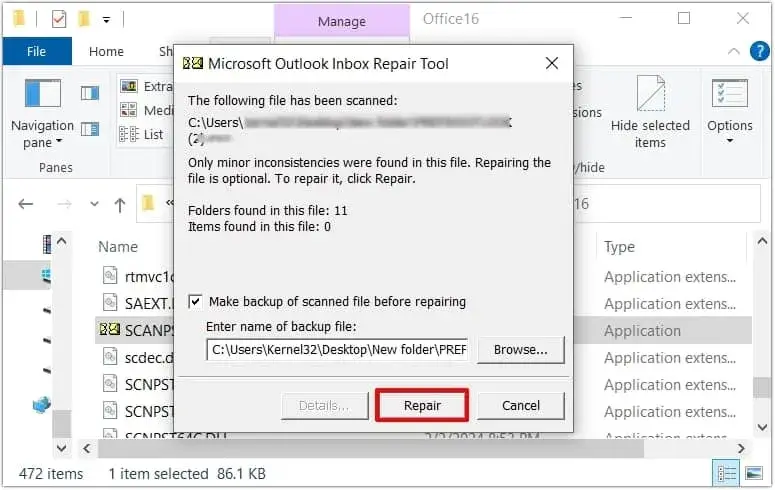
- Once done, restart Outlook to check whether you are able to fix – “Errors Have Been Detected in the File xxx.ost” or not.
Repair & Convert OST to PST Files: Try the Ultimate Solution Now
In most cases, you will be able to fix the “Errors Have Been Detected in the File xxx.ost.” But if the above methods fail, then it means the OST files are highly corrupted or damaged. Then, using our Recoveryfix OST to PST Converter tool is one of the best approaches. The software repairs and converts inaccessible OST files within a few clicks.
Closing Remarks
We have covered the effective ways to resolve the “Errors Have Been Detected in the File xxx.ost.” You can use the step-by-step instructions to fix the issue without taking assistance from anyone. Go with the manual ones given above for handling minor issues and the recommended one (OST Converter) for severely damaged files. The software will help you recover missing contacts, emails, and other mailbox items easily.