Split large Outlook PST file into multiple smaller files

Updated On - February 20, 2026
Large PST files can cause slow performance, sync errors, or even corrupt the file over time. Outlook responds sluggishly or freezes the application whenever the PST crosses the optimum size limits. As a result, it frustrates users and poses threats like data loss. Such situations require splitting the large Outlook PST files into manageable parts to improve stability and performance. The blog explains practical ways to break down these oversized PST files safely. Read to know more.
Why Do We Need to Split Large PST Files? – Top Benefits Explained
You can avail the given advantages by splitting the Outlook PST files:
- Avoid size limit errors in older versions of Outlook.
- Simplify migration and file sharing during data transfers.
- Minimizes the risk of data loss during crashes or failures.
- Boost overall system stability by reducing resource usage.
- Prevent PST file corruption caused by oversized PST files.
- Speed up backup and restore procedures with better efficiency.
- Improve Outlook performance by reducing load time and application lag.
- Make email management easier with smaller and more organized archives.
Manual Methods to Split Large PST Files into Smaller Parts
We have analyzed different methods to break down PST files, and only the given ones worked for us. Try them to identify the most suitable way for yourself.
Way 1. Use Import/Export to Split PST Files
Use the built-in Import/Export utility to export mailbox data to different PST files for better efficiency. Here’s how:
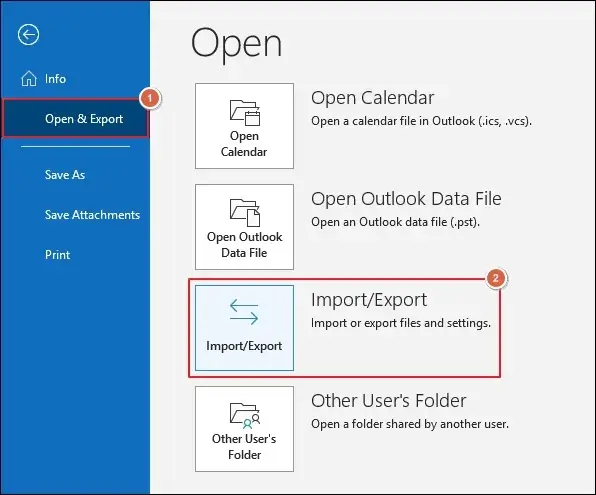
- Go to the File menu and proceed to Import/Export.
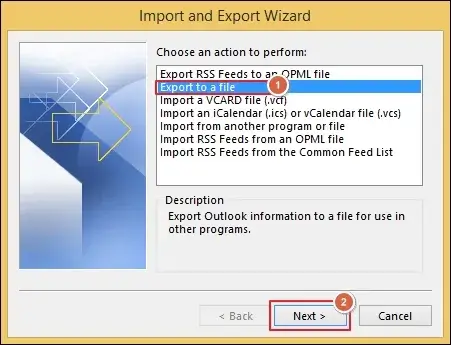
- Choose the Export to a file option and click Next.
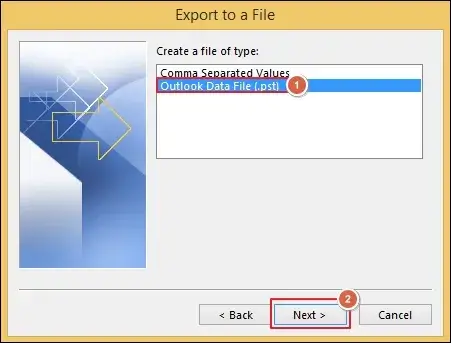
- Select the Outlook Data File (.pst) and tap Next.
- Choose the mailbox folder and related options. Then, click Next.
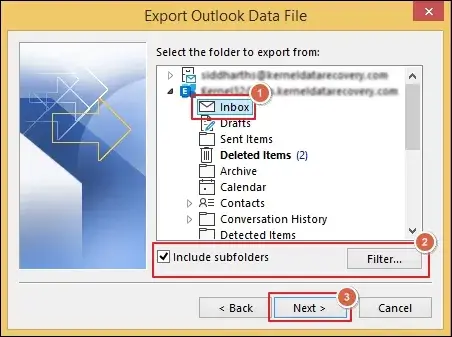
- Browse to select the destination folder and select suitable Options.
- Click on the Finish option to export.
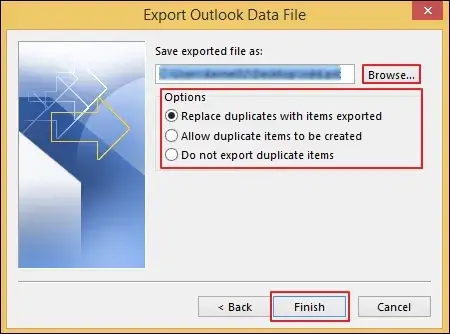
- Repeat the same process till you get all the important data.
- Delete the oversized PST file and re-import the exported data.
Way 2. Create & Move Data to New PST File
Add a new PST file and move half of the mailbox data into it. It will reduce the primary Outlook data file load and provide better performance.
- Click on File and go to Info.
- Expand Account Settings> Account Settings.
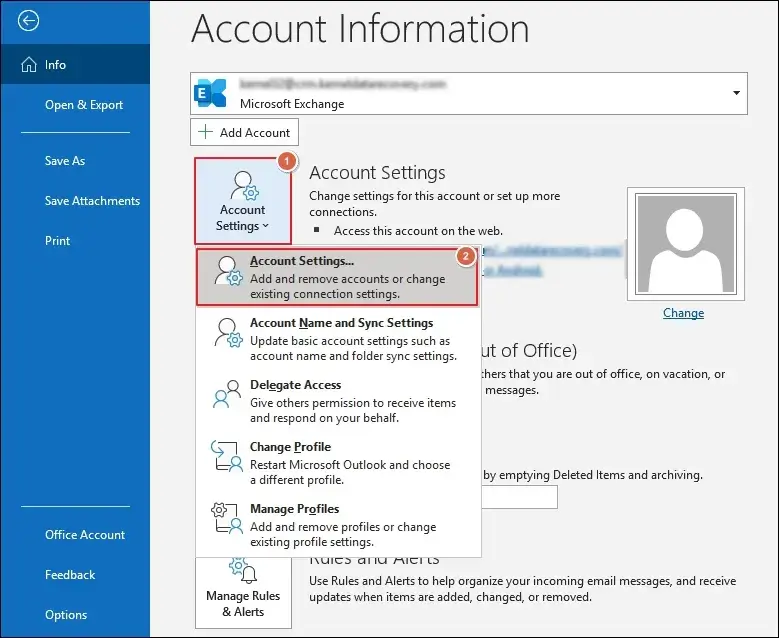
- Locate the Data Files tab and proceed to Add.
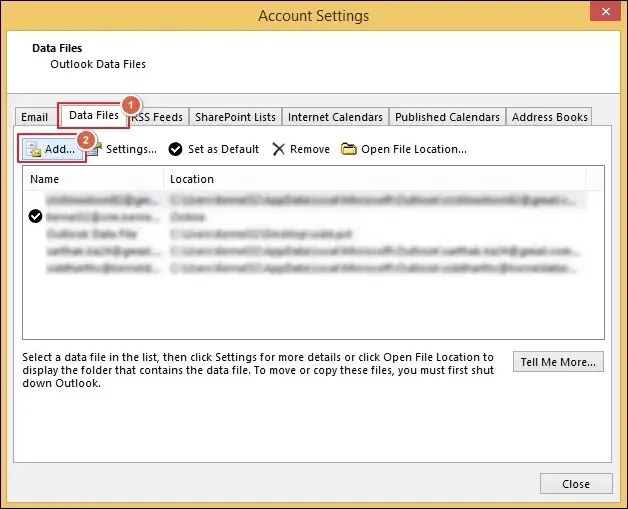
- Name the file and click OK to save the newly created file.
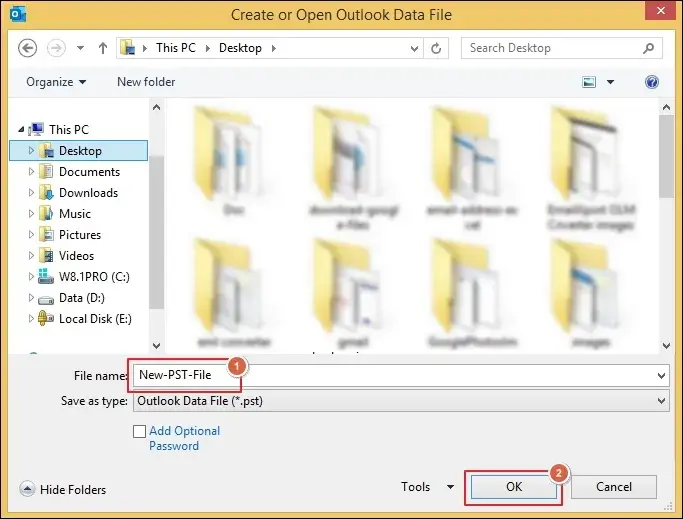
- Move the less usable folders into it.
Reduce PST File Size Without Splitting Them: Additional Methods
You can try out the following methods to minimize the size of Outlook data files instead of splitting them. Here is the list of the best methods to do so:
Way 1. Delete Unnecessary Mailbox Data
You can delete unnecessary emails or folders to reduce the size of the PST files. Here’s how:
- Launch the Outlook application and select the non-important items.
- Right-click to Delete the selected items.
- Repeat the same process to delete the unnecessary folders.
- It will reduce the PST file size to some extent.
Way 2. Clear Junk & Trash Folder
The Junk Email and Deleted Items folders usually contain unwanted data. Therefore, it is necessary to empty these folders regularly. Here are the steps:
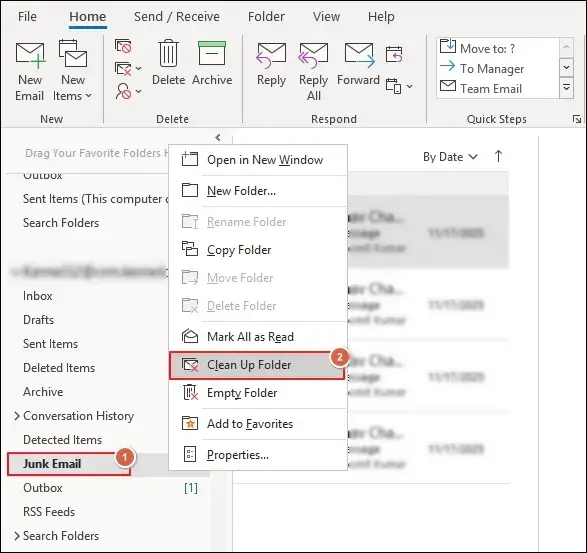
For Junk Email Folder
- Locate the Junk Email folder and right-click on it.
- Clean Up Folder to temporarily delete data.
Note: You can also Empty Folder to remove data permanently.
For Deleted Items
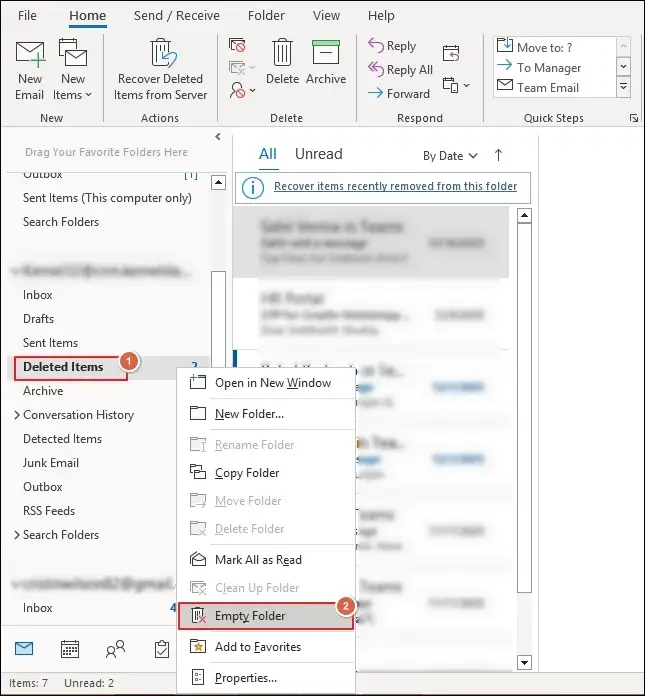
- Navigate to Deleted Items folder.
- Right-click on the folder to proceed.
- Tap on the Empty Folder option to clear the already deleted items.
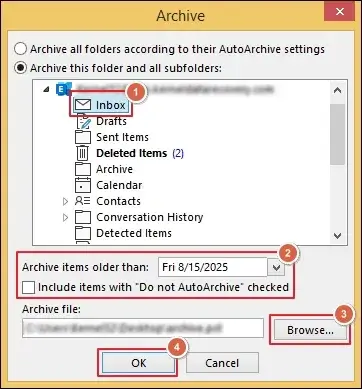
Way 3. Archive Old Mailbox Data
Use the data archiving facility to keep less usable data for future purposes. With this, you can secure data and free up the storage space of the main Outlook data file. Here’s how:
- Open Outlook and go to the File tab.
- Expand Tools and tap on Clean Up Old Items.
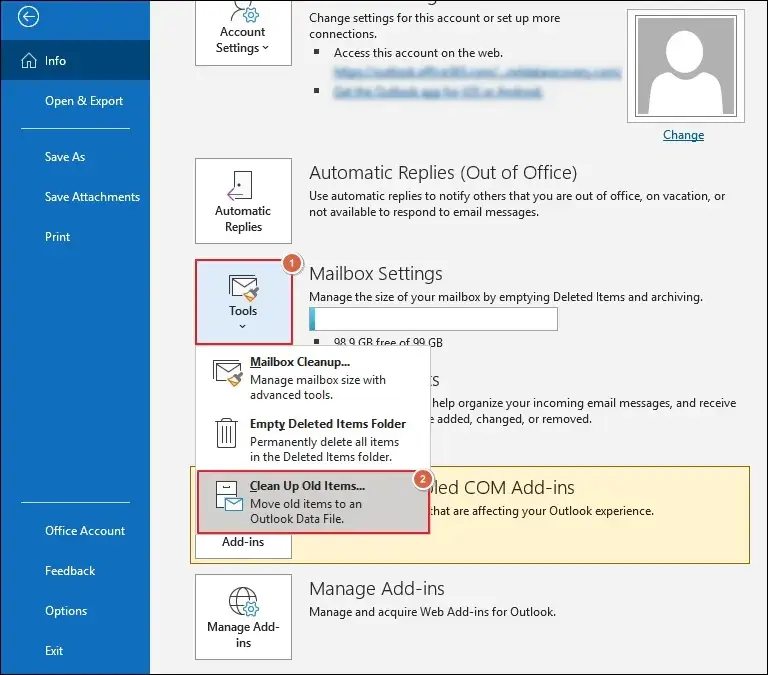
- Select the folders and other appropriate options.
- Then, Browse to choose a saving location and click OK.
Way 4. Compact the Outlook Data File
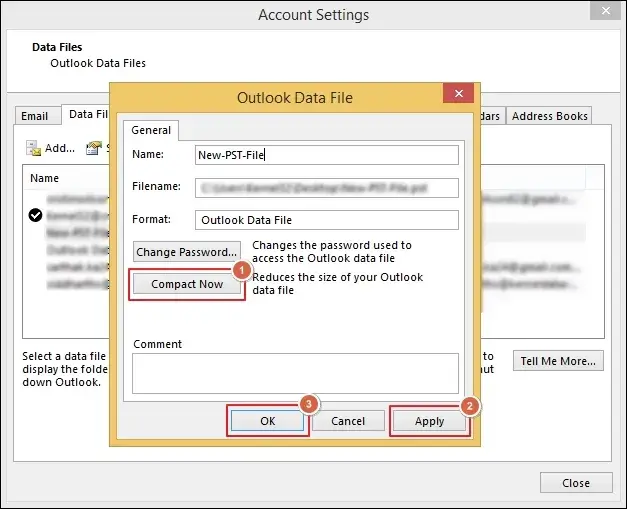
This feature helps to reduce the file size by eliminating the unused space. Here are the steps:
- Launch the Outlook application and go to the File tab.
- Expand Account Settings and tap on Account Settings.
- Locate the Data Files tab and double-click on PST files.
- Tap on the Compact Now option and Apply changes. Then, click OK.
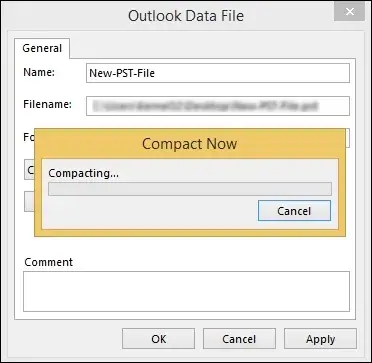
- It will start compacting the file.
Way 5. Disable Shared Folder Synchronization
Constant synchronization of shared folders can increase the size of Outlook data files. Use the given steps to disable it now:
- Tap on the File menu and go to Account Settings.
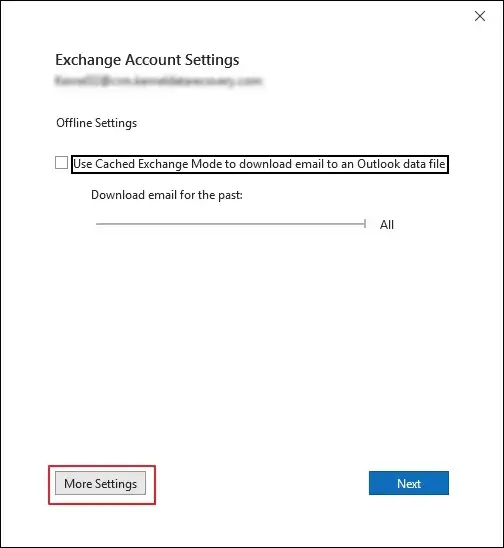
- Select the Exchange account and tap on Change.
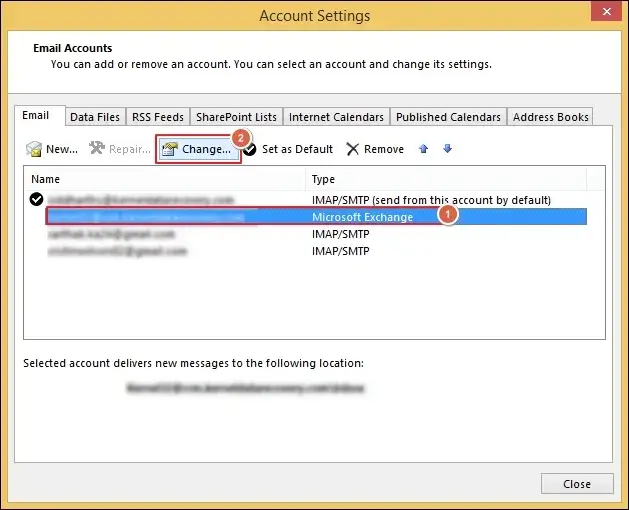
- Click on More Settings to continue.
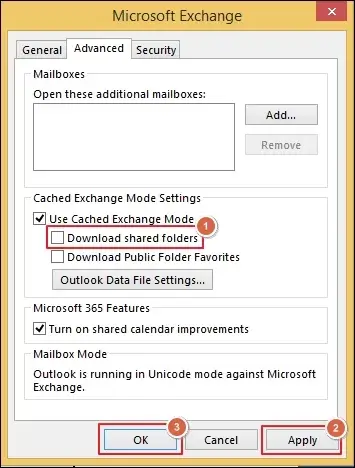
- Uncheck the Download shared folders and Apply changes.
- Then, click OK to save the changes.
Way 6. Disable RSS Feed in Outlook
Besides the Shared folder, RSS Feeds can also become the reason behind the large PST files. Declutter the mailbox by turning it off with the provided steps:
- Navigate to Account Settings and go to RSS Feeds.
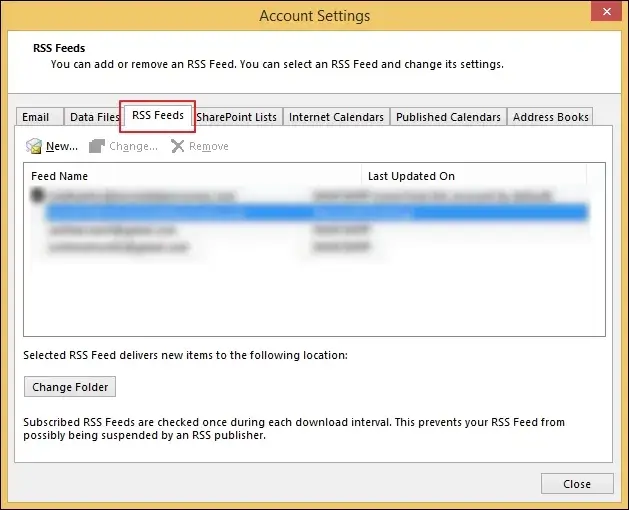
- Filter out the unwanted RSS subscriptions to reduce the size.
Want a More Effective Solution? – Try This Direct Method Now
The above-provided methods will help you split PST files. But these solutions may fail when you have complex mailing setups and large datasets. Besides that, it also comes with the following limitations:
- Native solutions are lengthy and time-consuming.
- There are chances of data loss or file corruption.
- Need to carry out the entire process carefully for the desired results.
To avoid errors and split PST files smoothly, try our professional Recoveyfix solution now. The Outlook PST Repair tool allows you to break large PST files instantly. Its multiple filters help to sort the unnecessary data from the final Output.
Let’s Recap
We have covered a detailed guide to split large PST files into smaller parts. You can use the listed solutions to reduce or split PST files manually. However, if you have PST file data or a complex organization structure, go with the recommended solution. The PST Splitter tool will eliminate the drawbacks of the native methods and offer a direct way to break Outlook data files.