Migrate Ziggo Mail to Gmail Account: Transfer All Data

Updated On - June 15, 2026
Ziggo Mail (ISP-based email client) often restricts users to staying with the same service for years. Even if users want to change their email provider, they first need to move their mailbox data to another platform.
So, transferring Ziggo Mail to a Gmail Account is one of the best options to secure crucial data first. But the question arises, how can you perform this migration safely? For this, go through this article to find the right approaches along with their detailed steps.
Top Reasons Behind The Ziggo Mail to Gmail Migration
Here is the list of causes that lead users to prefer Gmail over traditional ISP-based email services.
- Better storage capacity to reduce mailbox space issues.
- Access emails from any device with real-time synchronization.
- Integrates with Google Drive, Docs, Sheets, Meet, and Calendar.
- Advanced spam protection and filters to keep unwanted emails away.
- Protects your account with two-factor authentication, alerts, and recovery options.
- Smart email organization with labels, filters, categories, and priority inbox features.
- User-friendly interface with customization for simplified email management.
- Create a Gmail account or login (if already a user).
- Verify your Ziggo Mail (ziggo.nl) login credentials.
- Enable IMAP Access & necessary email set up details.
- Need to install the Thunderbird and Outlook application.
- Backup important mailbox data before the migration process.
Manual Methods to Migrate Ziggo Mail to Gmail Account
The section below provides the most effective solutions to move data from Ziggo Mail. You should try them one by one to identify the suitable approach as per your convenience.
Solution 1. Import Emails from Ziggo Mail to Gmail
You can use the built-in import feature of Gmail to migrate emails from another account at the user level. Here’s how:
Step 1. Log in to your Gmail account.
Step 2. Tap on Gear icon to See all settings.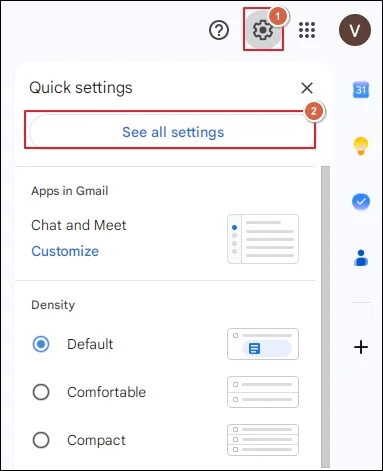
Step 3. Navigate to Accounts and Import, and proceed to Import mail and contacts.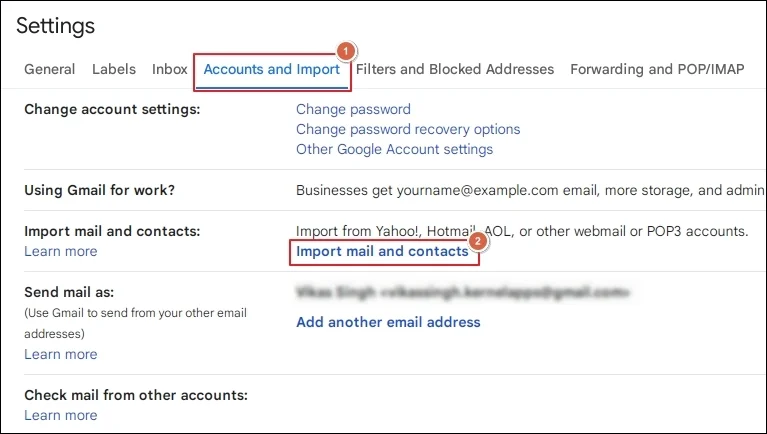
Step 4. Type your email address and click Continue.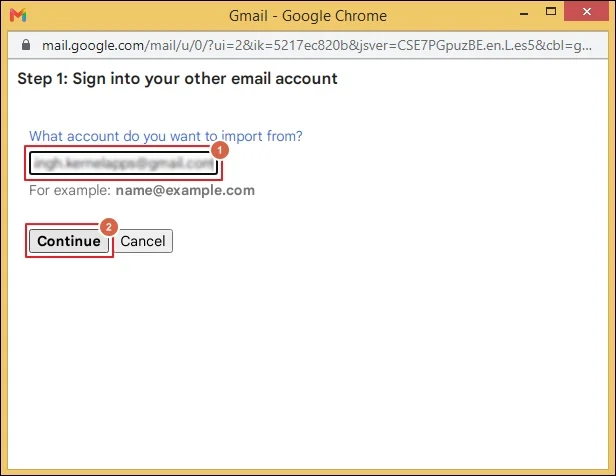
Step 5. Tap on Continue and follow the on-screen instructions to proceed.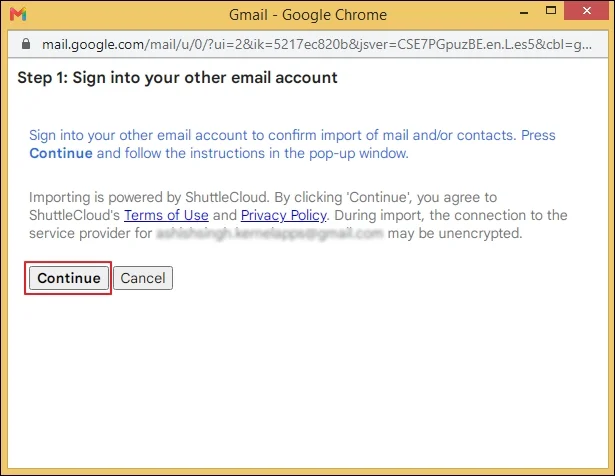
Step 6. Confirm the imported emails after the process completion.
Solution 2. Use Outlook For Ziggo Mail to Gmail migration
Follow the given steps to export mail folders from the Ziggo Mail to Gmail account.
Step 1. Access the Outlook application on the system.
Step 2. Click on the File menu and proceed to Add Account option.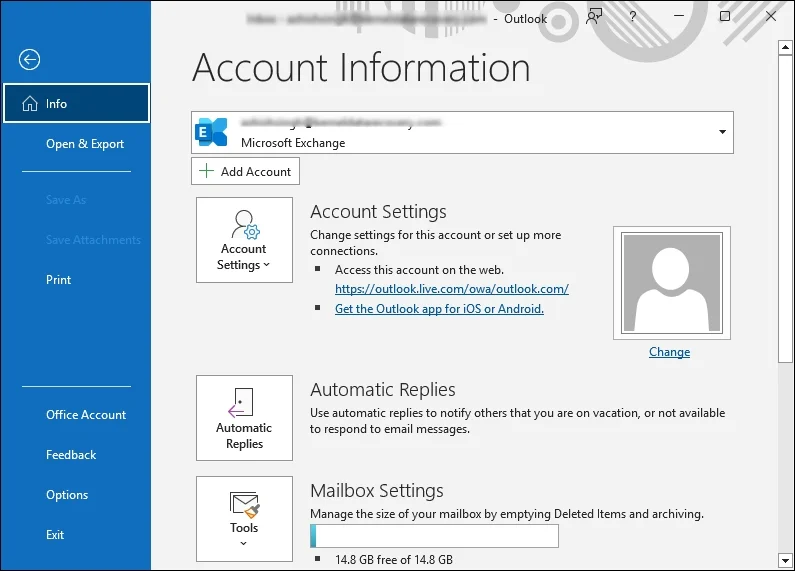
Step 3. Enter your Ziggo Mail address and expand Advanced options.
Step 4. Enable the Let me set up my account manually option and hit Connect.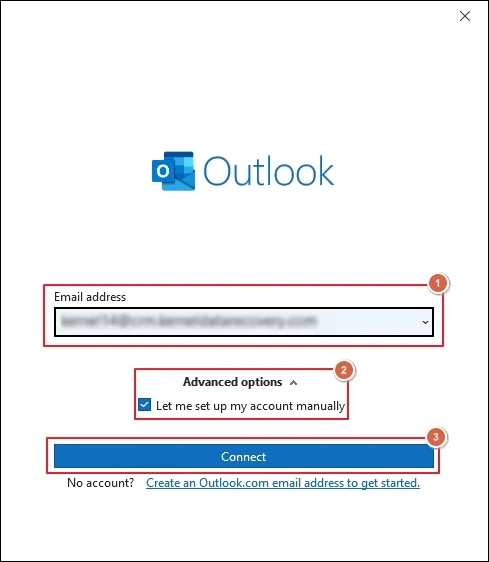
Step 5. Click on IMAP settings under the Advanced setup prompt.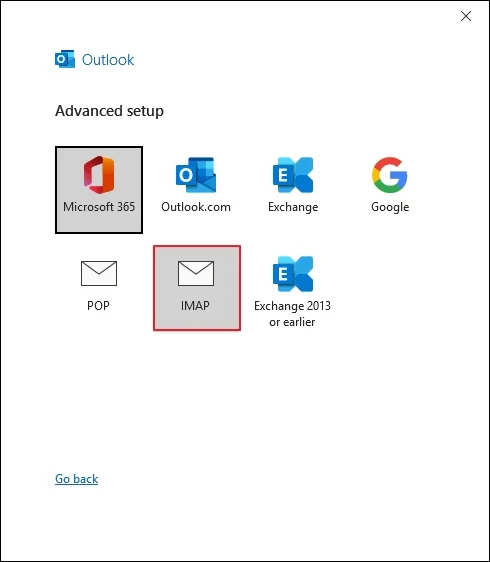
Step 6. Provide the necessary details in the IMAP Account Settings wizard.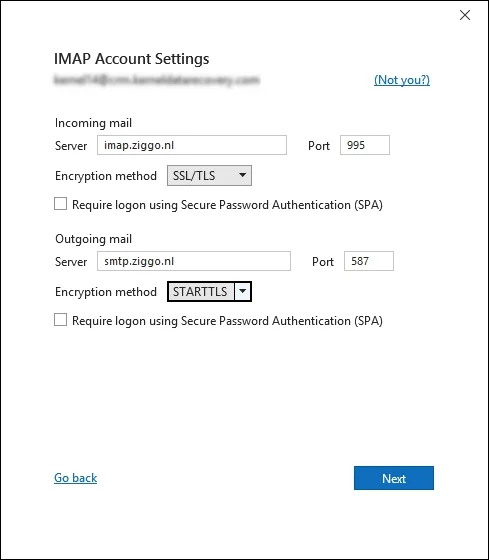
Step 7. Enter the Password in the pop-up wizard and Sign in to proceed.
Step 8. Tap on Done after the successful authentication.
Step 9. Repeat the same steps for the Gmail account to configure it.
Step 10. Drag and drop the folders of Ziggo Mail to Gmail in Outlook.
Step 11. Perform the same till all the folders are moved to Gmail.
Solution 3. Transfer Emails From Ziggo Mail to Gmail Via Thunderbird
After Outlook, Thunderbird is the second most used application to move mailboxes. Here are the detailed steps for Ziggo to Gmail migration
Section 1. Setup Ziggo Mail & Export Mailbox Data
Step 1. Launch Thunderbird and go to Settings.
Step 2. Navigate to Account Settings > Account Actions > Add Mail Account.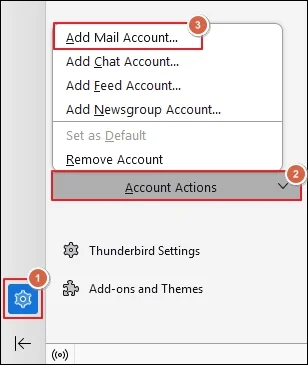
Step 3. Type Your full name, Email address, and Password in the corresponding spaces.
Step 4. Then, tap on Configure manually to proceed further.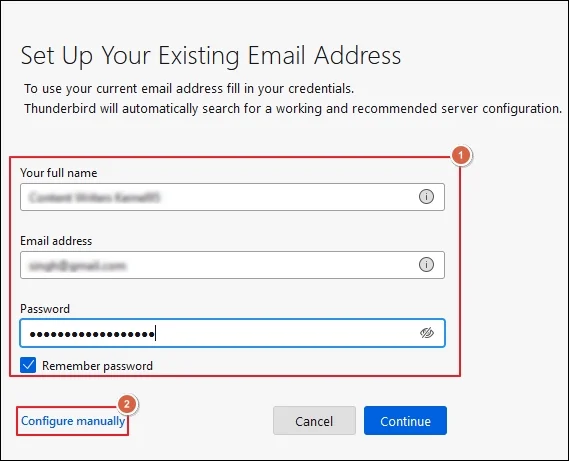
Step 5. Fill in all the necessary configuration settings and click Done.
Step 6. Access the Menu bar and go to Tools > Export.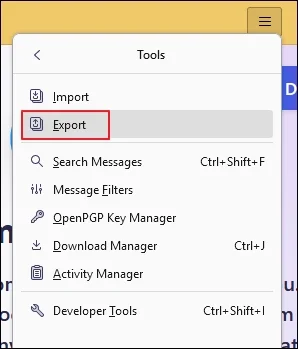
Step 7. Export mailbox data to Save them locally.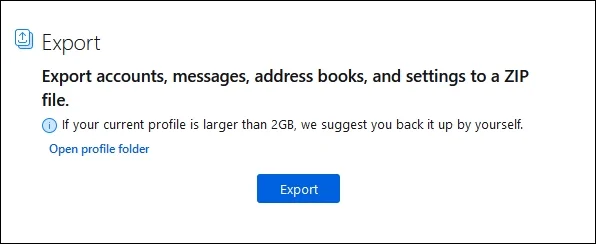
Section 2. Import the Exported Data Into Thunderbird Application
Note: Make sure to configure it before applying the steps below.
Step 1. Go to the Menu bar and select Tools. Then, proceed to Import.
Step 2. Choose the Import from a file option to Continue.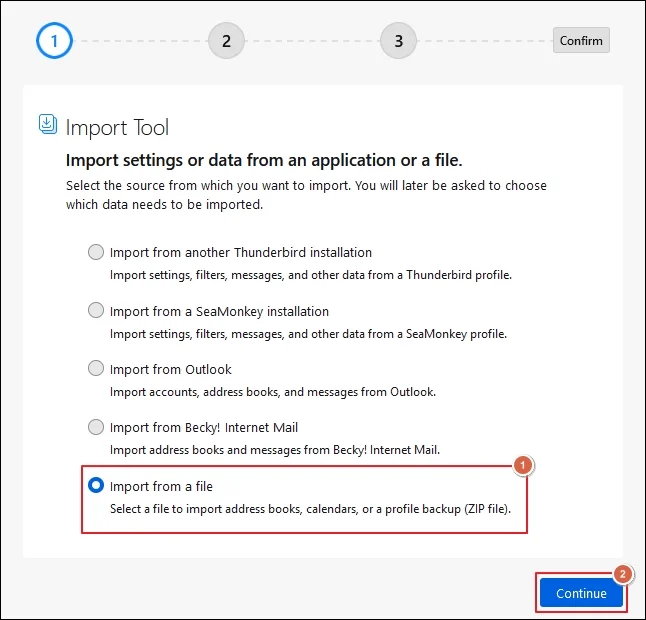
Step 3. Select the Import Backed-up Profile and hit Continue.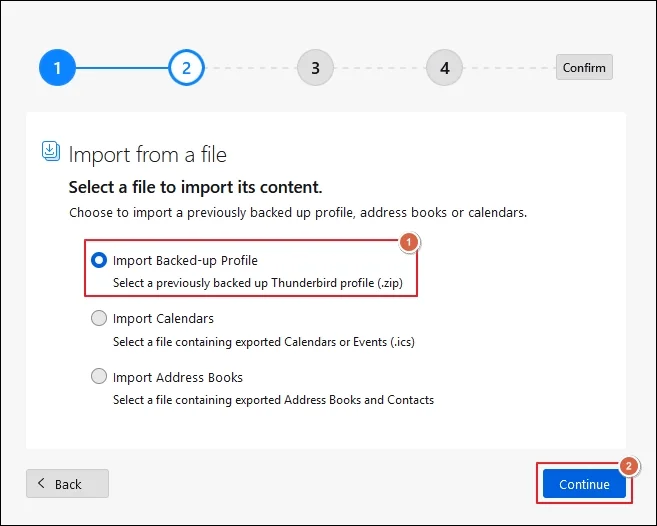
Step 4. Choose a ZIP file and tap on Continue.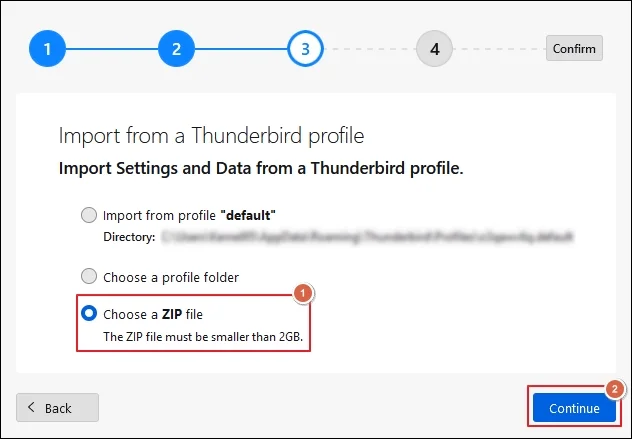
Step 5. Open the locally backed-up file by selecting it.
Step 6. Select the required data type you want to import and click Continue.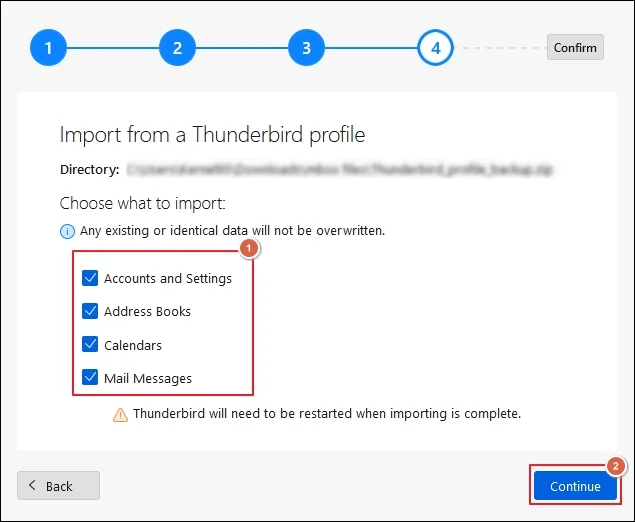
Step 7. Check the selected data and Start Import.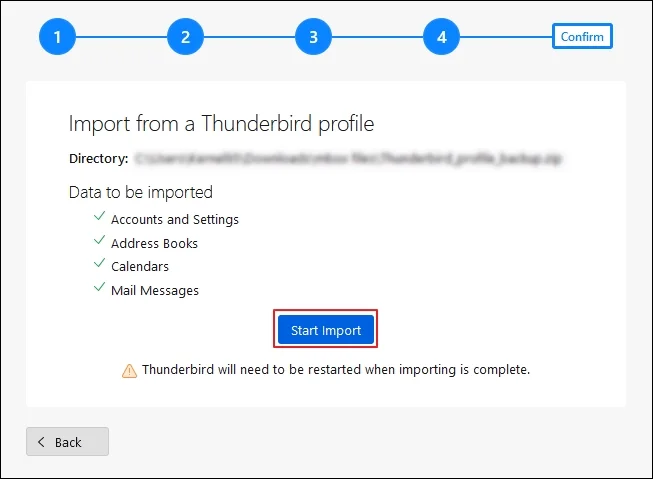
Step 8. Wait for the process completion. Then, restart Thunderbird by clicking on the Finish option.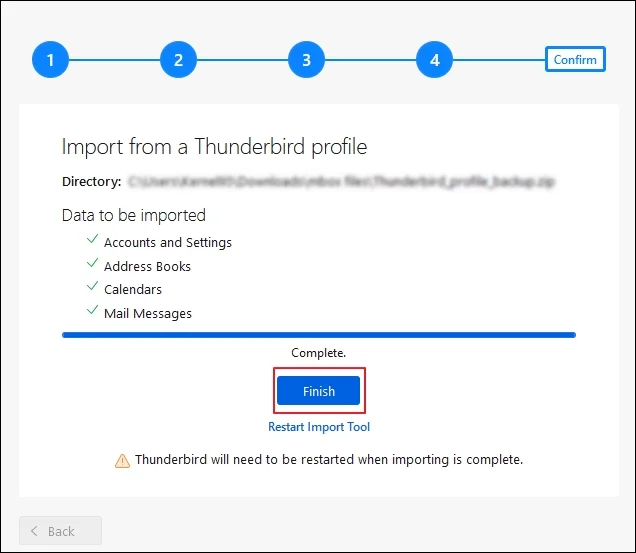
Read More: Transfer Mediacom emails to Gmail Account.
Need to Migrate Data On A Large Scale? – Try The Reliable Approach Now
The above solutions help to migrate Ziggo Mail to Gmail account only when you have limited datasets. But when you perform large-scale data migration with these methods, you may encounter the following issues:
- Missing emails or attachments.
- IMAP connection or authentication errors.
- Duplicate data in the destination accounts.
Therefore, using dependable solutions like Recoveryfix is best for transferring data on a big scale. The IMAP Migration tool directly migrates data from Ziggo Mail to Gmail Account. It allows the transfer of selective mailbox data with the help of different filtering options.
Closing Lines
Here, we have provided all the necessary information to migrate Ziggo Mail to Gmail Account. You can follow the structured approach to transfer emails securely.
For limited data migration, use the native approaches and go with the recommended solution to move mailboxes in bulk. The software helps to migrate emails from one host to another instantly.