Transfer Mediacom Emails to Gmail: All Steps Covered

Updated On - June 3, 2026
Your email (Mediacom) account is tied to the internet service provider. Now, you want to transfer Mediacom emails to Gmail for better communication benefits.
But the issue is that if you cancel your current Medicom service, you will lose access to your email address. We are here to free you up from ISP dependency and protect your information.
Go through the blog to know the best approaches to move data from Mediacom emails with attachments and folders safely. So, let’s begin the process now.
Move Mediacom Emails to Gmail: Know What You Get?
Gmail provides better features than traditional ISP-based email services. Here are the most significant ones:
- Get 15 GB of free cloud storage.
- Access emails from any device or location.
- Two-factor authentication for improved security.
- Provides advanced spam and phishing protection.
- Integration with Google Drive, Calendar, Meet, and Docs.
Check The List Before You Migrate Mediacom Email to Gmail
Prepare yourself with the following things to transfer mailbox data without any difficulties.
- Prerequisites
- Keep login credentials ready.
- Active Mediacom & Gmail account.
- Backup mailbox data is recommended.
- Check the internet connection stability.
- Mediacom IMAP Configuration Settings
All the given settings will be required during the account configuration in any email client.
| Settings | Value |
|---|---|
|
Incoming Mail Server |
mail.mediacombb.net |
|
IMAP Port |
993 |
|
Encryption |
SSL |
|
Outgoing Mail Server |
mail.mediacombb.net |
|
SMTP Port |
465 |
|
Security Type |
SSL |
How to Transfer Mediacom Emails to Gmail Manually?
Below, we have provided the most applicable solutions to migrate mailbox data from Mediacom. So, try them now to switch from your current email platform.
Method 1. Move Medicom Email to Gmail Via Import Feature
Gmail provides a built-in option that allows you to import emails from another account. Here’s how:
You can use this method to manage and view Mediacom emails in Gmail while keeping the existing account active. Here’s how:
Step 1. Log in to Mediacom Webmail account.
Step 2. Access the Settings and navigate to Email Forwarding option.
Step 3. Enter your Gmail address and save the configuration.
Step 4. It will redirect all future emails to the Gmail account.
Step 1. Sign in to your Gmail account with your credentials.
Step 2. Click on the Gear icon and proceed to See all settings.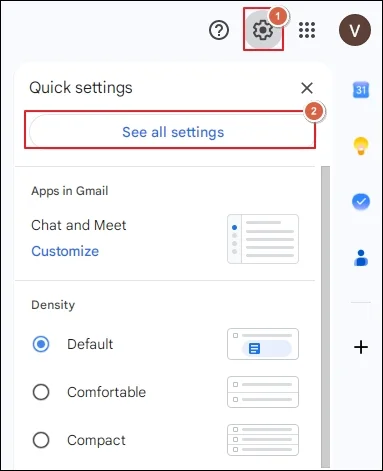
Step 3. Go to Accounts and Import and tap on Import mail and contacts.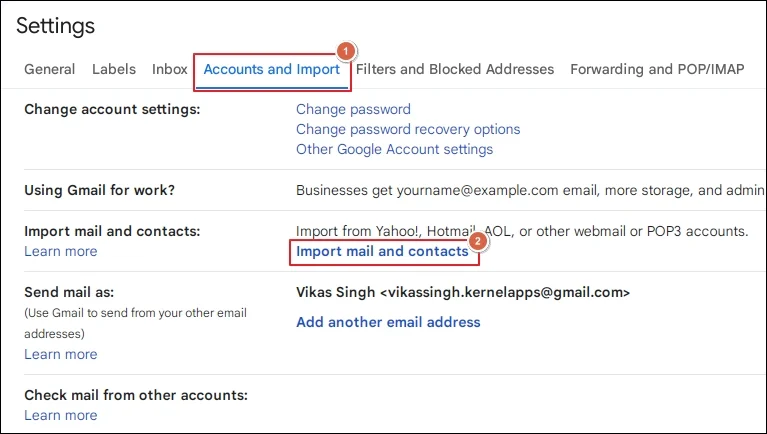
Step 4. Enter your email address and hit Continue.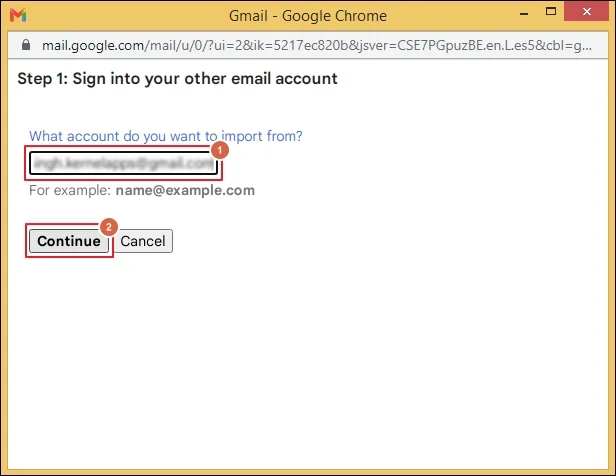
Step 5. Tap on Continue to follow on screen instructions.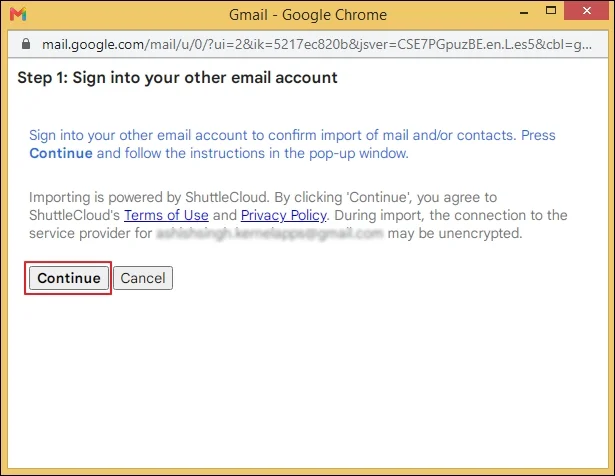
Step 6. Verify the imported emails after the process completion.
Method 2. Use Outlook to Transfer Mediacom Emails to Gmail
Another method to migrate mailbox data from Mediacom is via Outlook. Here are the detailed steps to do the same.
Note: This method requires Outlook installation, and the time increases with the mailbox size.
Step 1. Configure the Mediacom and Gmail accounts in Outlook.
Step 2. Wait for the Outlook to synchronize mailbox content from both accounts.
Step 3. Drag and drop folders from Mediacom to Gmail in Outlook.
Step 4. Perform the same operation till you have moved all the required mailboxes completely.
Step 5. Login to your Gmail account and verify the migrated emails.
Common Problems That Occur During the Mediacom Email to Gmail Migration
Even a well-planned migration can encounter challenges, so you have to prepare for all situations. We have covered these issues in the section below.
| Challenges | Solutions |
|---|---|
|
Gmail Not Receiving Imported Emails |
|
|
Authentication Errors |
|
|
Missing Folders |
|
|
Duplicate Emails |
|
|
Slow Migration Speed |
|
Want to Avoid Migration Mistakes? – Switch to Direct Approach
Manual methods work well for small mailboxes, but they fail to migrate thousands of emails properly. To avoid these situations, taking help from professional solutions like Recoveryfix is the best approach.
The IMAP Migration tool helps you to transfer Mediacom Emails to Gmail with no manual effort. It even allows you to migrate IMAP mailboxes to Exchange Server quickly.
Closing Words
Here, we have covered detailed steps to transfer Mediacom emails to Gmail. You can use either manual or automated solutions to move mailboxes from the source account.
Native solutions may work well for small-scale migration, and an advanced professional solution is suitable for large-scale migration. The software helps you to migrate emails from one host to another with precision and accuracy.