Fix Unplayable Video Error 0xc00d36e5: Top 6 Ways

Updated On - July 3, 2026
You double-click on a video & expect it to play, but Windows displays “Item is unplayable. Please reacquire the content. Error 0xc00d36e5.“ It implies that the media player can’t access or decode the video correctly.
As a result, your playback will get interrupted & raises concerns about file corruption. The error occurs while opening MP4/MOV/AVI files, videos stored on USB drives, SD card recordings, etc.
It doesn’t always mean that your video is permanently damaged. This easy write-up will help you with the complete information about the error, along with the workable solutions to fix unplayable video error 0xc00d36e5.
Want To Fix Video 0xc00d36e5 Error? Know Scenarios First
With the provided scenarios, you will get help to fix 0xc00d36e5 error with the right approach.
- When you look to download video files.
- To copy videos from USB drives.
- Export videos from editing software.
- Play videos directly from an SD card.
- File transfer interruption before completion.
- View videos stored on an external hard disk.
- Recover deleted videos from storage devices.
Related Blog: Understand how to repair corrupt F4V video files & fix videos playing in slow motion.
Possible Reasons Behind the 0xc00d36e5 Error
There are several reasons that can cause the 0xc00d36e5 error while playing videos. We’ve compiled a comprehensive list of the most significant ones below.
- Incompatible media player
- Virus or malware attack.
- Outdated Graphic Drivers
- Corrupt or damaged video file.
- Corruption in the Windows Registry.
- System file configuration problems.
- Corrupt storage drive (e.g., USB and SD card).
- Hindrance created by third-party applications.
- Incomplete download or transfer of video file.
- Restart your system.
- Try opening another video.
- Verify video codec compatibility.
- Copy the video to your local drive.
- Use the updated Windows versions.
- Ensure Windows has sufficient free storage space.
- Check whether the storage device is functioning properly.
Manual Solutions To Fix Unplayable 0xc00d36e5 Video Error
By diligently following the solutions mentioned below, you can easily solve 0xc00d36e5 video error and regain the seamless enjoyment of your videos.
Solution 1. Play The Video In a Compatible Media Player
One of the most common reasons for the “video can’t play” error is incompatibility with your current media player. Using another media player, such as VLC, which supports a broad range of video file formats, can be helpful to fix 0xc00d36e5 error in videos.
Solution 2. Update The Graphic Drivers
Sometimes outdated graphic drivers can also cause hindrance in playing a video. So, updating graphic drivers can help you to repair 0xc00d36e5 video error. Follow the given instructions to update them.
- Right-click on the start button, then select Device Manager.
- Navigate and expand the Display adapters, right-click on the installed driver, then proceed to the Update Driver Software option.

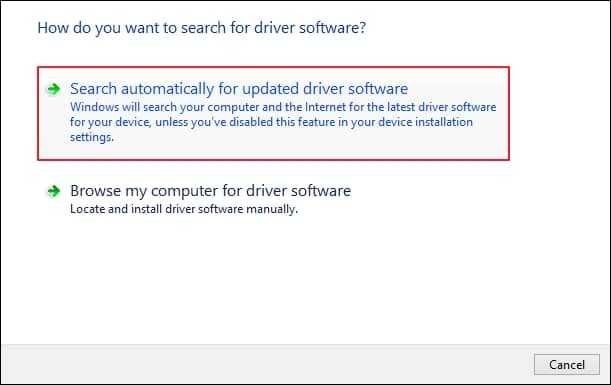
- Click on the Search automatically for updated driver software that will begin the automatic search for the latest driver and install it in your system.
Solution 3. Fix The Video File Via The VLC Media Player
VLC Media Player can help you to fix minor errors in the video file. To do so, follow the given steps carefully.
Note: VLC Media Player mainly supports .avi files to remove minor errors. Thus, it’s important to convert your video files into .avi format before beginning the conversion process.
- Access the corrupted file’s location in your system and rename it to a .avi file extension.
- Launch the VLC media player, then tap on the Tools option and click on Preferences.

- Go to Inputs/Codecs> Browse your video file> choose Always fix from Damaged or incomplete AVI file section> tap on Save option.
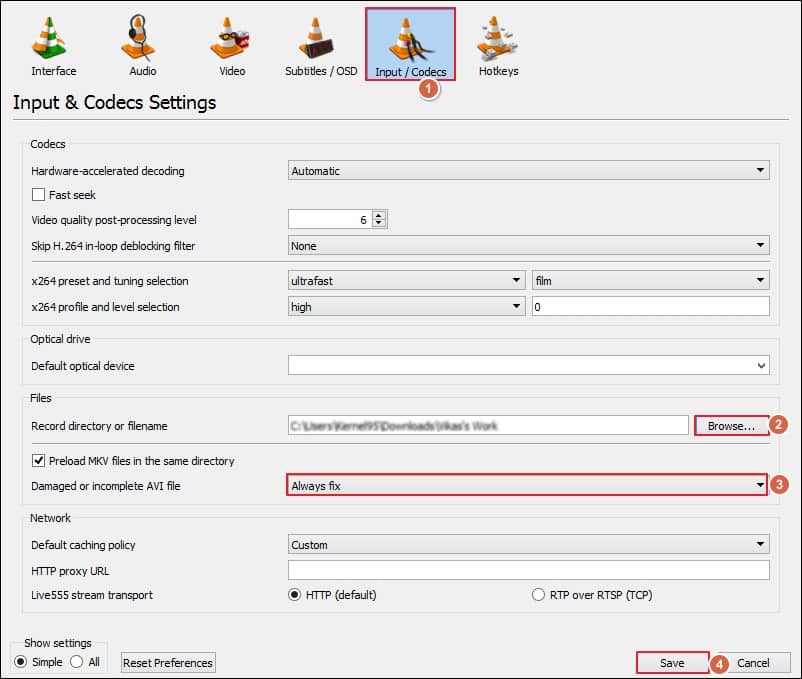
- It will automatically fix the minor errors in your video file.
Solution 4. Utilize The SFC and DISM Command Line
SFC and DISM are the built-in command lines of Windows that can resolve minor errors related to your system files. You can utilize these command lines to fix the error.
- System File Checker (SFC)
- Type CMD in the home screen search box on your system.
- Click on the Run as Administrator option.
- Type sfc /scannow and press the Enter key.
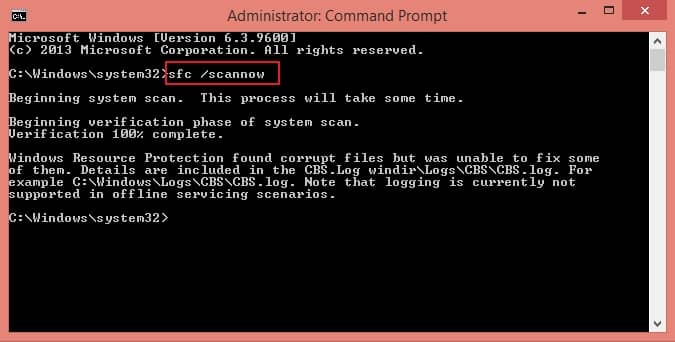
- Restart your system once the scanning and repairing process is complete.
- Deployment Image Servicing and Management (DISM)
- Type CMD in the search box and proceed to the Run as Administrator option.
- Type DISM /Online /Cleanup-Image /RestoreHealth and press the Enter key.
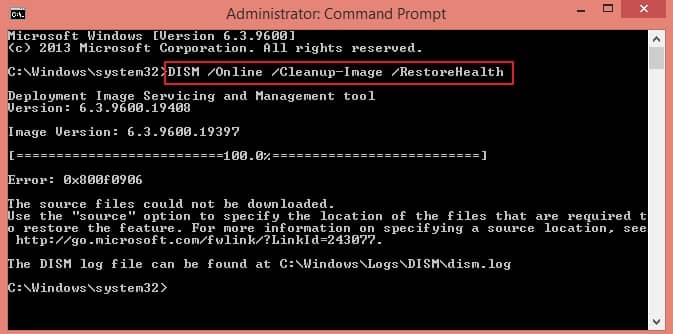
- It will initiate a process that takes over 10 minutes to complete.
- Restart your system and run the SFC command again with the above steps.
The error can also occur due to corruption in your system files. Hence, you can run the SFC command line to repair minor issues in your system. To perform this, follow these steps attentively.
In case the SFC command line didn’t fix 0xc00d36e5 error, you can use the DISM command line to fix it. To do so, follow the given steps described below.
Solution 5. Fix Video 0xc00d36e5 Error With CHKDSK Utility
There are cases when the affected video is stored on a USB drive, SD card, or external hard disk, and file system errors or bad sectors may prevent Windows from reading it correctly. Here, we can get help from the CHKDSK utility that helps to repair logical disk errors & improve file accessibility. Follow the steps below:
Step 1. Connect the storage device to your computer.
Step 2. Press Windows + S & search for Command Prompt.
Step 3. Right-click on it & choose the Run as administrator option.
Step 4. Type the following command: chkdsk Z: /f /r
Note: Replace “Z” with your storage device drive letter.
Step 5. Press Enter & wait for the scan to complete. Restart the system & check the status of the video error.
Solution 6. Reboot The System In Safe Mode
Third-party applications or advanced settings can also cause the video can’t play error in your system. So, to repair 0xc00d36e5 video error, rebooting your system in safe mode might be helpful. To reboot your system in safe mode, follow the given instructions.
- Press Windows + I keys to access the Settings in your system.
- Choose Update & Security and go to the Recovery tab.
- Navigate the Advanced startup option under the Recovery tab and tap on the Restart option.
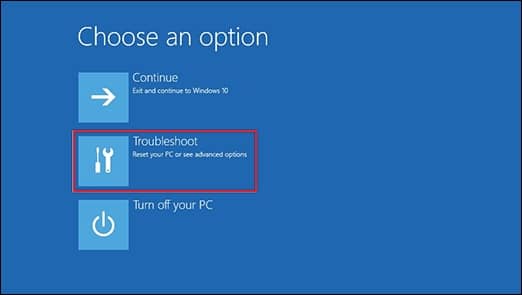
- After the successful restart of your PC, a Choose an option screen will open, then select the Troubleshoot option.
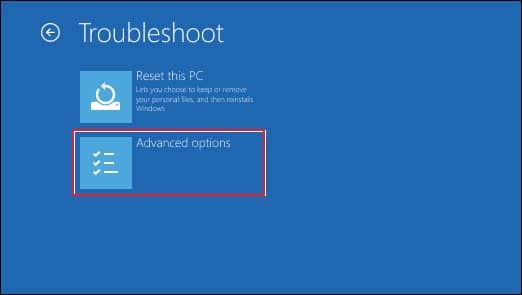
- Click on Advanced options under Troubleshoot section.
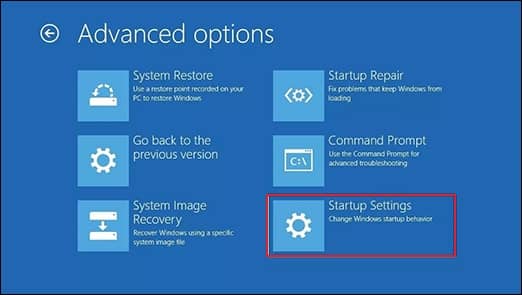
- Under Advanced options, choose Startup Settings.
- Tap on the Restart option to access your PC in safe mode.
Note: You may be required to enter your BitLocker recovery key.
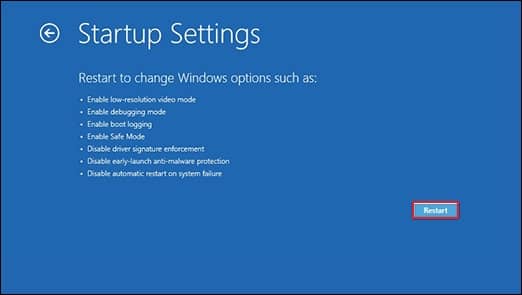
- You will see a list of options on the screen once your system restarts. Choose 4 or press F4 to start your system in safe mode. If you need to access an internet connection in safe mode, then select 5 or press F5.
- Choose the Boot tab on the screen.
- Clear the Safe boot checkbox under Boot options to start your system in normal mode.
Note: You can easily exit from Safe Mode just by restarting your system. In case your system is still booting in Safe Mode, then follow the instructions below to exit from it. Press Windows + R keys> type msconfig in the Run window> click on OK.
Automated Solution Preferable: Know Why?
The above-mentioned methods can help you resolve minor errors in a video file. However, these methods may not be effective in severe video file corruption, which is also a possible reason behind this error. Therefore, opting for an automated tool is the best solution to repair your corrupt or inaccessible video file.
Recoveryfix Video Repair is one such tool, capable of repairing corrupt or damaged video files without disrupting their original form. It not only repairs your videos but also allows you to convert and save them into various formats, including MP4, 3GP, MOV, FLV, and more.
Mistakes To Fix 0xc00d36e5 Error in Videos: Must Avoid
Explore some genuine mistakes that users usually make while fixing the 0xc00d36e5 video error.
- Not considering the Windows or driver updates.
- Induce changes in a corrupted video before editing.
- Recovering deleted videos to the same storage device.
- To format the storage device before creating a backup.
- Assumption: Every playback error is due to permanent corruption.
- File transfer is going on, still you are disconnecting the storage devices.
Last Words to Fix Unplayable Video Error 0xc00d36e5
We have discussed the potential causes and effective solutions to solve 0xc00d36e5 video error. With them, I hope you have resolved it.
However, these manual solutions may not be able to resolve severely corrupt or damaged video files. In this case, relying on the discussed professional tool to repair your corrupt or damaged file can be the best option
FAQs
Q- Is it possible to fix 0xc00d36e5 error in videos by changing the file extension?
A- No. By changing the file extension, you can’t repair video corruption or change the codec used to encode the video.
Q- Does the malware also trigger the video errors?
A- Malware can corrupt video files, damage storage devices, or interfere with Windows media components. It can cause several video errors like 0xc00d36c4, 0xc10100be, etc.