How to Fix Red Exclamation Mark in Outlook?

Updated On - June 26, 2026
The ‘Red Exclamation Points’ error meaning depends entirely on where it appears inside Outlook. It generally indicates:
- Outlook synchronization issues.
- Outlook file or profile corruption.
- Outlook is operating in Offline Mode.
- Conflicts between the Outlook add-ins.
- A message marked as High Importance.
- Invalid email address or recipient issue.
- Exchange or Microsoft 365 connectivity problems.
It is important to identify exactly where the symbol appears before applying the methods.
A red exclamation mark in Outlook makes users think something is wrong with their email or account settings. The mark can appear on the Outlook icon, beside an email, or near the recipient address. At first, it may look like a serious error or warning and raise concerns for them. However, most users struggle to find the exact causes behind this. The article helps to identify the possible reasons and provides best ways to fix red exclamation mark in Outlook.
Common Places Where the Red Exclamation Mark in Outlook Appears
Check out the section below to know the location to reduce unnecessary troubleshooting steps:
| Appeared Locations | Possible Meaning |
|---|---|
|
Outlook Desktop Icon |
Sync or account issue |
|
Beside An Email |
Message marked High Importance |
|
On Recipient Name |
Invalid or unresolved address |
|
System Tray Icon |
Outlook requires attention |
|
After Outlook Update |
Add-in or product conflict |
|
Exchange Account |
Mailbox authentication problem |
Why Are You Seeing the Red Exclamation Points? – Top Reasons Listed
Here is the list of the most significant reasons that can trigger this warning.
- Outlook is running in Offline mode.
- Problems with the recipient address.
- Outlook cannot connect to the server.
- Damaged Outlook profile or data files.
- Interference of faulty Outlook add-ins.
- Reinstall Outlook: Fix issues that exist locally.
- Create A New Outlook Profile: Fix profile-related issues.
- Update the Outlook Application: Remove older version bugs.
- Check Internet and Server Connectivity: Solve connectivity interruptions.
Manual Methods to Remove Red Exclamation Mark on Outlook [Top 5]
This section highlights the most effective methods to solve the error in most cases. Follow the arranged sequence to get the maximum results.
Solution 1. Disable the Work Offline Mode
If you are working in Offline Mode, then Outlook stops the email synchronization. Here are the steps to disable it.
Step 1. Launch Outlook and proceed to the Send/Receive tab.
Step 2. Locate the Work Offline mode and disable it if enabled.
Note: Working Offline means the service is enabled in Outlook.
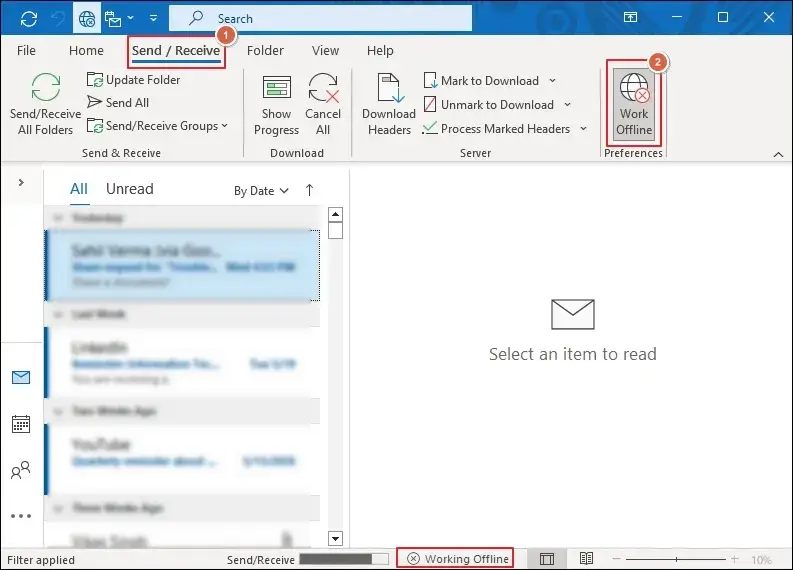
Step 3. Check for the Connected status after disabling the service.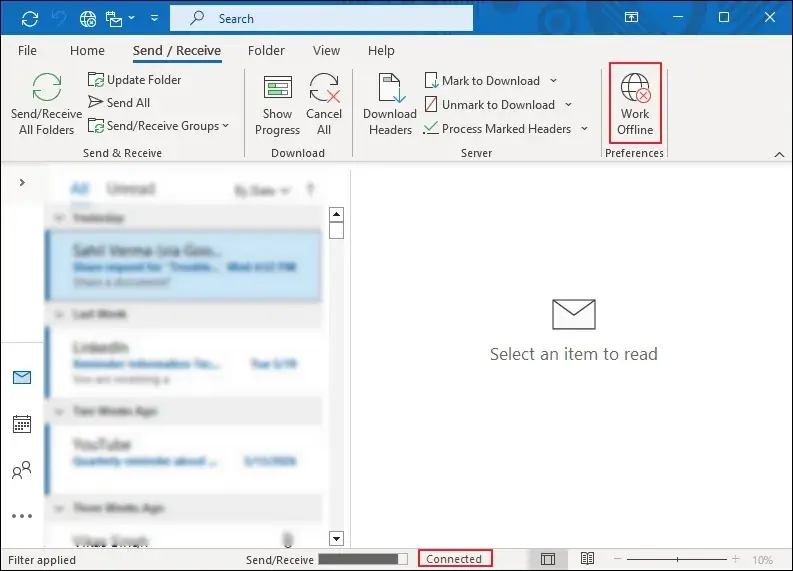
Step 4. Restart the Outlook application and wait for synchronization.
Solution 2. Remove the Faulty Outlook Add-ins
Sometimes, the ‘Red Exclamation Points’ issues occur due to faulty add-ins. Here’s how to fix Red Exclamation Mark in Outlook:
Step 1. Press Windows + R and type outlook .exe/safe.
Step 2. Then, hit Enter to open Outlook in Safe Mode.
Step 3. If the red exclamation disappears, then the problem appears due to faulty add-ins.
Step 4. Go to the File menu and click on Options.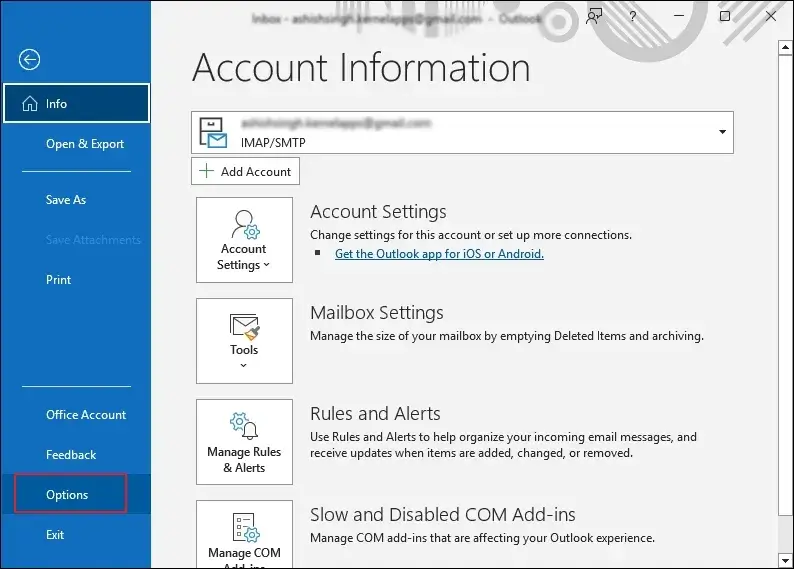
Step 5. Navigate to Add-ins and select COM Add-ins. Then, tap on Go.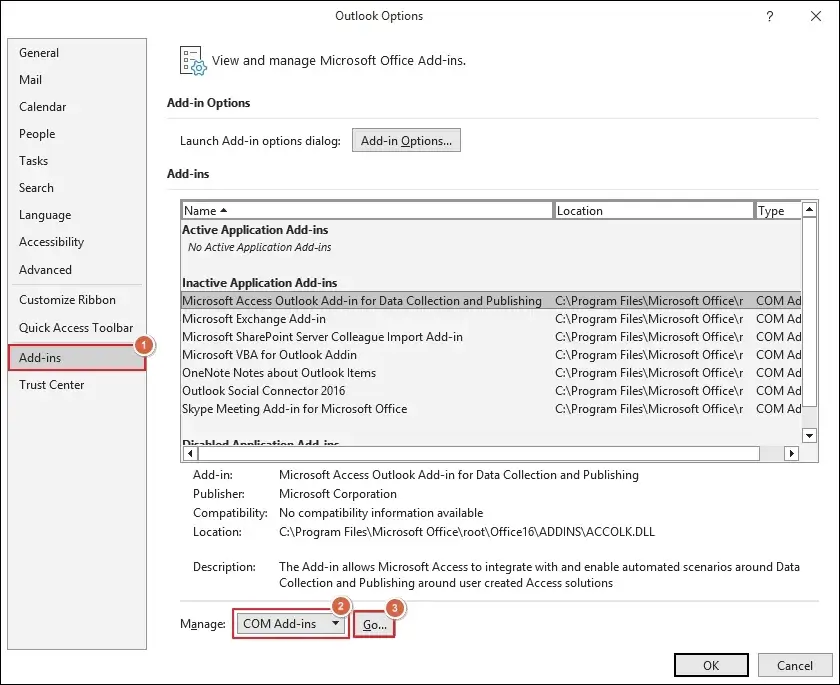
Step 6. Disable add-ins individually to identify the problematic one.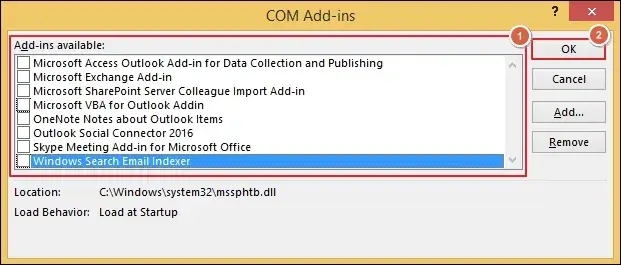
Step 7. Restart Outlook once it is completed.
Solution 3. Repair the Outlook Profile.
A damaged profile can lead to account-related warnings. Follow the given steps to fix red exclamation point on the Outlook icon:
Step 1. Access the Control Panel and select Mail (Microsoft Outlook).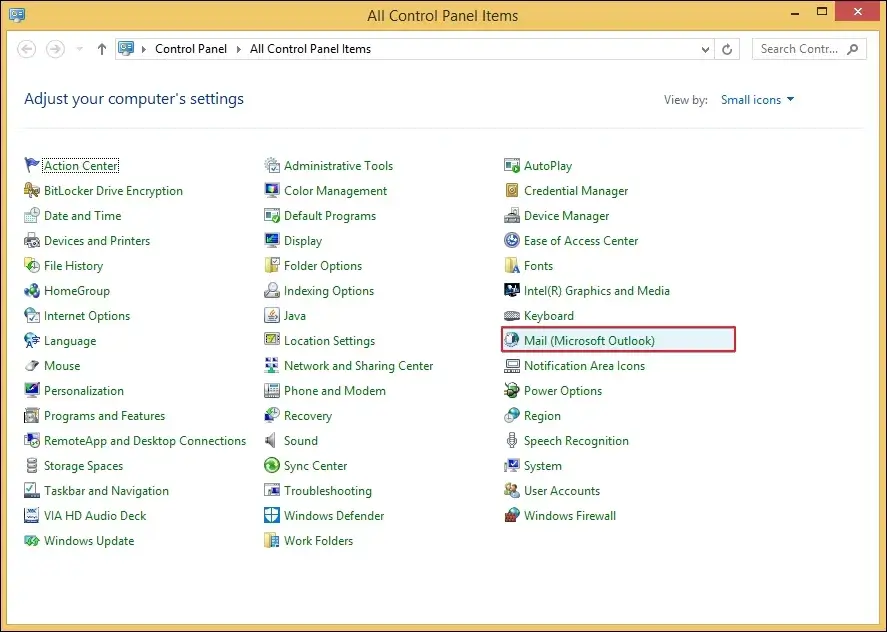
Step 2. Go to Show Profiles to choose the required one.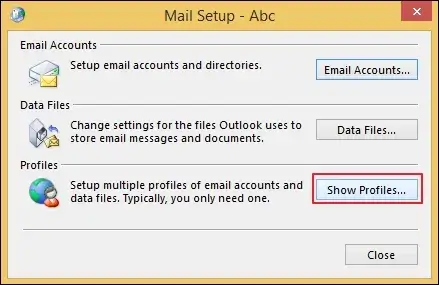
Step 3. Once selected, click on Properties to continue.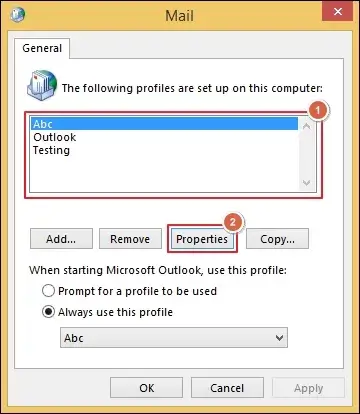
Step 4. Tap on Email Accounts to proceed further.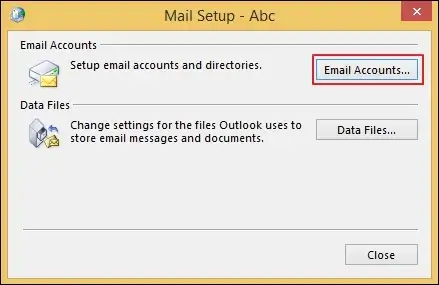
Step 5. Select the email account to Repair its related profile.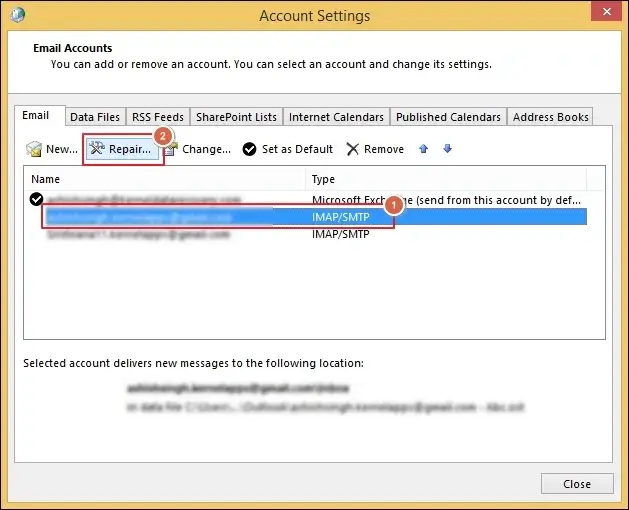
Solution 4. Clear Outlook AutoComplete Cache
Use the steps below to clear the Outlook AutoComplete cache data if recipient addresses appear with warning icons.
Step 1. Click on the File menu and go to Options.
Step 2. Locate the Mail section and proceed to Send messages.
Step 3. Empty Auto-Complete List and click OK. 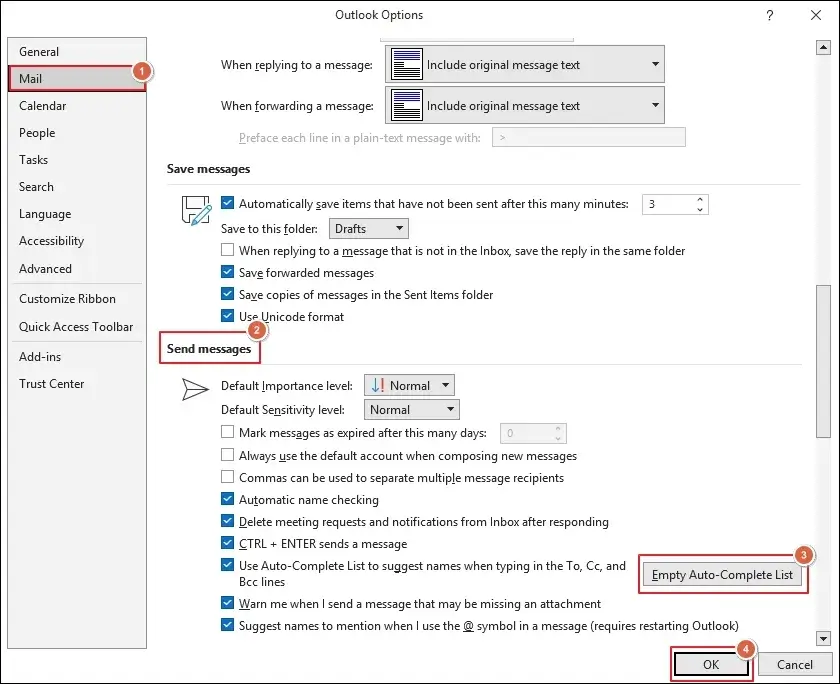
Step 4. Restart Outlook once it is completed.
Solution 5. Fix the Outlook Data File Corruption
Corrupted Outlook data files are one of the main causes behind frequent synchronization errors. Here’s how to fix files with the Inbox Repair tool:
Step 1. Close the Outlook application first.
Step 2. Locate the SCANPST tool and Open it. 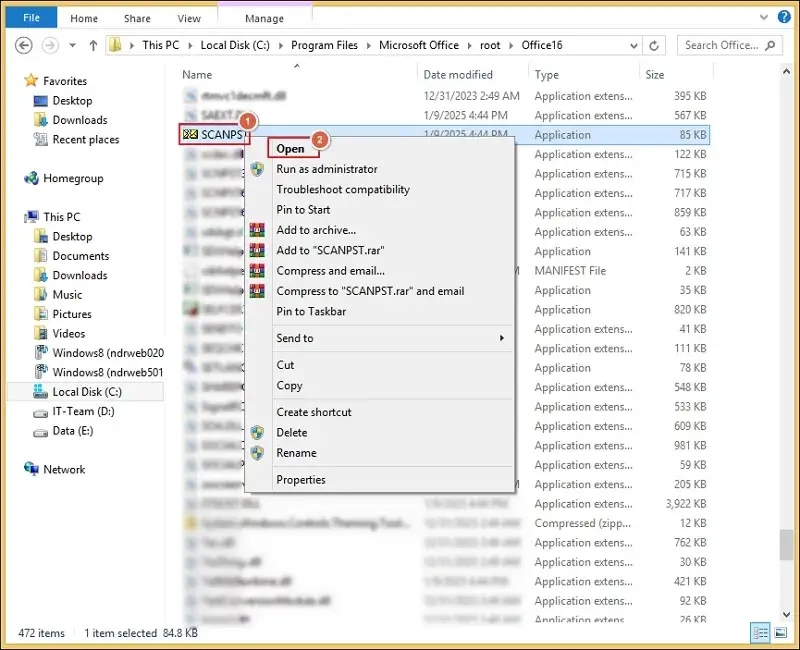
Step 3. Browse to add the data file and click Start. 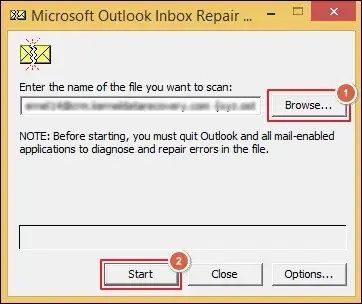
Step 4. Repair the file inconsistencies after the scanning is complete.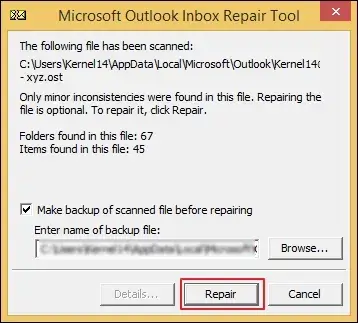
Step 5. Wait till the process completion and hit OK.
The SCANPST tool can fix only minor corruption issues from Outlook data files. For highly damaged ones, go with the advanced solution providers like Recoveryfix. The Outlook PST Repair tool allows you to fix damaged data files without affecting their data.
Special Cases of Red Exclamation Mark in Outlook [Frequent Ones]
Below, we have listed the two special cases that you may face while working on the Outlook application. Here they are:
| Special Cases | Actual Meaning | Solution |
|---|---|---|
|
Red Exclamation Mark Beside An Email |
It indicates that the sender has marked the recipient’s email as Urgent or High Importance. |
Open email > Tags > Importance > Normal. |
|
Red Exclamation on Recipient Address |
It is due to an invalid address, a corrupted contact entry, a cached email mismatch, and an Exchange Global Address List issue. |
|
Last Thoughts
The blog has covered a detailed guide on decoding the Red Exclamation Point in Outlook. It is not always a serious problem until the Red Exclamation Mark is related to synchronization, profiles, or mailbox issues.
For this, you can try the provided solutions to fix them immediately. Furthermore, use the recommended solution to recover corrupt or damaged Outlook files instantly.