Best ways to fix Outlook PST files not synchronizing on OneDrive

Published On - February 5, 2026
Outlook creates a PST file when users use a POP3-configured account to store emails, calendars, contacts & other mailboxes locally. At the same time, OneDrive is commonly used to keep important files backed up & accessible across devices.
Since PST files are active databases, they remain locked & constantly updated when Outlook is running. But OneDrive used to sync files in real time. This fundamental difference often causes conflicts like sync errors, file access conflicts, or even data inconsistency.
This easy write-up will highlight the issue in detail & try to solve “Outlook PST not synchronizing with OneDrive” issues with standard solutions.
Common symptoms of a PST file not syncing on OneDrive
Knowing the symptoms can reduce the chances of getting things worse. Here are some:
- Repeated sync error notifications.
- Outlook performance slows down.
- OneDrive may be stuck or paused.
- PST files showing a sync conflict icon.
- OneDrive is skipping the PST file for backup.
Reasons for Outlook PST not synchronizing on OneDrive
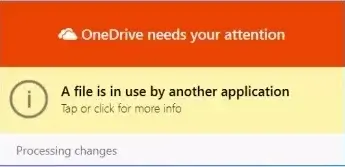
Get the list of common reasons that can cause the Outlook PST not synchronizing on OneDrive issue:
- Dealing with the large PST file size.
- PST files are open & in use by Outlook.
- Bad internet connection during the sync.
- OneDrive file restrictions & PST corruption.
- File locking during active Outlook sessions.
- Verify stable internet connectivity.
- Keep Outlook & OneDrive updated.
- Confirm OneDrive is signed in & running.
- Check available OneDrive storage space.
Ways to fix the Outlook PST files not synchronizing issue on OneDrive
This section will help you in providing the most feasible & workable solutions to fix Outlook PST sync errors with OneDrive.
Way 1. Close Outlook before OneDrive syncs
It is the simplest & safest approach to fix Outlook PST files not synchronizing on OneDrive issue. Since Outlook locks the PST file during use, OneDrive can’t sync it simultaneously. So, close the Outlook application completely & make sure that it is not running in the background. Allow OneDrive to complete the sync process & then reopen Outlook once resync finishes.
Check the running status of the application: Right-click on the Taskbar, tap on Task Manager > Details. It will show you the complete details of the running application. If still running, right-click on it & tap on the End Task.
Way 2. Move PST files outside the OneDrive folder
Moving the PST files outside the OneDrive local folder can also reduce the risk of conflicts. It can prevent real-time sync conflicts entirely.
Here, we will take the help of a symbolic link to move the PST file location, as it creates a reference or pointer in OneDrive. It will not replace the original file but redirect to the new location that can minimise the sync issues.
Look at the steps to know how it works:
Step 1. Close the Outlook application.
Step 2. Create a new folder & shift your PST file from OneDrive to it.
Step 3. Open the Command Prompt as an administrator & run the following command:
mklink “C:\Original\Path\File.pst” “D:\New\Path\File.pst”
Step 4. Once the process is completed, restart Outlook & check the status of the error.
Pro tip: You can also delete the files or folders from OneDrive local storage by: C:\Users\username\OneDrive\Documents\Outlook Files. Then move the PST file & clear the OneDrive directory.
Way 3. Exclude the PST file from OneDrive sync
If moving the PST file does not come in your favour, try to exclude it from OneDrive syncing. It can also help you fix the Outlook PST files not synchronizing issue on OneDrive. Follow the steps below to implement correctly:
Step 1. Open the OneDrive settings.
Step 2. Go to the Account or sync settings section.
Step 3. Choose the folders to manage the sync status.
Step 4. Deselect the folder containing PST files.
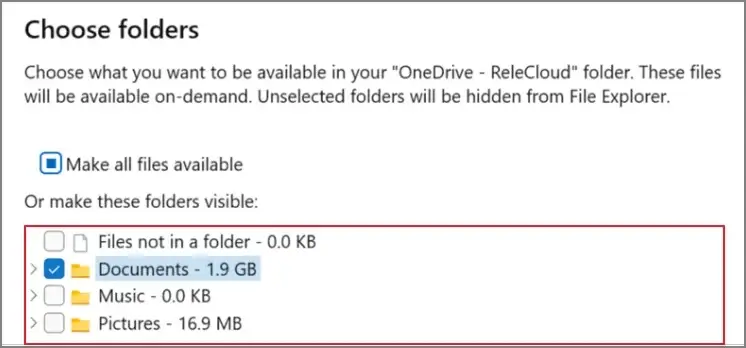
Step 5. Save changes & then, restart OneDrive.
Way 4. Reduce PST file size
Large PST files are prone to sync errors. Hence, it is recommended to use the smaller-sized files as they sync more readily. Try the steps below to reduce the PST file size manually:
Step 1. Open Outlook & go to the File tab.
Step 2. Navigate to the Account Settings > Account Settings.
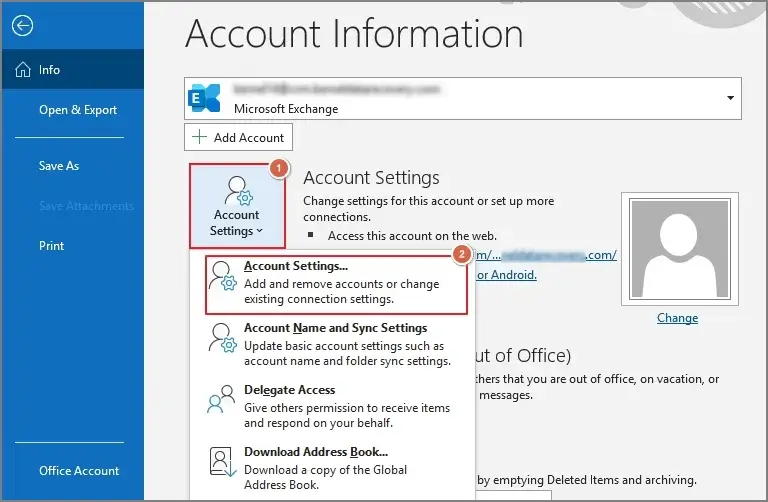
Step 3. Under the Data File section, choose the desired PST file & click on Settings.
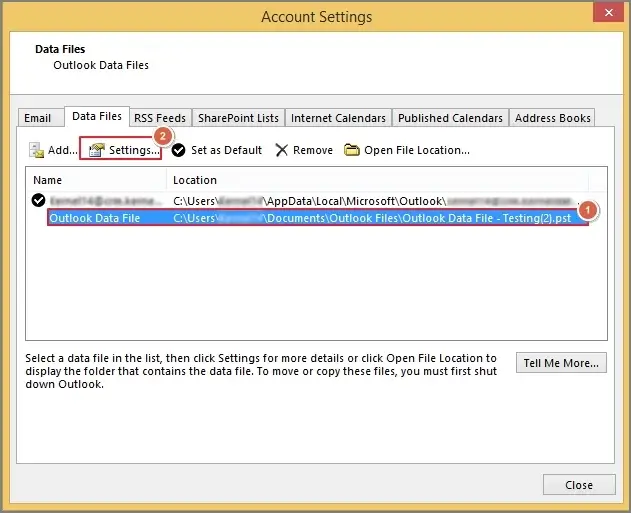
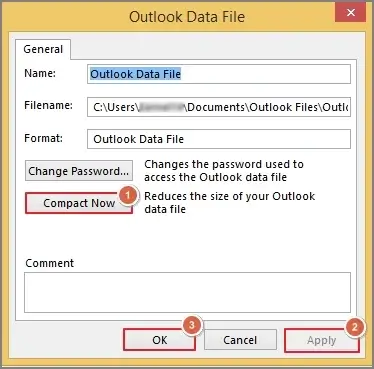
Step 4. In the next section, choose the Compact Now option, and hit Apply> OK to save the changes.
Note: You can also reduce the PST file sizes by deleting the unwanted emails or emptying the Deleted Items folder.
Way 5. Repair the PST file
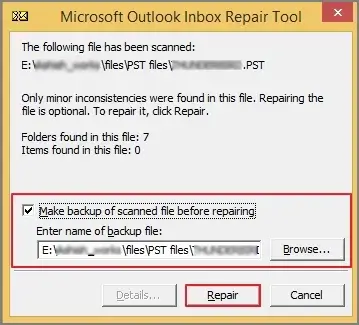
If all the provided solutions are not helpful in providing the successful results, then it signifies the corruption in the PST files. You can take the help of ScanPST.exe to repair the file to some extent. Let’s understand the process to use the Outlook built-in tool in the correct order:
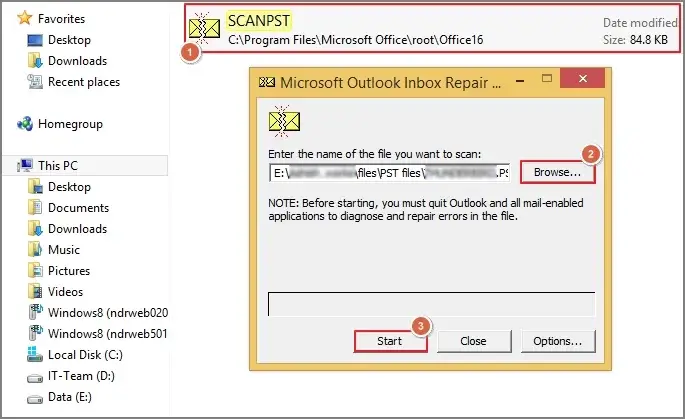
Step 1. Search for the ScanPST.exe tool. Launch it & browse the desired PST file. Hit Start.
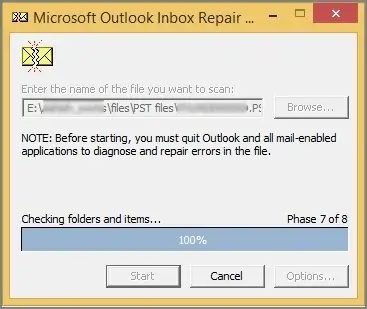
Step 2. It will start the scanning process.
Step 3. If errors are found, hit the Repair option. Restart Outlook & verify the status of the error.
Still not getting the results? Repair PST file with the advanced one
If you have arrived at this section, it means that your problem is still not resolved. All the discussed methods are helpful to solve “Outlook PST not synchronizing with OneDrive” issues. But if the issue is severe PST corruption, then they can’t help you fix it. Even ScanPST.exe can’t help you with that, as it is helpful in fixing the minor issues.
But don’t worry! Recoveryfix has the one-stop solution, i.e., the Outlook PST Repair tool. It is considered the best option among IT professionals or Experts due to its advanced features & intelligent framework. It supports batch PST file repair regardless of size. You can even save the repaired PST file in 10+formats like PDF, DOC, MBOX, etc. Besides, its advanced filters & Split PST file feature help users to manage the output & storage effectively.
Best practices for managing PST files with OneDrive
Check out the basic practices that can be helpful in managing the PST files with OneDrive:
- Monitor PST file size regularly.
- Sync PST files only when Outlook is closed.
- Avoid storing active PST files in OneDrive folders.
- Use OneDrive for backups, not for PST live access.
- Maintain OneDrive space storage to avoid future errors.
End thoughts
Outlook PST files are not meant for continuous cloud synchronization. If not managed properly, it can cause syncing issues with OneDrive. All the possible solutions have been discussed to fix Outlook PST files not synchronizing on OneDrive issue in brief. But they can’t help you if the issue is severe PST corruption. Try the recommended standalone utility to make the repair hassle-free with zero data loss.
FAQs
Q-1 Is storing a PST file in the OneDrive safe?
A- It is not recommended as PST files should not be used actively from the OneDrive folder. Also, it can lead to sync conflicts.
Q-2 Can I back up a PST file to OneDrive?
A- Yes. You can back up a PST file in OneDrive, but only when Outlook is completely closed.