Top ways to fix Office 365 Groups not showing in Outlook

Published On - February 13, 2026
Office 365 Groups are cloud-based objects created in Microsoft Entra ID [Azure AD]. Its main objective is to improve collaboration by bringing emails, calendars, files, & conversations into a shared workspace.
Outlook displays these groups automatically when:
- The user is a valid group member.
- Outlook is connected to an Exchange Online mailbox.
- Required group features are enabled in Microsoft 365.
If any of the conditions are missed or fail, Outlook may not show the group in the correct order. It leads to various disruptions in users’ lives, like hampered workflow, confusion, or limited collaboration.
Our new write-up will help you with complete information about the concern. Besides, it will provide ways to fix Office 365 Groups not showing in Outlook. Read the blog carefully to get useful insights.
Why are Office 365 Groups not showing in Outlook?
Know all the possible reasons for the issue that will help in troubleshooting Office 365 Groups not appearing in Outlook.
- Cached Outlook data is outdated.
- Using the older versions of Outlook.
- Users are not subscribed to the group.
- Groups are hidden from Exchange clients.
- Sync issues with incorrect Outlook settings.
- Outlook profiles may not be working properly.
- Oversized Outlook file & old AutoDiscover XML file.
- Email clients are going through some inconsistencies.
Easy ways to fix Office 365 Groups not showing in Outlook
Here, we will explore all the top ways to resolve the Office 365 Groups not showing in Outlook issue. Let’s explore each solution one by one.
Way 1. Subscribe to the Group manually
It is seen that in most cases, groups are available, but they are not visible because users are not subscribed. That’s why it becomes the foremost approach to address the issue. Let’s know how to check it:
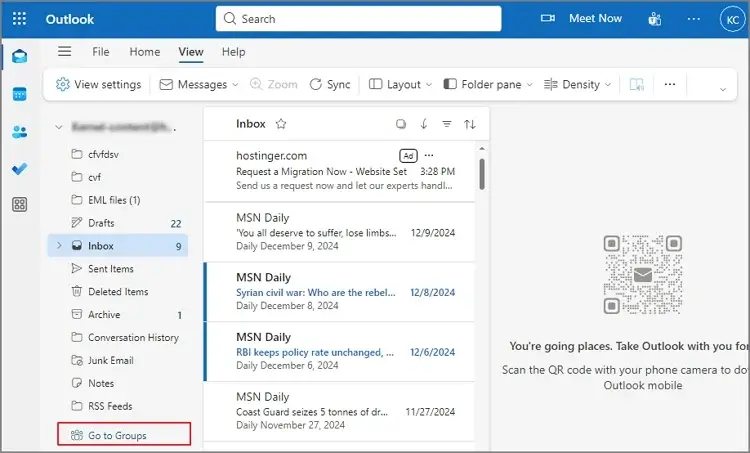
- Open Outlook Web App [OWA] & tap on Go to Groups.
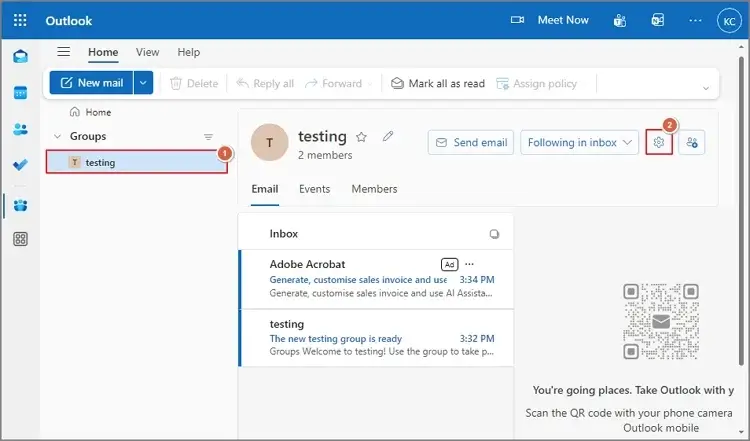
- Choose the missing group & go to Settings.
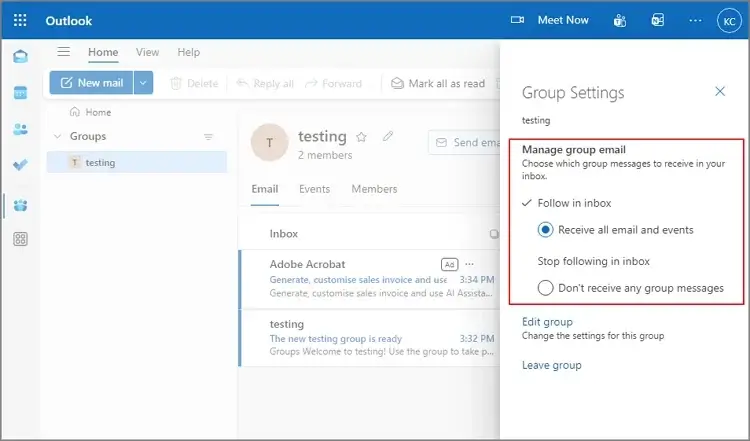
- Enable “Receive all emails & events” under Follow in inbox.
- Restart the Outlook application & wait for a while until synchronization occurs.
Way 2. Restart Outlook & try to resync
Sometimes, the cause of the issue is due to minor technical glitches that can be managed by simply restarting the application. Once it opens, try to resync with the following steps:
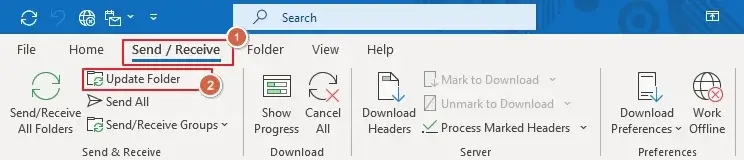
- Close Outlook completely. Then, restart & press Send/Receive > Update folder tab.
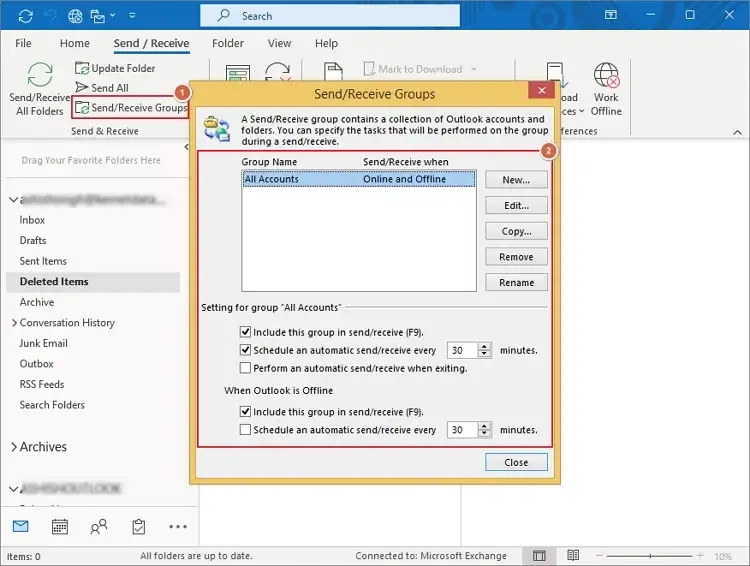
- Now, tap on the Send/ Receive Groups option. Manage the settings accordingly.
- Wait for a few minutes, then see whether the Office 365 groups are visible or not.
Way 3. Verify the Cached Exchange Mode settings
Using Cached Exchange mode usually improves the overall performance, but it can create lag in giving real-time updates about the groups. So, it can be a better option to verify whether it is the cause or not. Follow the steps below to know how it works:
- Open the Outlook application & hit the File tab.
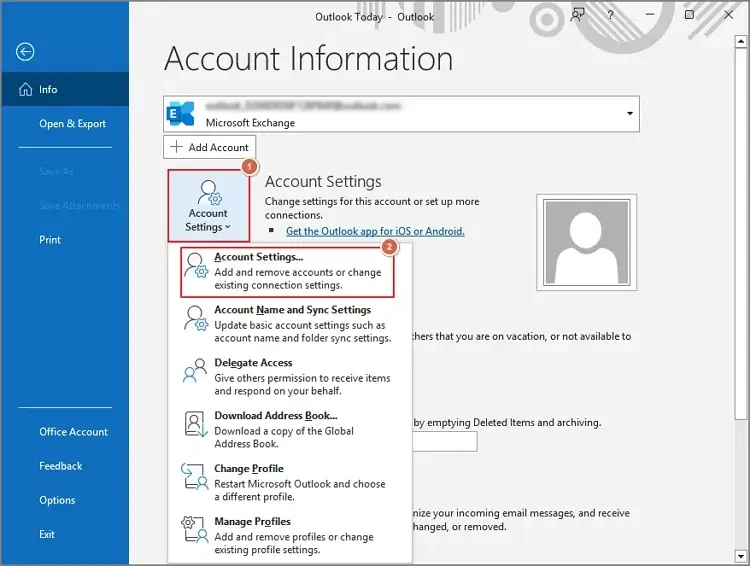
- Navigate to Account Settings > Account Settings options.
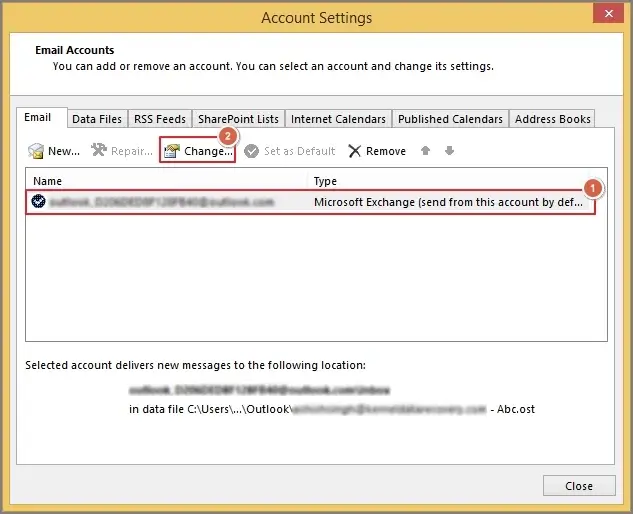
- Choose your Office 365 account & tap on the Change tab.
- Click on More Settings, search for the Advanced section, and uncheck ‘Use Cached Exchange Mode’. Click on the Apply > OK option.
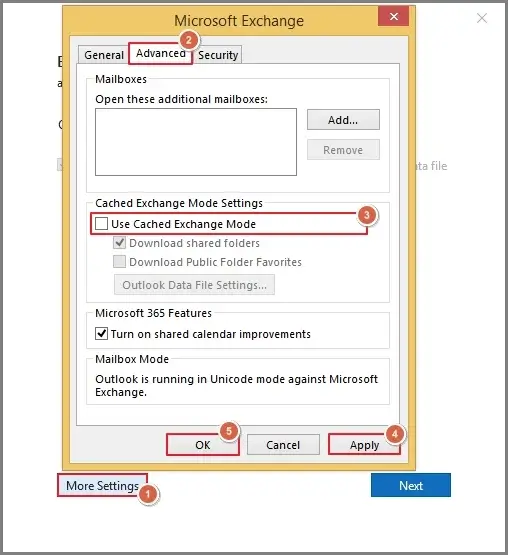
- Then, hit the Next > Done option. Check the status of the issue & then enable it again.
Way 4. Update Outlook to the latest version
With the outdated Outlook version, group visibility is often an issue. So, it is recommended to use the latest version of the software. Let’s understand how it can be done:
- Open the Outlook application & go to the File menu.
- Tap on Office Account > Update Options > Update Now.
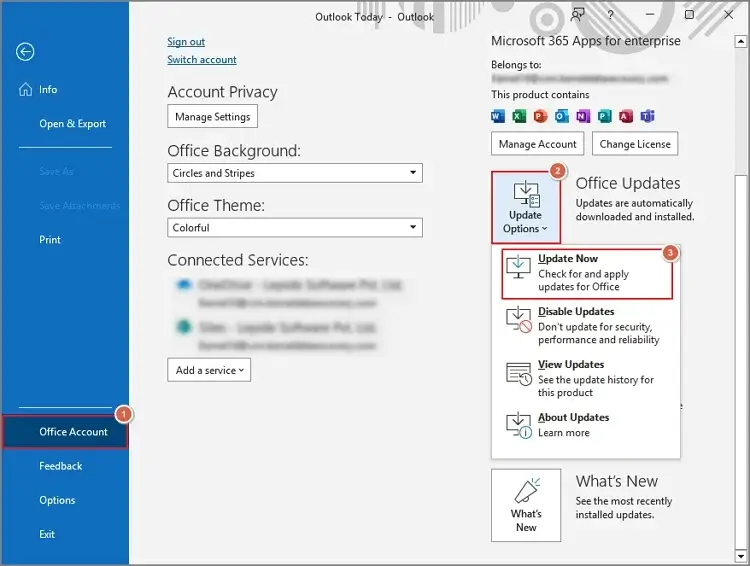
- Once the update is installed, restart the Outlook application.
Important to know:
Some groups are intentionally hidden from the Exchange list at the admin level. So, verify it in the address list. If hidden, it must be unhidden for users to access it in Outlook.
Way 5. Rebuild the Outlook profile
Working with a corrupted or damaged Outlook profile can disrupt users’ workflow in many ways, including group invisibility. It can be managed by rebuilding the Outlook profile. Check how to create a new Outlook profile:
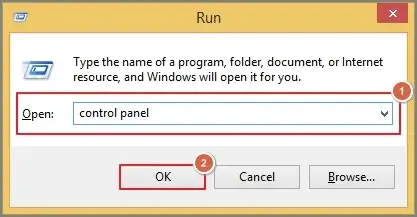
- Close Outlook & press “Windows + “R” key, type control panel, & hit OK.
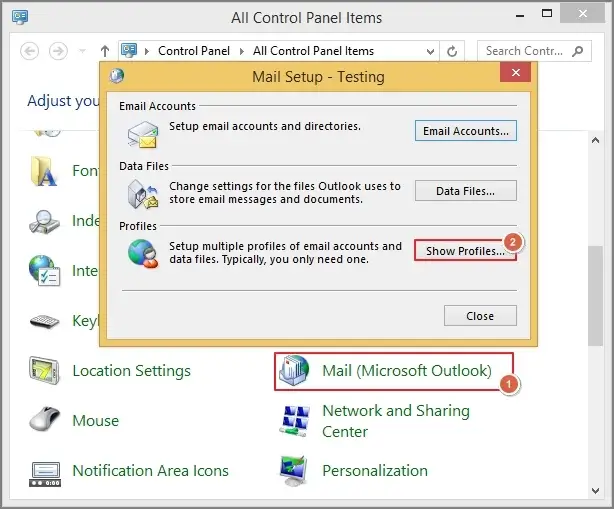
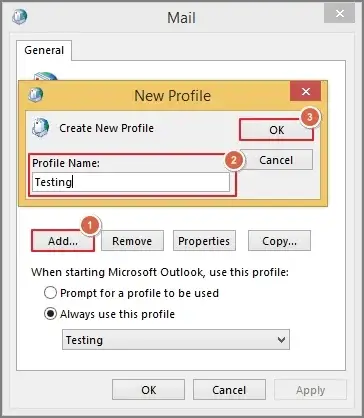
- Go to Mail & tap on the Show Profiles option.
- Click on Add, provide a name, & select OK.
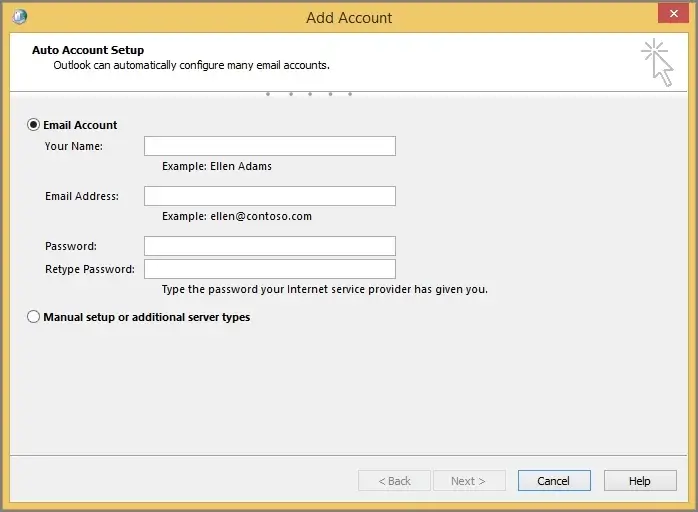
- Configure your Microsoft 365 account by following the on-screen instructions.
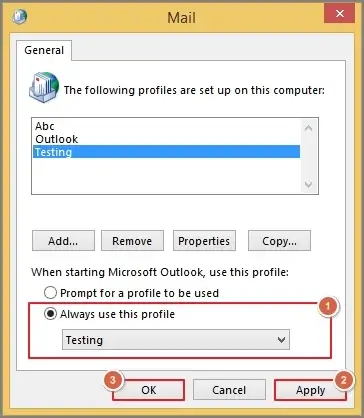
- Now, set the profile as default. Click on the Apply> OK to save the changes.
- Create a new Outlook OST file by deleting or renaming the old one.
- Check Outlook settings with File > Options > Advanced > Groups. Check the Show all Groups section & hit OK.
- Since Outlook uses an AutoDiscover XML file to configure settings automatically for users, verification of the file is necessary.
Location: C:\Users\%username%\AppData\Local\Microsoft\Outlook\16 folder
Format: AutoD.
Concerned with the Office 365 Groups data? Free yourself now
In the growing digital environment, individuals need to take a growth-oriented approach. The same goes for this situation; instead of better collaboration, you can lose data if it is not retrieved. That’s why professionals always recommend saving all the crucial information in an easily portable & accessible format, like PST.
Recoveryfix has helped users with its advanced OST to PST converter. It fixes damaged, corrupted, or distorted OST files and then allows users to convert them into the PST format in no time. You can process multiple files of any size at once. The tool’s intelligent algorithms & framework provide users a 100 % secure & safe conversion with structured output.
Prevent the Office 365 Groups visibility issue in future
Take the following precautions to avoid the Office 365 Groups visibility issues in future:
- Use the updated version of Outlook & Windows.
- Try to use a consistent Outlook version across teams.
- Make sure that the users are subscribed to the intended groups.
- Periodically check or review the Office 365 group visibility settings.
- Shut down the Outlook application properly to avoid profile corruption.
Wrapping up
Fix Office 365 Groups not showing in Outlook by addressing its core causes, like subscription settings, cached data, outdated clients, or profile corruption. All these things have been discussed in the blog completely.
Hopefully, it has helped you. However, if you want to safeguard your data from these issues or repair the corrupted OST file, go with the suggested advanced solution.