How to Add Custom Watermark to Videos? [All Steps Included]

Updated On - March 5, 2026
Videos are the best way to increase your reach and build an audience. But sharing videos across multiple platforms can pose a risk of unauthorized usage. Many creators, marketers, or educators often struggle to protect their work once it is published online.
So, adding the watermark to your videos is the simplest way to claim ownership during brand promotion. Read the blog to get the practical solutions to add a watermark to a video file for free.
What is A Watermark On Video Files? – An Overview
A watermark on a video is a visible mark that can be a logo, text, brand name, or symbol. It is like a digital signature that indicates ownership to protect videos from copying or unauthorized use. The positioning of the watermark doesn’t block users from viewing the content.
Primary Characteristics Of A Video Watermark
- Content protection from unauthorized reuse or redistribution.
- Non-intrusive placement to avoid blocking the visuals or content.
- Ownership identification by showing who created or owns the video.
- Brand promotion by displaying a logo or name to increase recognition.
- Consistency across platforms to maintain brand identity on all devices.
Why Is Using Watermarks In Videos Important? – Find Reasons
Here is the list of several advantages that you get after adding watermarks to videos:
- Maintains esteemed ownership with original video window.
- Video watermarking helps protect copyrights and improves brand images.
- Decreases the chance of copying, format conversion, encoding, and many more.
- Watermark doesn’t allow editing and cropping and prevents web scrap over the internet.
Manual Methods to Add Watermarks to Videos [Free Ones]
We have tried and tested several methods for adding watermarks. But only the given ones worked for us. Here they are:
Way 1. Use the Video Editor to Add Custom Watermark to Videos
You can use the built-in video editor application to put a watermark on a video file. Here are the detailed steps to do so:
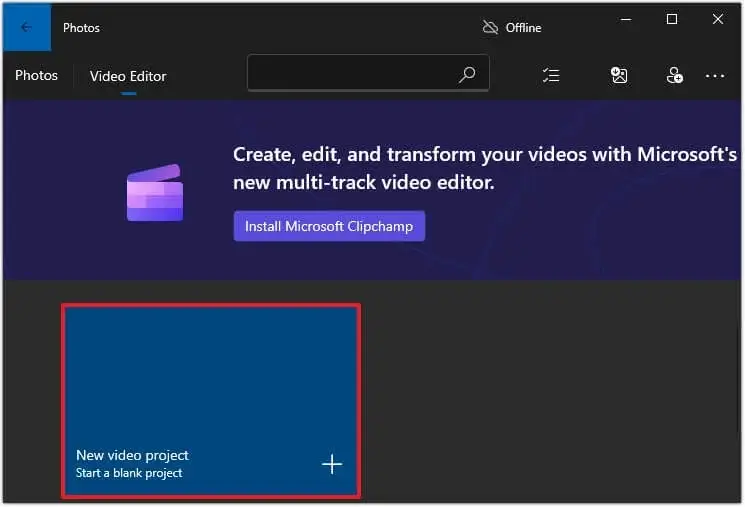
- Open the Video Editor application and click on the Add option. Then, enter your Project Name.
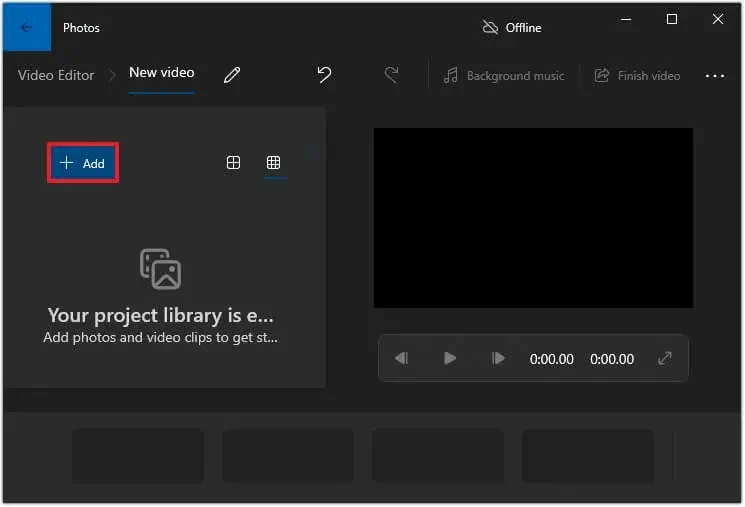
- Tap on Add to select the required video and proceed further.
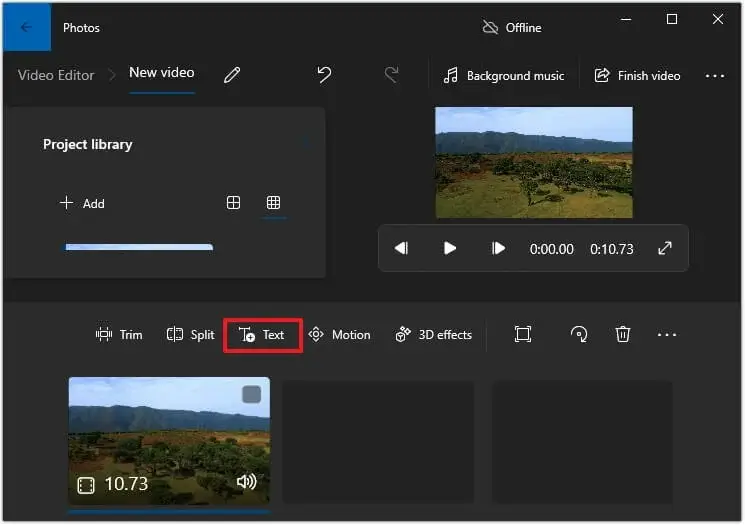
- Select and drag the video to the Storyboard section below and click on Text.
- Now, enter your watermark in the Text area.
- Choose the watermark duration and position.
- Then, tap on Done to save the made changes.
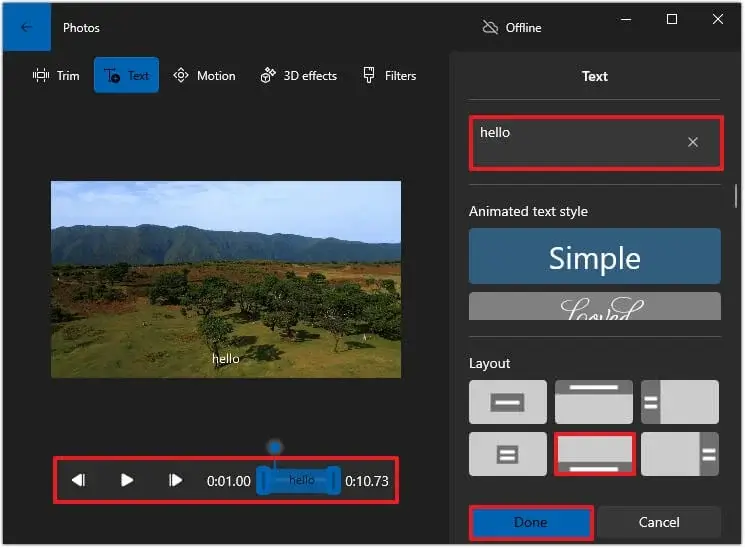
- It will help you attach watermark to videos in the desired position.
Way 2. Add Custom Watermark to Videos With The Canva Platform
Canva is another top platform to add logos to video files. Here are the detailed steps:
- Visit the Official website of Canva and log in with your credentials.
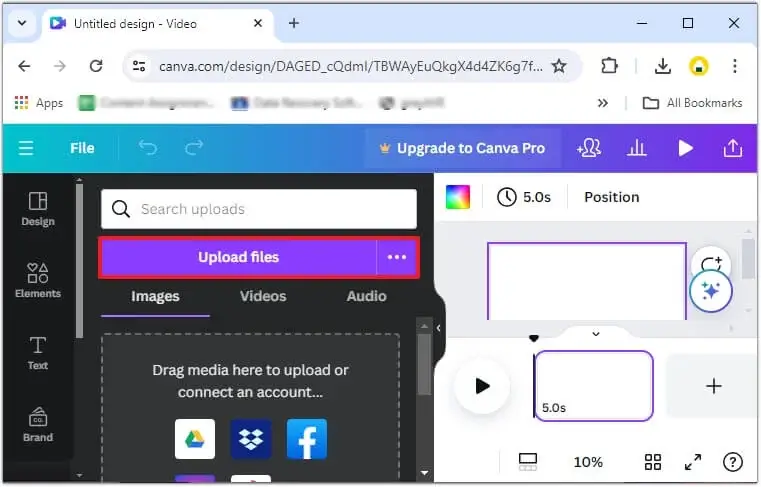
- Tap on Upload Files to select the videos in which you need to add watermarks.
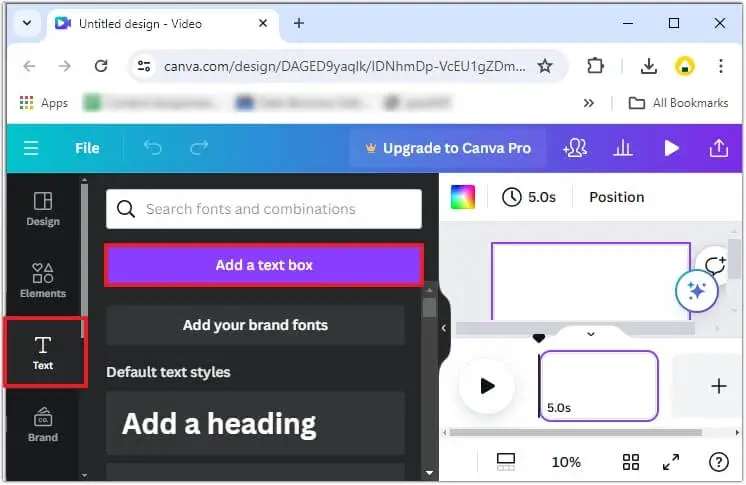
- Click on Text and add the desired watermark in the text box.
- Align the watermark position and save your video files.
These steps will help you attach watermark to videos.
Way 3. Use Adobe Express to Put A Watermark On A Video File
Follow the given steps to add a watermark to videos and download them using the Adobe Express platform.
- Go to Adobe Express and sign in with your credentials.
- Prepare your watermark using the free logo maker.
- Tap on the Video option and Upload your content to proceed.
- Add to import your logo or enter text.
- Align the size, position, or opacity of the watermark.
- Use the timeline editor to set the watermark time duration.
- Preview the watermarked videos and choose the resolution and format to download it.
Note: You can also use the available websites and applications to add a watermark to a video file.
What To Do When the Videos Become Corrupted While Adding Watermarks?
Generally, adding watermarks using different applications or websites gives better results. But sometimes, the video becomes damaged or shows abnormal behavior due to sudden interruptions in power supply, slow internet, and other factors. You have tried to open the files in the best video players available, yet are unable to play the video file.
In such situations, advanced video repair solutions like Recoveryfix are the best to bring video files back to a normal state. The Video Repair Tool repairs damaged, corrupted, or inaccessible video files instantly. It supports all the mainstream video file formats, such as MP4, 3GP, MOV, FLV, and many more.
End Thoughts
The blog has highlighted all the best free methods that are available to add a watermark to a video file. You can use them to include brand logos, images, or texts with a transparent background in the preferred format (PNG). Try them all individually to find the most appropriate one for yourself.
In case you have encountered an issue while adding the watermark, use the recommended solution to fix it. The Video Repair software easily resolves video-related issues like unable to play video error 5 within a few seconds.