Screenshot RecoveryFix for Excel
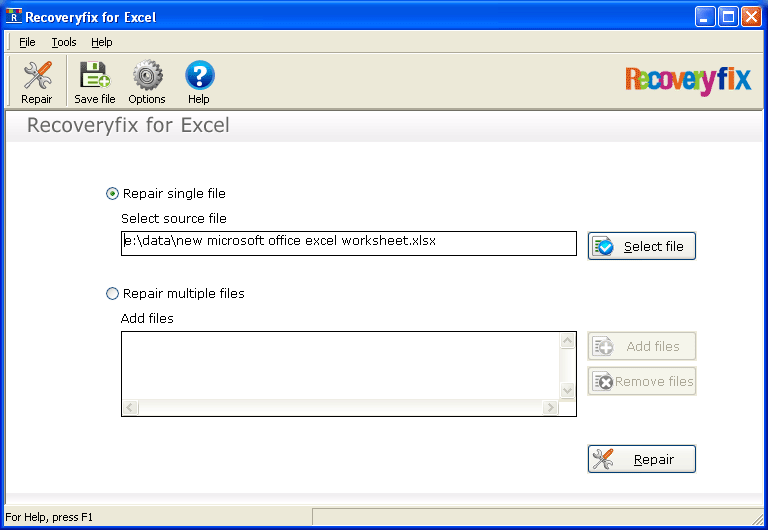
Main Screen of RecoveryFix for Excel - Repair Excel File - Data Recovery Software

Click the Select file button to select the corrupt .xls file for repairing process. The following screen will be displayed :

Select the appropriate .xls file and Click Open. The selected file will get listed in RecoveryFix for Excel for repairing.

Click the Recover button to start the process of repairing.

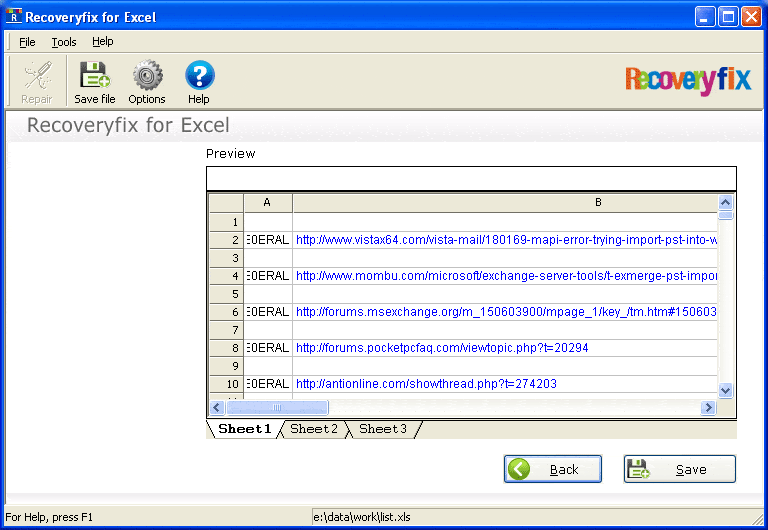
RecoveryFix for Excel will display the recovered results in excel worksheet like view. View and analyze the recovered results and Click the Save button to save the recovered results.

RecoveryFix for Excel will then ask you to define saving location of the recovered file. You can also define the preference of saving or not saving the numbers, formulas, merged cells etc by selecting or de-selecting the check boxes.

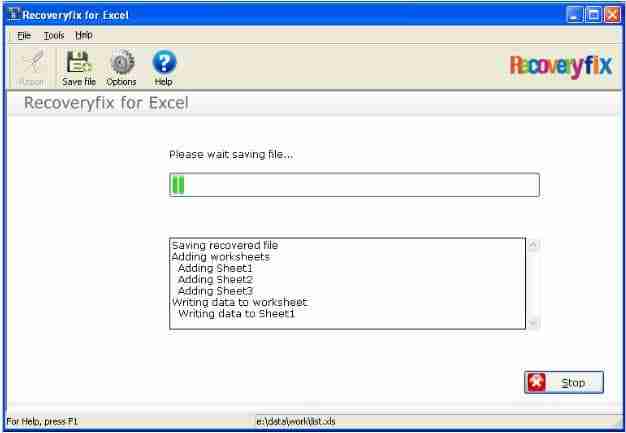
RecoveryFix for Excel data recovery software will now start the process of saving the recovered results.

After saving the recovered file, RecoveryFix for Excel will display the link of the saved file. Click on the link to view your recovered file.