How to View Someone’s Calendar in Outlook? [Latest Methods]

Published On - December 23, 2025
Imagine you want to schedule a meeting with your subordinates, but you are worried about matched timings and overlapping events. Here, the Calendar Visibility feature of Outlook can be a lifesaver for you. The problem is that many users struggle to access and view someone’s calendar in Outlook.
Therefore, the blog will help you find ways to access shared calendars, required permissions, and avoid common errors. Let’s see the clear steps to use the calendar visibility on desktop, web, or mobile devices to eliminate scheduling conflicts.
When do you need to view Someone’s Calendar in Outlook? – Most frequent scenarios!
Below is the list of common scenarios where users need to access a shared calendar.
- Easily coordinate team workloads.
- Schedule meetings without any conflicts.
- Manage shared or delegated calendars.
- Avoid matching or overlapping of appointments.
- Check everyone’s availability before sending invites.
Important to know: Calendar Visibility totally depends on permissions. So, you don’t have to worry about your privacy.
Prerequisites to View Someone’s Calendar in Outlook!
Here are essential things that you must know before viewing someone’s calendar:
You must have one of the following permissions from the calendar owner:
- Free/Busy only
- Limited details
- Full details
- Editor access
Microsoft 365 and Exchange accounts are the most compatible platforms.
External users may get limited visibility in calendar schedules.
Note: Users who don’t have permissions can only see the availability.
Manual Methods to View Someone’s Calendar on Different Platforms!
This section will help you find different ways to access and view someone’s Calendar in Outlook’s different versions and other associated platforms.
A. Open Someone’s Calendar on Windows Devices
As per the device’s availability for Windows, you can view shared calendars in Outlook. Here, we have provided the most suitable ones:
Solution 1. View a Shared Calendar in Outlook Classic
Follow the given steps to read someone’s calendar in the classic version of Outlook:
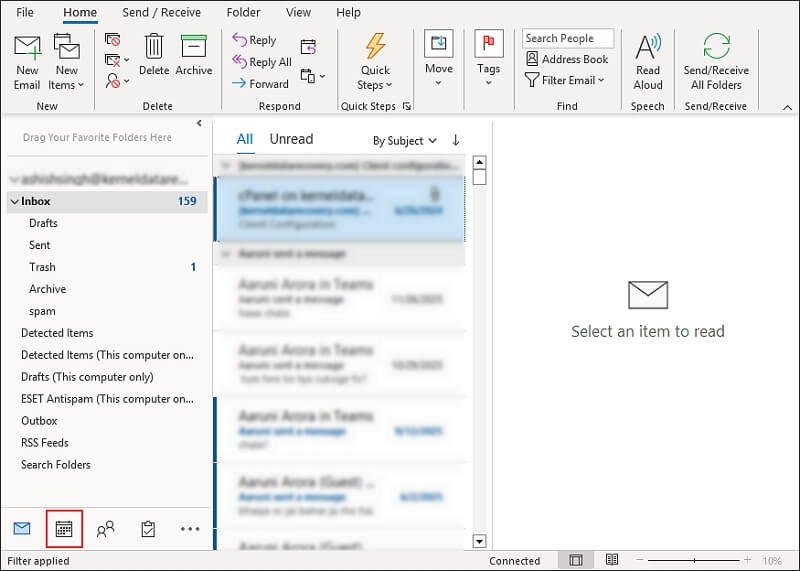
Step 1. Launch Outlook and click on the Calendar icon.
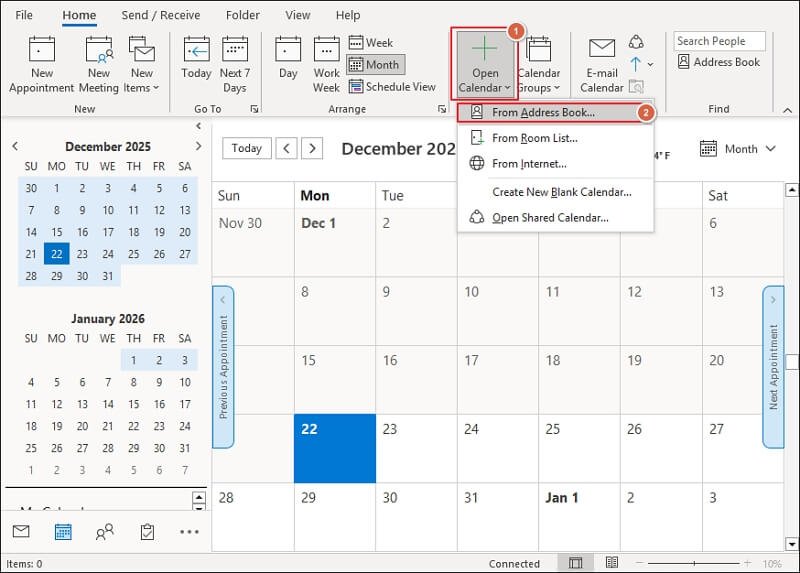
Step 2. Tap on Open Calendar and select the From Address Book option.
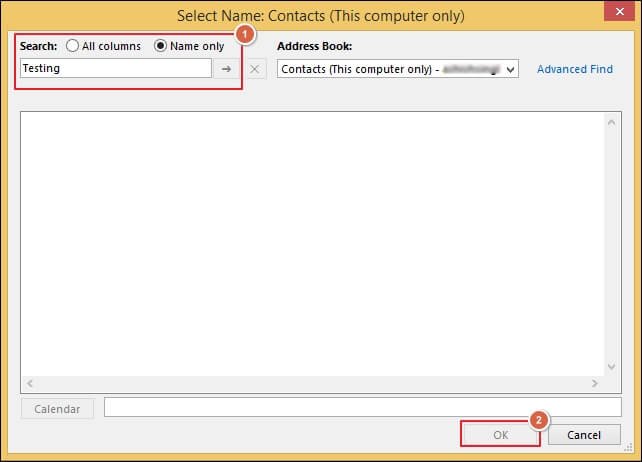
Step 3. Search the username and click OK to proceed.
Step 4. It will show the calendar list on the left side of the screen.
Solution 2. Access Someone’s Calendar in New Outlook
Here are the steps to check someone’s calendar in the new version of Outlook:
Step 1. Open the Outlook (new version) application.
Step 2. Click on the Calendar icon and proceed to Add Calendar.
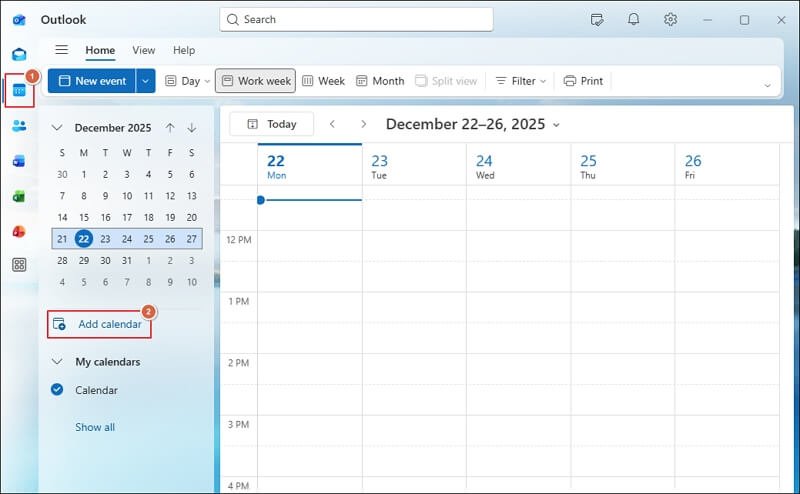
Step 3. Select the Add from directory option.
Step 4. Choose the user to see the calendar list.
Solution 3. Check Someone’s Calendar in Outlook 365 (Web Version)
The interface of New Outlook or OWA is almost the same. As a result, you have to perform a similar set of actions. Here’s how:
Step 1. Launch the browser and visit OWA.
Step 2. Tap on the Calendar icon> Add Calendar.
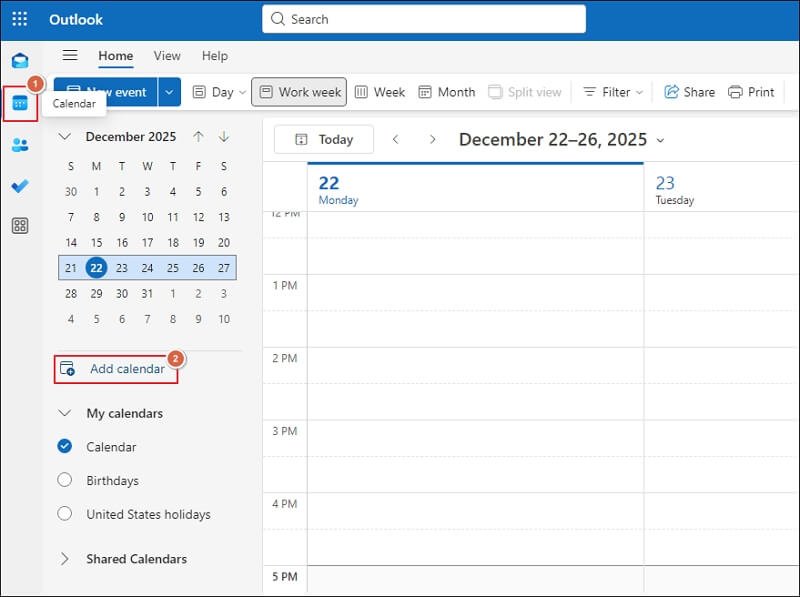
Step 3. Choose the Add from directory option.
Step 4. Search the user and select it to proceed further.
Step 5. Then, finally, click on the Add option.
Solution 4. Open Another Person’s Calendar Manually
This method works best in organizations where Microsoft 365 or Exchange accounts are the primary email platforms:
Step 1. Open the Outlook application and click on the Calendar icon.
Step 2. Access the Home tab and proceed to Open Calendar.
Step 3. Select the Open Shared Calendar option.
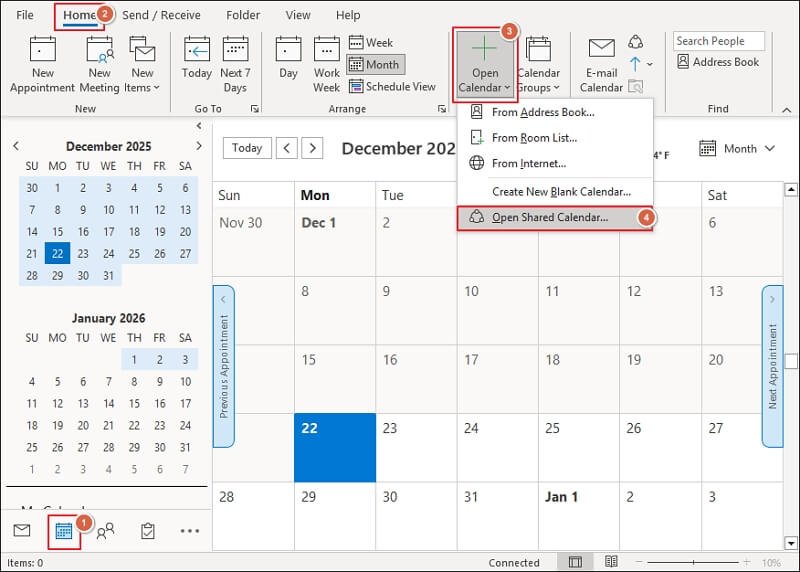
Step 4. Type the username or email and click OK.
Solution 5. View Someone’s Calendar & Schedule Meeting
Here are the complete steps to schedule a meeting without opening anyone’s calendar:
Step 1. Launch Outlook and go to Calendar.
Step 2. Click on New event to access the Scheduling Assistant.

Step 3. Add the email addresses of the users to view their availability.
Step 4. Then, tap on OK to proceed.
B. Access Someone’s Calendar in Outlook for Mac
Follow the given instructions to view the shared calendar on Mac devices:
Step 1. Open the Outlook for Mac application.
Step 2. Tap on the Calendar icon and select the Open Shared Calendar option.
Step 3. Type the name or email address to search for the user.
Step 4. Select the user from the search results and proceed to Open.
Step 5. The calendar will be displayed on the left side.
C. View Someone’s Calendar in Mobile Devices (Android & iPhones)
Use the steps below to view the shared calendar application:
Step 1. Access the Outlook application on a mobile device.
Step 2. Tap on the Calendar icon and proceed to Add Calendar.
Step 3. Choose the Add Shared Calendar option.
Step 4. Search and add the user to see the associated calendar list.
- Users can only see the limited calendar details.
- Requires higher permissions to edit the calendar.
D. Check Someone’s Calendar in Microsoft Teams
Follow the mentioned steps to open the shared calendar in Microsoft Teams.
Step 1. Access Microsoft Teams and go to Calendar.
Step 2. Tap on New Meeting and Add participants.
Step 3. Teams will show the added participant’s availability.
Important to Know: Microsoft Teams only displays the availability of participants, not the complete event details.
E. View Someone’s Calendar without Adding Users
You can use the provided ways to view the shared calendar without adding it permanently. Here they are:
- Use the Scheduling Assistant to find the best meeting time.
- You can view the availability of users while creating meetings to avoid conflicts.
- In Microsoft Teams, use the meeting schedule to identify the perfect time.
How to Request to Access Someone’s Calendar in Outlook?
You can use the following methods to request access to the shared calendar in Outlook:
Solution 1. Ask the Calendar Owner to Share the Permissions
Here are the complete steps for requesting permission in Outlook.
Step 1. Open Outlook and go to Calendar.
Step 2. Click on Share Calendar to add your email address.
Step 3. Choose the required permission levels and Send invitation.
Step 4. Wait for another person’s response.
Solution 2. Request Calendar Access using an Email
You can also write a professional email to request calendar access. Here’s how:
Step 1. Prepare an email and explain why you need access.
Step 2. Specify the different permission levels that are needed.
Step 3. Keep the entire message professional and brief.
Outlook Shared Calendar Errors & Their Relevant Solutions!
Explore the common calendar access issues in Outlook and find the most appropriate fixes in this section:
|
Frequent Shared Calendar Issues |
Relevant Solutions |
| Shared Calendar Not Showing | Refresh or re-add the users. |
| Cannot See Details | Check the permissions levels and enable the required ones. |
| Calendar is disappeared | Remove and re-add the calendar. |
| Outlook Mobile Not Syncing | Clear the cache data and restart the application. |
| External Calendars Not Visible | Limited sharing policies. |
Final Overview
Hopefully, you got a clear idea of how to view someone’s calendar in Outlook. It doesn’t matter which platform or device you are currently using; the blog covers all of them. You can analyze the given solutions and choose the one that suits you best.
If you want to move offline calendar items to live Office 365 or Exchange accounts, then the Recoveryfix Import PST to Office 365 tool is the best approach. The Import PST to Office 365 helps you sync calendar items across multiple devices for easy accessibility.