How to Unlock Protected PST File Password? – Get Complete Details

Published On - March 31, 2026
You open an old Outlook backup file to access important emails, but a password prompt appears instead of showing its content. After trying multiple combinations, you have realized that you don’t remember the password anymore. Situations like these can be stressful for users as it creates unnecessary delays.
The good news is that you can unlock password protected PST files with the right approach. Explore the practical solutions to access the mailbox data without complications.
Why PST Password Issues Occurred? – Top Reasons Listed
Here are the most frequent reasons why users get stuck with locked PST files:
- PST file received from another user.
- Damage or corruption in the PST file.
- Outlook suddenly asks for a password.
- Mismatched password due to change in systems.
- Forgot the password set by users several years ago.
Common Errors When You Access Password-Protected PST Files
You may encounter one of the following problems while opening the locked PST files:
- “The set of folders cannot be opened”
The issues indicate that Outlook cannot read the file structure properly due to corruption or access issues. - “Outlook data file password is incorrect”
Outlook may reject the file due to encoding issues, even when the entered password is correct. - Password prompt appears repeatedly
Profile or synchronization issues may cause Outlook to keep asking for a password even after it is entered. - PST file not opening
The PST may fail to load completely due to corruption or compatibility issues.
Manual Methods to Unlock Password Protected PST File [Best Ones]
We have tried all the available native solutions and found only the provided ones as working. Try them now to decide which methods suit you best.
Solution 1. Unlock the Outlook PST File Password With Built-In Option
The application provides a built option to change Outlook PST password. Here’s how:
Note: The methods only work when you already remember the current password.
- Launch Outlook and go to the File menu.
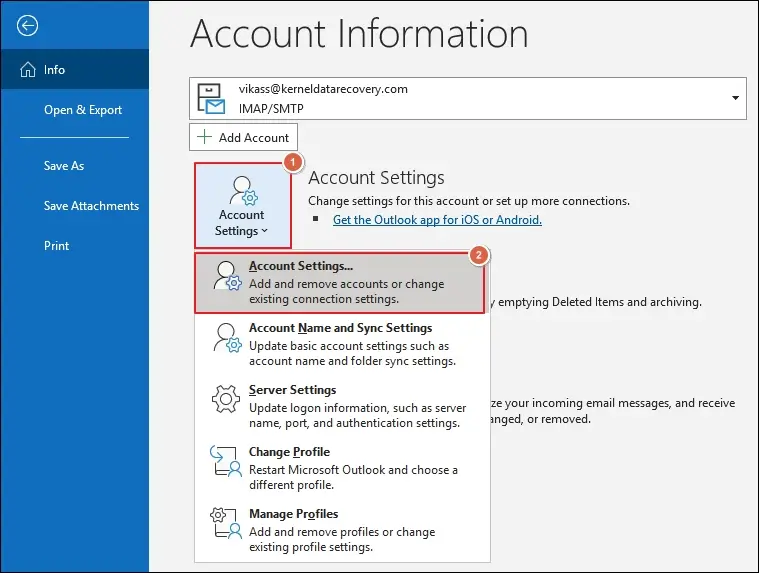
- Expand Account Settings> Account Settings.
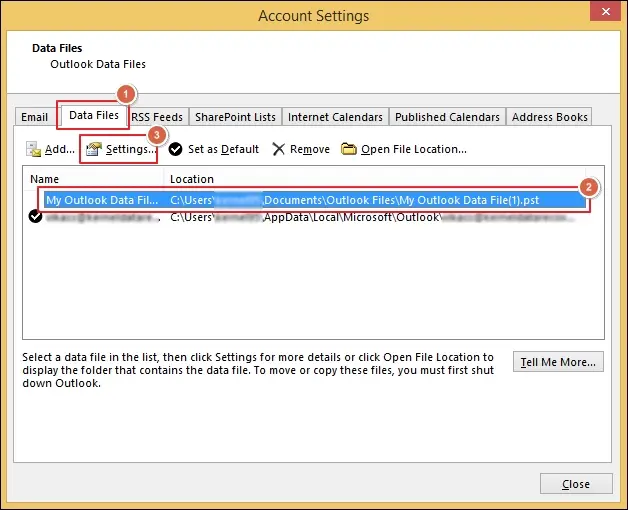
- Navigate to the Data Files tab and proceed to Settings.
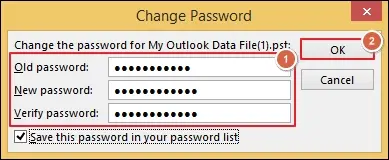
- Change Password or remove it as needed.
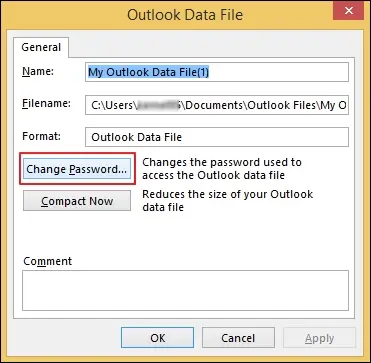
- Type your Old Password, New Password, and Verify Password. Then, proceed to OK.
Solution 2. Remove Password Using Legacy Microsoft Tool (PST19UPG.EXE)
Follow the provided instructions to remove a password from a PST file via the Legacy tool:
- Create a copy of your password-protected PST file.
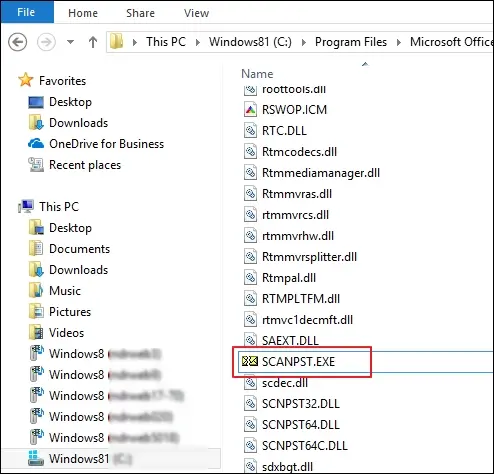
- Repair the file using the SCANPST.EXE tool.
- Convert the PST files to ANSI using the PST19UPG.EXE.
Note: The Microsoft Legacy tool only works with ANSI files.
- Run the pst19upg -x oldfile.pst temp.pst to extract.
- Then execute the pst19upg -i temp.pst newfile.pst.
- The newly created PST file is now password-free. You can access them in Outlook instantly.
What If Native Solutions Failed To Unlock Password PST Protected Files?
The above manual methods will help you unlock PST files and resolve errors like the Outlook data file password requested suddenly. But the listed native solutions come with certain limitations that restrict the application. So, relying on an automated solution for unlocking deeply encrypted passwords from PST files is the best option.
The PST Password Remover tool of Recoveryfix will help you out in such scenarios. It allows you to recover, remove, or reset passwords from PST files originated from different Outlook versions.
Expert Recommended Tips to Manage Password Protected Files
Follow these proven tips to manage and unlock password protected PST files easily in the future.
- Keep all the passwords in a safe location.
- Use password managers for better organization.
- Avoid using complex passwords.
- Update passwords of PST files at regular intervals.
- Maintain regular backups of important mailbox data.
Conclusion
The blog has covered the different methods to unlock the Outlook PST file password. You can use either manual or automated solutions to access your crucial mailbox data. Native solutions work only in limited scenarios and mostly fail when the password is forgotten or corrupted. To avoid all of this, go with the automated solution to unlock password-protected PST without risking your mailbox data.
FAQs: Queries Resolved In Seconds
Q. Are there any security concerns while unlocking PST files?
A. There are various security risks that come when you try to open locked PST files:
- Mailbox data exposures.
- Unauthorized email access.
- Malware from untrusted tools.
Q. How can I prevent file corruption while accessing password-protected files?
A. You can prevent file corruption by following the given instructions:
- Use trusted tools only.
- Do not interrupt the process.
- Always create a backup before proceeding.
- Try to avoid force-closing the Outlook application.
Q. Can I unlock protected files without knowing the original password?
A. You can use the automated PST Password Remover tool to safely remove or reset the password without requiring the original one.
Q. Is it possible to remove password-protected PST files using free solutions?
A. Yes, you can use the free PST password remover like PST19UPG.EXE to remove passwords from PST files. However, it only works with ANSI files, so you have to convert your files first.